
Guide
Should you scan your Social Security card?
Often you don’t need to. Social Security says most situations don’t require showing your card and knowing the number is usually enough, so first ask why a copy is needed and how it will be used. If you must send one, scan it with Scan Documents in Notes, Files or Preview, mark the copy with who it is for, send it through a secure upload or a password-locked PDF, and delete extra copies. Keep the card itself at home, not in your wallet.

This page is general information, not legal advice. Rules about who may ask for your Social Security number vary and change. Check Social Security’s own pages at ssa.gov.
This page is about the moment someone asks for a copy of your card and you want to get it right. For the papers you need to get a card or a replacement, see the Social Security card documents checklist.
First, ask whether a copy is needed
Social Security’s own advice is short: keep the card in a safe place, don’t carry it daily, and remember that most situations don’t require you to show your card. Just knowing the number is usually enough. Its replacement page says the same: in most cases, a physical card isn’t necessary.
So when a landlord, a school, a new employer or an online form asks for a copy, ask the questions Social Security suggests:
- Why do you need it? Payroll needs the number for tax forms. That is not the same as needing a picture of the card.
- How will it be used and stored? A secure portal is different from an email inbox shared by an office.
- What happens if I don’t give it? Sometimes the answer is “nothing, the number is enough”.
Many requests end at step 1 with “just type the number into the form”. That is better for you: a number typed into a secure form is one item, while a card image is a ready-made copy anyone can forward.
At a new job
Employers need your number for payroll. Form I-9, the work authorization form, is different: you pick documents from the official USCIS list, and a Social Security card is one List C choice among several. If you do use it, USCIS says it must be an unrestricted card and must not be laminated. The full set of choices is in the I-9 documents checklist.
If you do need to send a copy
Scan it
- Put the card on a plain, dark surface. These cards are paper and can be creased: flatten it gently, don’t iron it.
- Start a scan. In Files, go to the folder where you want it, tap the More button, then Scan Documents. (Files lets you choose where the scan lives from the start; Notes would keep it inside a note.)
- A card this small can be hard for Auto mode to catch. Tap the Shutter button yourself, drag the corners to the card’s edges and tap Keep Scan.
- If they asked for the back too, flip it and scan it in the same spot.
- Tap the Done button, choose the folder and tap Save.
Check that every digit is sharp. A blurry number leads to a second request, and a second copy.
Mark it
Before you send it, add a line across a corner such as “Copy for Acme Corp payroll only, Nov 2026”, in Preview with Markup (the Markup button, the Add button, then text). Leave the number and name readable if they need them. A labeled copy is harder to reuse for something else.
Send it through the safest channel offered
- Their secure upload or portal is the best choice.
- A password-locked PDF if it must go by email. In Preview, tap the Actions menu next to the file name, tap Lock, enter the same password in both fields and tap Done. Share the password by phone or text, not in the same email.
- Not a plain text message or an open email if you can avoid it. Both are easy to forward and hard to take back.
More options are in sending documents securely.
Where to keep the scan, or whether to keep it at all
Once the copy is sent, ask yourself whether you need a scan of the card on your phone at all. The number itself is what you look up most, and you probably know it.
If you decide to keep one:
- Not in Photos. A card photo sits among your pictures, syncs with them and gets shared by accident. If you used the Camera, delete the photo and empty Recently Deleted. See keeping scans out of your photo library.
- In a locked place. A password-locked PDF in Files, or an app you have locked with Face ID. Locking documents with Face ID shows how.
- Delete the extra copies: the one in Downloads, the one attached to a sent email, the one in a chat.
The FTC lists what someone can do with your Social Security number: open accounts, steal a tax refund, get a job or medical care in your name. If you think yours has been misused, report it at IdentityTheft.gov for a recovery plan. If the card was stolen with your wallet, start with what to do when your IDs and cards are stolen.
Where Scanner One helps, and where it doesn’t
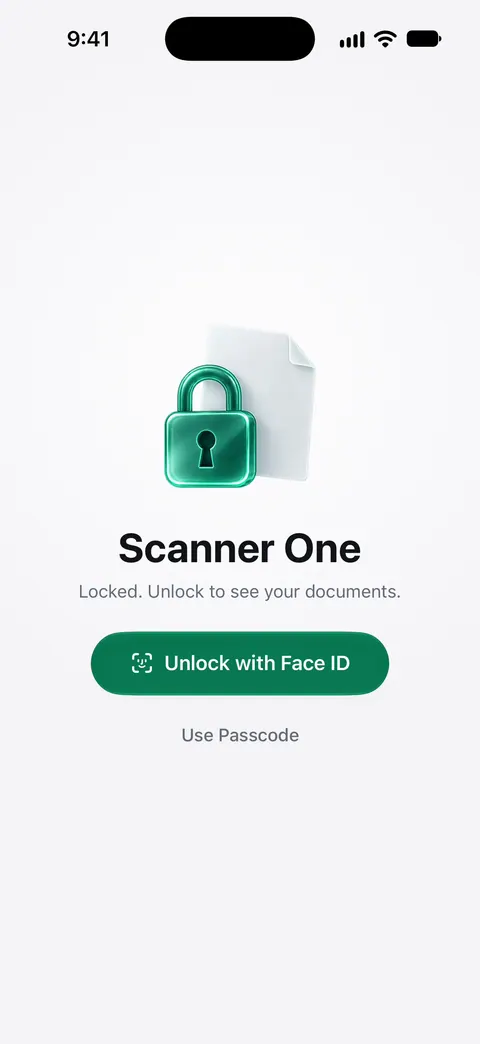
For a card like this, where the scan lives matters more than how it looks. Documents stay on your iPhone unless you share them or turn on iCloud Sync. Scanner One needs no account and does no tracking. You can lock the app with Face ID.
When the person only needs part of the card, you can hide the rest: Redaction is permanent. Pro adds redaction, the smart eraser, edit text, auto-export and five alternate app icons. So redaction needs Pro. The PDF tools merge, split, compress, password-protect, add page numbers and watermarks, and extract text. A password and a watermark are both among those tools. Free accounts can run the PDF tools and the Word, Excel and CSV exports 3 times a week, from one shared allowance. On a free account, pages you share, print or export carry a small “Scanned with Scanner One” label at the bottom right. Pro removes it.
What it doesn’t do: no app makes it safe to send a card copy to someone who doesn’t need it, and none replaces the card. The built-in way is enough when you scan the card once, send it through a secure portal and delete the scan afterwards. The best protection is often not scanning it at all.
Questions and answers
Is it safe to scan my Social Security card?
A scan is as safe as the place it is kept and the people it is sent to. Scan it only when someone really needs a copy, keep it in a locked file or app rather than your photo library, and delete copies you no longer need.
Can my employer ask for a copy of my Social Security card?
An employer needs your number for payroll and tax forms. For Form I-9 you choose which documents to show from the official list, and a Social Security card is only one option. Ask what the copy is for if you are unsure.
Should I laminate my Social Security card?
No. USCIS says a Social Security card presented for Form I-9 must not be laminated. Keep it in a sleeve or envelope with your other important papers instead.
What do I do if I lost my Social Security card?
If you know your number, you may not need a new card at all. If you do, Social Security replaces it free, often online. Start only on ssa.gov; you never need to pay a third party.
Can I just send my Social Security number instead of the card?
Often, yes. Social Security says knowing your number is usually enough. Ask whether typing the number into their secure form will do instead of a copy of the card.
Sources
What this page says about Scanner One was checked against the app on .
- Social Security blog, Protect your information: guard your card — don’t carry the card daily; most situations don’t require showing it; ask why the number is needed; dated 2026-04-14
- Social Security, Replace Social Security card — free replacement, often online; in most cases a physical card isn’t necessary; read 2026-11-13
- USCIS, Form I-9 acceptable documents — an unrestricted Social Security card is a List C document; the card must not be laminated; last updated 2026-10-05
- FTC Consumer Advice, What to know about identity theft — how a Social Security number is misused and reporting at IdentityTheft.gov; dated September 2024
- Apple Support, Scan documents on your iPhone or iPad (article 108963) — Notes and Files scanning steps; page dated 2026-02-13
- iPhone User Guide (iOS 27), Lock PDFs in Preview — locking a PDF with a password; read 2026-11-13
- Scanner One on the App Store — the app’s own listing
Get Scanner One
Scanner One is free, with generous limits: scanning, clean PDFs and text search never stop.

Scanner OneScan, sign and ask anything
Scanner One is free, with generous limits: scanning, clean PDFs and text search never stop.