
Feature
PDF tools: merge, split, compress, protect, number, watermark
The PDF tools merge, split, compress, password-protect, add page numbers and watermarks, and extract text. Open a document and pick a tool from its tools, or start from the Tools card on Home and pick the document after. Free accounts can run the PDF tools and the Word, Excel and CSV exports 3 times a week, from one shared allowance. Pro removes every limit. On a free account, pages you share, print or export carry a small "Scanned with Scanner One" label at the bottom right. Pro removes it.

What the tools do
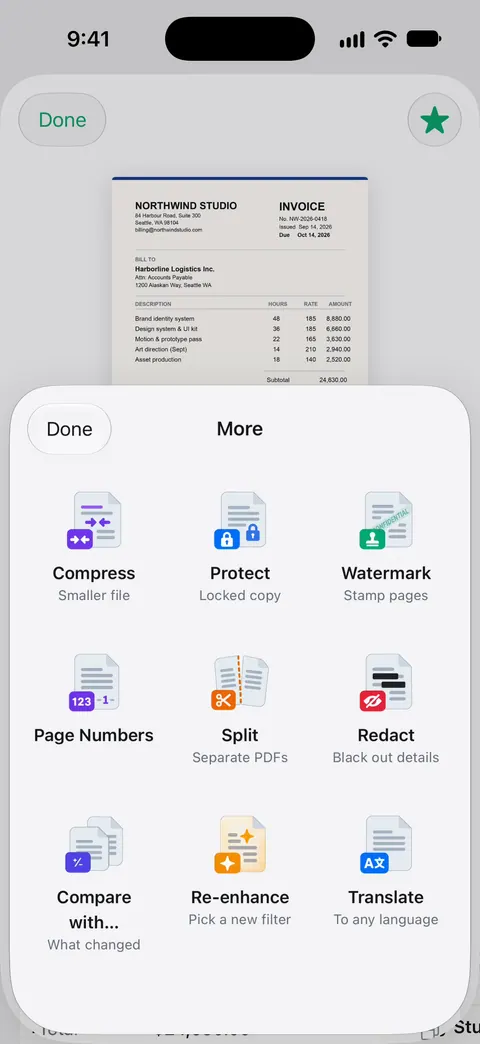
The PDF tools merge, split, compress, password-protect, add page numbers and watermarks, and extract text. Here is each one, what it is for, and where to read more:
| Tool | What it is for | Guide |
|---|---|---|
| Merge | Several documents into one PDF, like a lease and its addendum | Merge PDFs |
| Split | One PDF into page ranges, like pulling one statement out of a year | Split a PDF |
| Compress | A smaller file, for email limits and upload forms | Make a PDF small enough to email |
| Protect | A copy locked with a password | Password-protect a PDF |
| Page Numbers | Numbers on every page, in the format and position you pick | Add page numbers |
| Watermark | Your own words across the pages, such as CONFIDENTIAL or COPY | Add a watermark |
| Extract text | The words out of the PDF, to paste elsewhere | Copy all the text out of a PDF |
Two ways in
From a document. Open the document and pick a tool from its tools. This is the quickest way when the paper is already in front of you.
From Home. Scroll Home to the Tools card, or open All Tools, pick the tool, then pick the document or file. This is the quickest way when you know the job first: “I need to merge two things.”
Merge also works from the Library: select the documents, then tap Merge.
What each tool shows you
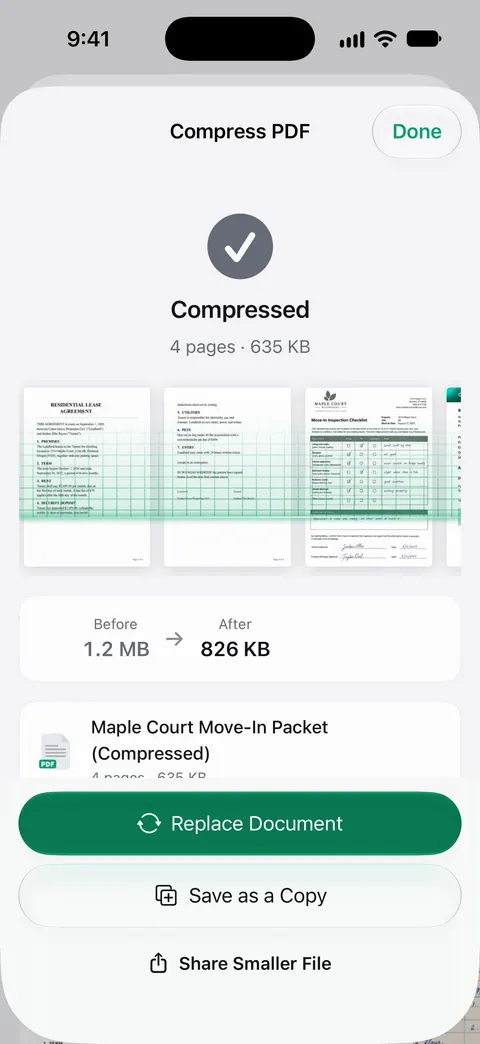
- Compress shows the new size beside the old one, so you know whether it fits before you send it.
- Protect asks for the password twice and locks a copy of the PDF.
- Split shows the page ranges before it runs, and lists the results.
- Merge saves the merged PDF to your Library.
- Page Numbers offers number formats and positions.
- Watermark opens an editor with your words across the page.
Tips for each job
- Compress last if the result has to fit an email limit, and check the size before you send.
- Write the password down somewhere safe. A protected PDF is only as useful as your memory of its password, and the person you send it to needs it by another route, like a text message rather than the same email.
- Number pages last. Merge and reorder first, then add numbers so they run in order.
- Reorder or delete pages in the Pages sheet before a merge if one document has a blank back page. See deleting or reordering pages.
- Watermark copies, not originals. Keep a clean copy for yourself.
The free allowance
Free accounts can run the PDF tools and the Word, Excel and CSV exports 3 times a week, from one shared allowance. The Word, Excel and CSV exports draw from that same allowance: see export to Word, Excel and CSV. Pro removes every limit.
On a free account, pages you share, print or export carry a small “Scanned with Scanner One” label at the bottom right. Pro removes it. That label is separate from the Watermark tool: one is Scanner One’s on free accounts, the other is yours to add.
Turning photos and files into PDFs is a separate tool: The To PDF tool turns files and photos into PDFs.
Where Scanner One helps, and where it doesn’t
Some of these jobs the iPhone can do without an app, and our guides say so first: merging PDFs, for example, starts with the built-in way. For a one-off job, that may be all you need.
Scanner One helps when the PDFs are your scans, already in your Library, and when you want compressing with the size shown, a password, page numbers and a watermark in one place. Free accounts can run the PDF tools and the Word, Excel and CSV exports 3 times a week, from one shared allowance. To compare full PDF editors, see the PDF editor apps for iPhone, which says up front that Scanner One is ours.
Questions and answers
How many PDF tools can I use for free?
Free accounts can run the PDF tools and the Word, Excel and CSV exports 3 times a week, from one shared allowance. Pro removes every limit.
Do the PDF tools change my original document?
Protect locks a copy of the PDF, and Merge saves the merged PDF to your Library. Check what each tool shows when it is done, and keep your original until you are happy with the result.
What is the difference between the Watermark tool and the free label?
The Watermark tool is yours: you put words such as CONFIDENTIAL across your pages. The free label is different: On a free account, pages you share, print or export carry a small "Scanned with Scanner One" label at the bottom right. Pro removes it.
Can I merge PDFs without an app?
Often, yes. Our guide to merging PDFs on iPhone starts with the built-in way, before any app.
Sources
What this page says about Scanner One was checked against the app on .
- Scanner One on the App Store — the app’s own listing: merge, split, compress, password-protect, page numbers, watermark, extract text
Get Scanner One
Scanner One is free, with generous limits: scanning, clean PDFs and text search never stop.

Scanner OneScan, sign and ask anything
Scanner One is free, with generous limits: scanning, clean PDFs and text search never stop.