
Guide
Keep document photos out of your camera roll
Scan documents with Notes or a scanner app instead of the Camera: a Notes scan is saved as a PDF in the note, not in Photos, as long as Save to Photos stays off. To find document photos already there, open Photos > Collections > Utilities, where identity documents and receipts have their own collections. Move what you need into a locked app, then delete the photos and empty Recently Deleted. If you use an iCloud Shared Photo Library, check Sharing from Camera.

Many people’s camera rolls hold a passport photo page, both sides of a driver’s license, a bank card and a Social Security card, mixed in with the holiday pictures. They sync to every device, show up when you hand someone your phone to swipe through photos, and can end up in a family Shared Library. This page is about getting them out and keeping them out. If you want to remove a scan completely, including its leftovers, see delete scanned documents for good.
Why Photos is the wrong place for documents
- It’s the most shown app on your phone. You hand it over to show a picture, and a swipe later your ID is on screen.
- It syncs everywhere. With iCloud Photos, every photo is on every device signed in to your Apple Account.
- It may be shared. An iCloud Shared Photo Library can add photos from your Camera automatically.
- Apps can ask for it. Any app you give full photo access can see every picture, including your documents.
A document app or a locked folder keeps documents with documents, behind a lock you choose.
Step 1: find the document photos you already have
Apple’s Photos sorts pictures by what is in them:
- Open Photos and tap Collections.
- Scroll down and tap Utilities.
- Open the collections that hold documents, such as identity documents, receipts and handwriting.
Some Utilities collections, such as Hidden and Recently Deleted, are locked by default. Go through the documents one by one and decide: keep a copy somewhere private, or simply delete it.
Step 2: move what you need somewhere private
For each document photo you want to keep:
- Save it to a better place: share it to the Files app, or rescan the paper properly (a scan is flatter and easier to read than a photo; see scan vs photo of a document).
- Lock that place. Requiring Face ID for the Files app, or for the app that holds your documents, is covered in lock documents with Face ID.
- Back in Photos, delete the original: open it and tap the Delete button, or tap Select, choose several, and tap Delete.
- Empty it from Collections > Utilities > Recently Deleted: tap View Album, unlock, tap Select, choose the photos, tap the More button, then Delete. Otherwise they wait there for 30 days.
With iCloud Photos on, Apple says deleting removes them from all your devices too.
Step 3: stop new ones landing in Photos
The habit to change is opening the Camera to “just take a picture” of a document. Scan it instead:
- Open Notes, open or create a note, tap the Attachments button (the paperclip), then tap Scan Documents.
- Hold the iPhone over the page. It captures the page automatically when it detects the edges, or you can tap the shutter.
- Add more pages, then tap Done. Apple says the document is saved as a PDF in the note.
Then check one setting: open Settings, tap Apps, then Notes, and make sure Save to Photos is off. Apple describes it as saving photos and videos taken in Notes to the Photos app. The Notes scanning guide has the full steps, and front and back of an ID on one page covers cards.
Step 4: check your Shared Library
If you use an iCloud Shared Photo Library with family, three settings can send a document photo to everyone in it:
- Sharing from Camera: when on, a Shared Library button in the Camera chooses where photos go. Check it before you photograph a document. To turn it off: Settings > Apps > Photos > Shared Library > Sharing from Camera.
- Share Automatically: adds photos you take when other members are nearby.
- Share When At Home: adds photos you take at home, which is exactly where you photograph paperwork.
Apple says the last two are found in Photos: tap Collections, tap your account at the top right, then Shared Library > Sharing from Camera. To pull a document back, open it and tap the More button, then Move to Personal Library.
If a photo has to stay in Photos
Sometimes a picture must stay, for example a pet’s vaccination record you show at the groomer. Then hide it:
- Open the photo, tap the More button, then tap Hide.
- Hidden photos move to the Hidden collection and, Apple says, can’t be seen anywhere else. It is locked with Face ID, Touch ID or your passcode by default.
- To remove the Hidden collection from view entirely: Settings > Apps > Photos, then turn off Show Hidden Album.
Hiding is a curtain, not a safe: the photo still syncs with iCloud Photos. For papers that matter, a locked document app is the better home; where to keep important documents compares the options.
Where Scanner One helps, and where it doesn’t
Apple’s own tools on this page are free and enough for many people: scan with Notes, lock an app with Face ID, hide what has to stay in Photos.
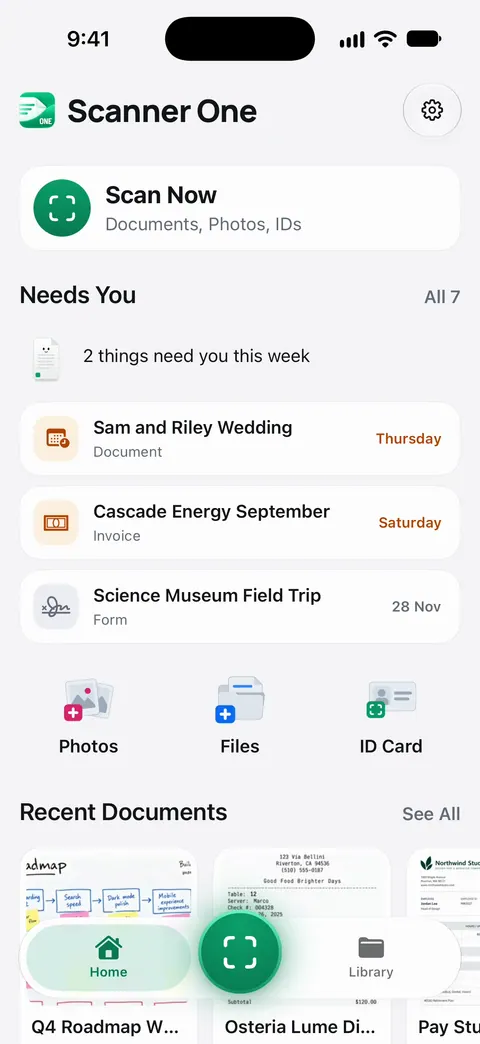
Scanner One gives documents a home of their own, away from Photos. From Home you can bring in pictures from Photos and files from the Files app, or scan an ID card. So you can bring the ID photos you found in Step 1 into the app, then delete them from Photos and empty Recently Deleted yourself. Documents stay on your iPhone unless you share them or turn on iCloud Sync. You can lock the app with Face ID.
What it doesn’t do:
- It doesn’t remove anything from your Photos library. Deleting the originals there is your step.
- It doesn’t control iCloud Photos or your Shared Library settings.
- ID cards and passports are scanned with both sides on one printable page. Scanning the card again often gives a cleaner copy than the old photo.
Questions and answers
Do Notes scans save to the Photos app?
No. Apple says a document scanned in Notes is saved as a PDF in the note. Separately, the Save to Photos setting in Settings > Apps > Notes saves photos and videos you take in Notes to Photos, so leave it off if you want documents kept out.
How do I find photos of IDs in my camera roll?
Open Photos, tap Collections, scroll down and tap Utilities. Apple’s Photos groups pictures by content there, including identity documents, receipts and handwriting.
Is the Hidden album safe for ID photos?
It’s locked by default with Face ID, Touch ID or your passcode, and you can turn off Show Hidden Album so it doesn’t appear at all. It is still part of your photo library, and with iCloud Photos it syncs to your other devices.
Can people in my Shared Library see my document photos?
Yes, if they were added to it. Photos taken while Sharing from Camera is on, or added automatically at home or near other members, are visible to everyone in the Shared Library. Move them back with Move to Personal Library.
Sources
What this page says about Scanner One was checked against the app on .
- Apple iPhone User Guide, Scan text and documents in Notes using the iPhone camera — Scan Documents in Notes, and that the scan is saved as a PDF in the note; iOS 27 guide, undated, read 2026-11-13
- Apple iPhone User Guide, Change your Notes settings on iPhone — Save to Photos saves photos and videos taken in Notes to the Photos app; iOS 27 guide, undated, read 2026-11-13
- Apple iPhone User Guide, Find receipts, QR codes, recently edited photos, and more on iPhone — Utilities collections sort photos by content, such as identity documents, receipts and handwriting; iOS 27 guide, undated, read 2026-11-13
- Apple iPhone User Guide, Delete or hide photos and videos on iPhone — deleting, Recently Deleted for 30 days, Hide, the locked Hidden collection and Show Hidden Album; iOS 27 guide, undated, read 2026-11-13
- Apple iPhone User Guide, Add content to an iCloud Shared Photo Library on iPhone — Sharing from Camera, Share Automatically when participants are nearby, Share When At Home, and Move to Personal Library; iOS 27 guide, undated, read 2026-11-13
- Scanner One on the App Store — the app’s own listing: import from Photos, on-device storage, Face ID lock
Get Scanner One
Scanner One is free, with generous limits: scanning, clean PDFs and text search never stop.

Scanner OneScan, sign and ask anything
Scanner One is free, with generous limits: scanning, clean PDFs and text search never stop.