
Guide
Lock documents on iPhone with Face ID
To lock a whole app, such as Files or the app that holds your scans, touch and hold its icon, tap Require Face ID, then tap Require Face ID again. To lock text notes, set Notes to use your device passcode in Settings > Apps > Notes > Password, then tap Lock in a note’s menu; notes with PDF attachments, including scans, can’t be locked. To protect one PDF that you send, add a password to the file itself in Preview.

Three kinds of lock, three jobs
iPhone offers three ways to lock documents, and they protect different things.
| Lock | Protects | Travels with the file? | Opened with |
|---|---|---|---|
| Locked app (Require Face ID) | Everything in that app, on this iPhone | No | Face ID, Touch ID or passcode |
| Locked note | The text of individual notes | It stays locked on your devices | Face ID, device passcode or a Notes password |
| Password-protected PDF | One file, wherever it goes | Yes | The password |
For a phone you sometimes hand to someone, lock the app. For a PDF you email, put a password on the PDF. Locked notes suit short private text, such as account details for a family member.
Lock an app with Face ID
Apple’s steps for iOS 27:
- Go to the Home Screen and touch and hold the app (Files, or the app that holds your scans) until the quick actions menu opens.
- Tap Require Face ID (or Require Touch ID or Require Passcode).
- Tap Require Face ID again to lock it. To lock and hide it, tap Hide and Require Face ID instead.
What it does, in Apple’s words: a locked app needs Face ID, Touch ID or your passcode to open, and information inside it won’t appear elsewhere, such as in notification previews, search or Siri suggestions. Opening it doesn’t unlock it for good; it locks again when you quit. And it applies only to that iPhone: the locked status doesn’t sync with iCloud.
To remove the lock, touch and hold the app and tap Don’t Require Face ID. Only apps you downloaded from the App Store can be hidden; apps that came with the iPhone can be locked but not hidden.
Lock notes with Face ID
First, choose how locked notes open:
- Open Settings, tap Apps, then Notes, then Password.
- Choose Use Device Passcode (no extra password to remember, and Face ID works) or Use Custom Password.
- Turn on Face ID for convenience.
Then lock a note:
- Open the note and tap the Note Actions button.
- Tap Lock.
The title stays visible in the notes list, and in search results, so give it a neutral one. Opening one locked note opens all your locked notes in that account for several minutes; tap Lock Now at the top of the list to close them sooner.
The catch for scans
Apple says you can’t lock notes with video, audio, PDF or file attachments, notes with tags, Quick Notes, notes shared in iCloud, or notes that sync with other accounts. A document you scan in Notes is saved as a PDF in the note. So a note holding a scan can’t be locked. For scans, lock the Notes app itself, or keep them in an app you lock.
Apple also warns: if you use a custom password, forget it, and can’t use Face ID, it can’t help you get back into those notes. Resetting the password only applies to notes you lock afterwards. Don’t rely on Face ID as the only way in.
Lock a PDF with a password
A password on the PDF protects it wherever it goes: in an email, on a shared drive, on someone else’s computer. Apple’s steps in Preview:
- Open the Preview app and open the PDF.
- If you want to keep an unlocked copy, tap the Actions Menu button, then Duplicate, first.
- Tap the Actions Menu button next to the filename, then Lock.
- Enter the same password in Password and Verify. Require Password turns on.
- Tap Done.
Send the password a different way from the file: by text if the PDF goes by email, or tell them in person. The guide to password-protecting a PDF covers this in more depth.
Which lock for which paper
- Passport, ID and Social Security scans: keep them in an app you lock with Face ID, and add a password to any copy you send.
- Medical results and letters: a locked app. See keeping medical records on iPhone.
- Tax returns you email to an accountant: a password on the PDF.
- Account numbers or a door code for family: a locked note.
A lock isn’t a reason to keep documents you no longer need. Delete what you don’t need, and keep the iPhone itself protected with a passcode.
Where Scanner One helps, and where it doesn’t
iPhone’s own locks are free and good. Requiring Face ID for the Files app or the Notes app covers most people’s scans.
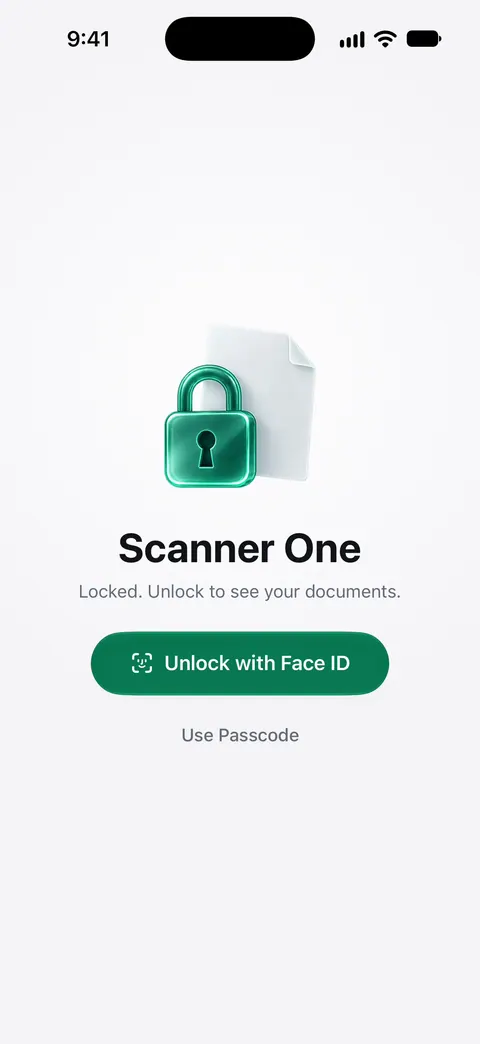
Scanner One has a lock of its own, so your documents are covered whatever your Home Screen settings. You can lock the app with Face ID.
For files you send, the PDF tools add a password. The PDF tools merge, split, compress, password-protect, add page numbers and watermarks, and extract text. And for papers you share with a few details hidden: Redaction is permanent.
The limits, plainly:
- Free accounts can run the PDF tools and the Word, Excel and CSV exports 3 times a week, from one shared allowance. Pro removes every limit.
- Pro adds redaction, the smart eraser, edit text, auto-export and five alternate app icons.
- Documents stay on your iPhone unless you share them or turn on iCloud Sync. A lock protects the app on the iPhone; once you send a copy, only a PDF password protects it.
The privacy feature page has more on how documents are kept.
Questions and answers
Why can’t I lock a note with a scanned document in it?
Apple says you can’t lock notes with video, audio, PDF or file attachments, and a scan in Notes is saved as a PDF in the note. To protect scans, lock the app that holds them, or add a password to the PDF.
Can I lock the Files app?
Yes. Touch and hold the Files icon on the Home Screen, tap Require Face ID, then confirm. Apple’s apps can be locked but not hidden; only apps you downloaded can be hidden.
What happens if I forget my Notes password?
If you set a custom password and can’t use Face ID, Apple says it can’t help you get back into notes locked with it. Using your device passcode for locked notes avoids that risk.
Does the lock work on my other devices?
An app lock is set on each iPhone; Apple says the locked status doesn’t sync with iCloud. Locked notes stay locked everywhere, opened with each device’s passcode or your Notes password.
Sources
What this page says about Scanner One was checked against the app on .
- Apple iPhone User Guide, Lock or hide an app on iPhone — Require Face ID, what a locked app hides, relocking, and that the lock doesn’t sync; iOS 27 guide, undated, read 2026-11-13
- Apple iPhone User Guide, Lock your notes on iPhone — device passcode or custom password, Face ID, which notes can’t be locked, and forgotten passwords; iOS 27 guide, undated, read 2026-11-13
- Apple iPhone User Guide, Search through your notes on iPhone — a locked note shows only its title in search results; iOS 27 guide, undated, read 2026-11-13
- Apple iPhone User Guide, Scan text and documents in Notes using the iPhone camera — a scanned document is saved as a PDF in the note; iOS 27 guide, undated, read 2026-11-13
- Apple iPhone User Guide, Lock PDFs in Preview on iPhone — adding a password to a PDF, and duplicating it first; iOS 27 guide, undated, read 2026-11-13
- Scanner One on the App Store — the app’s own listing: Face ID lock and PDF password protection
Get Scanner One
Scanner One is free, with generous limits: scanning, clean PDFs and text search never stop.

Scanner OneScan, sign and ask anything
Scanner One is free, with generous limits: scanning, clean PDFs and text search never stop.