
Feature
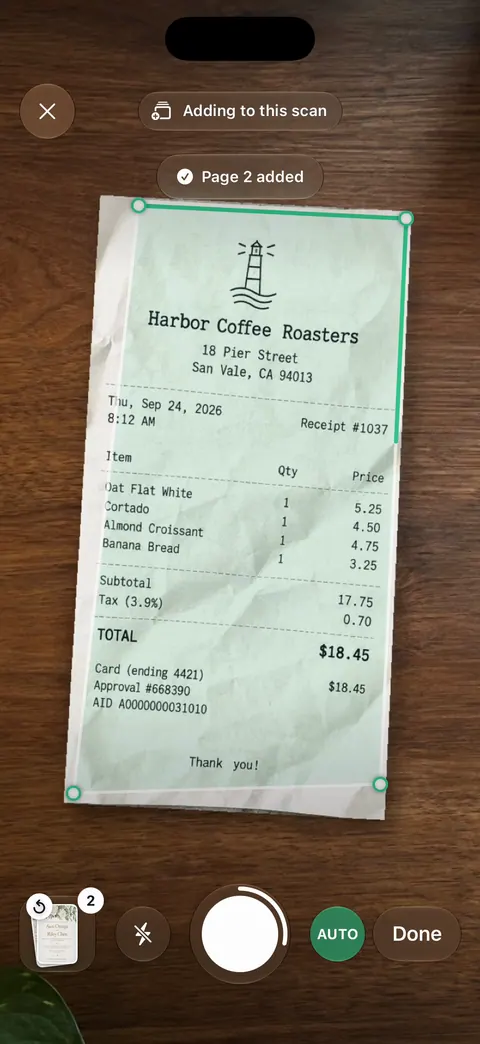
Scanning: edges found, the page straightened and cleaned
Point your camera at any piece of paper. Scanner One finds the edges, straightens the page, cleans it up and saves a real PDF. Scanner One finds the edges of the page automatically and corrects the perspective. On Home, tap Scan Now and hold your phone over the page until the corners lock on. A scan can have many pages, and you can reorder them. Text recognition runs on every page for everyone, free or Pro. Scanner One is free, with generous limits: scanning, clean PDFs and text search never stop.

What the scanner does
Point your camera at any piece of paper. Scanner One finds the edges, straightens the page, cleans it up and saves a real PDF. In practice that is several separate jobs, done in the moment you take the picture:
- Finding the page. Scanner One finds the edges of the page automatically and corrects the perspective. You don’t line the page up perfectly or crop it afterwards.
- Cleaning it. Scans come with Auto Clean, Color, Grayscale and Receipt filters. Whiteboards are cleaned automatically.
- Special paper. Book spreads are split into two pages and curved lines are flattened. ID cards and passports are scanned with both sides on one printable page.
- Many pages. A scan can have many pages, and you can reorder them.
- Reading it. Text recognition runs on the device, in 29 languages. Scanner One makes searchable PDFs.
- Filing it. Then it reads the text, names the document, tags it and puts it in the right folder.
How to scan a document
- On Home, tap Scan Now.
- Hold the phone over the page so the whole sheet is in view. When the camera finds the page, its corners lock onto the edges.
- In dim light, turn on the flashlight from the camera screen. If you would rather take each page yourself, turn automatic capture off on the same screen.
- Add the next page, and the next. Pages pile up in the order you scan them.
- In Review, pick a filter from the chips under the page. If the page was cut wrong, open Crop: it snaps the corners onto the edges of the paper again.
- Save. The pages are read as they are saved, so the text is searchable when the document lands in your Library.
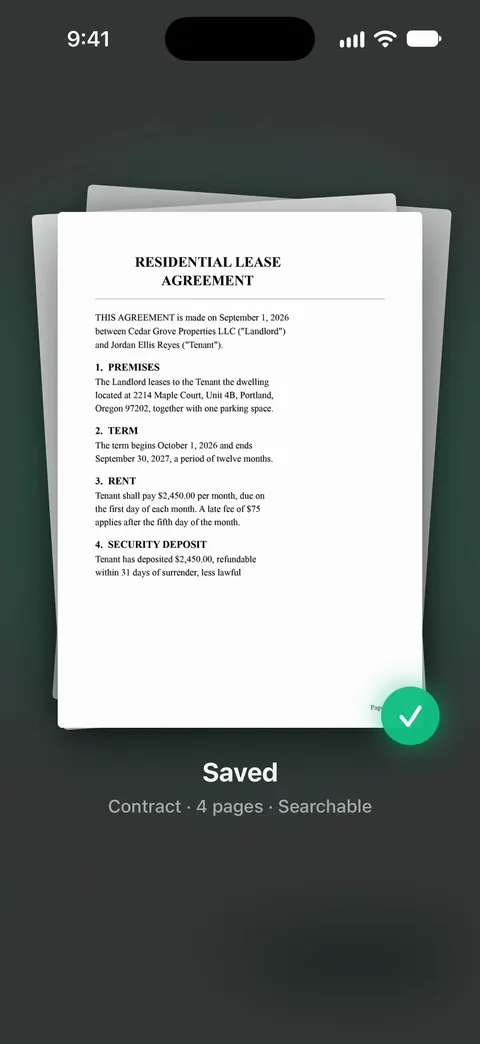
If you want a PDF to send rather than a document to keep, the scan to PDF guide walks through it to the point of sharing, and several pages into one PDF covers long documents.
Getting a clean scan
The software can straighten and clean a page, but a good photo still matters most:
- Put the paper on a dark, plain surface. Edges are easiest to find when the page stands out from what it lies on.
- Use even light. A ceiling light behind you casts the phone’s shadow across the page. Light from the side, or daylight from a window, works better. Our guide to the best light for scanning goes further, and removing shadows helps when one is already there.
- Hold the phone flat above the page. Perspective correction fixes a tilt, but the far edge of a steeply angled page has fewer pixels to work with.
- Hold still for a moment. A blurry page cannot be cleaned into a sharp one. Why a scan comes out blurry lists the usual causes.
Other ways to bring paper in
Not everything starts with the camera. From Home you can bring in pictures from Photos and files from the Files app, or scan an ID card. Other apps can send a file to Scanner One with Save to Scanner One in their share sheet. The To PDF tool turns files and photos into PDFs. An emailed PDF or a photo you took last week ends up in the same Library as your scans, read and searchable the same way.
What it does not do
- It is a phone camera, not a flatbed. Very large sheets, posters and long receipts need more than one shot. Our guide to large and long documents covers the workarounds.
- It runs on iPhone and iPad. There is no Mac, Android or web version. To scan from your iPhone into a Mac, see scanning on a Mac with your iPhone.
- It cannot recover what the photo did not catch. Glare that washes out a line, or a finger over a corner, means taking the page again.
Where Scanner One helps, and where it doesn’t
For a page now and then, your iPhone already scans. In Notes, tap the attachment button and choose Scan Documents; in Files, the More button has the same option, and both let you drag the corners and tap Keep Scan. Apple’s steps are in our guide to scanning documents on iPhone. That is enough for a one-off form.
Scanner One helps when scanning is a habit: Then it reads the text, names the document, tags it and puts it in the right folder. Search looks inside the text of every document and shows the matching line and page. Scanner One is free, with generous limits: scanning, clean PDFs and text search never stop. Smart filing is free for 10 documents a month. On a free account, pages you share, print or export carry a small “Scanned with Scanner One” label at the bottom right. Pro removes it. If you compare scanners side by side, see the document scanner apps for iPhone, which says up front that Scanner One is ours.
Questions and answers
Does Scanner One scan automatically when it sees a page?
Scanner One finds the edges of the page automatically and corrects the perspective. The camera locks its corners on the page it finds. The camera screen also has a switch for automatic capture, so you can turn it off and take each page yourself.
Is scanning free in Scanner One?
Scanner One is free, with generous limits: scanning, clean PDFs and text search never stop. Text recognition runs on every page for everyone, free or Pro. On a free account, pages you share carry a small label: On a free account, pages you share, print or export carry a small "Scanned with Scanner One" label at the bottom right. Pro removes it.
Can I scan many pages into one PDF?
Yes. A scan can have many pages, and you can reorder them. Keep adding pages before you save, then fix the order in the Pages sheet if one went in the wrong place.
Do I need an app at all to scan on iPhone?
Not always. Notes and Files both have Scan Documents built in, and for a page now and then they are enough. An app helps when you scan often and want the scans named, filed and searchable.
Sources
What this page says about Scanner One was checked against the app on .
- Apple Support, How to scan documents on your iPhone or iPad — the built-in Notes and Files scanning steps (Scan Documents, Keep Scan, Save); page published 2026-02-13
- Scanner One on the App Store — the app’s own listing: edge detection, perspective correction, filters, multi-page scans
Get Scanner One
Scanner One is free, with generous limits: scanning, clean PDFs and text search never stop.

Scanner OneScan, sign and ask anything
Scanner One is free, with generous limits: scanning, clean PDFs and text search never stop.