
Guide
Scan a diploma or certificate for a job or visa application
Take the diploma out of its frame, lay it flat on a dark surface in daylight with the flash off, and scan it with Scan Documents in Preview, Notes or Files. Keep it in color, include all four edges, and zoom in to check the seal, signatures and your name. Save one PDF per document: the diploma in one file, the transcript in another, unless the portal asks for them combined. Check the portal’s file type and size limit before you upload.

This page is about getting one diploma, degree certificate or transcript accepted by an upload portal for a job, a license or a visa. For the full list of papers a college application needs, see the college application documents checklist.
This is general information, not legal or immigration advice. Each employer, licensing board, school and visa office sets its own rules, and they change. Follow the instructions on the portal or the official checklist you were given.
Read the upload instructions first
Two minutes with the instructions saves a rejected application. Look for:
- File type. Usually PDF; some portals also take JPG or PNG.
- Size limit per file. Often a few megabytes. Canada’s immigration department, for example, lists 4 MB or 5 MB per file depending on which of its portals you use.
- One file per document or one combined file. Most portals have a separate upload slot for each paper.
- Color. Some reviewers insist on it for colored originals.
- Copies, certified copies or originals. USCIS, for one, asks for legible copies and says not to send originals unless the instructions ask.
As an example of how strict this gets, a Canadian pharmacy regulator’s scanning checklist asks for PDF only, each required document as its own file, at least 300 dpi, colored documents in color, seals and signatures fully visible, and no file over 5 MB. Your portal may be stricter or looser, but those are the things reviewers look at.
Get the diploma ready
- Take it out of the frame. Glass reflects the room and the camera, and no scanning setting removes that cleanly.
- Flatten it. A rolled diploma curls. Leave it under a few heavy books overnight, with clean paper between the books and the diploma.
- Clear a dark, plain surface larger than the diploma, near a window. A dark tablecloth or a sheet of card works.
- Keep the flash off. Diplomas often have a shiny foil seal or embossing that turns into a white blob under the flash.
Scan it
- Open Preview (iOS 26 and later) and tap Scan Documents. Notes (Attachment button, then Scan Documents) and Files (More button, then Scan Documents) work the same way.
- Hold the phone straight above the diploma, high enough that all four edges are on screen with a little margin.
- Let the iPhone capture it, or tap Auto so it reads Manual and tap the Shutter button yourself if the edges keep flickering.
- Tap the thumbnail to crop or rotate if needed. Leave the coloring in color.
- Tap the Done button and save the PDF.
Check it before you upload
Zoom in on the scan and look for:
- Your full name, the degree and the date, all sharp.
- The seal and signatures, fully inside the page and readable. Embossed seals with no ink are faint; tilt the diploma toward the window and scan again so the raised edges catch the light.
- All four corners, with nothing cut off.
- No glare across the text.
If a reflection sits over the seal, move the diploma rather than the phone, and scan again.
Transcripts and multi-page certificates
Transcripts are usually several pages and printed in black. Scan all pages, in order, into one PDF for the transcript, and keep the diploma as a separate file. Most portals have one slot for each, and a reviewer looking for your transcript shouldn’t have to scroll past your diploma.
If a portal gives you only one slot for “education documents”, then combine them: diploma first, then the transcript, in one PDF. Merging PDFs on iPhone shows how.
Some employers and most graduate schools want an official transcript sent directly by the school, not a scan from you. A scan is fine for an initial application; check whether the final step needs the official one.
Name the files and keep the size down
Name each file so a reviewer knows what it is without opening it: “Lastname Firstname, Bachelor’s diploma.pdf” and “Lastname Firstname, transcript.pdf”.
If a file is over the limit, compress it rather than lowering its quality until the seal blurs. Making a PDF fit a size limit covers the options, and our free upload size checker tells you whether a file fits before you try. For the upload itself, see uploading a scanned document to a website.
Diplomas in another language
If the diploma isn’t in the language the office works in, you’ll usually need a translation. USCIS asks for a complete English translation, with the translator certifying that it is complete and accurate and that they are competent to translate. Scan the original and the translation, and upload them as the portal asks, often together in one file per document.
Where Scanner One helps, and where it doesn’t
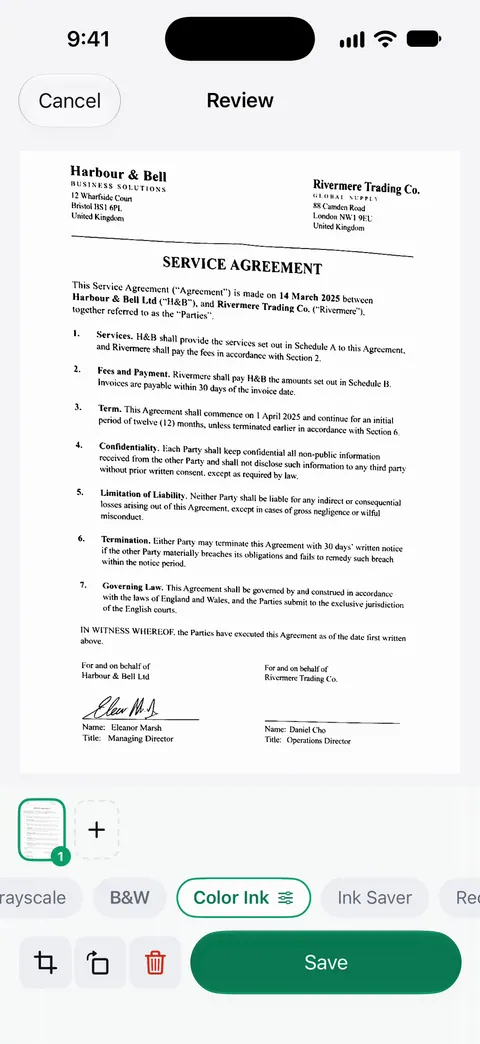
Scanner One finds the edges of the page automatically and corrects the perspective. On a large diploma shot from slightly off-center, that keeps the copy square. Scans come with Auto Clean, Color, Grayscale and Receipt filters. Color is the one to use for a diploma.
The PDF tools merge, split, compress, password-protect, add page numbers and watermarks, and extract text. That covers combining a diploma and transcript when a portal has one slot, and compressing a file to fit a limit. Free accounts can run the PDF tools and the Word, Excel and CSV exports 3 times a week, from one shared allowance.
What to know before you upload from a free account: On a free account, pages you share, print or export carry a small “Scanned with Scanner One” label at the bottom right. Pro removes it. For an official application you may prefer a copy with nothing added to the page: export it from Preview instead, or use Pro. Pro means no ads and no watermark.
What it doesn’t do: it doesn’t certify or translate anything, and it can’t tell you what a particular office accepts. When the built-in way is enough: Preview scans a diploma well in color and can save it as a PDF; for a single upload, it’s all you need. More in Guides.
Questions and answers
Should I scan my diploma in color or black and white?
Color. A diploma’s seal, ribbon and colored printing are part of what makes it look genuine, and some reviewers reject grayscale copies of colored originals. Transcripts printed in black on white can usually be black and white, unless the portal says otherwise.
Is a scan of my diploma the same as a certified copy?
No. A scan is a plain copy. A certified copy is one an authorized person or the issuing school confirms is true, and some visa and licensing offices ask for that or for a sealed transcript sent by the school. Read the request carefully.
My diploma is too big for the camera. What do I do?
Stand straight above it on a table or the floor so the whole sheet fits with a little margin. Most diplomas are under twice letter size and scan in one capture. Zoom in afterwards to check your name and the seal are sharp.
The portal says my file is too large. How do I shrink it?
Compress the PDF, or rescan at a smaller size if your app offers it. Don’t drop to grayscale just to save space if the original is in color. See our guide to making a PDF fit a size limit.
Do I need to translate a diploma that isn’t in English?
For many US and other official applications, yes. USCIS, for example, asks for a complete English translation certified by the translator. Scan the original and the translation as the portal asks.
Sources
What this page says about Scanner One was checked against the app on .
- iPhone User Guide (iOS 27), Scan text and documents in Preview — Scan Documents in Preview, Auto and Manual capture, cropping and adjusting the coloring of a scan; read 2026-11-13
- Alberta College of Pharmacy, Scanning guidelines and checklist for document submissions — an example of a regulator’s scan rules: PDF only, each document as its own file, 300 dpi, color for colored documents, seals fully visible, 5 MB cap; updated June 2023
- USCIS, Tips for Filing Forms by Mail — send legible copies, not originals, unless asked; foreign-language documents need a full certified English translation; last reviewed 2026-07-10
- IRCC, Is there a file size limit for documents I upload to my account? — an example of per-file upload limits that differ by portal (4 MB or 5 MB); modified 2026-11-03
- Scanner One on the App Store — the app’s own listing
Get Scanner One
Scanner One is free, with generous limits: scanning, clean PDFs and text search never stop.

Scanner OneScan, sign and ask anything
Scanner One is free, with generous limits: scanning, clean PDFs and text search never stop.