
Tool
Draw your signature and save it as a PNG
Sign in the box with a finger, a mouse or a pen, pick black or blue ink, and tap Save as PNG. You get a picture of your signature with a transparent background, cropped close to the ink, ready to place on a document. It is drawn and saved by your own browser: nothing is uploaded or kept. A picture of a signature is not a digital signature.

Draw your signature
This tool runs in your browser, and its page is not allowed to open a single network connection, so nothing you add is sent anywhere. Nothing is saved: closing the tab forgets everything.
Sign above the line. Turn a phone sideways for more room. Drawing needs a finger, a mouse or a pen.
Sign in the box.
How to use it
- Sign in the white box, above the dashed line, with your finger, a mouse or a pen. Turn a phone sideways for a wider box.
- Tap Undo to take back the last stroke, or Clear to start again.
- Pick Black or Blue ink and a line weight. You can change them after you sign.
- Tap Save as PNG. Your browser saves Signature.png like any other download.
The saved picture is drawn again at a high resolution (about 1,800 pixels across the box), then cropped to the ink with a small margin, so it stays sharp when you make it bigger on a page.
What happens to your signature
Each stroke is kept as a list of points in the page’s memory and drawn as smooth curves, which irons out the small shakes of a finger. When you save, the strokes are drawn onto a transparent canvas, cropped, and encoded as a PNG by your browser. Nothing is drawn from a server, and no copy is kept: the page is sent with a security rule that forbids it from opening any connection, and closing the tab forgets the strokes.
What a signature picture is, and isn’t
It is a picture of your handwriting. Anyone who has the file can paste it onto anything, so keep it where you keep other private files, and don’t email it around on its own.
It is not a digital signature. A digital signature is a certificate-based seal that proves who signed and shows whether the file changed afterwards; a pasted picture proves neither. Read electronic vs digital signatures for the difference, and which one a form usually asks for.
Whether a drawn signature is accepted depends on who is asking and for what. This page is general information, not legal advice. When it matters, ask the person or office that wants the signature.
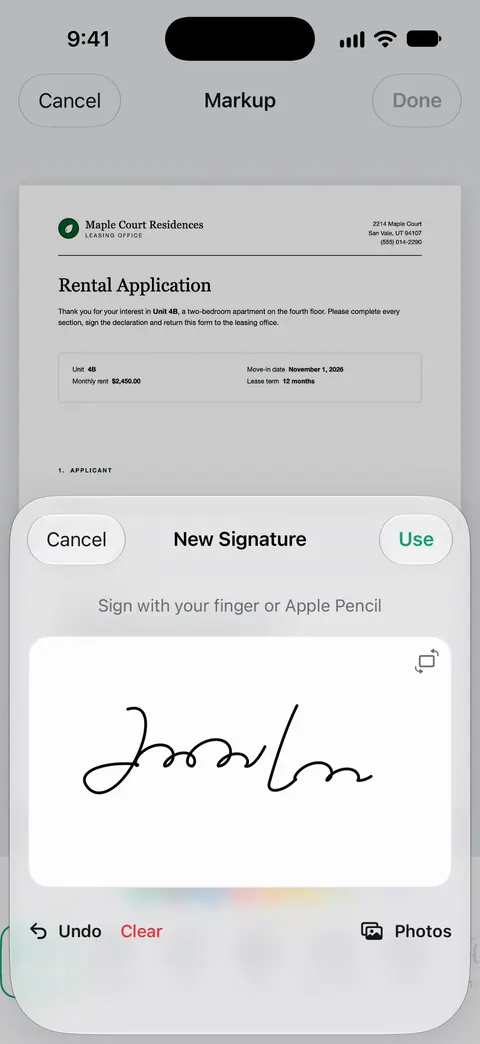
On iPhone you may not need a picture at all. Markup, in apps such as Files, Notes and Photos, has Add Signature: sign with your finger, tap Done, and iPhone keeps the signature for next time. The steps are in how to sign a PDF on iPhone. To use your real pen signature instead, scan your signature from paper.
Where Scanner One helps, and where it doesn’t
This page makes a picture of your signature. Scanner One signs the document itself: You can sign and annotate documents.
Free accounts can sign and mark up 3 documents a month. On a free account, pages you share, print or export carry a small “Scanned with Scanner One” label at the bottom right. Pro removes it. Scanner One runs on iPhone and iPad only; on any other device, this free page is enough to make a signature picture.
Questions and answers
Is my signature uploaded or saved anywhere?
No. This tool runs in your browser, and its page is not allowed to open a single network connection, so nothing you add is sent anywhere. Nothing is saved: closing the tab forgets everything. The only copy is the PNG you download.
Why is the background transparent?
So the signature sits on a document like ink, without a white box around it. A PNG keeps the transparency. If you paste it somewhere that doesn’t support transparency, the background may show as white or black.
Is a signature PNG legally valid?
A picture of your signature is one kind of electronic signature, and many forms and contracts accept one. Others ask for a wet-ink signature or a certified digital signature. Check what the person asking for it accepts; for anything important, ask them or a lawyer.
How do I put the PNG on a PDF?
Open the PDF in an app that can add an image, place the PNG, resize it over the signature line, and save. On iPhone, Markup’s own Add Signature is often simpler: it stores your signature and places it for you.
Can I make it look neater?
Sign larger than you would on paper, in one or two strokes, and turn a phone sideways for room. Undo removes the last stroke. A pen or stylus gives the smoothest line.
Sources
What this page says about Scanner One was checked against the app on .
- MDN Web Docs, Pointer events — one way to read a mouse, a pen or a finger, and touch-action: none, which stops the page from scrolling while you sign; read 2026-11-13
- MDN Web Docs, HTMLCanvasElement: toBlob() — how the drawing is saved as a PNG in memory (image/png, the format every browser must support); read 2026-11-13
- MDN Web Docs, Content-Security-Policy: connect-src — the rule this page is sent with ('none'), which stops a script from opening any connection; read 2026-11-13
- Apple iPhone User Guide, Fill out forms, sign documents, and create signatures on iPhone — the built-in way: Markup’s Add Signature, saved signatures, Clear; undated guide page, read 2026-11-13
- Scanner One on the App Store — the app’s own listing: signing and markup
Get Scanner One
Scanner One is free, with generous limits: scanning, clean PDFs and text search never stop.

Scanner OneScan, sign and ask anything
Scanner One is free, with generous limits: scanning, clean PDFs and text search never stop.