
Guide
Sign a PDF on iPhone
Open the PDF on your iPhone (in the Files app, or in Preview on iOS 26 and later), tap the Add button, then tap Add Signature. Sign with your finger, tap Done, and drag the signature into place. iPhone saves your signature for next time. Then share the signed copy by Mail, Messages or AirDrop. For a form now and then, this built-in way is all you need.

Sign a PDF with the Files app and Markup
Apple’s own way works for any PDF on your iPhone: one that came in Mail or Messages, one you downloaded, or one you scanned. These are the steps from Apple’s iPhone User Guide for iOS 27.
- Open the PDF on your iPhone. If you are prompted, open the document in the Files app, then tap Save.
- Tap the Add button (the plus sign), then tap Add Signature.
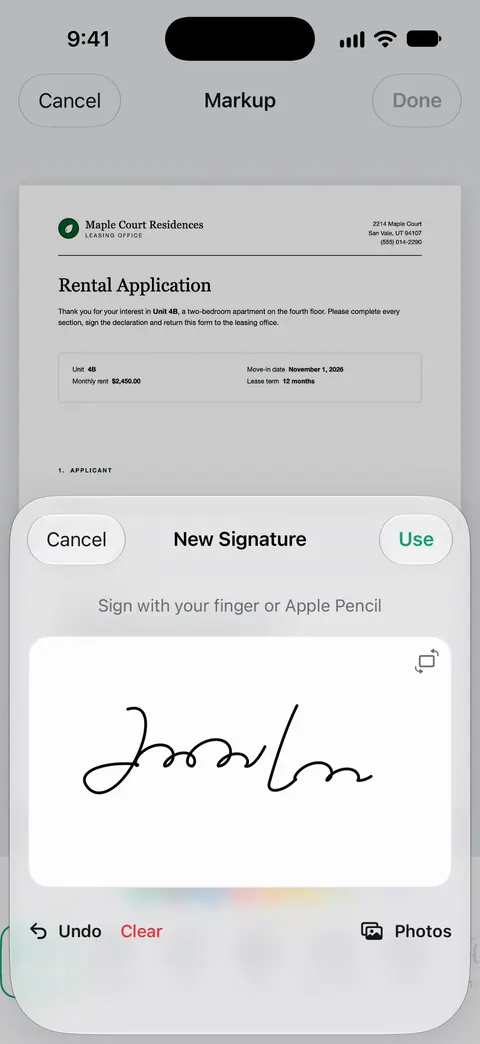
- Sign your name with your finger, then tap Done. To start over, tap Clear and sign again. Turning your iPhone sideways gives you more room.
- Drag the signature to the line where it belongs. Drag any blue dot on its box to make it bigger or smaller.
- To type a date or your printed name, tap the Add button again, then tap Add Text Form Box, drag the box into place and type.
- When you’re done, tap the Menu button, then tap Export, Print or the Share button. Tap the Back button to save the signed file.
On iOS 26 the last step is simpler: tap the Share button to send the completed document by Mail, Messages or AirDrop, then tap Done to close it.
If the PDF has form fields, the AutoFill button fills them from your card in Contacts before you sign. The guide to filling out a PDF form covers that part.
Sign in Preview on iOS 26 and later
Preview is Apple’s PDF app on iPhone from iOS 26. It is handy for forms with a real signature field.
- Open the Preview app and open the PDF form.
- Tap the Form Filling button.
- Tap a field and type, or tap the AutoFill suggestion above the keyboard.
- In a signature field, sign with your finger. On iPhone Duo you can also use Apple Pencil (USB-C).
- To add a signature where the form has no field, tap the Add button and choose a signature or a text box.
Preview saves the file in place. From there you can share it, print it, or lock it with a password; the guide to password-protecting a PDF has those steps.
Keep, label and delete your signatures
Markup remembers your signature, so the second form takes seconds.
- Add another signature: tap the Add button, tap Add Signature, tap Add or Remove Signature, then tap the Add button. Many people keep a full signature and a set of initials for pages that need initialing.
- Label it (iOS 27): while you sign, tap the Menu button next to New Signature and choose a label such as initials or nickname.
- Delete one: tap Add Signature, tap Add or Remove Signature, then tap the Delete button next to the one you want gone.
Get a signature that looks right
A finger signature can look shaky at first. A few habits help.
- Sign big, then shrink. Use the whole signing area, then drag the blue dots to make it fit the line. Small signatures drawn small look wobbly.
- Zoom in before you place it. Pinch open on the page so you can line the signature up with the line, not across the text.
- Check every page. Contracts often want initials on each page and a full signature on the last. Scroll through once before you send.
- Open the copy you send. After you export or share, open the new file and make sure the signature is on it. A signature added to one copy does not appear on another.
- Keep your own copy. Save the signed file somewhere you’ll find it, like a Signed folder in Files, before you send it.
Signing a paper someone handed you
If the form is on paper, you need a PDF of it first. Scan it with Notes, Files or Preview (the guide to scanning to PDF has the steps), then sign the scan the same way as above. When the form is due today and you have no printer, this step-by-step page walks through scanning, signing and sending in one go.
Some senders ask for a specific e-signature service, a certified digital signature, or ink on paper. A drawn signature is not the same thing, so when the instructions name a method, use that one.
Where Scanner One helps, and where it doesn’t
For a single form, the Files app or Preview does the job, costs nothing and adds nothing to the page. Use them.
Scanner One helps when signing is one step in a longer job with paper. Point your camera at any piece of paper. Scanner One finds the edges, straightens the page, cleans it up and saves a real PDF. You can sign and annotate documents. You sign in the same place you scanned, and the signed copy is filed with the rest of your documents, so you don’t have to dig through Files for it later.
Fill Form lets you type into the fields of a PDF form. That covers forms with real fields, and you can then sign them in the same app.
The limits, plainly:
- Free accounts can sign and mark up 3 documents a month. Pro removes every limit.
- On a free account, pages you share, print or export carry a small “Scanned with Scanner One” label at the bottom right. Pro removes it. If the label matters for a form you send, the built-in way has no label.
- When a sender asks for a particular signing service or a certified digital signature, use what they ask for.
The sign and mark up feature page shows the rest of the markup tools.
Questions and answers
Can I sign a PDF on my iPhone without downloading an app?
Yes. Markup, which opens from the Files app and other Apple apps, has Add Signature, and Preview (iOS 26 and later) lets you sign in a form’s signature field. Both are free and leave no mark on the page.
Where does iPhone keep my saved signature?
Markup saves each signature you create and offers it the next time you tap Add Signature. You can keep several, such as your full name and your initials, and delete them from Add or Remove Signature.
Why don’t I see Add Signature?
Open the PDF in the Files app first. Apple’s steps say that if you are prompted, you open the document in Files and tap Save before you can add to it. In other apps, tap the Markup button to show the toolbar, then tap the Add button.
Is a signature drawn on a phone accepted?
It depends on who asked for it. Many senders accept a signature drawn on a PDF, while others require a particular e-signature service or ink on paper. Their instructions decide, so ask if they don’t say.
Is signing free in Scanner One?
Free accounts can sign and mark up 3 documents a month. Pro removes every limit.
Sources
What this page says about Scanner One was checked against the app on .
- Apple iPhone User Guide, Fill out forms, sign documents, and create signatures on iPhone — the Files and Markup signing steps, saved signatures, labels and deleting a signature; iOS 27 and iOS 26 versions of the guide, undated, read 2026-11-13
- Apple iPhone User Guide, Fill out and sign PDF forms in Preview on iPhone — the Preview steps: Form Filling button, signature fields, Add button; undated guide page for iOS 26 and 27, read 2026-11-13
- Apple iPhone User Guide, Get started with Preview on iPhone — Preview’s signature fields accept a finger signature; undated guide page for iOS 26 and 27, read 2026-11-13
- Scanner One on the App Store — the app’s own listing: signing and markup
Get Scanner One
Scanner One is free, with generous limits: scanning, clean PDFs and text search never stop.

Scanner OneScan, sign and ask anything
Scanner One is free, with generous limits: scanning, clean PDFs and text search never stop.