
Guide
Scan your signature and use it on documents
Sign your name in black ink on plain white paper, photograph or scan it in good light, then open the photo, touch and hold the signature and tap Add Sticker to lift it off the background. In Markup on any PDF, add that sticker and drag it into place. If you don’t need your real pen signature, Markup’s Add Signature lets you draw one with your finger and saves it for next time.

This page is about turning your real pen signature into an image you can reuse. If you just need to sign one PDF and don’t mind a finger-drawn signature, signing a PDF on iPhone is quicker.
First: do you need your pen signature at all?
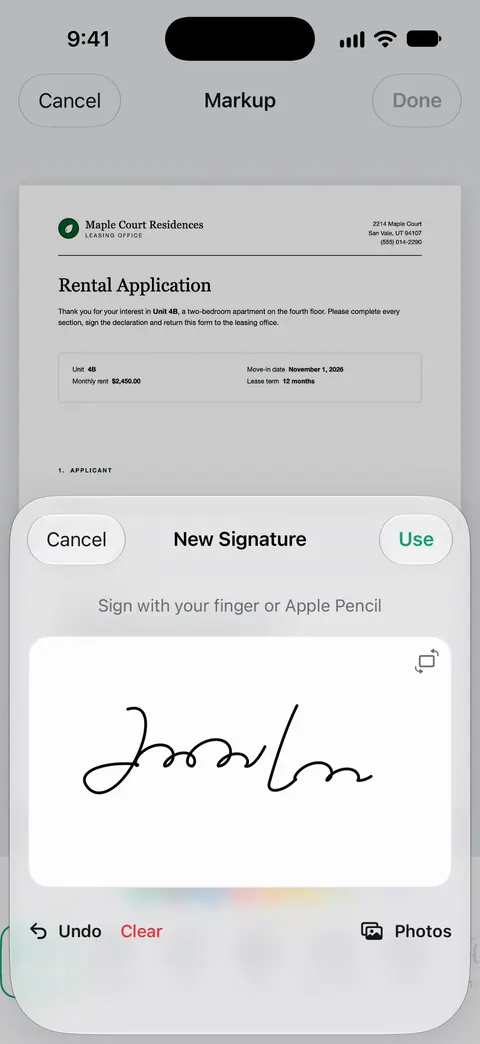
The iPhone already has a signature tool. In Markup, in Notes, Files, Mail, Preview and other apps that support it, you tap the Add button, then Add Signature, sign with your finger and tap Done. Apple notes that iPhone saves the signature for next time, and that you can create several, such as your full name and your initials, and label them.
That is enough for most forms, delivery slips and permission letters. A scanned pen signature is worth the extra steps when:
- you want the signature to match the one on your ID, checks and earlier contracts;
- your finger signature looks nothing like your real one;
- you sign letters on letterhead and want them to look hand-signed.
Step 1: sign on paper
- Use plain white paper with no lines, and a black pen with a medium tip. A fine ballpoint can come out faint; a thick marker bleeds.
- Sign a few times, at the size you usually sign. Pick the best one.
- Leave space around it, so nothing else is in the frame.
Step 2: capture it
Either way works:
- Photograph it. Open Camera, hold the iPhone directly above the paper in bright, even light, and fill most of the frame with the signature. Avoid your own shadow: daylight from a window beside you is ideal.
- Scan it. Use Scan Documents in Notes or Files (in Files, tap the More button, then Scan Documents). On iOS 26 and later you can pick an image filter on the scanning screen: a black-and-white or grayscale filter turns the paper pure white and the ink dark.
Step 3: remove the background
A signature on a white rectangle looks pasted on. Lift it off the paper instead.
- Open the photo full screen in Photos (for a scan, open the PDF or save the page as an image first).
- Touch and hold the signature. When an outline appears around it, choose:
- Add Sticker to keep it as a sticker you can place in Markup;
- Copy Subject (or Copy) to paste it into an email, a note or a document;
- Share to save or send the cut-out image.
Apple describes this as lifting the subject from the background. It works best when the ink is dark and the paper is plain. If the outline catches only part of a light signature, sign again with a darker pen.
If you want a file rather than a sticker, use Share on the lifted signature to save or send it. When you export an image from Preview, choosing PNG and leaving Alpha on keeps any transparency, as Apple’s export options describe. Our free signature maker also turns a photo of your signature into a transparent image in your browser.
Step 4: put it on a document
- Open the PDF in Preview, Files or another app with Markup.
- Tap the Markup button, then the Add button. Choose Sticker and pick your signature sticker. (In Preview, Apple lists stickers alongside signatures, shapes and text.)
- Drag it onto the signature line, and pinch or drag the corner handles to size it.
- Tap Done, then share or save the signed PDF.
For a contract that needs initials on every page, place the sticker once per page, or create an initials signature in Add Signature. See initialing every page of a PDF.
Is an image signature accepted?
It depends on the document and the person receiving it. Many offices accept a form with a pasted signature. Some ask for ink, a notarized signature or a specific e-signature service. An image of your signature is an electronic signature in the everyday sense, which is not the same as a cryptographic digital signature: see electronic vs digital signatures. Whether a particular e-signature is legally valid is covered in are electronic signatures legal. When it matters, ask the recipient before you send.
Keep your signature image private
A clean image of your signature can be pasted onto any document by anyone who has it. So:
- keep the sticker or the file on your own device, not in a shared album or a shared folder;
- send signed documents as PDFs, never the signature image on its own;
- delete the practice photos from Photos and from Recently Deleted.
Where Scanner One helps, and where it doesn’t
You can sign and annotate documents. The screenshot shows a handwritten signature placed on a page and selected, so it can be moved and resized. Free accounts can sign and mark up 3 documents a month.
For capturing the pen signature on paper: Scans come with Auto Clean, Color, Grayscale and Receipt filters. Grayscale keeps the ink dark and the paper clean.
After signing: On a free account, pages you share, print or export carry a small “Scanned with Scanner One” label at the bottom right. Pro removes it. So a signed page you send from a free account carries that label; Pro removes it. Pro removes every limit.
What it doesn’t do: it doesn’t make a cryptographic digital signature, run a signing ceremony with other people, or notarize anything. When the built-in way is enough: if Markup’s Add Signature and a Photos sticker cover your forms, you don’t need another app. See sign and mark up for what the app’s tools do.
Questions and answers
How do I make a transparent signature PNG on iPhone?
Photograph your signature on white paper, open the photo, touch and hold the signature and tap Copy Subject or Add Sticker. The lifted signature has no background. Paste it into a document, or keep the sticker for Markup.
Is a scanned signature legally valid?
It depends on the document and who receives it. Many everyday forms accept an image of a signature, while some legal, banking and government papers need ink, a notary or a specific e-signature service. Ask the recipient when it matters.
Should I use a scanned signature or draw one with my finger?
A finger signature from Markup’s Add Signature is quick and fine for most forms. A scanned pen signature looks like the one on your ID and checks, which some people prefer for letters and contracts.
Is it safe to keep an image of my signature?
Keep it somewhere private, not in a shared album or a public folder. Anyone with the image could paste it onto a document, so don’t send the image file itself to anyone.
Why does my scanned signature have a gray box around it?
The paper’s shadow and texture came along with the ink. Lift the signature off the background with Add Sticker or Copy Subject, or scan it with a black-and-white filter and more light.
Sources
What this page says about Scanner One was checked against the app on .
- iPhone User Guide (iOS 27), Fill out forms, sign documents, and create signatures — Add Signature in Markup, saved and multiple signatures, moving and resizing; read 2026-11-13
- iPhone User Guide (iOS 27), Lift a subject from the photo or video background — touch and hold the subject, then Copy Subject or Add Sticker to use it in Markup; read 2026-11-13
- iPhone User Guide (iOS 27), Annotate a PDF or image in Preview — adding a sticker, signature, shape or text to a PDF in Preview; read 2026-11-13
- iPhone User Guide (iOS 27), Export or compress PDFs and images in Preview — PNG export and the Alpha setting for transparency; read 2026-11-13
- Apple Support, Scan documents on your iPhone or iPad (article 108963) — Scan Documents in Notes and Files, with image filters on iOS 26; page dated 2026-02-13
- Scanner One on the App Store — the app’s own listing
Get Scanner One
Scanner One is free, with generous limits: scanning, clean PDFs and text search never stop.

Scanner OneScan, sign and ask anything
Scanner One is free, with generous limits: scanning, clean PDFs and text search never stop.