
Situation
You need to send a signed form today and have no printer
If the form came as a PDF, open it on your iPhone in Files or Preview, tap the markup button, fill in the blanks, tap Add Signature, sign with your finger and drag the signature onto the line. Then share it back by email. If the form is on paper, sign it with a pen, scan it with Scan Documents in Notes or Files, and send the PDF. Before you send, check every page, the date and any initials, and ask whether a signature made on a phone is accepted.

First, work out what you have
Before you touch anything, look at how the form reached you. The route depends on it.
- A PDF in an email or a download. You can fill it in and sign it on the iPhone. This is the quickest case.
- A paper form in your hand. Sign it with a pen, then turn it into a PDF with the iPhone camera.
- A photo of a form, or a form inside a web page. Save it to the Files app first, then treat it like a PDF.
- An e-signature link (an email that asks you to “review and sign”). Use the link. The sender has chosen a service, and a signed PDF sent by email may not count.
Then ask one short question if you are unsure: “Is a signature made on a phone OK, or do you need ink?” Most people who want a form back today are happy with a signed PDF. A few documents, such as ones that need a notary, are not.
If the form is a PDF: fill and sign it on your iPhone
Apple’s own tools do this well. These are the steps from Apple’s iPhone User Guide:
- Open the form on your iPhone. If you are asked, open it in the Files app, then tap Save.
- Tap the markup button, tap a blank field and type. Keep tapping blank fields and typing. In iOS 27 and later, AutoFill suggestions appear above the keyboard as you type.
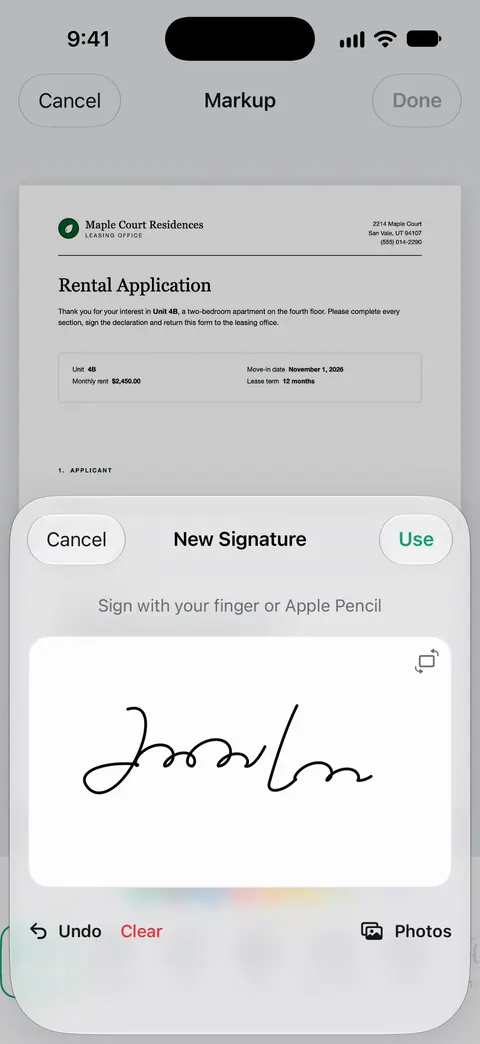
- To sign, tap the add button, then Add Signature. Sign your name with your finger and tap Done. Drag the signature onto the line and resize it with the blue dots.
- For a blank with no field, such as a date box, tap the add button, then Add Text Form Box, drag the box into place and type.
- When you are done, tap Export, Print, or the share button to send the finished form.
The Preview app does the same job: go to Preview, open the PDF form, tap the markup button, fill the fields, and tap the add button to add a signature or a text form box.
Your iPhone saves the signature, so next time you only tap it. You can keep more than one, such as your full signature and your initials. Our guides to signing a PDF on iPhone and filling out a PDF form go through each step with more detail.
If the form is on paper: sign it, then scan it
- Fill it in and sign it with a dark pen. Blue or black ink scans more clearly than pencil or a pale gel pen.
- Put the page on a flat, plain surface in good light, away from your own shadow.
- Scan it. In Notes, open a note, tap the Attachment button and choose Scan Documents. In Files, tap the More button and choose Scan Documents. In Auto mode the page is captured on its own; otherwise tap the shutter, adjust the corners and tap Keep Scan.
- Scan every page of the form into the same document, in order, then tap Done. In Files, choose where to save it and tap Save.
In iOS 26 and later you can choose the flash and an image filter while you scan. A black-and-white look keeps a signed form crisp. If you have never scanned before, scanning a document to PDF on iPhone covers it from the start.
Before you press send
Most forms that come back do so for small reasons. Take two minutes:
- Every signature line. Some forms want a signature on page 1 and again on the last page.
- Initials. Contracts and leases often want initials at the foot of each page.
- The date. Write it next to your signature, in the format the form uses.
- Printed name. Many forms want your name in capitals under the signature.
- All the pages. Send the whole form, not only the page you signed, unless you are told otherwise.
- One file, clearly named. “Smith_signed_application.pdf” is easier for the other side than “IMG_4182”.
- Size. If the email bounces, the PDF is too big. Our guide to making a PDF small enough to email fixes that.
Send it as an attachment to the address the sender gave you, and keep a copy of what you sent. If it matters, ask them to confirm they received it. For the different ways to send, see sending a PDF from your iPhone.
When a phone signature is not enough
Some situations need more than a signed PDF:
- A notary. The notary has to watch you sign. Ask whether a remote notary is accepted, or find one in person.
- Wet ink. Some offices still want the original paper, posted. Ask for their address and keep a scan of what you mail.
- Their e-signature service. If the sender used a signing service, complete it there. It records who signed and when.
- A fax. If they insist on one, read what to do when someone wants a fax.
This page is general information, not legal advice. Whether a signature made on a phone is accepted depends on the document and the person or office asking. When it matters, ask them.
Where Scanner One helps, and where it doesn’t
For one form, the Files app or Preview is enough. It is free and adds nothing to the page.
Scanner One helps when the form starts on paper or when you deal with forms often. Point your camera at any piece of paper. Scanner One finds the edges, straightens the page, cleans it up and saves a real PDF. You can sign and annotate documents. Fill Form lets you type into the fields of a PDF form. The signed copy stays with the rest of your documents, so you can find it next month.
The limits, plainly:
- Free accounts can sign and mark up 3 documents a month. Pro removes every limit.
- On a free account, pages you share, print or export carry a small “Scanned with Scanner One” label at the bottom right. Pro removes it. If a small label on the page matters for the form you are returning, sign it with the built-in tools instead.
- Scanner One does not send faxes and is not a certified e-signature service. When a sender asks for either, use what they ask for.
The sign and mark up page shows the rest of the markup tools.
Questions and answers
Can I sign a PDF on my iPhone without downloading an app?
Yes. Open the PDF in the Files app or Preview, tap the markup button, then Add Signature. Sign with your finger, tap Done and drag the signature onto the line. Your iPhone keeps the signature for next time.
Is a signature drawn on my phone legally valid?
Often it is accepted, but it depends on the document and on who is asking. Many employers, landlords and offices take a signed PDF. Some papers need ink, a notary or a particular e-signature service. Ask the person who sent the form before you rely on it.
How do I sign a paper form if I have no printer and no scanner?
Sign the paper with a dark pen, then scan it with your iPhone: in Notes, tap the Attachment button and choose Scan Documents, or in Files, tap the More button and choose Scan Documents. Save it as one PDF and email it back.
What if they ask me to fax it?
Ask first whether email or an upload portal will do; many offices take a PDF. If it must be a fax, an online fax service or a print shop can send your signed PDF. Your iPhone has no fax feature of its own.
Can I type into the form before I sign it?
If the PDF has form fields, tap a blank field after you tap the markup button and type. If it has no fields, use Add Text Form Box to place text where you need it, such as the date next to your signature.
Sources
What this page says about Scanner One was checked against the app on .
- Apple Support, Fill out forms, sign documents, and create signatures on iPhone (iPhone User Guide) — the built-in steps: markup button, Add Signature, Add Text Form Box, then Export, Print or share; AutoFill suggestions in iOS 27; no date shown, read 2026-11-13
- Apple Support, Fill out and sign PDF forms in Preview on iPhone — filling a PDF form and adding a signature or text form box in the Preview app; no date shown, read 2026-11-13
- Apple Support, How to scan documents on your iPhone or iPad (article 108963) — Scan Documents in Notes and Files, Keep Scan, and signing a scan in Notes with Markup; published 2026-02-13
- Scanner One on the App Store — the app’s own listing: scanning, signing, Fill Form, sharing
Get Scanner One
Scanner One is free, with generous limits: scanning, clean PDFs and text search never stop.

Scanner OneScan, sign and ask anything
Scanner One is free, with generous limits: scanning, clean PDFs and text search never stop.