
Comparison
Scanner One vs Microsoft Lens (retired)
Microsoft retired Lens: you could scan in it until March 9, 2026, and it left the App Store on February 9. Microsoft recommends the scanner in the OneDrive app, which saves scans to OneDrive, not to your iPhone. If you used Lens for whiteboards, business cards, Word files or read-aloud, Scanner One covers those jobs on iPhone and keeps scans on the device. Its free version caps PDF tools and Office exports at 3 a week and labels shared pages; Pro is $29.99 a year or $59.99 once.

Scanner One is our app, and it is not affiliated with Microsoft. The facts about Lens and OneDrive come from Microsoft’s own support pages and the OneDrive App Store page, read on November 13, 2026.
What happened to Lens
Microsoft’s support page gives the dates. Lens was retired from iOS and Android starting January 9, 2026, and was no longer supported after February 9. It was removed from the App Store and Google Play on February 9, 2026. You could keep scanning in it until March 9, 2026; after that it cannot create new scans.
Your old scans are still reachable. Microsoft says you can open previous scans if the app remains installed, as long as you are signed in to the last account you used in Lens. Scans you saved to OneDrive, Photos or Files are where you left them.
What Microsoft recommends
Microsoft points Lens users to the scanner inside the OneDrive app. Its steps:
- Open the OneDrive app.
- Tap the + button.
- Select Scan photo.
- Save the scan to a location in OneDrive.
Microsoft adds that OneDrive does not support saving scans locally on your device. OneDrive’s App Store page says you start with 5 GB of free cloud storage, and its current version needs iOS 26.0 or later. If your work already runs on Microsoft 365 and OneDrive, this is the shortest path.
The jobs you used Lens for
Microsoft’s Lens for iOS page describes four modes, Whiteboard, Document, Business Card and Photo, and saving to Word, PowerPoint, OneNote, OneDrive or PDF. Here is how each job works in Scanner One.
| In Lens | In Scanner One |
|---|---|
| Whiteboard mode, which made the background less bright and the ink easier to see | Whiteboards are cleaned automatically. |
| Business Card mode, which saved contacts to the Contacts app and OneNote | Business cards go straight to Contacts. |
| Save as Word or PowerPoint | Scanner One exports to Word, keeping headings, lists and tables, and to Excel and CSV. Share & Export saves a document as a PDF, Word, Excel, PowerPoint, JPG, PNG, a long image, plain text, Markdown, Rich Text, a web page or CSV. |
| Immersive Reader, which read the text aloud | Listen reads any document aloud. |
| Text from an image | Text recognition runs on the device, in 29 languages. Search looks inside the text of every document and shows the matching line and page. |
| Save to OneDrive | Auto-export, part of Pro: Pro adds redaction, the smart eraser, edit text, auto-export and five alternate app icons. |
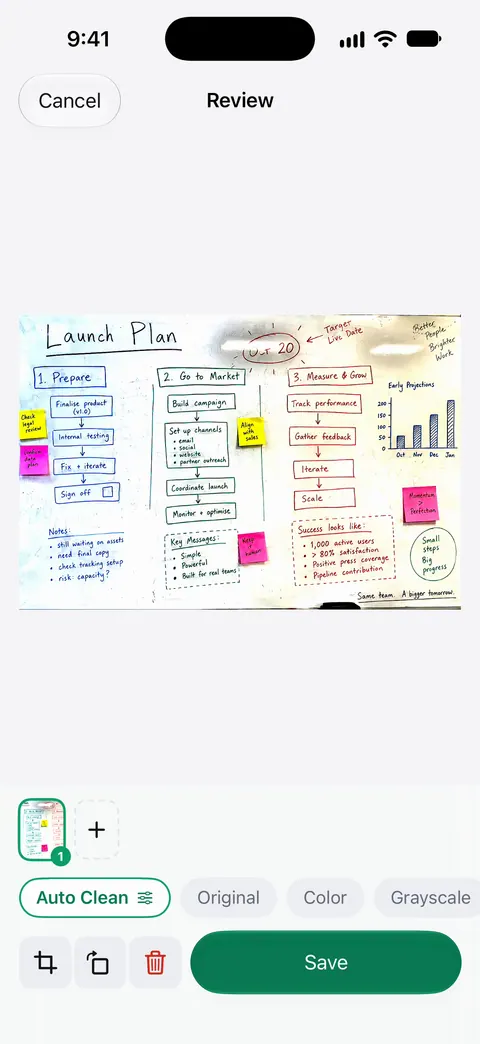
For whiteboards, see scanning a whiteboard; for cards, scanning a business card to Contacts.
Side by side, checked November 13, 2026
| Microsoft Lens | OneDrive scanner | Scanner One | |
|---|---|---|---|
| Status | Retired; no new scans after March 9, 2026 | Current | Current |
| Price | No longer offered | Free app with 5 GB free cloud storage; Microsoft 365 Family purchases listed from $6.99 to $13.99 | Free download. Pro at $4.99 a month, $29.99 a year or $59.99 once |
| Where scans go | Word, PowerPoint and PDF went to OneDrive’s Documents folder; PDFs could also stay on the device | OneDrive; not saved locally, per Microsoft | Documents stay on your iPhone unless you share them or turn on iCloud Sync. |
| Account | Sign-in could be asked when saving to OneNote, OneDrive, Word or PowerPoint | Saves to your OneDrive cloud storage | No account, no tracking |
| Privacy label | Not on the App Store any more | Linked to you: Contact Info, User Content, Identifiers, Usage Data, Diagnostics | No account, no tracking |
| Needs | No longer installable | iOS 26.0 or later | iOS 17 or later |
Bringing your old scans
- Find your Lens scans. If Lens saved them to OneDrive, they are in the OneDrive app; Microsoft’s page says Word, PowerPoint and PDF files went to your Documents folder there. Others may be in Photos or Files. The Lens app still opens the scans it kept, if you are signed in to your last account.
- Select the PDFs or images and share them. Other apps can send a file to Scanner One with Save to Scanner One in their share sheet. You can also save them to the Files app first.
- In Scanner One, bring them in from Home. From Home you can bring in pictures from Photos and files from the Files app, or scan an ID card. The To PDF tool turns files and photos into PDFs.
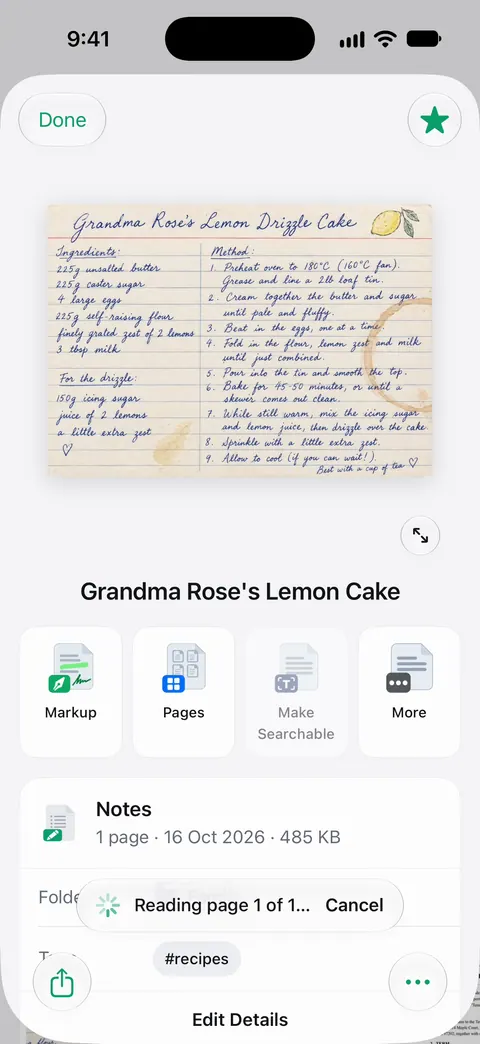
Imported documents join your Library, where search reads inside them. If a PDF has no text, the Make Searchable tool reads its lines.
Where Scanner One helps, and where it doesn’t
Scanner One helps if Lens was your everyday scanner on iPhone and you want those jobs, whiteboards, cards, Word files and read-aloud, in one app that keeps scans on the phone. Scanner One needs no account and does no tracking. Then it reads the text, names the document, tags it and puts it in the right folder.
Where it is not a like-for-like replacement:
- No Microsoft link. There is no Microsoft sign-in in Scanner One and no OneNote connection. If your team works in OneNote and OneDrive, OneDrive’s scanner keeps you there.
- Platforms. Scanner One runs on iPhone and iPad. Lens was also on Android; Scanner One has no Android, Mac or web version.
- Free caps and the label. Word and PowerPoint exports share the free allowance of 3 a week, and On a free account, pages you share, print or export carry a small “Scanned with Scanner One” label at the bottom right. Pro removes it.
- Cloud AI. Cloud AI is off until you switch it on, and page images are a separate permission. Pro Max, the plan with cloud AI, costs $149.99 a year in the US.
For a free scan with no app to install, Notes and Files still work: see how to scan documents on iPhone. The wider list is on Microsoft Lens alternatives.
Questions and answers
Can I still use Microsoft Lens?
Not to scan. Microsoft says you could scan in Lens until March 9, 2026, and that after that you cannot create new scans. Previous scans stay available if the app is still installed and you are signed in to your last active account in it.
What does Microsoft recommend instead of Lens?
The OneDrive app. Microsoft’s steps: open OneDrive, tap the + button, select Scan photo, and save the scan to a location in OneDrive. Microsoft notes that OneDrive does not support saving scans locally on your device.
Which app reads a scan aloud like Immersive Reader?
In Scanner One, Listen reads any document aloud.
Can Scanner One turn a scan into Word like Lens did?
Yes. Scanner One exports to Word, keeping headings, lists and tables, and to Excel and CSV. Free accounts can export 3 a week, shared with the PDF tools.
Sources
What this page says about Scanner One was checked against the app on .
- Microsoft Support, Retirement of Microsoft Lens — the retirement dates, access to past scans, OneDrive as the recommended alternative and its scan steps, and that OneDrive does not save scans locally; the page shows no date of its own, read 2026-11-13
- Microsoft Support, Microsoft Lens for iOS — what Lens did: Whiteboard, Document, Business Card and Photo modes, saving to Word, PowerPoint, OneNote, OneDrive or PDF, Immersive Reader; read 2026-11-13
- Microsoft OneDrive on the App Store — scanning, 5 GB of free storage, privacy label and iOS 26 requirement; read 2026-11-13
- Scanner One on the App Store — the app’s own listing
Get Scanner One
Scanner One is free, with generous limits: scanning, clean PDFs and text search never stop.

Scanner OneScan, sign and ask anything
Scanner One is free, with generous limits: scanning, clean PDFs and text search never stop.