
Guide
Scan a whiteboard so it is readable
Stand a little to one side so the room lights don’t reflect straight back, turn the flash off, and scan the board with Scan Documents in Notes or Preview. Use manual capture and drag the corners to the board’s corners: the scanner straightens the angle for you. Choose a black-and-white filter for dark marker, or color if the colors carry meaning. Then share the PDF before the board is wiped.

Before you scan: glare is the enemy
A whiteboard is a big, glossy, white surface, and that is the hardest kind of page to photograph. Ceiling lights reflect off it as white streaks that wipe out the writing beneath them, and the camera exposes the board as a dull gray.
You can’t remove glare afterwards, so deal with it when you scan.
- Step to one side. Glare comes straight back at you from the light. Move left or right until the bright patch slides off the writing. The document scanner corrects the angle, so the board still comes out square.
- Turn the flash off. On a glossy board, the flash makes one big bright spot in the middle.
- Dim the light right above the board if you can, and leave the others on.
- Fill the frame. Stand close enough that the board fills the screen, with all 4 corners in view.
Scan the board with Notes or Preview
- Open Notes and tap the Attachments button in a note, then Scan Documents. Or open Preview (iOS 26 and later) and tap Scan Documents.
- Set Flash to off before you capture. In Notes, also tap Filters: Apple’s guide lists color, grayscale, black-and-white and photo looks.
- Switch to manual capture. A whiteboard’s frame doesn’t always read as a page edge, and automatic capture may lock onto the wrong rectangle.
- Tap the Shutter button, then drag the 4 corners to the corners of the board (or of the area you want).
- Tap Keep, then Done.
The scanner treats the board like a document: it finds the edges and corrects the skew, so a board scanned from an angle comes out as a flat rectangle. In Preview, tap a thumbnail to adjust its coloring before you finish.
Which filter to pick
- Black and white for a board in one dark marker. It turns the gray background white and darkens the strokes, which is what you want for reading.
- Grayscale when some marker is faint, such as a dried-out pen; black and white can drop faint lines.
- Color when red means “risk” and green means “done”. Black and white loses that meaning.
Chalkboards, glass boards and flip charts
The same steps work on other surfaces, with a few changes.
- Chalkboards are dark with light writing, the reverse of a page. A black-and-white filter can turn chalk into broken gray lines. Try grayscale or color first, and compare.
- Glass boards reflect everything behind you, including you. Stand to the side, as for glare, and wear something dark if the board is in front of a window.
- Flip chart sheets are paper, so they scan like a large document. Tear the sheet off and tape it flat to a wall if you can: a hanging sheet curls at the bottom.
- Sticky notes on a board catch light at different angles. Scan from straight in front, a little further back, and check that the smallest note is still readable before you tap Keep.
Boards that don’t fit in one frame
A long wall of whiteboard won’t fit in one capture without the writing getting too small to read. Scan it in sections from left to right, overlapping each section by a hand’s width, as pages of one PDF. Name the file so the order is clear, and say in your message that the pages run left to right. For other oversized surfaces, see scanning large documents.
Share it before the board is wiped
The point of scanning a whiteboard is usually to send it to the people who were in the room.
- From Notes: tap the Menu button on the scan in the note, then Share, and pick Mail or Messages.
- From Preview: tap the Share button and send a copy.
- Add one line of context in the message: the meeting, the date and what was decided. In 3 months a picture of a board means little without it.
Handwriting on a whiteboard is quick and messy. Don’t rely on Live Text or any text recognition to turn a meeting board into searchable text. If the content matters, type the decisions into the message. More on this in scanning handwritten notes.
Where Scanner One helps, and where it doesn’t
Whiteboards are cleaned automatically. Scanner One finds the edges of the page automatically and corrects the perspective. In the screenshot below, the glare is gone after Auto Clean and the marker lines are darker, without picking a filter by hand.
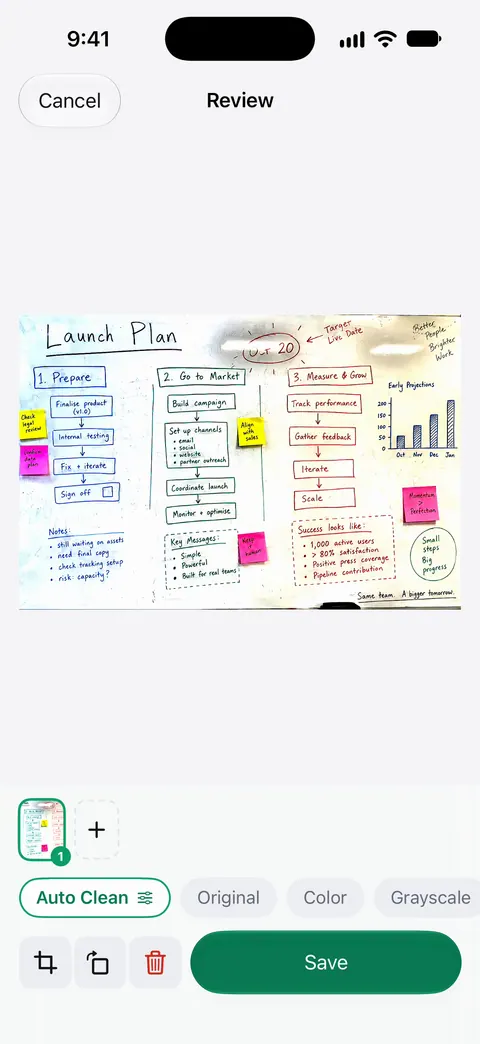
You can then share the board as a picture or a document: Share & Export saves a document as a PDF, Word, Excel, PowerPoint, JPG, PNG, a long image, plain text, Markdown, Rich Text, a web page or CSV. An image file is often easier to drop into slides or a chat than a PDF. Scans come with Auto Clean, Color, Grayscale and Receipt filters.
What it doesn’t do: it can’t see writing hidden under a glare streak, so standing in the right spot still matters. It doesn’t promise to read handwriting as text. And know about the label on free accounts. On a free account, pages you share, print or export carry a small “Scanned with Scanner One” label at the bottom right. Pro removes it.
When the built-in way is enough: for the occasional board, a careful Notes scan with a black-and-white filter is perfectly readable. If you capture boards every week, automatic cleanup saves fiddling with filters and angles. The Auto Clean and filters page shows the filters, and Guides has more on lighting in the best light for scanning.
Questions and answers
How do I get rid of glare on a whiteboard photo?
Move, don’t fix it later. Step to one side until the bright reflection of the ceiling lights slides off the writing, turn the flash off, and let the document scanner straighten the angle.
Should I use a photo or a document scan for a whiteboard?
A document scan, when you can see all 4 corners of the board. It crops the wall away, squares up the board and saves a PDF. For a board too wide to fit, take photos in sections.
Will my iPhone turn the whiteboard writing into text?
Don’t count on it. Live Text reads text in photos, but quick meeting handwriting is hard for any text recognition. Treat the scan as a picture of the board and type up the decisions that matter.
Why does my whiteboard scan look gray?
The camera exposes for the whole scene, so a white board under office light comes out gray. A black-and-white filter, or a dedicated whiteboard cleanup, pushes the board to white and the marker to dark.
Sources
What this page says about Scanner One was checked against the app on .
- iPhone User Guide (iOS 27), Scan text and documents in Notes — Flash and Filters before capture, manual capture and adjusting corners; read 2026-11-13
- iPhone User Guide (iOS 15), Scan text and documents in Notes — names the filter choices: color, grayscale, black-and-white or photo
- iPhone User Guide (iOS 27), Scan text and documents in Preview — Auto/Manual capture and adjusting the coloring of each scan; read 2026-11-13
- Apple Support, Continuity Camera on Mac (article 102332) — the scanner detects the edges of a document and corrects skew; published 2026-10-26
- Scanner One on the App Store — the app’s own listing
Get Scanner One
Scanner One is free, with generous limits: scanning, clean PDFs and text search never stop.

Scanner OneScan, sign and ask anything
Scanner One is free, with generous limits: scanning, clean PDFs and text search never stop.