
Guide
How to scan documents on iPhone
Open Notes, open a note, tap the Attachments button (the paperclip), then Scan Documents. Hold the iPhone over the page and it captures it on its own. Add more pages, tap Done, and the scan is saved as a PDF inside the note. The Files app (More button, then Scan Documents) saves the PDF to a folder you pick, and Preview (iOS 26 and later) makes a PDF you can rename, lock and export. A scanner app adds cleanup, naming and search across all your papers.

Which built-in scanner to use
Your iPhone already has a good document scanner. It lives in three apps, and the one you pick decides where the scan ends up.
| Where you scan | How to start | What you get | Where it is saved |
|---|---|---|---|
| Notes | Attachments button, then Scan Documents | A PDF inside a note | In the note, synced with that Notes account |
| Files | More button, then Scan Documents | A PDF file | The folder you choose, such as iCloud Drive or On My iPhone |
| Preview (iOS 26 and later) | Scan Documents on the start screen | A PDF file you can rename, lock and export | A file you can move to any location in Files |
| Insert Attachment Actions button, then Scan Document | A PDF attached to the email | In the email you are writing |
All of them use the same camera screen: the iPhone finds the edges of the page, straightens it and captures it when you hold still. The steps below follow Apple’s iPhone User Guide for iOS 27, which matches iOS 26.
Scan a document with Notes
Notes is the quickest way when you just need the page on your phone.
- Open Notes and open a note, or create a new one.
- Tap the Attachments button (the paperclip), then tap Scan Documents. You can also tap the More button in an open note, then tap Scan.
- Hold the iPhone so the page fills the screen. Before you capture, you can set Flash or Filters.
- Keep the phone steady. In automatic capture, the iPhone takes the page as soon as it detects the edges. For manual capture, switch off automatic capture, tap the Take Picture button (or press a volume button), drag the corners to fit the page, then tap Keep.
- Scan the next page, or tap Done.
The document is saved as a PDF in the note. To get it out as a file, tap the Menu button on the scan in the note and choose Share. Do this rather than sharing the whole note: Apple notes that exporting a note as a PDF keeps only the first page of a multipage scan.
Notes search finds text in your scanned documents, which makes Notes a decent home for a handful of papers. The full walkthrough, with renaming, signing and locking, is in scanning with the Notes app.
Scan a document with the Files app
Files is the better choice when you want a PDF sitting in a folder, ready to attach or upload.
- Open the Files app and go to the folder where the scan should go.
- Tap the More button, then tap Scan Documents.
- Scan the page the same way: automatic capture, or the Shutter button and Keep Scan.
- Add more pages, or tap Done.
- Choose a location, then tap Save.
You now have a plain PDF file. You can rename it, tag it, move it and share it like any other file. More detail is in scanning straight into the Files app.
Scan a document with Preview (iOS 26 and later)
Preview came to iPhone with iOS 26. It is the most capable of the three for what happens after the scan.
- Open Preview and tap Scan Documents.
- Hold the camera over the page. The iPhone captures it automatically. To capture it yourself, tap Auto (it changes to Manual), then tap the Shutter button.
- Scan the other pages.
- Tap the thumbnails to crop, rotate or adjust the coloring of a page.
- Tap Done.
Preview combines the pages into a single PDF. From the Actions menu next to the file name you can rename it, move it, lock it with a password or export it. Export has an Embed Text switch that runs text recognition and makes the PDF searchable, and an Optimize Images for Screen switch that makes the file smaller.
Other places the scanner shows up
- Mail: in a new message, tap the Insert Attachment Actions button above the keyboard, then Scan Document. The pages are attached as a PDF. See how to scan and email a document.
- Your Mac: with Continuity Camera, you start the scan on the Mac and capture it with the iPhone. See scanning on a Mac with your iPhone.
- iPad: the same scanners work on iPad, and the iPad Camera app can scan documents too. See scanning on iPad.
Get a clean scan the first time
The scanner is only as good as the photo it starts from.
- Lay the page flat on a dark, plain surface. Contrast helps the iPhone find the edges.
- Use soft, even light. A lamp straight above you throws your own shadow on the page. Light from the side or a bright window works better. More in the best light for scanning.
- Hold the phone parallel to the page, not at an angle, and keep still until it captures.
- Wipe the lens. Apple’s first fix for blurry photos is to clean the camera lens with a microfiber cloth. More fixes are in why a scan comes out blurry.
- Check every page before you tap Done. Retaking a page now is easier than finding the paper again later.
When the built-in scanner is enough
For a one-off form, a letter you need to send today, or a few pages you want on your phone, Notes, Files or Preview is all you need. They are free, already installed and make a proper PDF. If you have to turn the scan into a PDF and send it, Files and Preview get you there with no extra app.
The built-in tools start to strain when scanning becomes a habit: receipts every week, a household of papers, documents you need to find again in a year. Then the gaps are naming, filing and finding, not capture.
Where Scanner One helps, and where it doesn’t
Point your camera at any piece of paper. Scanner One finds the edges, straightens the page, cleans it up and saves a real PDF. Then it reads the text, names the document, tags it and puts it in the right folder. That is the part the built-in scanners leave to you: every Notes or Files scan needs a name and a place, or it becomes one more look-alike file in a long list.
What it adds for scanning:
- Scans come with Auto Clean, Color, Grayscale and Receipt filters. Receipts, whiteboards and book spreads get their own treatment: Whiteboards are cleaned automatically. Book spreads are split into two pages and curved lines are flattened.
- ID cards and passports are scanned with both sides on one printable page.
- Scanner One makes searchable PDFs. Search looks inside the text of every document and shows the matching line and page.
- QR codes and barcodes are found on every page. Business cards go straight to Contacts.
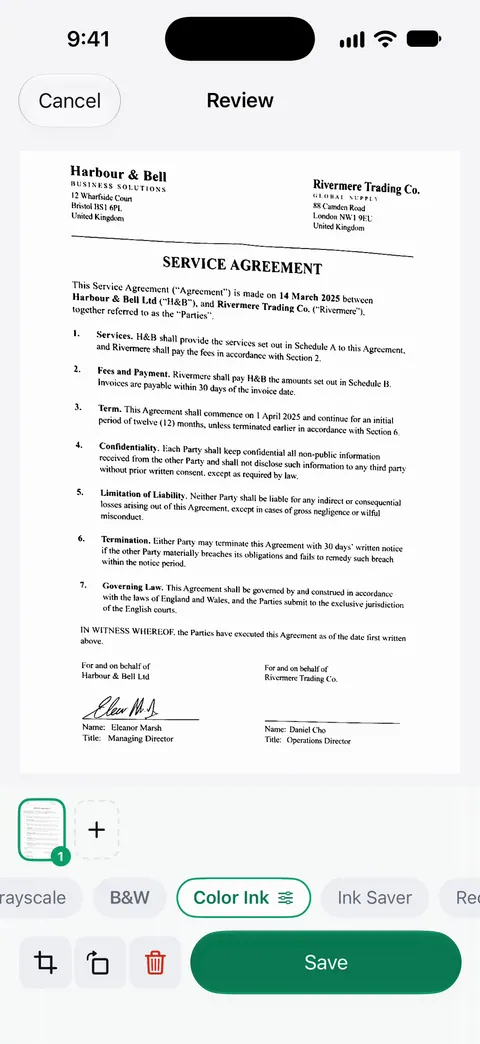
What to know before you rely on it: Scanner One is free, with generous limits: scanning, clean PDFs and text search never stop. Smart naming and filing is limited on the free plan (10 documents a month). On a free account, pages you share, print or export carry a small “Scanned with Scanner One” label at the bottom right. Pro removes it. If you send scans to other people often, that label is worth knowing about. Documents stay on your iPhone unless you share them or turn on iCloud Sync.
What it doesn’t do: it doesn’t run on a Mac, so for scanning into a Mac use Apple’s Continuity Camera. And for a single page you’ll never need again, Notes is quicker than any app. You can see how the two compare in Scanner One vs the Notes scanner, and every scanning guide is in Guides.
Questions and answers
Does the iPhone have a built-in document scanner?
Yes. Notes, the Files app and Preview (iOS 26 and later) all have Scan Documents, and Mail can scan a page straight into an email. They find the page, capture it automatically and save a PDF.
Where do scanned documents go on iPhone?
It depends on where you scanned. A Notes scan is saved as a PDF inside the note. A Files scan goes to the folder you choose when you tap Save. A Preview scan becomes a PDF file you can rename and move.
Can I make an iPhone scan searchable?
Notes search finds text in scanned documents inside Notes. To get a PDF file with a text layer you can search anywhere, open it in Preview, choose Export, pick PDF and turn on Embed Text.
Why can’t I find Scan Documents in Notes?
In iOS 26 and 27 it is behind the Attachments button (the paperclip) in an open note, or the More button, then Scan. In iOS 17 it was behind the Camera button in the note.
Do I need an app to scan documents on iPhone?
Not for a quick scan: Notes, Files and Preview all make a clean PDF. An app earns its place when you scan often and want stronger cleanup, automatic names and folders, and search across every document.
Sources
What this page says about Scanner One was checked against the app on .
- Apple Support, How to scan documents on your iPhone or iPad (article 108963) — Notes and Files steps, the iOS 26 flash and filter options, and the More button route in Notes; published 2026-02-13
- iPhone User Guide (iOS 27), Scan text and documents in Notes — automatic and manual capture, and that the document is saved as a PDF in the note; no date shown, read 2026-11-13
- iPhone User Guide (iOS 27), Scan text and documents in Preview — the Preview steps and the Auto/Manual switch; read 2026-11-13
- iPhone User Guide (iOS 27), Export or compress PDFs and images in Preview — the Embed Text option that makes a PDF searchable; read 2026-11-13
- iPhone User Guide (iOS 27), Export or print notes — a note exported as a PDF keeps only the first page of a multipage scan; read 2026-11-13
- iPhone User Guide (iOS 17), Scan text and documents in Notes — in iOS 17 the scanner sits behind the Camera button in a note
- iPhone User Guide (iOS 27), Add email attachments in Mail — Scan Document from the Insert Attachment Actions button sends the scan as a PDF; read 2026-11-13
- Apple Support, If the camera or flash on your iPhone or iPad isn’t working (article 102514) — clean the lenses with a microfiber cloth when photos are blurry; published 2026-10-22
- Scanner One on the App Store — the app’s own listing
Get Scanner One
Scanner One is free, with generous limits: scanning, clean PDFs and text search never stop.

Scanner OneScan, sign and ask anything
Scanner One is free, with generous limits: scanning, clean PDFs and text search never stop.