
Guide
Convert a PDF to Word on iPhone
iPhone has no built-in PDF to Word converter. For a short document, select the text in Preview, copy it, paste it into Pages, then export the Pages document as Word. That keeps the words but not the layout, and it only works when the PDF has real text. When you need the headings, lists and tables too, use an app that converts the file. Scanner One exports to Word, keeping headings, lists and tables, and to Excel and CSV.

What iPhone can and can’t do on its own
Apple’s apps read, mark up and export PDFs, but none of them turns a PDF into a Word document. Preview, the PDF app on iPhone from iOS 26, exports a PDF or image as HEIC, JPEG, PDF, PNG or TIFF. Word is not on that list. Pages, on the other hand, exports its own documents as Word (.docx).
So the built-in route is to move the text yourself: copy it out of the PDF, paste it into Pages, and export from Pages. For a letter, a page of notes or a few paragraphs you need to reuse, that is quick and free. For a long report, a form or anything with tables, expect to spend time fixing the layout.
Copy the text from Preview into Pages
- Open the Preview app and open the PDF.
- Touch and hold the first word you want, then drag the grab points to the end of the text.
- Tap Copy.
- Open the Pages app and create a new document.
- Tap in the document and paste.
- Fix what came across badly: set the headings, rebuild any lists, and join lines that broke in the middle of a sentence.
- Tap the More button, tap Export, then tap Word. In current versions Apple describes the same step as the Share button, then Export and Send, then Word.
- Choose where to save or send the copy, such as Save to Files, Mail or Messages.
For a long PDF, copy and paste one page or one section at a time. It is easier to spot what went missing.
If the PDF is a scan
A scanned PDF is a photo of each page. There is no text to select, so step 2 above does nothing. You have three ways around it.
- Preview on iOS 27: open the scan, tap the Actions Menu button next to the filename, tap Export, choose PDF and turn on Embed Text. Apple’s page says this runs OCR on the images and makes the PDF searchable. Open the new copy and you can select its text. The guide to making a scanned PDF searchable covers this in more detail.
- Live Text with the Camera: if you still have the paper, open Camera, point it at the page, tap the Detect Text button when the yellow frame appears, then touch and hold the text and tap Select All and Copy.
- Live Text in an image: open a photo of the page in Preview, select the text and tap Copy.
Apple notes that Live Text isn’t available in all regions or languages. Handwriting and faint print are where text recognition struggles most, so read the result through.
What gets lost when you copy and paste
Copying moves the words. Most of the rest stays behind:
- Headings arrive as plain text at body size.
- Tables turn into lines of text, often with the columns run together.
- Columns on a page may be pasted across each other instead of one after the other.
- Line breaks from the PDF appear in the middle of sentences, and words split with a hyphen at the end of a line stay split.
- Images, logos and signatures are not copied with the text.
- Headers, footers and page numbers come along on every page and need deleting.
If a table is the part you need, the guide to turning a PDF into an Excel sheet is the better route.
Check the Word file before you send it
A converted document can look right and still be wrong. Before you send it:
- Open the exported .docx file and scroll through it once.
- Compare every number, date and name with the original PDF. Digits are where recognition errors hide.
- Check that nothing at the bottom of a page or in a sidebar was dropped.
- Keep the original PDF. It is the version that counts if anyone asks.
When you don’t need Word at all
People often convert to Word to change one thing. There may be a shorter path:
- To type into the blanks of a form, see how to fill out a PDF form on iPhone.
- To add a note, a date or a line of text on top of the page, see how to add text to a PDF.
- To change words that are already in a scan, see how to edit text in a scanned document.
Where Scanner One helps, and where it doesn’t
If you only need a paragraph or two, copy them out with Preview or Live Text. That is free and fine.
Scanner One helps when you want the structure as well as the words. Scanner One exports to Word, keeping headings, lists and tables, and to Excel and CSV. It works on scans too: Text recognition runs on every page for everyone, free or Pro. Text recognition runs on the device, in 29 languages.
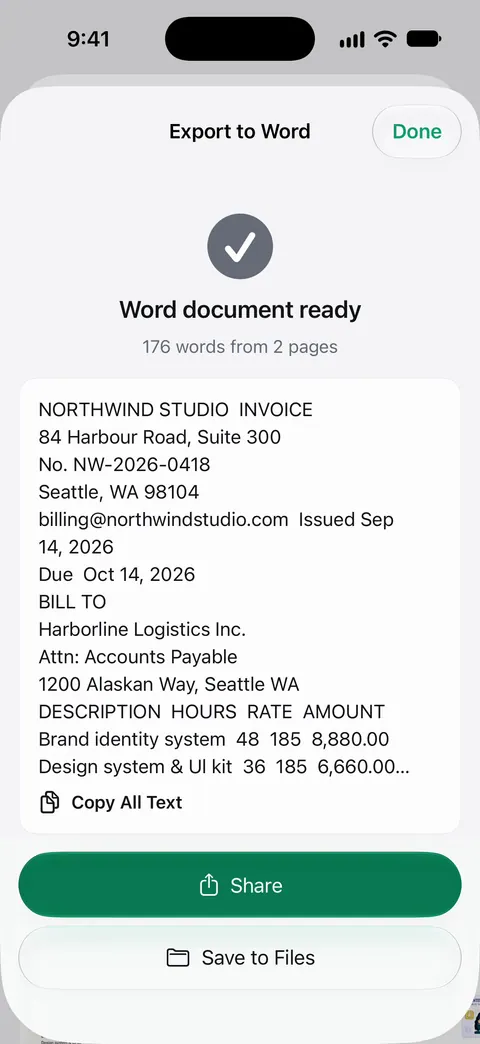
What to know before you rely on it:
- Free accounts can run the PDF tools and the Word, Excel and CSV exports 3 times a week, from one shared allowance. Pro removes every limit.
- On a free account, pages you share, print or export carry a small “Scanned with Scanner One” label at the bottom right. Pro removes it.
- Any conversion from PDF to Word rebuilds the page from what it can read. Check the result against the original, especially the numbers in tables, before you send it.
The Word, Excel and CSV feature page shows the export options.
Questions and answers
Can I convert a PDF to Word on iPhone for free?
Yes, by hand: copy the text out of the PDF in Preview, paste it into Pages and export it as Word. It costs nothing but loses most of the layout. Scanner One’s Word export is free within an allowance. Free accounts can run the PDF tools and the Word, Excel and CSV exports 3 times a week, from one shared allowance.
Why can’t I select any text in my PDF?
The PDF is probably a scan, which is a picture of the page with no text inside. Run text recognition on it first (Preview’s Embed Text option on iOS 27 does this), or use Live Text on the paper, then copy.
Will the Word file look exactly like the PDF?
Rarely. A PDF stores where each word sits on the page, not the paragraphs and styles a Word file uses, so any conversion rebuilds the document. Check headings, tables and numbers against the original before you send it.
How do I turn the Word file back into a PDF when I’m done?
Open it in Pages and export it as PDF, or in the Microsoft Word app tap File, then Export, then PDF. The guide to converting Word to PDF on iPhone has both sets of steps.
Sources
What this page says about Scanner One was checked against the app on .
- Apple iPhone User Guide, Annotate a PDF or image in Preview on iPhone — selecting and copying text in a PDF with Preview; undated guide page for iOS 26 and 27, read 2026-11-13
- Apple iPhone User Guide, Export or compress PDFs and images in Preview on iPhone — Preview’s export formats (HEIC, JPEG, PDF, PNG, TIFF, no Word) and, on iOS 27, the Embed Text option that runs OCR; undated guide page for iOS 26 and 27, read 2026-11-13
- Apple Pages User Guide for iPhone, Convert to Word, PDF, or another file format in Pages on iPhone — exporting a Pages document as Word (.docx); undated guide page, read 2026-11-13
- Apple Support, Convert Pages, Numbers, or Keynote files to Microsoft Word, Excel, PowerPoint, PDF, and more (article 105050) — the Share button, then Export and Send, then Word; published January 28, 2026
- Apple iPhone User Guide, Use Live Text with your iPhone camera — copying text from paper with the Camera; Live Text is not available in all regions or languages; undated guide page for iOS 26 and 27, read 2026-11-13
- Scanner One on the App Store — the app’s own listing: Word, Excel and CSV export
Get Scanner One
Scanner One is free, with generous limits: scanning, clean PDFs and text search never stop.

Scanner OneScan, sign and ask anything
Scanner One is free, with generous limits: scanning, clean PDFs and text search never stop.