
Guide
Have a document read aloud on iPhone
Turn on Speak Screen in Settings > Accessibility > Read & Speak. Open the document, then swipe down with two fingers from the top of the screen: iPhone reads everything shown, with controls to pause and change the speed. For one paragraph, turn on Speak Selection, select the text and tap Speak. For a paper page, Magnifier’s Detection Mode reads text in front of the camera. A scan with no text layer needs text recognition before any of these can read it.

Read the whole screen with Speak Screen
Speak Screen reads all the text on the screen, even when VoiceOver is off. It reads whatever app is open, so it works for a PDF in Files or Preview, an email or a web page. Set it up once:
- Open Settings, tap Accessibility, then Read & Speak.
- Tap Speak Screen and turn it on.
- Turn on Show Controller if you want the playback controls to stay on screen.
Then, any time:
- Open the document and go to where you want to start.
- Swipe down with two fingers from the top of the screen.
- Use the controls to pause, change the speed, or skip forward and back. Speak on Touch lets you tap the text you want read.
You can also ask Siri: “Speak screen.”
Read just the part you select
For one paragraph of a long letter, Speak Selection is faster.
- In Settings > Accessibility > Read & Speak, turn on Speak Selection.
- In the document, select the text you want to hear. Touch and hold a word, then drag the grab points.
- Tap Speak in the menu above the selection.
Apple lets you pick a highlight style and color for spoken text, so you can follow the words as they’re read.
Listen in Accessibility Reader
Accessibility Reader opens the text of any app in a clean, full-screen view with large type, and reads it aloud. It’s a good fit for a long PDF or a letter with small print.
- In Settings > Accessibility > Read & Speak, tap Accessibility Reader and turn it on. Turn on Autoplay if you want it to start reading as soon as it opens.
- Open the document. Then open Accessibility Reader from Control Center, with a triple-click of the side button if you’ve added it to your Accessibility Shortcut, or by tapping the Share button and choosing Accessibility Reader.
- Tap the Play button. You can pause, skip back or forward, change the speed and drag the slider to a point in the text.
On an iPhone with Apple Intelligence, Accessibility Reader can also summarize long text and translate it into one of your preferred languages before reading it.
Read a paper page with Magnifier
You don’t need to scan a page to hear it. The Magnifier app can read text in front of the camera.
- Open Magnifier and tap the Detection Mode button. If it’s missing, add it from Magnifier’s control settings.
- Touch and hold the Detection Mode button and make sure Text is selected.
- Point the rear camera at the page. Make sure Silent mode is off so you hear the speech.
- To read one spot, choose Point & Speak instead, and point your finger at the words.
Apple says Detection Mode should not be relied on in high-risk or emergency situations, and that Text Detection and Point & Speak are not available in all languages. For a medicine label or a bill amount, double-check with someone or with a clear scan.
Change the voice, language and speed
All of these are in Settings > Accessibility > Read & Speak:
- Voices: choose a voice and dialect.
- Default Language: the language iPhone speaks by default.
- Detect Languages: lets iPhone detect and speak more than one language, useful for a letter in Spanish when your iPhone is in English.
- Speaking Rate: drag the slider. Slower is often easier for numbers and names.
- Pronunciations: teach iPhone how to say a name it gets wrong.
Why iPhone reads nothing on a scan
Speak Screen, Speak Selection and Accessibility Reader read text. Many scanned PDFs, faxes and photos of pages contain no text at all, only a picture of it. iPhone then reads nothing, or only the file name.
To check, try to select a word in the document. If you can’t, the text needs to be recognized first:
- Open the PDF in Preview.
- Tap the Actions Menu button next to the filename, then Export.
- Choose PDF, turn on Embed Text, tap Done and save the copy.
Open the new copy and try again. The guide to making a scanned PDF searchable has more ways, and copying text from a photo works for a single page you photographed.
Where Scanner One helps, and where it doesn’t
Speak Screen and Accessibility Reader are free, work in almost every app, and are enough for most people. If the documents already have text, start there.
Scanner One helps with paper. Point your camera at any piece of paper. Scanner One finds the edges, straightens the page, cleans it up and saves a real PDF. Text recognition runs on the device, in 29 languages. Text recognition runs on every page for everyone, free or Pro. So a letter you scan already has the text that a reader needs, without the Preview export step. Listen reads any document aloud.
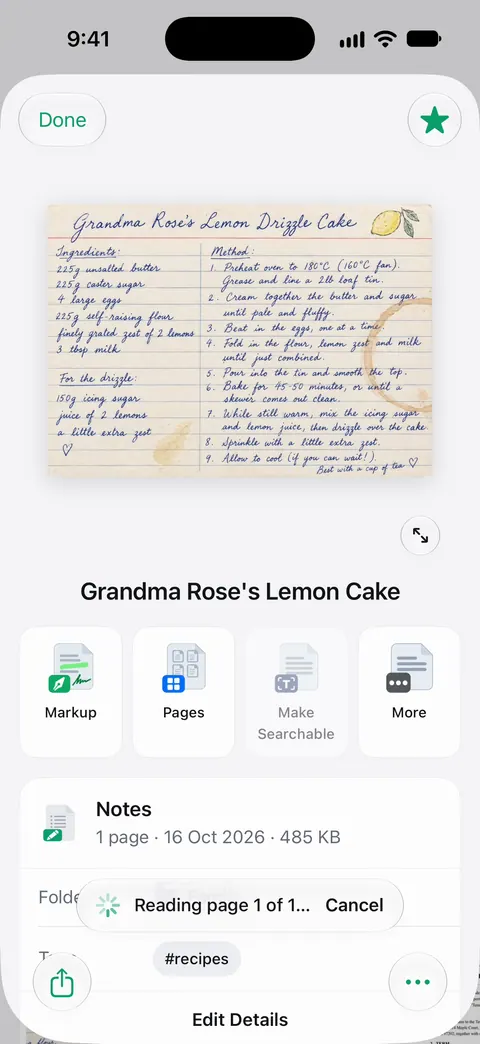
What it doesn’t change: faded print, handwriting and very small type are hard to read for any text reader, and a misread word is read aloud as misread. For a page that matters, look at the scan while you listen. If you’re setting this up for someone else, the situation guide on helping a parent with paperwork has more ideas, and the Listen feature page shows the app’s own reader.
Questions and answers
Why won’t iPhone read my scanned PDF aloud?
The scan is probably pictures of pages with no text behind them. Speak Screen reads text, not images of text. Run text recognition first, for example by exporting the PDF from Preview with Embed Text turned on, then try again.
Can I make the voice slower?
Yes. In Settings > Accessibility > Read & Speak, drag the Speaking Rate slider. While Speak Screen is reading, its controller also has a speed button.
Can Siri read a document to me?
Apple’s guide gives "Speak screen" as something you can ask Siri. Open the document first, then ask, and Siri starts Speak Screen.
Can iPhone read a letter in another language aloud?
Turn on Detect Languages in Read & Speak settings so iPhone detects and speaks more than one language. Pick a voice for each language under Voices.
Is Listen in Scanner One free?
Listen reads any document aloud. Text recognition runs on every page for everyone, free or Pro.
Sources
What this page says about Scanner One was checked against the app on .
- Apple iPhone User Guide, Hear iPhone speak the screen, selected text, and typing feedback — Speak Screen, Speak Selection, Read & Speak settings, voices, Detect Languages and speaking rate; iOS 27 guide, undated, read 2026-11-13
- Apple iPhone User Guide, Read or listen to text in apps with Accessibility Reader on iPhone — turning on Accessibility Reader, opening it, and the listening controls; iOS 27 guide, undated, read 2026-11-13
- Apple iPhone User Guide, Detect text around you and have it read out loud using Magnifier on iPhone — Detection Mode with Text and Point & Speak, and Apple’s warning about high-risk situations; iOS 27 guide, undated, read 2026-11-13
- Apple iPhone User Guide, Export or compress PDFs and images in Preview on iPhone — Embed Text, which runs text recognition on a PDF’s images; iOS 27 guide, undated, read 2026-11-13
- Scanner One on the App Store — the app’s own listing: Listen reads any document aloud
Get Scanner One
Scanner One is free, with generous limits: scanning, clean PDFs and text search never stop.

Scanner OneScan, sign and ask anything
Scanner One is free, with generous limits: scanning, clean PDFs and text search never stop.