
Comparison
Scanner One vs the Notes scanner
For a page or two you need to keep or send, the Notes scanner is enough: open a note, tap the Attachment button, tap Scan Documents, and the scan is saved as a PDF in the note, searchable by the text inside. It is free. A scanner app earns its place when you scan often and need documents named, filed and found without opening notes, or need Word exports, merging, compression or redaction. Scanner One does those, with free caps such as 3 a week for PDF tools.

Scanner One is our app. Apple’s Notes app is free, already on your iPhone, and for many people it is all they need. The steps and limits below come from Apple’s own support pages, read on November 13, 2026.
When Notes is enough
Use Notes and skip a scanner app if most of these are true:
- You scan a few pages a month: a signed form, a receipt for a return, a letter to keep.
- You send the scan right away by email or Messages, or keep it next to notes about the same thing.
- You find old scans by searching, not by browsing folders. Notes search reads the text inside scanned documents.
- You don’t need Word or Excel files, merging, compression or redaction.
That covers a lot of people. Notes is free, and its scanner has improved: in iOS 26 you can choose flash or an image filter while you scan.
How to scan in Notes
These are Apple’s steps from its support article, published February 13, 2026.
- Open Notes and select a note or create a new one.
- Tap the Attachment button, then tap Scan Documents.
- Place the document in view of the camera. In iOS 26 you can also choose flash or an image filter.
- In Auto mode the page scans by itself. Otherwise tap the Shutter button or press a volume button, drag the corners to fit the page, and tap Keep Scan.
- Tap Done, or keep scanning more pages into the same document.
Apple’s guide says the document is saved as a PDF in the note. To sign it, tap the document, tap Markup, tap Add, then Signature. Our full guide to scanning with the Notes app has tips for sharp, flat pages.
Notes and Scanner One side by side
Checked on November 13, 2026, against Apple’s support pages.
| Notes | Scanner One | |
|---|---|---|
| Price | Free, built into iOS | Free download. Pro at $4.99 a month, $29.99 a year or $59.99 once |
| What a scan becomes | A PDF inside a note | A document in the Library. Smart filing names, tags and files it: 10 documents a month on a free account |
| Text search | Notes search covers text in scanned documents | Search looks inside the text of every document and shows the matching line and page. |
| Page edits | Rotate, filters, crop, insert a blank page | A scan can have many pages, and you can reorder them. The PDF tools merge, split, compress, password-protect, add page numbers and watermarks, and extract text. |
| Signing | Markup, free | You can sign and annotate documents. Free: 3 documents a month |
| Office files | Not listed in Apple’s Notes guide | Scanner One exports to Word, keeping headings, lists and tables, and to Excel and CSV. |
| Mark on the page | None mentioned in Apple’s guide | Free: a small “Scanned with Scanner One” label on shared pages |
| Privacy label | Linked to you: User Content, Identifiers. Not linked: Usage Data | No account, no tracking |
Where Notes runs out
Notes is a notes app with a good scanner in it. The limits show up when scans pile up.
- Scans live inside notes. You find them by searching, by remembering which note holds them, or by setting up a Smart Folder that filters for attachments, which the Notes App Store description mentions.
- Exporting a whole note. Apple’s guide says that when you export a note as a PDF, a multipage scan in it contributes only its first page. Share the scanned document itself from its menu to keep every page.
- Locked notes hide from search. Apple says a locked note shows only its title in search results, so a locked scan is found only by its title.
- The tools are basic. Apple’s guide lists rotate, filters, crop and insert a blank page for scanned pages. It doesn’t cover merging two PDFs, shrinking one to email, or turning one into Word. Our guides to merging PDFs and making a PDF smaller show Apple’s free ways first.
What Scanner One adds
Scanner One is built around the pile. Point your camera at any piece of paper. Scanner One finds the edges, straightens the page, cleans it up and saves a real PDF. Then it reads the text, names the document, tags it and puts it in the right folder. When you need a paper again, Search looks inside the text of every document and shows the matching line and page.
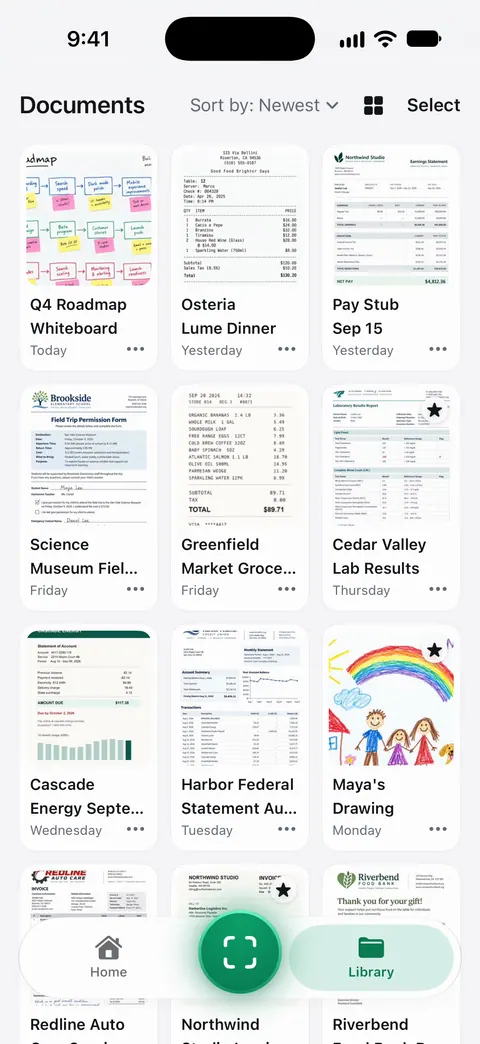
It also handles the jobs Notes leaves to other apps. The PDF tools merge, split, compress, password-protect, add page numbers and watermarks, and extract text. Scanner One exports to Word, keeping headings, lists and tables, and to Excel and CSV. ID cards and passports are scanned with both sides on one printable page. Book spreads are split into two pages and curved lines are flattened.
Pick Notes if
- You scan now and then and send the PDF straight away.
- You want nothing extra to install or pay for.
- You keep scans next to notes about the same trip, job or appointment.
Pick Scanner One if
- You scan every week and want each document named and filed without thinking.
- You need Word or Excel files, merged or smaller PDFs, ID cards on one page, or redaction (a Pro feature).
- You want to ask your papers questions. Ask your documents anything. When does the lease end? What did I spend at the shop? The answer comes back with the page it came from.
Where Scanner One helps, and where it doesn’t
Scanner One helps when scanning is a habit, not an event: it turns a pile of PDFs into a library you can search and ask. Documents stay on your iPhone unless you share them or turn on iCloud Sync.
Where Notes is the better choice:
- For a few pages a month, Notes is free and already installed. On Scanner One’s free plan, by contrast: On a free account, pages you share, print or export carry a small “Scanned with Scanner One” label at the bottom right. Pro removes it.
- Caps. Scanner One’s free PDF tools and exports run 3 a week, signing and markup 3 documents a month. Signing in Notes with Markup is free.
- Platforms. Notes keeps notes in sync across your devices with iCloud, per its App Store description. Scanner One runs on iPhone and iPad. There is no Mac version of Scanner One.
The Files app scanner and Preview are Apple’s other free options, and Free and Pro lists every Scanner One limit.
Questions and answers
Does the Notes app make a PDF when you scan?
Yes. Apple’s iPhone User Guide says a document scanned in Notes is saved as a PDF in the note. You can share, copy or rename it from its menu in the note.
Can Notes search the text in my scans?
Yes. Apple says Notes search covers typed and handwritten text, objects in images and text in scanned documents. If a note is locked, only its title shows in the results.
Why does my exported note only show page 1 of the scan?
Apple’s guide says that when you export a whole note as a PDF, a multipage scan or PDF in it contributes only its first page. Share the scanned document itself from its menu in the note instead.
Is a scanner app worth it if I have Notes?
Only if you scan often or need more than a PDF. Scanner One adds automatic naming and filing, Office exports and PDF tools: Then it reads the text, names the document, tags it and puts it in the right folder. Its free version has caps, such as 3 a week for PDF tools, and labels shared pages.
Sources
What this page says about Scanner One was checked against the app on .
- Apple Support, How to scan documents on your iPhone or iPad (108963) — the Notes scanning and signing steps, and the iOS 26 flash and filter options; page published 2026-02-13
- iPhone User Guide, Scan text and documents in Notes — scans are saved as a PDF in the note; Scan Text; read 2026-11-13
- iPhone User Guide, Search through your notes — search covers text in scanned documents; locked notes show only their titles; read 2026-11-13
- iPhone User Guide, Work with PDFs in Notes — copy, share, rename, rotate, filters, crop and insert a blank page; read 2026-11-13
- iPhone User Guide, Export or print notes — exporting a whole note as a PDF keeps only the first page of a multipage scan; read 2026-11-13
- Notes on the App Store — the privacy label, iCloud sync and Smart Folders; read 2026-11-13
- Scanner One on the App Store — the app’s own listing
Get Scanner One
Scanner One is free, with generous limits: scanning, clean PDFs and text search never stop.

Scanner OneScan, sign and ask anything
Scanner One is free, with generous limits: scanning, clean PDFs and text search never stop.