
Guide
Scan a business card into Contacts
The iPhone has no business card mode, but Live Text gets you most of the way. Point the Camera at the card, tap the Detect Text button, select the name, phone or email and tap Copy, then paste each into a new contact in Contacts. Or open a photo of the card in Preview, select the phone number or email, and tap Add to Contacts. A scanner app that reads cards fills in the whole contact at once.

Before you start: turn on Live Text
Every built-in way of reading a card relies on Live Text, the iPhone’s text recognition for photos and the camera.
- Open Settings, tap General, then Language & Region, and make sure Live Text is on.
- For the camera, also check Settings, Camera, Show Detected Text.
Apple notes that Live Text isn’t available in every region or language. If your card is in a language Live Text doesn’t support, you’ll be typing.
Copy the details with the Camera
This is the quickest built-in way for one or two cards.
- Lay the card flat in good light and open the Camera in Photo mode.
- Hold the iPhone so the card fills much of the frame. When a yellow frame appears around the text, tap the Detect Text button.
- Touch and hold the name, adjust the grab points, and tap Copy.
- Open Contacts, tap the Add button, and paste the name into the name field.
- Go back to the Camera and repeat for the company, phone, email and address. Then tap Done in Contacts.
Live Text also shows quick actions at the bottom of the screen for some details, such as calling a phone number or starting an email, which is handy if you only need to reach the person once.
To copy everything at once, tap Select All, then Copy, and paste it into the contact’s Notes field. Then copy each line into its proper field. It is faster than retyping and avoids typos in email addresses.
Add a number or email from Preview
Preview, on iOS 26 and later, has an Add to Contacts action for text in an image. It’s useful when you already have a photo of the card.
- Save the photo of the card to Files: in Photos, tap the Share button, then Save to Files.
- Open Preview and open that image.
- Select the phone number or email address in the picture.
- Tap the Forward button in the menu, then Add to Contacts.
Then add the name and company yourself and save the contact.
If the card has a QR code
Many cards now carry a QR code. Point the Camera at it in Photo mode, or use the Scan Code control in Control Center, and tap the link that appears. Depending on what the code contains, it may open a contact card to save or just a website. Look at the link before you tap, as you would with any code. More in reading a QR code from a photo or a PDF.
After an event with a stack of cards
Twenty cards at the end of a conference is where the field-by-field method gets slow. A routine helps:
- The same evening, lay the cards out on a dark table and photograph each one with the Camera, close enough that it fills the frame. Photos are quick, and the cards can go back in your bag.
- Write the context while you remember it. On the back of each card, or in a note, jot one line: what you talked about and what you promised to send.
- Next morning, open each photo in Photos, tap the Detect Text button and copy the details into Contacts, adding your one-line context to the contact’s Notes field.
- Send your follow-ups from the new contacts. A bounced email tells you right away that an address was misread.
Tips that save a second attempt
- Glossy and embossed cards reflect light. Turn the flash off and tilt the card until the text is clear.
- Dark cards with light text read better in brighter light. If Live Text misses a line, step closer.
- Check the email address letter by letter. An “l” read as “1” sends your follow-up nowhere. Send a test email right away and watch for a bounce.
- Add where you met in the contact’s Notes field. “Met at the Austin trade show, Nov 2026” is the detail you’ll want in 6 months.
- Keep a picture of the card only if it has something Contacts can’t hold, such as a handwritten note on the back.
For copying text out of other photos and scans, see copying text from a photo on iPhone.
Where Scanner One helps, and where it doesn’t
The built-in way works, but you assemble the contact one field at a time. Business cards go straight to Contacts. The screenshot shows the details read from a card, with an Add to Contacts button.
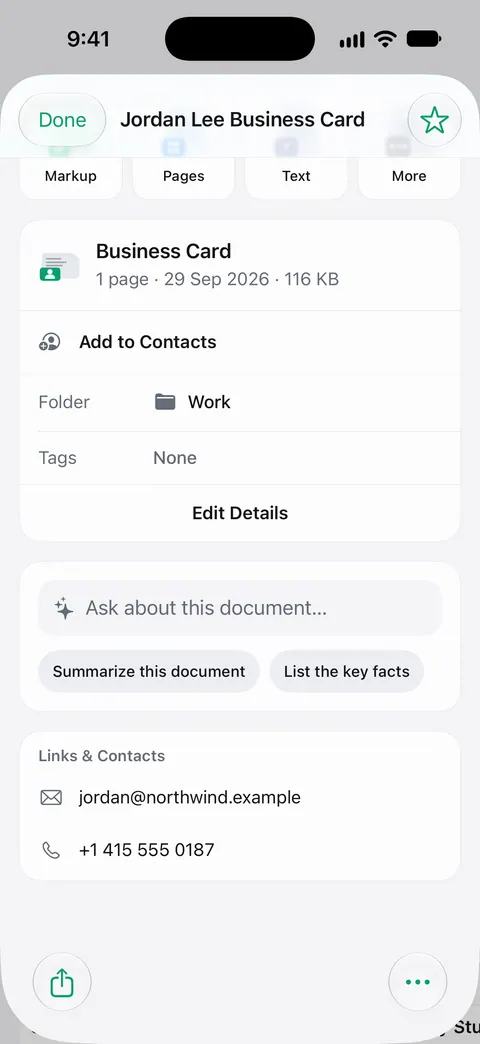
Cards with a code are covered too: QR codes and barcodes are found on every page. The scan itself stays in your Library as a document. Search looks inside the text of every document and shows the matching line and page. So you can find the card later by the company name even if you forgot the person’s.
What it doesn’t do: it doesn’t check that the details are right, so look over the contact before saving, especially email addresses. It isn’t a contact manager or CRM; your contacts live in Apple’s Contacts app. Scanner One is free, with generous limits: scanning, clean PDFs and text search never stop.
When the built-in way is enough: for a card now and then, Live Text plus Contacts takes a minute. If you come back from events with a stack of cards, reading them all at once is where an app pays off. More on how it works on the business cards page, and other scanning guides are in Guides.
Questions and answers
Can the iPhone scan a business card into Contacts by itself?
Not in one step. Live Text can read the card, and Preview offers Add to Contacts for a phone number or email in an image, but you still put the contact together field by field.
Why doesn’t Live Text appear when I point the camera at a card?
Check that it’s on: Settings, General, Language & Region, Live Text. For the camera, Settings, Camera, Show Detected Text. Live Text also isn’t available in every language or region.
The card has a QR code. Should I scan that instead?
Try it: point the Camera at the code and tap the link that appears. Some cards' codes carry the contact details, others only open a website. Check what it opens before you tap.
Should I keep the paper card after scanning it?
Once the contact is saved and checked against the card, most people don’t need it. Keep it if it has a handwritten note on the back, or scan the back too.
Sources
What this page says about Scanner One was checked against the app on .
- iPhone User Guide (iOS 27), Use Live Text with your iPhone camera — the Detect Text button, selecting and copying text, and quick actions; read 2026-11-13
- iPhone User Guide (iOS 27), Interact with text in an image in Preview — Add to Contacts for a phone number or email address in an image; read 2026-11-13
- iPhone User Guide (iOS 27), Add and use contact information — creating a contact with the Add button; read 2026-11-13
- iPhone User Guide (iOS 27), Interact with content in a photo or video — turning on Live Text in Language & Region, and Live Text in Photos; read 2026-11-13
- iPhone User Guide (iOS 27), Scan a QR code with your iPhone camera — scanning a QR code with Camera or the Scan Code control; read 2026-11-13
- Scanner One on the App Store — the app’s own listing
Get Scanner One
Scanner One is free, with generous limits: scanning, clean PDFs and text search never stop.

Scanner OneScan, sign and ask anything
Scanner One is free, with generous limits: scanning, clean PDFs and text search never stop.