
Glossary
What is a searchable PDF?
A searchable PDF is a PDF whose pages carry real text you can search, select and copy. For a scanned page, that means the picture of the paper plus an invisible text layer, made by OCR, lined up behind it. It looks exactly like the scan, but search and copy work. An image-only PDF looks the same and holds no text at all, which is why search finds nothing in it.

This page explains what makes a PDF searchable and how the two kinds of PDF differ. To turn an image-only scan into a searchable one step by step, see make a scanned PDF searchable.
Two PDFs that look the same
Picture two copies of the same scanned letter. On screen they are identical. Yet in one, search finds “invoice” instantly, and in the other it finds nothing.
- An image-only PDF holds a picture of each page and nothing else. The words you see are just colored dots. This is what many scanners and copiers produce by default.
- A searchable PDF holds the same picture plus a layer of real text. For a scan, that text comes from OCR, the software that reads letters in an image, and it sits behind the picture, invisible, in the same positions as the words it matches.
A PDF made directly from a Word file or a web page is searchable from the start, because its text never stopped being text. The question only comes up for scans and photos.
How the hidden text layer works
When OCR runs, it records each word it recognizes and where on the page it sits. The PDF keeps the scan as the visible layer and places the recognized words behind it, transparent. When you search, the viewer looks through that invisible text and highlights the matching spot on the image. When you select a line, you are selecting the hidden words, which is why copied text from a scan sometimes contains a misread letter you can’t see on screen.
Why it matters when you send papers
- You can find things. A folder of searchable scans can be searched for a name, an amount or a policy number. A folder of image PDFs can only be searched by file name.
- The person receiving it can work with it. An accountant, a landlord or a court clerk can copy a figure instead of retyping it.
- It reads aloud. Screen readers need text. An image-only PDF is silent to VoiceOver.
- It can leak what you meant to hide. A black box drawn over a number hides the picture, not the hidden text. That is why proper redaction removes both; see what redacted means.
How to check a PDF on your iPhone
Apple’s steps for Preview, on iOS 26 and later:
- Open the PDF in the Preview app.
- Tap the Search button.
- Type a word you can clearly see on the page.
- If Preview highlights it, the PDF is searchable. If it finds nothing, the page is probably an image.
A second test, the one Adobe suggests: try to select text. Touch and hold a word. If grab points appear and you can drag across a line, there’s text. If you can’t select anything, it’s a scanned image. Our free is my PDF searchable tool does the same check in your browser.
If your PDF isn’t searchable, iOS 27’s Preview can fix it: tap the menu next to the file name, tap Export, choose PDF and turn on Embed Text, which Apple describes as running OCR to make the PDF searchable. Leave Optimize Images for Screen off if you want the scan to stay sharp.
Confusions people have
- Searchable vs OCR. OCR is the process; searchable is the result. You can run OCR and only copy the text out, without ever saving a searchable PDF.
- Searchable vs selectable text in a photo. Live Text lets you select text in a photo on screen, but the photo file itself stays a picture. Why can’t I copy text from a PDF covers the cases where copying fails.
- Searchable vs PDF/A. PDF/A is an archiving format. An archive PDF can be searchable or not; the two ideas are separate.
- Searchable vs accurate. A searchable PDF can still contain misread words. For numbers that matter, search for them once to make sure.
Where Scanner One helps, and where it doesn’t
If you have iOS 27 and an occasional PDF to fix, Preview’s Embed Text is enough.
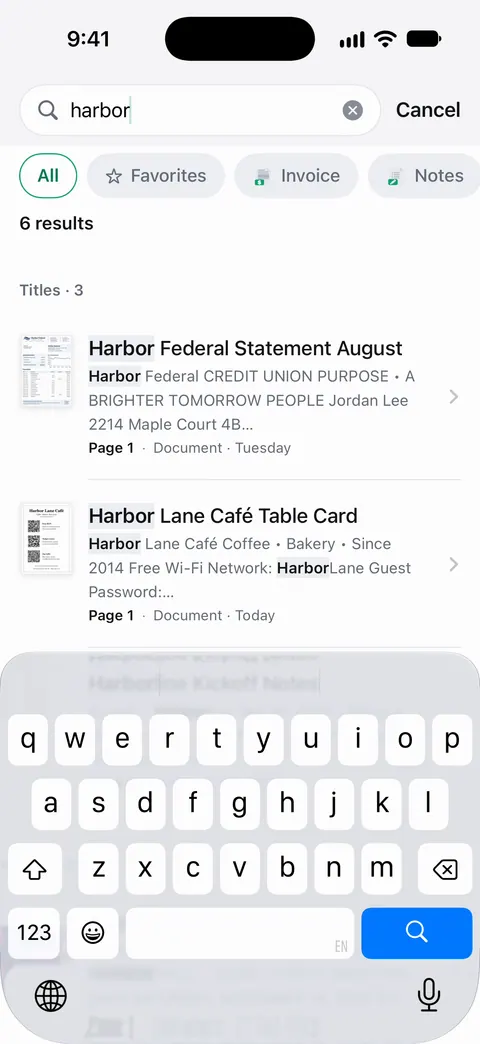
Scanner One makes every scan searchable without a separate step. Scanner One makes searchable PDFs. Text recognition runs on every page for everyone, free or Pro. Search looks inside the text of every document and shows the matching line and page. So you can search all your documents at once instead of one PDF at a time.
Limits: the hidden text is only as good as the scan, so blur and glare still cause misses. On a free account, pages you share, print or export carry a small “Scanned with Scanner One” label at the bottom right. Pro removes it.
Questions and answers
How can I tell if a PDF is searchable?
Open it in Preview, tap the Search button and type a word you can see on the page. If Preview finds it, the PDF has text. You can also touch and hold a word: if it selects like normal text, the PDF is searchable.
Is a searchable PDF the same as an editable PDF?
No. A searchable PDF lets you find and copy the words, but the page is still the scanned image. Changing the wording needs an editing tool or a conversion to Word.
Does making a PDF searchable make the file bigger?
A little. The text layer is plain characters, which are small next to the page images. The images, not the text, decide most of a scan’s size.
Why does search miss words in a searchable PDF?
The hidden text is only as accurate as the OCR that made it. A blurry, curved or faint scan produces misread words, so search for a different word on the same line or rescan the page.
Sources
What this page says about Scanner One was checked against the app on .
- Adobe Acrobat, Free OCR for PDF: recognize text for a searchable PDF — applying OCR makes the text in a scanned PDF searchable; if you can’t select or highlight text, you are likely dealing with a scanned PDF; undated, read 2026-11-13
- Apple iPhone User Guide, Open and view PDFs and images in Preview on iPhone — Find text in a PDF in Preview, with Whole Words and Match Case; undated guide page for iOS 26 and 27, read 2026-11-13
- Apple iPhone User Guide, Export or compress PDFs and images in Preview on iPhone — Embed Text runs OCR on images and makes the PDF searchable; Optimize Images for Screen lowers image resolution (iOS 27 version of the guide); undated, read 2026-11-13
- Scanner One on the App Store — the app’s own listing: searchable PDFs, search inside documents
Get Scanner One
Scanner One is free, with generous limits: scanning, clean PDFs and text search never stop.

Scanner OneScan, sign and ask anything
Scanner One is free, with generous limits: scanning, clean PDFs and text search never stop.