
Guide
Make a scanned PDF searchable
A scanned PDF is a picture of the page until text recognition (OCR) adds a hidden layer of text. On iOS 27, open the scan in Preview, tap the Actions Menu, tap Export, choose PDF and turn on Embed Text: Preview runs OCR and saves a searchable copy. Apple’s iOS 26 guide lists no such option. Then test the copy: tap Search, type a word you can see on the page, and check that Preview finds it.

Why a scanned PDF isn’t searchable
When your phone scans a page, it takes a picture. A PDF made only from that picture looks like text, but to the phone it’s a grid of dots. Search finds nothing, you can’t copy a sentence, and a screen reader has nothing to read.
A searchable PDF has one extra thing: a layer of real text, made by text recognition (OCR), hidden behind the image. You still see the scan exactly as it was, but search, copy and read-aloud now work. Making a scan searchable means adding that layer.
Check whether your PDF already has text
Many scanning apps add the text layer by themselves, so check first.
- Open the PDF in the Preview app (iOS 26 and later).
- Tap the Search button.
- Type a word you can clearly see on the page.
- If Preview finds it, the PDF is searchable. Tap the Next Result button to see each match, and the Close button when you’re done.
A quicker test: touch and hold a word on the page. If grab points appear and you can drag across a line, there’s text. If nothing happens, or the whole page selects like a picture, there isn’t.
Make a scan searchable with Preview on iOS 27
On iOS 27, Preview can run text recognition while it saves a copy. These are the steps from Apple’s guide.
- Open the Preview app and open the scanned PDF.
- Tap the Actions Menu button next to the file name, then tap Export.
- Choose PDF as the format.
- Turn on Embed Text. Apple describes it as running OCR on the images to make the PDF searchable.
- Leave Optimize Images for Screen off if you want the scan to stay sharp for printing.
- Tap the Done button, choose where to save the new copy, rename it if you like, then tap Save.
Open the new copy and run the search test above. Preview keeps your original as it was.
Apple’s iOS 26 version of the same page lists only a size slider for Export, so on iOS 26 Preview has no Embed Text option. Use one of the other routes below, or update to iOS 27 if your iPhone supports it.
Other built-in ways, and what they really do
These are useful, but each does something slightly different from a searchable PDF.
- Notes searches inside scans. Apple says Notes search covers text in scanned documents. To search PDFs attached to a note, open the note, tap the Note Actions button, tap Find in Note, then select Include Attachments in the search options. That finds the note. It doesn’t promise that a PDF you share from Notes carries the text, so test the shared file before you rely on it.
- Live Text copies text from a picture. In Preview, open an image of a page and select the text, then tap Copy. That gets you the words to paste elsewhere, as in the guide to copying text from a photo. The file itself stays a picture.
If what you really want is all the text out of the PDF, the guide to copying all the text from a PDF covers that.
Get better results from text recognition
OCR reads what it can see. Most misses come from the scan, not the software.
- Sharp beats big. Hold still, let the camera focus, and scan in good light. A blurry scan reads badly whatever you do afterwards. Why is my scan blurry covers the usual causes.
- Flat and straight. Curved book pages and skewed scans confuse line detection. Press the page flat and scan from straight above.
- Even light, no shadows. A shadow across a line can hide it from recognition.
- The right language. Recognition depends on the language. Apple notes that Live Text isn’t available in all languages; text recognition in other languages covers Arabic, Hebrew, Japanese and others.
- Handwriting is harder. Neat print is often recognized; joined-up handwriting less so. Check before you rely on it.
- Check numbers by eye. A 5 read as an S, or a 1 as an l, won’t show on screen but will break a search. For amounts and account numbers, search for them once to be sure.
Why it’s worth doing
A searchable scan pays you back every time you look for something. You can find the lease that mentions “pet deposit”, jump to the page with the policy number, or copy an address instead of retyping it. It also makes the document readable for people who use VoiceOver. And once your whole collection is searchable, you can find any document by a word inside it instead of by its name.
Where Scanner One helps, and where it doesn’t
If you have iOS 27 and an occasional scan to fix, Preview’s Embed Text is enough.
Scanner One helps when you want every scan searchable without thinking about it, on any iOS it supports. Text recognition runs on every page for everyone, free or Pro. Scanner One makes searchable PDFs. Text recognition runs on the device, in 29 languages. For a PDF that came in without text, Make Searchable reads the lines of the page.
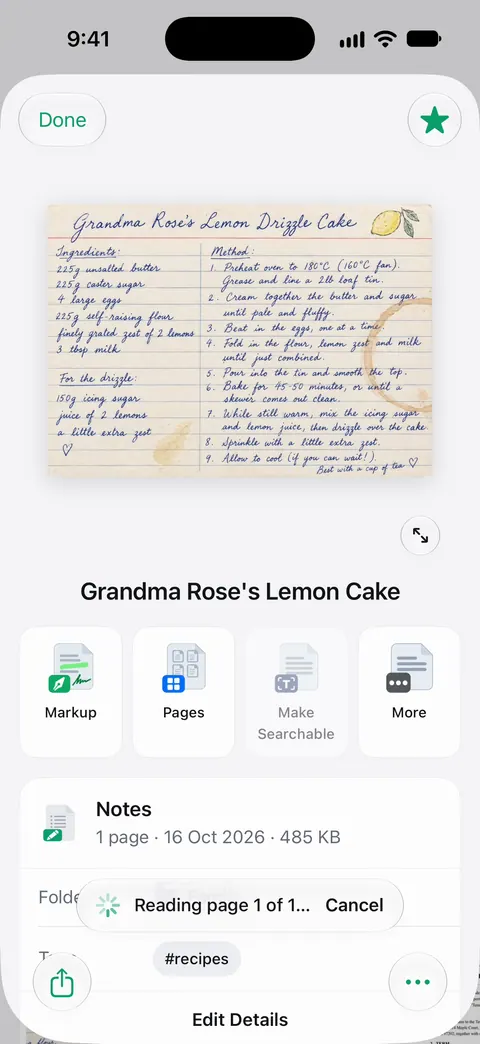
Search looks inside the text of every document and shows the matching line and page. So once your papers are in the app, you can search all of them at once, not one PDF at a time. The search feature page shows how results look.
The limits, plainly:
- Recognition is only as good as the scan: blur, glare and messy handwriting still cause misses.
- On a free account, pages you share, print or export carry a small “Scanned with Scanner One” label at the bottom right. Pro removes it.
- Scanner One needs iOS 17 or later.
Questions and answers
How do I know if a PDF is searchable?
Open it in Preview, tap the Search button and type a word you can see on the page. If Preview finds it, the PDF has text. You can also touch and hold a word: if it selects like normal text, the PDF is searchable.
What is OCR?
OCR, optical character recognition, reads the letters in a picture of a page and turns them into real text. In a searchable PDF that text sits in an invisible layer behind the page image, so the page looks the same but search and copy work.
Why does search miss some words in my scanned PDF?
Text recognition can misread blurry, curved, faint or handwritten text, and unusual fonts. A sharper, flatter, evenly lit scan fixes most of it. Try searching for a shorter part of the word, or a different word on the same line.
Can I make a scanned PDF searchable on iOS 26?
Apple’s iOS 26 guide for Preview’s Export lists only a size slider, not Embed Text. Notes can search the text in scans you keep there, and Live Text can copy text from a page, but neither is the same as a searchable PDF file.
Is text recognition free in Scanner One?
Text recognition runs on every page for everyone, free or Pro. Text recognition runs on the device, in 29 languages.
Sources
What this page says about Scanner One was checked against the app on .
- Apple iPhone User Guide, Export or compress PDFs and images in Preview on iPhone — Embed Text runs OCR on images and makes the PDF searchable (iOS 27 version of the guide; the iOS 26 version lists only a size slider); undated, read 2026-11-13
- Apple iPhone User Guide, Open and view PDFs and images in Preview on iPhone — finding text in a PDF with Preview’s Search button, Whole Words and Match Case; undated guide page for iOS 26 and 27, read 2026-11-13
- Apple iPhone User Guide, Search through your notes on iPhone — Notes search covers text in scanned documents and, with Include Attachments, PDFs; undated guide page for iOS 26 and 27, read 2026-11-13
- Apple iPhone User Guide, Interact with text in an image in Preview on iPhone — Live Text in Preview: select and copy text in an image; undated guide page for iOS 26 and 27, read 2026-11-13
- Scanner One on the App Store — the app’s own listing: on-device text recognition, searchable PDFs, search inside documents
Get Scanner One
Scanner One is free, with generous limits: scanning, clean PDFs and text search never stop.

Scanner OneScan, sign and ask anything
Scanner One is free, with generous limits: scanning, clean PDFs and text search never stop.