
Tool
Check if a PDF has real text
Choose a PDF and this page reads it on your device and reports each page as one of three things: text you can select and search, a scan with a hidden text layer (also searchable), or a picture only, which no search will find anything in. It reads the PDF’s own drawing instructions for text, so it doesn’t guess. Nothing is uploaded or kept.

Check if a PDF is searchable
This tool runs in your browser, and its page is not allowed to open a single network connection, so nothing you add is sent anywhere. Nothing is saved: closing the tab forgets everything.
or drop it here. The check starts as soon as you pick it.
No PDF yet.
How to use it
- Tap Choose a PDF, or drop one onto the box.
- Wait a moment while each page is read. The status line gives the summary, for example “3 of 5 pages have text; 2 do not.”
- Read the table below it, one row per page.
The three answers mean:
- Has text you can select and search: the page draws real letters, as a PDF saved from Word or a web page does. Search and copy work.
- A scan with a hidden text layer: the page is a picture with invisible text laid over it by text recognition. It looks like a scan but is searchable. How good the search is depends on how well the words were recognized.
- A picture only: the page is an image with no text at all. Search finds nothing, copy copies nothing, and a screen reader has nothing to read.
A page with no text and no pictures is blank, or drawn only with lines and shapes.
What happens to your file
Your browser reads the PDF into memory on your device. A PDF library on this page, pdf-lib, opens it, and a small reader looks through each page’s drawing instructions, including the pieces a page reuses, for the operators the PDF standard uses to show text (Tj, TJ and two others) and for the text rendering mode in force when they run. Mode 3 means invisible text, which is how a text layer sits over a scan. Pictures are counted too. That is all it looks at: it does not render the page or read the words.
The page is sent with a security rule that forbids it from opening any connection, so the file could not leave even if the code tried. Closing the tab forgets everything.
What it can’t tell you
- Whether the text is right. A hidden text layer with poor recognition is still “searchable” here. See why OCR gets words wrong.
- Whether text copies correctly. Text drawn with a font that doesn’t map shapes to letters can be selected but pastes as nonsense.
- Text in form fields and comments is not counted, only the page itself.
- Password-protected PDFs can’t be opened here.
To fix a picture-only PDF, see make a scanned PDF searchable. On iPhone with iOS 27, Preview’s Export has an Embed Text switch that runs text recognition on the pictures. For the idea itself, read what a searchable PDF is.
Where Scanner One helps, and where it doesn’t
This page tells you whether a PDF has text. Scanner One makes sure the documents you scan do: Scanner One makes searchable PDFs. Text recognition runs on the device, in 29 languages. Text recognition runs on every page for everyone, free or Pro.
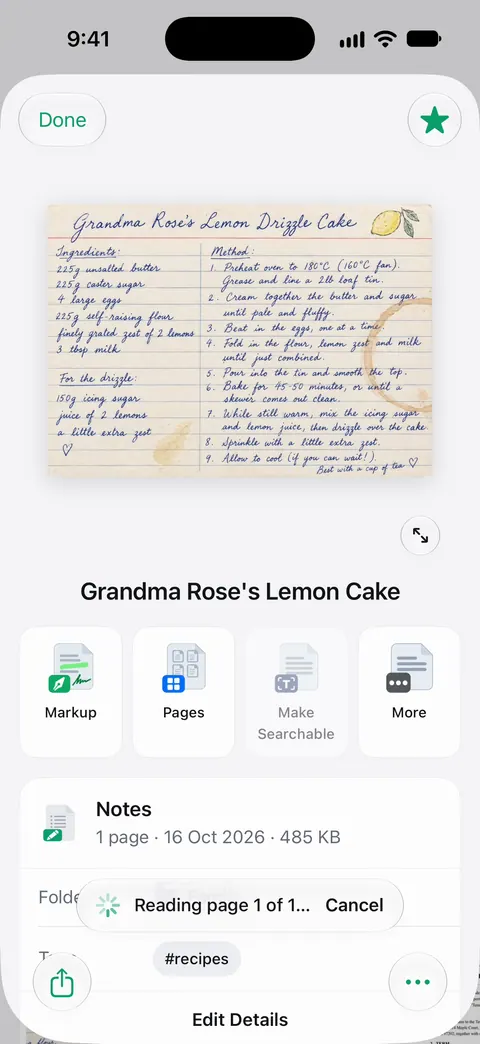
Search looks inside the text of every document and shows the matching line and page. On a free account, pages you share, print or export carry a small “Scanned with Scanner One” label at the bottom right. Pro removes it. Scanner One runs on iPhone and iPad only. To check a PDF someone sent you, on any device, this free page is enough.
Questions and answers
Is my PDF uploaded to check it?
No. This tool runs in your browser, and its page is not allowed to open a single network connection, so nothing you add is sent anywhere. Nothing is saved: closing the tab forgets everything.
What is a hidden text layer?
When a scan is run through text recognition (OCR), the words found are written into the PDF as invisible text, placed over the picture of each word. You see the scan, but search, copy and screen readers use the invisible text. The PDF standard calls this text rendering mode 3.
The tool says my page has text, but copying it gives gibberish. Why?
Some PDFs draw text with fonts that don’t say which letter each shape is. The text is there and can be selected, but it copies as wrong characters. This tool can tell that text is drawn, not whether it copies correctly: paste a line somewhere to check.
How do I make a picture-only PDF searchable?
Run text recognition on it. On iPhone with iOS 27, Preview’s Export has an Embed Text switch that does this. Then check the file here again: the pages should show as a scan with a hidden text layer.
Sources
What this page says about Scanner One was checked against the app on .
- Adobe, Document management: Portable document format, Part 1: PDF 1.7 (ISO 32000-1:2008 copy) — the PDF standard: Table 109, the text-showing operators Tj, TJ, ' and "; Table 106, text rendering mode 3 'Neither fill nor stroke text (invisible)' and mode 7; dated 2008, read 2026-11-13
- pdf-lib, Create and modify PDF documents in any JavaScript environment — the open-source library this page uses to open the PDF and reach each page’s content, in the browser; read 2026-11-13
- Apple iPhone User Guide, Export or compress PDFs and images in Preview on iPhone — Preview’s Export option Embed Text runs OCR on images and makes the PDF searchable; undated guide page, read 2026-11-13
- Apple iPhone User Guide, Open and view PDFs and images in Preview on iPhone — finding text in a PDF with Preview’s search; undated guide page, read 2026-11-13
- Scanner One on the App Store — the app’s own listing: on-device text recognition and searchable PDFs
Get Scanner One
Scanner One is free, with generous limits: scanning, clean PDFs and text search never stop.

Scanner OneScan, sign and ask anything
Scanner One is free, with generous limits: scanning, clean PDFs and text search never stop.