
Guide
Why you can’t copy text from a PDF
Most of the time, the PDF is a scan or a photo: the page is a picture of words, not words, so there is nothing to select. Fix it with text recognition (OCR). On iOS 27, open the PDF in Preview, export it as a PDF with Embed Text turned on, and the new copy has selectable text. For a few lines, Live Text in Preview can copy text straight from an image. A password-protected PDF can also block copying.

You touch and hold a word in a PDF and nothing happens, or the whole page lights up like a photo. This page explains why that happens and the quickest fixes on an iPhone. If you want to turn a whole archive of scans into searchable files, the guide to making a scanned PDF searchable goes deeper on that job.
The usual reason: the page is a picture
A PDF can hold two very different things:
- Real text. A PDF saved from Word, a bank statement downloaded from a website, or an e-ticket. Each letter is a letter, so you can select, copy and search it.
- An image of a page. A scan, a photo turned into a PDF, or a fax. It looks like text, but to your iPhone it is a picture made of dots.
You can’t copy what isn’t there. To get text out of a picture, something has to read the picture and work out the letters. That’s text recognition, usually called OCR (optical character recognition). The plain-words explanation of OCR covers how it works.
Check what kind of PDF you have
Two quick tests, in the Files app or Preview:
- Touch and hold a word. Apple’s steps for Preview: touch and hold the first word, then move the grab points. If grab points appear around words, the PDF has text.
- Search for a word you can see. In Preview, tap the Search button and type it. No result for a word that is plainly on the page means there is no text layer.
If both fail, the page is an image. If the text selects but won’t copy, skip to the section on locked PDFs.
Copy a few lines with Live Text
For a sentence or a phone number, you don’t need to convert the whole file. Live Text reads text in images on the spot.
In Preview, on an image:
- Open the image in the Preview app.
- Select the text, as you would in any app.
- Tap Copy, then paste it where you need it.
With the Camera, from paper or a screen:
- Open Camera and point it at the text.
- When the yellow frame appears around the text, tap the Detect Text button.
- Touch and hold the text, move the grab points, then tap Copy.
Apple notes that Live Text isn’t available in all regions or languages. If you have a screenshot or photo of a page, the guide to copying text from a photo has more ways.
Fix the whole PDF with Embed Text on iOS 27
To make every page of a scanned PDF selectable, export a new copy with text recognition turned on. On iOS 27, Preview does this:
- Open the PDF in the Preview app.
- Tap the Actions Menu button next to the filename, then tap Export.
- Choose PDF as the format.
- Turn on Embed Text. Apple describes it as running OCR on images to make the PDF searchable.
- Tap Done, choose where to save, rename the file if you like, and tap Save.
Open the new copy and try the tap test again. The page still looks the same, but now there is a hidden layer of text behind it that you can select, copy and search. On iOS 26, Preview’s export doesn’t list this option.
When the text selects but won’t copy
If you can see grab points but there’s no Copy, or the file asks for a password, the PDF may be locked. Apple’s Preview lets anyone add a password to keep others from editing a PDF, and other PDF apps can also restrict copying and printing.
- Ask the sender for an unlocked copy. It’s their file and their setting.
- If it’s your own file, open it with the password and save a copy without one. Apple’s tip: before locking a PDF in Preview, tap the Actions Menu button and tap Duplicate to keep an unprotected copy.
Don’t try to break a restriction on someone else’s document. If you need the text for a legitimate reason, asking is faster.
Other reasons copying goes wrong
- The text copies as gibberish. Some PDFs use fonts without a proper map from shapes to letters. The text is there but comes out as symbols. Treat the page like a scan and run text recognition on it.
- Words come out in the wrong order. Columns and tables confuse simple copying. Copy one column at a time, or export the text and tidy it.
- Recognized text has mistakes. OCR guesses from the image. Blurry, skewed, low-contrast or handwritten pages give worse results; the guide to why OCR gets words wrong explains the common causes and how to rescan.
- Only part of the page selects. A PDF can mix real text with pasted images of text, such as a logo or a signed letterhead. Use Live Text for the image parts.
Where Scanner One helps, and where it doesn’t
For one PDF on iOS 27, Preview’s Embed Text is enough, and Live Text handles a line or two from an image. Both are free.
Scanner One helps when scans are the normal case for you. Text recognition runs on every page for everyone, free or Pro. Scanner One makes searchable PDFs. So the pages you scan in Scanner One come with text you can select, copy and search, without a separate export step. For a PDF that came from somewhere else with no text, Make Searchable reads the lines of the page.
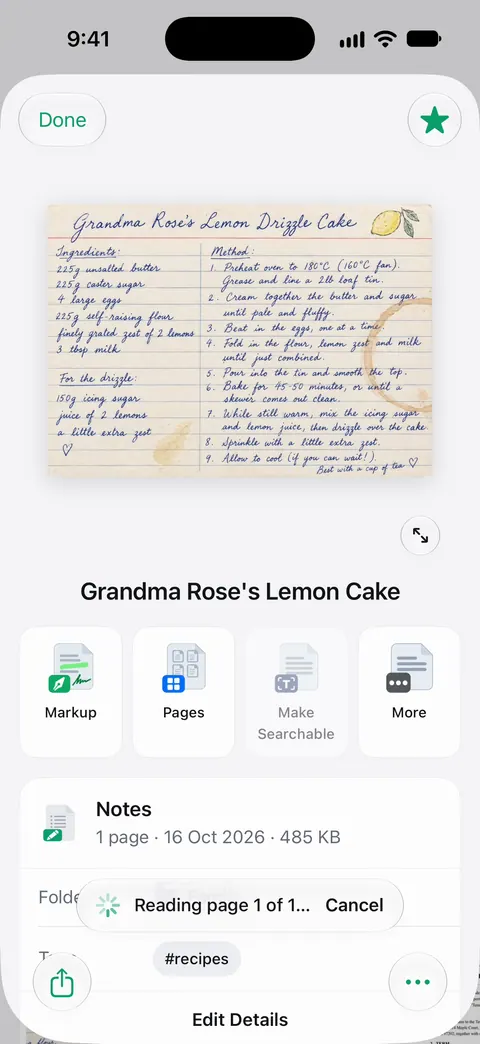
To grab just one block, such as an address or a total, Select Area reads the text inside a box you draw. And The PDF tools merge, split, compress, password-protect, add page numbers and watermarks, and extract text. The guide to extracting text from a PDF covers getting all of it out at once.
The limits, plainly:
- Text recognition runs on the device, in 29 languages. Handwriting and very poor copies will still have mistakes to fix.
- Free accounts can run the PDF tools and the Word, Excel and CSV exports 3 times a week, from one shared allowance. Text recognition itself is not part of that allowance.
- Scanner One doesn’t unlock a PDF someone else restricted. Ask them for an open copy.
Questions and answers
Why can’t I highlight text in a PDF?
The page is almost certainly an image, like a scan or a photo saved as a PDF. There are no letters to select, only pixels. Run text recognition (OCR) on it first, and the text becomes selectable.
How do I know if a PDF is scanned?
Touch and hold a word. If the selection handles appear around it, the PDF has text. If nothing happens, or the whole page gets selected like a picture, it’s a scan. Searching for a word you can see is another quick test: no result means no text layer.
Is copying text from a PDF with OCR accurate?
On a sharp, straight, well-lit page it’s usually very good. Small print, handwriting, stamps and faded copies cause mistakes, so read numbers, names and dates over before you rely on them.
Can a PDF be set to block copying?
Yes. A PDF can carry restrictions set by whoever made it, often together with a password. If the text selects but Copy is missing, or the file asks for a password, ask the sender for an unlocked copy.
Is text recognition free in Scanner One?
Text recognition runs on every page for everyone, free or Pro.
Sources
What this page says about Scanner One was checked against the app on .
- Apple iPhone User Guide, Annotate a PDF or image in Preview on iPhone — selecting text by touching and holding the first word and moving the grab points, then Copy; undated, read 2026-11-13
- Apple iPhone User Guide, Export or compress PDFs and images in Preview on iPhone — the Embed Text option, which runs OCR on images and makes the PDF searchable; the Actions Menu button, Export, Save; iOS 27 guide, undated, read 2026-11-13
- Apple iPhone User Guide, Interact with text in an image in Preview on iPhone — Live Text in Preview: select text in an image and tap Copy; translation is not available in all languages; undated, read 2026-11-13
- Apple iPhone User Guide, Use Live Text with your iPhone camera — copying text through the camera with the Detect Text button; Live Text is not available in all regions or languages; undated, read 2026-11-13
- Apple iPhone User Guide, Lock PDFs in Preview on iPhone — a password locks a PDF to prevent others from editing it; undated, read 2026-11-13
- Scanner One on the App Store — the app’s own listing: on-device text recognition for everyone, searchable PDFs, extract text
Get Scanner One
Scanner One is free, with generous limits: scanning, clean PDFs and text search never stop.

Scanner OneScan, sign and ask anything
Scanner One is free, with generous limits: scanning, clean PDFs and text search never stop.