
Feature
Search inside every document
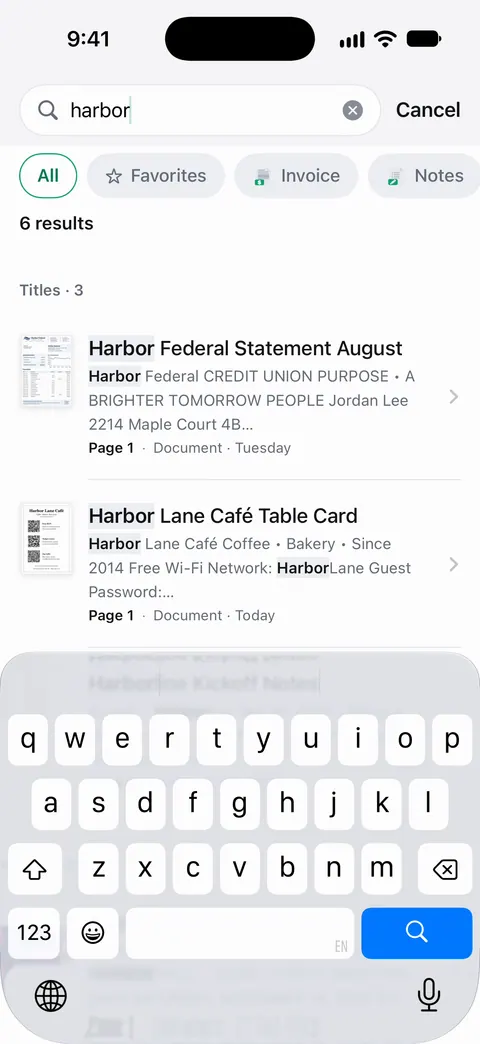
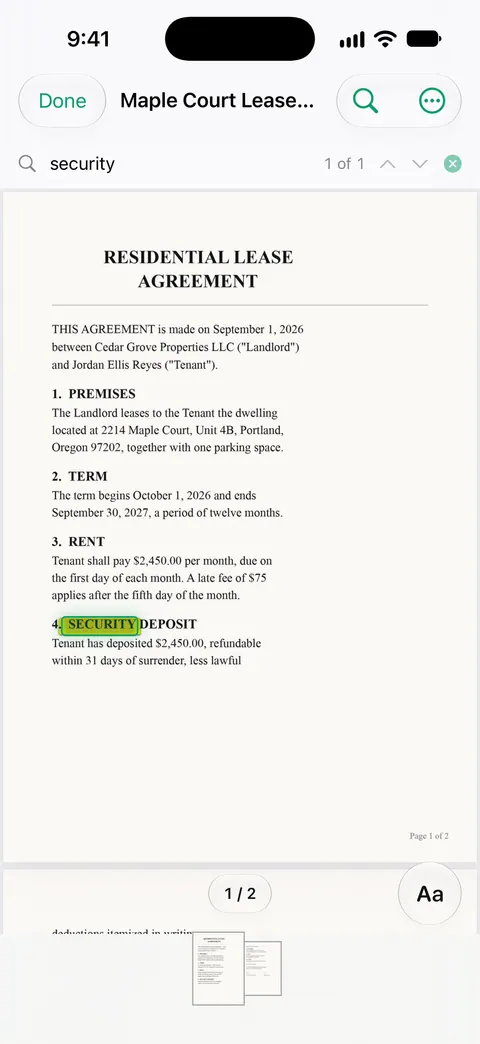
Search looks inside the text of every document and shows the matching line and page. Type a word in the Library’s search field: results come from document names and from the text inside their pages, each with a snippet. Tap one and the Reader opens on that page with the words highlighted. Text recognition runs on every page for everyone, free or Pro. Scanner One is free, with generous limits: scanning, clean PDFs and text search never stop.

What it does
Search looks inside the text of every document and shows the matching line and page. That is the difference between a pile of scans and a filing cabinet you can ask. You don’t have to remember what you called a document, or which folder it went into: a word you remember from the page finds it.
It works because every page is read when it is saved. Text recognition runs on the device, in 29 languages. Text recognition runs on every page for everyone, free or Pro.
How to search
- Open the Library and tap the search field at the top.
- Type a word or two you remember from the paper: a company, a street, an amount, a reference number.
- Results come from document names and from the text inside pages. Each shows a snippet, so you can tell which one is the right one before you open it.
- Tap a result. The Reader opens on the page where the words were found, with them highlighted.
To narrow a long list, the Library also has kind chips and folders above the grid, and you can filter it to one tag.
What to search for
The best search words are the ones that appear on only a few papers:
- Names: the landlord, the clinic, the insurer, the shop.
- Numbers: a policy number, an invoice number, the last digits of an account, a license plate.
- Places: the street of an old apartment, the city of a trip.
- Rare words: “deductible”, “warranty”, “deposit”, “renewal”.
A common word like “total” or “date” will match most of your receipts. Add a second word or pick a rarer one.
Pages that have no text yet
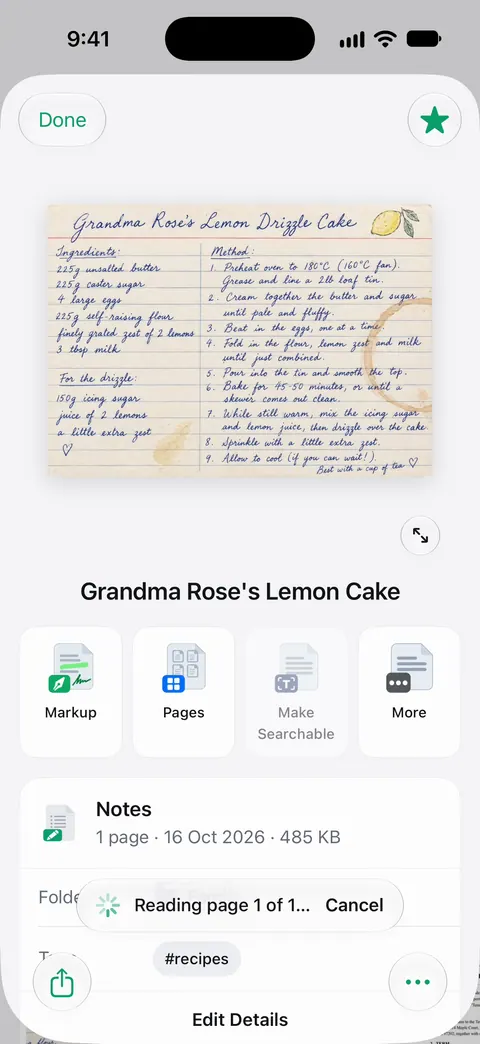
A PDF someone sent you may be a picture of a page with no text in it. If search can’t find anything on a page you can clearly read, use Make Searchable on it: it reads the lines of a page that had no text. Scanner One makes searchable PDFs.
Our guide to making a scanned PDF searchable explains what a text layer is and why some PDFs don’t have one.
When search misses
- The photo was blurred or dark. Retake the page; no recognition reads what the picture didn’t catch.
- Handwriting. Handwriting is harder for any text recognition than print. Give handwritten pages a clear name too.
- Another language. Text recognition runs on the device, in 29 languages. See languages for the app’s languages and what to do if yours is not read well.
- Names help too. Then it reads the text, names the document, tags it and puts it in the right folder. A good name is still the fastest way back to a document; see naming scanned documents.
Where Scanner One helps, and where it doesn’t
If you have a handful of PDFs with clear names, the Files app and good file names are enough to find them. Our guide to finding a document by a word inside it starts with what the iPhone can already do.
Scanner One helps when the pile grows, and when the words you remember are inside the page, not in its name. Scanner One is free, with generous limits: scanning, clean PDFs and text search never stop. With Siri and Shortcuts you can open, find, share and ask your documents by voice, and see what’s due. See Siri and Shortcuts for that, and organizing documents on iPhone for keeping the Library tidy.
Questions and answers
Can I find a scanned document by a word inside it?
Yes. Search looks inside the text of every document and shows the matching line and page. Text recognition runs on every page for everyone, free or Pro.
Why can’t search find a word I can see on the page?
Usually the word was misread: small print, a blurred photo, handwriting or a fancy font. Try a different word from the same page, or part of the word. If a page has no text at all, Make Searchable reads it.
Is search limited on the free version?
Scanner One is free, with generous limits: scanning, clean PDFs and text search never stop. Text recognition runs on every page for everyone, free or Pro.
Can I search my documents with Siri?
With Siri and Shortcuts you can open, find, share and ask your documents by voice, and see what’s due.
Sources
What this page says about Scanner One was checked against the app on .
- Scanner One on the App Store — the app’s own listing: search inside the text of every document, with the matching line and page shown
Get Scanner One
Scanner One is free, with generous limits: scanning, clean PDFs and text search never stop.

Scanner OneScan, sign and ask anything
Scanner One is free, with generous limits: scanning, clean PDFs and text search never stop.