
Guide
Search for a word inside a PDF on iPhone
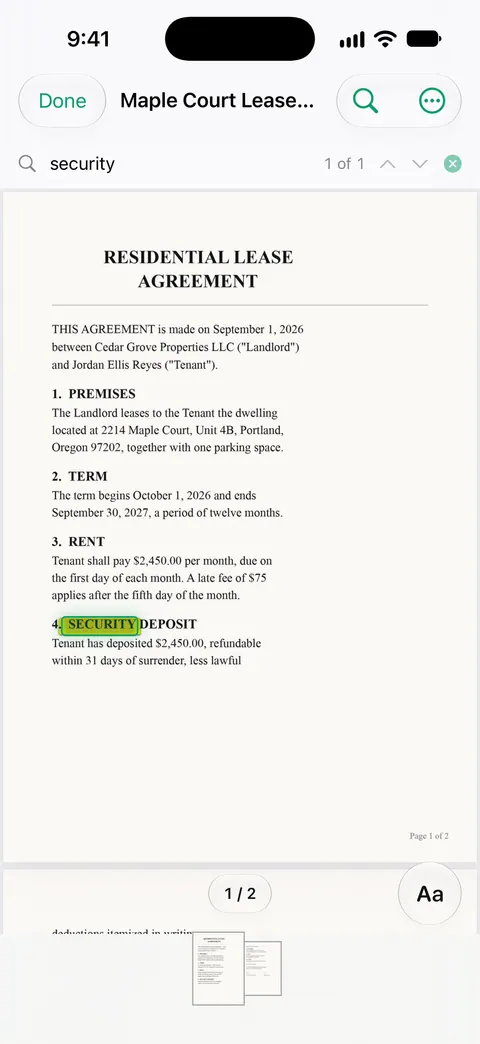
Open the PDF in the Preview app (iOS 26 and later), tap the Search button and type the word or phrase. Tap the Next Result and Previous Result buttons to jump between matches. Search Options lets you choose Whole Words or Match Case. If a word you can see isn’t found, the PDF is a scan with no text: export a copy with Embed Text on iOS 27, then search again.

This page is about finding a word inside one PDF you already have open: the iPhone version of Ctrl+F. If you’re trying to work out which of your documents mentions a word, that’s a different job, and the guide to finding a document by a word inside it covers it.
Search a PDF with Preview
Preview is Apple’s PDF app on iPhone from iOS 26, and it has the best built-in search. These are Apple’s steps.
- Open the Preview app, then open the PDF you want to search.
- Tap the Search button.
- Type a word or phrase in the search field. If you type a phrase, Preview looks for that exact phrase.
- Tap the Next Result or Previous Result button to jump from one match to the next.
- Tap the Close button when you’re done.
If the PDF is in the Files app and opens somewhere else when you tap it, touch and hold the file, choose Open With, then choose Preview. To make that stick, touch and hold the file, choose Get Info, and set Always Open With.
Narrow the results
A common word in a long contract can give you dozens of hits. Two options in Preview cut them down. Tap the Search Options button in the search field, then:
- Whole Words skips matches where your word is part of a longer word. Searching “rent” with Whole Words on won’t stop at “current” or “parent”.
- Match Case only finds text with the same capitals as you typed. Useful for names, or for “Tenant” in a lease that defines it with a capital T.
A few more habits help:
- Search for the rare word, not the common one. In a lease, “terminate” finds the right clause faster than “end”.
- Search for numbers the way they’re printed. A date may be written “03/01/2027” or “March 1, 2027”. Try the part most likely to match, such as “2027”.
- Use Go to Page for long documents. Tap the More button, then Go to Page, when you know roughly where something is. Tap the page count to see thumbnails.
When search finds nothing
You can see the word on the page, but search says there are no results. That almost always means the PDF is a scan or a photo. The page is an image of text, so there are no letters to search.
The quick test: touch and hold a word. If you can’t select it, there’s no text layer. The guide on why you can’t copy text from a PDF explains this in more detail.
Make the scan searchable on iOS 27
Preview on iOS 27 can add the missing text layer.
- Open the PDF in Preview.
- Tap the Actions Menu button next to the filename, then tap Export.
- Choose PDF, then turn on Embed Text. Apple says it runs OCR on the images and makes the PDF searchable.
- Tap Done, choose where to save the copy, and tap Save.
Open the new copy and search again. The guide to making a scanned PDF searchable has tips for better recognition, and the plain-words page on what a searchable PDF is explains the hidden text layer.
Other reasons a word won’t show up
- Spelling and line breaks. A word split with a hyphen at the end of a line may not match. Search for part of it.
- Recognition mistakes. On a scan, OCR can read “1” as “l” or “0” as “O”. Try a different word from the same sentence.
- The text is in a picture. Logos, stamps and pasted screenshots inside a PDF are images even when the rest is text.
- The word is in a form field or a comment. Some viewers don’t search typed form answers or notes. Scroll to the page and look.
Searching PDFs in other Apple apps
- Notes: if you keep PDFs in notes, Notes search can look inside them, including documents you scanned into a note. Apple points to Notes search for searching in PDFs.
- Files: the search field in the Files app matches file names, folder names and document types. It’s the way to find the file, not the word inside it.
- Quick Look: a PDF opened from Files with Preview with Quick Look is fine for reading. For searching, open the file in Preview.
Where Scanner One helps, and where it doesn’t
For one PDF with real text, Preview’s search is all you need. It’s free and fast.
Scanner One helps when the PDFs are your own scans, which is exactly where built-in search comes up empty. Text recognition runs on every page for everyone, free or Pro. Scanner One makes searchable PDFs. Search looks inside the text of every document and shows the matching line and page. Open a result and the Reader takes you to the page with the words highlighted.
So you can search one document, or every document at once from the Library, without making searchable copies first. The search feature page shows how results look.
The limits, plainly:
- Text recognition runs on the device, in 29 languages. Handwriting and faded copies can still be misread, so a missing result is not proof the word isn’t there.
- Search works on documents in Scanner One. A PDF that lives only in Files or Mail needs to be brought in first, from Home or with Save to Scanner One in the share sheet.
- On a free account, pages you share, print or export carry a small “Scanned with Scanner One” label at the bottom right. Pro removes it. That only affects pages you share or export, not searching.
Questions and answers
Is there Ctrl+F for PDFs on iPhone?
Yes. In Preview, tap the Search button and type, then step through the matches with Next Result and Previous Result. It’s the phone version of Ctrl+F or Command+F.
Why does search find nothing in my PDF?
The PDF is probably a scan or a photo, so the words are pixels and there is nothing to search. Make a searchable copy with Embed Text in Preview on iOS 27, or run text recognition in another app, then search again.
Can I search for an exact phrase?
Yes. Apple’s guide says that if you type a phrase, Preview searches for that exact phrase. Use Whole Words to skip matches inside longer words.
How do I search all my PDFs at once instead of one?
That’s a different search. The Files app’s search field matches file and folder names, and Notes searches inside PDFs attached to notes. Our guide to finding a document by a word inside it compares the options.
Does Scanner One search inside scanned PDFs?
Search looks inside the text of every document and shows the matching line and page. Text recognition runs on every page for everyone, free or Pro.
Sources
What this page says about Scanner One was checked against the app on .
- Apple iPhone User Guide, Open and view PDFs and images in Preview on iPhone — Find text in a PDF: the Search button, exact phrases, Search Options with Whole Words and Match Case, Next Result and Previous Result; Go to Page and thumbnails; undated, read 2026-11-13
- Apple iPhone User Guide, Export or compress PDFs and images in Preview on iPhone — Embed Text runs OCR on images and makes the PDF searchable; iOS 27 guide, undated, read 2026-11-13
- Apple iPhone User Guide, Find and view files and folders in Files on iPhone — Open With and choosing a default app for a file, Quick Look; the Files search field matches filenames, folder names and document types; undated, read 2026-11-13
- Apple iPhone User Guide, Work with PDFs in Notes on iPhone — attaching a PDF to a note and searching in PDFs through Notes search; undated, read 2026-11-13
- Scanner One on the App Store — the app’s own listing: search inside documents with the matching line and page, searchable PDFs
Get Scanner One
Scanner One is free, with generous limits: scanning, clean PDFs and text search never stop.

Scanner OneScan, sign and ask anything
Scanner One is free, with generous limits: scanning, clean PDFs and text search never stop.