
Guide
Scan documents for a USCIS online filing
USCIS’s own filing tips say evidence files must generally be PDF, JPG or JPEG (some forms also take TIF or TIFF), no larger than 12 MB each, and not encrypted or password-protected. Scan each document on iPhone with Files or Notes, check every page is clear and readable, save each document as its own clearly named PDF, and include a certified English translation and translator’s certificate for anything not in English.

This page is general information, not legal advice. USCIS rules and form instructions change: check the official USCIS page and your form’s instructions before you file, and talk to an accredited representative or an immigration attorney if your case is complicated.
Filing online means your evidence is judged on how it looks on a screen. This guide covers the scanning and file side: what USCIS accepts, how to scan each paper on an iPhone, and how to get files under the limit without making them unreadable. For which documents to include, see the checklists for naturalization (N-400) and green card renewal.
What USCIS accepts
From USCIS’s own Tips for Filing Forms Online page, last reviewed 2026-10-07:
| Rule | What the page says |
|---|---|
| File types | Generally PDF, JPG or JPEG; TIF or TIFF for some forms |
| Size | Each file no larger than 12MB |
| Passwords | Do not encrypt or password-protect your files |
| Quality | Scan or photograph each document so it’s clear and all text is readable |
| Not in English | Upload the original, a certified English translation and the translator’s certificate |
| Passport-style photos | If required, scan them or take a picture with your phone |
Third-party sites still repeat an older 6 MB figure. Go by the USCIS page, and by any limit the upload screen itself shows.
Scan each document
Treat each document as its own file: the birth certificate, the marriage certificate, each tax transcript. A reviewer looking for one paper shouldn’t have to scroll through forty pages.
- Lay the document flat on a dark, plain surface, in even daylight with no shadow from your phone.
- Open Files, go to a folder for this filing, tap the More button, then Scan Documents.
- Hold the iPhone square over the page. In Auto mode it captures by itself. To capture by hand, tap the shutter, drag the corners to the edges of the paper, and tap Keep Scan.
- Scan the back if anything is on it: stamps, seals, signatures, notes.
- Tap Done, then Save.
- Open the scan and zoom in. Every word, date, seal and signature should be readable.
Name each file plainly so you can match it to the evidence list, for example “Birth certificate, applicant” or “2025 tax transcript”. Keep names short and use only letters, numbers and spaces.
Documents that need extra care
- Passport and ID pages. Capture the whole page edge to edge, including the lines of letters at the bottom of a passport photo page. See scanning a passport photo page.
- Birth and marriage certificates. Scan in color: raised seals, colored stamps and security paper show up better. See scanning a birth certificate.
- Documents not in English. Scan the original and, as separate pages or a separate file, the certified translation and the translator’s certificate, so each translation sits next to its original.
- Glossy or laminated cards. Tilt the card slightly away from the light to kill glare on the photo and the numbers.
Get each file under 12MB
Most single documents scanned on an iPhone are well under the limit. Long color files, like a full set of tax returns, can go over. In order:
- Scan plain text pages in grayscale. Letters, transcripts and pay stubs don’t need color.
- Export a smaller copy in Preview. Open the PDF, tap the Actions Menu button, tap Export, choose PDF, turn on Optimize Images for Screen and Save Images as JPEG, and save the copy.
- Split very long documents into parts named “part 1” and “part 2”, if the upload screen allows several files.
Then open the smaller copy and check the small print is still readable. A file that fits but can’t be read can lead to delays, which costs more time than a rescan. The size limit guide has a table of what fits.
Mistakes that get uploads rejected or questioned
- A locked PDF. If you used Preview’s Lock on a copy, upload the unlocked original. Preview’s own steps suggest tapping Duplicate first to keep a copy that isn’t password-protected.
- HEIC photos. iPhone photos are often HEIC, which isn’t on USCIS’s list. Export as JPEG, or scan to PDF.
- Pages cut off. A missing edge can hide a date or a document number. Fill the frame with the whole page.
- Shadows and glare across names or numbers.
- A translation without the translator’s certificate.
- Everything in one giant file. It may go over the limit, and it makes your evidence harder to review.
Keep your own copy
Keep a folder with exactly what you uploaded, named the same way, plus the receipt or confirmation. If USCIS asks for more evidence later, or you need to bring originals to an interview, you’ll know what they already have. Keep the paper originals safe as well: an upload is a copy.
Where Scanner One helps, and where it doesn’t
Files, Notes and Preview are enough to prepare a USCIS upload. If your scans are clear and under the limit, you don’t need anything else.
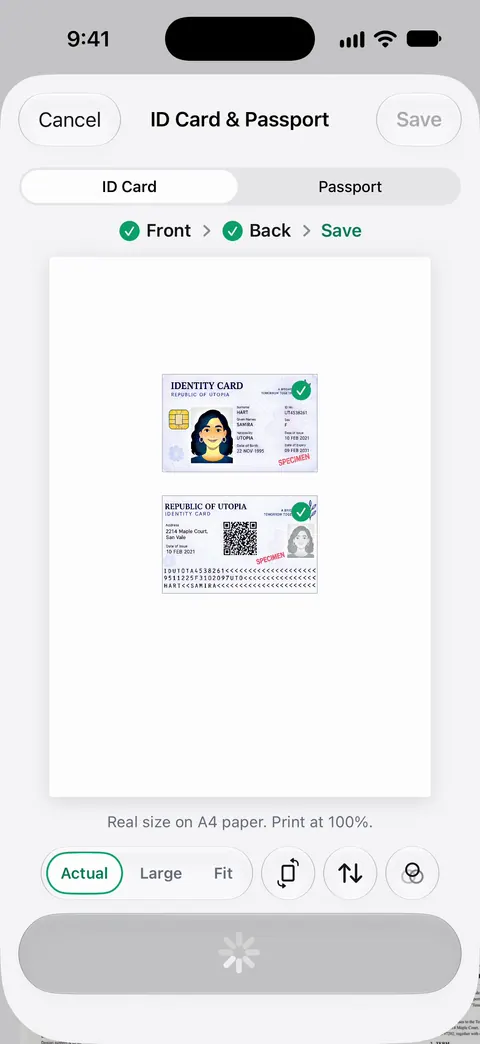
Scanner One helps with the documents that are hard to scan well. Scanner One finds the edges of the page automatically and corrects the perspective. Scans come with Auto Clean, Color, Grayscale and Receipt filters. ID cards and passports are scanned with both sides on one printable page. The PDF tools merge, split, compress, password-protect, add page numbers and watermarks, and extract text. Compress shows the new size beside the old one, so you can see a file is under 12MB before you upload.
The limits, plainly:
- On a free account, pages you share, print or export carry a small “Scanned with Scanner One” label at the bottom right. Pro removes it. If you’d rather your evidence carry no added label, use Apple’s built-in scanner for these files, or Pro.
- Free accounts can run the PDF tools and the Word, Excel and CSV exports 3 times a week, from one shared allowance. Pro removes every limit.
- Don’t use the password tool on files for USCIS: they must not be password-protected.
- It doesn’t fill in or submit USCIS forms, and it doesn’t tell you which evidence your case needs.
Gathering the papers. Packs: say what you’re applying for, like a visa, a lease or your taxes, and see which papers you have and what’s missing. Pro checks each paper in a Pack against what’s asked. It shows what you have; the official form instructions still decide what’s required.
More immigration and travel checklists are in Checklists.
Questions and answers
What is the USCIS file size limit for uploads?
USCIS’s Tips for Filing Forms Online page says files must not be larger than 12MB. Older guides on other sites mention 6 MB; the official page is the one to follow, and it can change, so check it before you file.
Does USCIS accept PNG or HEIC files?
USCIS lists PDF, JPG and JPEG, plus TIF or TIFF for some forms. iPhone photos are often HEIC, so export them as JPEG, or scan the paper to PDF, before uploading.
Can I upload a password-protected PDF to USCIS?
No. USCIS says not to encrypt or password-protect your files. If you locked a PDF, upload an unlocked copy instead.
Should I scan in color or black and white for USCIS?
USCIS asks for images that are clear with all text readable, and doesn’t set a color rule. Color is safest for documents with seals, stamps or photos, such as a passport or birth certificate; grayscale is fine for plain letters and keeps files smaller.
Sources
What this page says about Scanner One was checked against the app on .
- USCIS, Tips for Filing Forms Online — PDF, JPG or JPEG (TIF or TIFF for some forms), 12MB per file, do not encrypt or password-protect, clear and readable images, translations with certificates; last reviewed 2026-10-07
- Apple Support, Scan documents on your iPhone or iPad (article 108963) — scanning steps in Files and Notes; published 2026-02-13
- iPhone User Guide, Export or compress PDFs and images in Preview on iPhone — export a smaller PDF, or JPEG with a size slider; undated guide page, read 2026-11-13
- iPhone User Guide, Lock PDFs in Preview on iPhone — how a password is added in Preview, and Duplicate to keep an unlocked copy; undated guide page, read 2026-11-13
- Scanner One on the App Store — the app’s own listing: filters, ID card scans, merge and compress
Get Scanner One
Scanner One is free, with generous limits: scanning, clean PDFs and text search never stop.

Scanner OneScan, sign and ask anything
Scanner One is free, with generous limits: scanning, clean PDFs and text search never stop.