
Guide
Get a scan from your iPhone to your Mac or PC
To a Mac nearby, use AirDrop: in Files, touch and hold the scan, tap Share, tap AirDrop and pick your Mac; it usually lands in Downloads. To any computer, save the scan to iCloud Drive in Files, then open iCloud Drive in the Mac’s Finder, in File Explorer with iCloud for Windows, or at icloud.com in any browser. For a one-off, email the PDF to yourself.

You scanned something on your iPhone, and now you need it on a computer: to print from the office printer, attach in a desktop email, or file with the rest of your records. There are four reliable ways, and which is best depends on whether the computer is a Mac and whether it’s nearby. If you want to scan straight into a Mac app instead, using the iPhone as the Mac’s camera, that’s a different trick: see scanning on a Mac with your iPhone.
Which way to use
| Computer | Nearby? | Best way |
|---|---|---|
| Mac | Same room | AirDrop |
| Mac | Anywhere | iCloud Drive in Finder |
| Windows PC | Anywhere | iCloud Drive in File Explorer, or icloud.com |
| A computer that isn’t yours (library, office) | Anywhere | icloud.com in the browser, or email to yourself |
AirDrop to a Mac
AirDrop sends a file wirelessly to a nearby iPhone, iPad or Mac. Apple’s requirements: both devices have Wi-Fi and Bluetooth turned on, and they’re within 30 feet (10 meters) of each other.
- On the Mac, make sure AirDrop is on: open Control Center in the menu bar and turn on AirDrop. To receive from your own iPhone, Contacts Only is enough.
- On the iPhone, open Files and find the scan.
- Touch and hold the scan, then tap Share.
- Tap AirDrop, then tap your Mac.
- If both are signed in to the same Apple Account, the Mac accepts it automatically. Otherwise, click Accept on the Mac.
Apple says that on a Mac, some items are saved automatically in the Downloads folder, and for others you may get a choice of where. Check Downloads first.
If your Mac doesn’t appear, check Wi-Fi and Bluetooth on both, bring them closer, and pause any VPN on the Mac: Apple notes that a VPN which blocks local networking can interfere.
iCloud Drive: to a Mac or a Windows PC
iCloud Drive keeps the same files on your iPhone and your computers, so there’s nothing to send.
- On the iPhone, save the scan into iCloud Drive in the Files app. If you’re scanning in Files, open a folder in iCloud Drive before you tap Scan Documents, and it’s saved there directly. To move an existing file, touch and hold it, tap Move, and choose a folder in iCloud Drive.
- Give it a moment to upload, on Wi-Fi if it’s large.
- On a Mac: open Finder and click iCloud Drive in the sidebar. Apple’s iCloud guide confirms files uploaded to iCloud Drive appear in the Finder on a Mac.
- On Windows: with iCloud for Windows set up, open File Explorer and click iCloud Drive in the Navigation pane. Apple notes you can only open a file that’s downloaded to the computer; the icon next to the name shows whether it is.
Moving the file out of iCloud Drive, for example dragging it to the Desktop on Windows, removes it from iCloud Drive on all your devices. Copy it instead if you want it in both places.
icloud.com on any computer
If the computer isn’t yours or doesn’t have iCloud set up:
- Save the scan to iCloud Drive on the iPhone, as above.
- On the computer, go to icloud.com/iclouddrive in a browser and sign in to your Apple Account.
- Select the file and click the download button. It goes to the browser’s download folder.
Sign out when you’re done on a shared computer, and delete the downloaded copy from its Downloads folder.
Email it to yourself
The oldest way still works well for one or two files:
- In Files, touch and hold the scan, tap Share, then Mail.
- Send it to your own email address.
- Open the email on the computer and download the attachment.
It leaves a copy in your mailbox, which is handy for later and something to tidy if the document is sensitive. If the scan is big, Mail offers Mail Drop, which sends a download link instead.
What about a USB cable?
With a Windows PC, Apple’s Apple Devices app can copy files over USB, but only to and from apps that support File Sharing; if you don’t see a Files section, none of your apps do. For scans saved in the Files app, iCloud Drive or email is simpler. On a Mac, AirDrop or iCloud Drive is quicker than a cable.
Where Scanner One helps, and where it doesn’t
To be plain about it: Scanner One runs on iPhone and iPad, not on Mac or Windows. Scanner One runs on iPhone and iPad. To get its scans onto a computer, you use the same AirDrop, iCloud Drive and email routes as above.
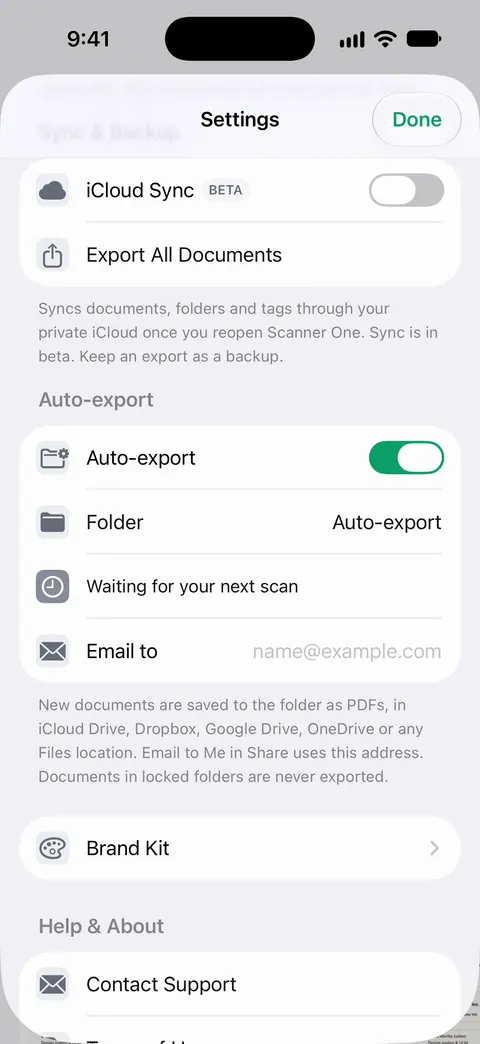
It does make those routes shorter. Share & Export saves a document as a PDF, Word, Excel, PowerPoint, JPG, PNG, a long image, plain text, Markdown, Rich Text, a web page or CSV. Share & Export can also print a document or email it to you. That covers the email-yourself route in one step. Documents stay on your iPhone unless you share them or turn on iCloud Sync. And with auto-export on, new documents go as PDFs to a folder you choose, such as one in iCloud Drive, so they show up on your computer without sending each one. Auto-export is part of Pro: Pro adds redaction, the smart eraser, edit text, auto-export and five alternate app icons.
The limits, plainly:
- On a free account, pages you share, print or export carry a small “Scanned with Scanner One” label at the bottom right. Pro removes it.
- There’s no Mac or Windows app. You read and print the PDFs on the computer with whatever PDF reader it has.
- Scanner One is free, with generous limits: scanning, clean PDFs and text search never stop.
More on keeping copies safe is in backing up scanned documents, and more ways to send are in sending a PDF from iPhone.
Questions and answers
Where do AirDropped files go on a Mac?
Apple says some items are saved automatically in the Downloads folder, and for others you may get a choice, such as Downloads or Photos for a picture. A PDF usually ends up in Downloads.
Can I AirDrop from an iPhone to a Windows PC?
No. AirDrop works between iPhone, iPad and Mac. For a Windows PC, use iCloud Drive with iCloud for Windows, download from icloud.com, or email the file to yourself.
Why doesn’t my Mac show up in AirDrop?
Check that Wi-Fi and Bluetooth are on on both devices, that they’re within about 30 feet, and that the Mac’s AirDrop is set to receive from Contacts Only or Everyone. A VPN that blocks local networking can also get in the way.
Is it better to use AirDrop or iCloud Drive?
AirDrop is quickest for one file to a Mac in the same room. iCloud Drive is better for everything else: it works with Windows and any browser, and the file stays in sync on all your devices.
Sources
What this page says about Scanner One was checked against the app on .
- iPhone User Guide, Use AirDrop to send items to nearby Apple devices — Wi-Fi and Bluetooth on, within 30 feet; same Apple Account items are accepted automatically; on a Mac some items go to Downloads; undated guide page, read 2026-11-13
- iCloud for Windows User Guide, View, add, or remove iCloud Drive files — iCloud Drive in File Explorer’s Navigation pane, opening downloaded files, dragging items out; undated guide page, read 2026-11-13
- iCloud User Guide, Upload and download files from iCloud Drive on iCloud.com — download files from icloud.com/iclouddrive on any computer; files appear in Finder on a Mac; undated guide page, read 2026-11-13
- Apple Support, Use Apple Devices to share files between your Windows computer and your iPhone or iPad (article 120402) — File Sharing over USB works only with apps that support it; published 2025-03-27
- iPhone User Guide, Send files from the Files app on iPhone — touch and hold, Share, then AirDrop, Messages or Mail; undated guide page, read 2026-11-13
- Scanner One on the App Store — the app’s own listing: Share & Export, email it to you, iCloud Sync
Get Scanner One
Scanner One is free, with generous limits: scanning, clean PDFs and text search never stop.

Scanner OneScan, sign and ask anything
Scanner One is free, with generous limits: scanning, clean PDFs and text search never stop.