
Guide
Get a PDF under 1, 2, 5 or 10 MB for an upload
Check the size first: the Files app shows it under the file name in list view. To shrink it, open it in Preview, tap the Actions Menu button, tap Export, choose PDF and turn on Optimize Images for Screen and Save Images as JPEG, then save the copy. Still too big? Rescan in grayscale, remove pages that weren’t asked for, or split the file. A black-and-white page is often under 100 KB; a color page can be over 1 MB.

Upload forms set hard limits: a resume under 2 MB, evidence under 12 MB, a scan under 1 MB for a school portal. If you need to email a big file to a person, making a PDF small enough to email covers Mail Drop and links. This page is for the case where the file itself has to fit through a website’s door.
What limits you’ll meet
Limits change, so always read the one on the form. A few published ones, as checked today:
| Where | Limit | What it accepts |
|---|---|---|
| USCIS online evidence | 12 MB per file | PDF, JPG, JPEG (TIF or TIFF for some forms) |
| LinkedIn resume | under 2 MB recommended | Word or PDF |
| iCloud Mail | 20 MB per message | any file |
| Gmail, personal account | 25 MB | any file; larger becomes a Drive link |
| Many school, bank and HR portals | often 1 to 10 MB | read the form |
Our free upload size checker runs in your browser and tells you whether a file is under a limit before you try.
How big is your PDF now
In the Files app, switch the folder to list view: each file shows its size, in KB or MB, under its name. Or drop the file on the upload size checker.
As a rule of thumb, color is what makes scans heavy. In one published scanner test at 300 dpi, a black-and-white page was about 85 KB and the same page in color about 1.4 MB. Phone scans differ, but the gap is just as large. Here is roughly what that means:
| Limit | Black-and-white pages that fit | Color pages that fit |
|---|---|---|
| 1 MB | about 10 | none without shrinking |
| 2 MB | about 20 | about 1 |
| 5 MB | about 55 | about 3 |
| 10 MB | about 110 | about 7 |
| 12 MB | about 140 | about 8 |
So if a 6-page color scan is 8 MB, rescanning it in grayscale or black and white is usually faster than fighting it down.
Shrink it in Preview
Preview, Apple’s PDF app on iPhone, saves a smaller copy and leaves the original alone.
- Open the PDF in Preview.
- Tap the Actions Menu button next to the file name, then tap Export.
- Choose PDF.
- Turn on Optimize Images for Screen. Apple says this reduces image resolution for screen viewing and makes a smaller file.
- Turn on Save Images as JPEG for a smaller file still.
- Tap the Done button, choose a folder, rename the copy (for example, add “small”), and tap Save.
Check the new size in Files. Then open the copy and zoom in on the smallest print, a signature and any stamp. If those are still readable, upload the copy.
On iOS 26, Preview’s PDF export shows a size slider instead: drag it left for a smaller file.
When the form wants images, not a PDF
If an upload box accepts only JPG, export from Preview with JPEG as the format and drag the Size slider left for a smaller file. You get one image per page, so check the form allows several files.
Still too big: five fixes that work
- Rescan in grayscale or black and white. Letters, forms and statements rarely need color. See scanning in black and white.
- Send only the pages asked for. A 30-page bank statement often only needs the first page and the page with the balance. Split the PDF and upload those.
- Remove blank pages. The back of a one-sided page adds size and nothing else.
- Crop to the paper. A desk around the page is wasted pixels.
- Split into parts if the form takes several files: “Statement part 1”, “Statement part 2”.
What doesn’t work: zipping. Most upload forms won’t accept a ZIP, and a scanned PDF is already compressed, so it barely shrinks.
Don’t go too far
Shrinking has a cost. A portal that rejects a file for being unreadable is a bigger delay than one that rejects it for size.
- Keep text sharp. If you have to squint at the copy, the reviewer will too.
- Never password-protect to save space. It doesn’t, and many official portals reject locked files. USCIS says plainly not to encrypt or password-protect uploads.
- Keep the original full-size scan, for printing or for a portal with a higher limit.
For a USCIS filing in particular, see scanning documents for USCIS.
Where Scanner One helps, and where it doesn’t
Preview’s export handles most size problems for free, and rescanning in grayscale handles the rest. If that gets you under the limit, you’re done.
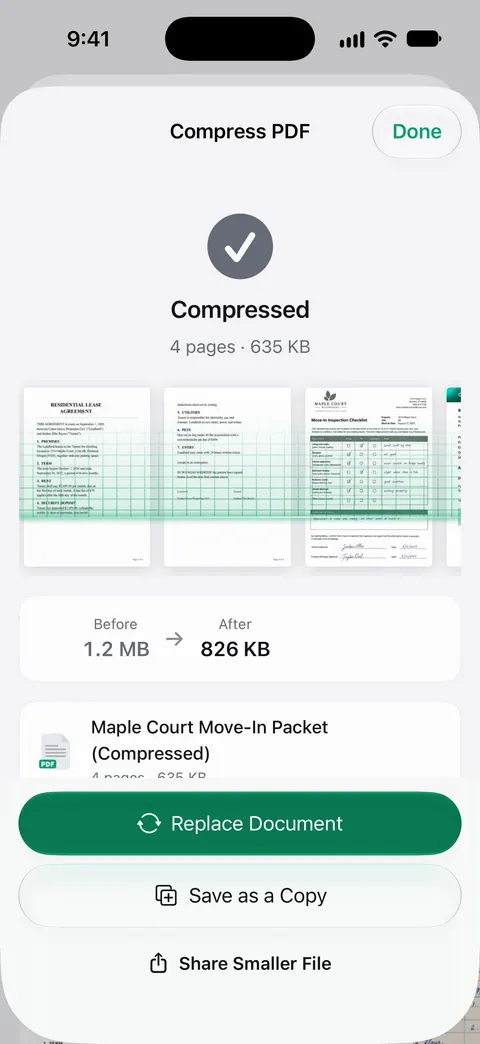
Scanner One helps when you want to see the result before you upload. The PDF tools merge, split, compress, password-protect, add page numbers and watermarks, and extract text. Compress shows the new size beside the old one, so you know it fits before you open the form.
It helps at the scanning step too. Scans come with Auto Clean, Color, Grayscale and Receipt filters. Grayscale suits most letters and forms, which keeps files small from the start. Split cuts a long file down to the pages a form asked for.
The limits, plainly:
- Free accounts can run the PDF tools and the Word, Excel and CSV exports 3 times a week, from one shared allowance. Pro removes every limit.
- On a free account, pages you share, print or export carry a small “Scanned with Scanner One” label at the bottom right. Pro removes it.
- No compressor makes a long color scan tiny without losing detail. For that, rescan or split.
More PDF guides are in Guides.
Questions and answers
Is 1 MB the same as 1,000 KB?
Close enough for uploads, but not exactly. Some sites count 1 MB as 1,000 KB and others as 1,024 KB. Aim for a little under the limit, such as 1.8 MB for a 2 MB limit, and you won’t hit the difference.
How many pages fit in a 2 MB PDF?
It depends on color more than pages. In one scanner test, a 300 dpi black-and-white page was about 85 KB, so 20 or so pages fit; a color page was about 1.4 MB, so only one fits. Scan text in grayscale or black and white.
Will shrinking a PDF make it blurry?
It can, if you go too far. Small print and signatures go soft first. Shrink, then zoom in on the smallest text before you upload, and keep the original.
The site’s limit is per file. Can I upload two smaller files?
Often yes. If the form allows several files, split the PDF into two halves and upload both, named so the order is clear, such as part 1 and part 2.
Sources
What this page says about Scanner One was checked against the app on .
- iPhone User Guide, Export or compress PDFs and images in Preview on iPhone — PDF export options Optimize Images for Screen and Save Images as JPEG (smaller files), and the JPEG Size slider; undated guide page, read 2026-11-13
- USCIS, Tips for Filing Forms Online — evidence files must not be larger than 12MB; PDF, JPG or JPEG; last reviewed 2026-10-07
- LinkedIn Help, Upload your resume to LinkedIn — recommends a resume file under 2MB, Word or PDF; read 2026-11-13
- Apple Support, Mailbox size and message sending limits in iCloud (article 102198) — iCloud Mail messages up to 20MB; read 2026-11-13
- Gmail Help, Send attachments with your Gmail message (iPhone and iPad) — 25 MB for personal Gmail accounts; read 2026-11-13
- Hamrick Software, What is the best dpi for scanning documents? — measured page sizes: about 85 kB black and white and 1.4 MB color at 300 dpi; updated 2022-07-01
- Scanner One on the App Store — the app’s own listing: compress, grayscale filter, split
Get Scanner One
Scanner One is free, with generous limits: scanning, clean PDFs and text search never stop.

Scanner OneScan, sign and ask anything
Scanner One is free, with generous limits: scanning, clean PDFs and text search never stop.