
Guide
Why text recognition gets words wrong, and how to fix it
Text recognition (OCR) misreads words mostly because of the picture, not the text: blur, shadows, a tilted or curved page, text that’s too small in the frame, or a language the reader doesn’t support. Fix the scan and the text usually fixes itself: rescan in even light, hold the iPhone flat and close, crop out dark borders, and check that Live Text supports the language. Then search for a word you can see to test it.

Text recognition, or OCR, is what turns a picture of a page into text you can search, copy or have read aloud. When it works you never notice it. When it doesn’t, a search for “invoice” finds nothing, copied text says “lnvoice”, and a total of 1,050 becomes 1,O5O. This page explains why that happens and what to change. For pages in Arabic, Hebrew, Japanese and other scripts, see text recognition in other languages, which covers language support in detail.
The mistakes you’ll see
OCR mistakes follow patterns. Knowing them makes them easy to spot.
| Printed | Often read as | Why |
|---|---|---|
| rn | m | The two letters touch in a soft image |
| 0 (zero) | O (letter) | Same shape in many fonts |
| 1, l, I | Any of the others | Thin vertical strokes |
| 5, 8, 6 | S, B, b | Rounded shapes blur together |
| é, ü, ñ | e, u, n | Accents are tiny and drop out |
| Two columns | Lines mixed across | Wrong reading order |
| A table | Numbers in the wrong rows | Cell borders confuse the layout |
| A word split by a line break | Two half-words | Hyphens and line ends |
The picture is usually the problem
The people who build OCR engines say the same thing: give the engine a better image. The documentation for Tesseract, a widely used open-source OCR engine, lists the image problems that cut accuracy. They apply to any OCR, including what your iPhone uses.
Too small or too soft
Tesseract’s documentation says it works best on images of at least 300 dpi. Scanner software makers recommend about 300 dpi for standard printed documents too, and warn that 75 dpi is only good for previewing. A phone has no dpi setting, but the idea carries over: the letters need enough pixels. Fix: hold the iPhone close enough that the page fills the screen, hold still, and let it focus. Shooting a whole desk from standing height gives small, soft letters. If the scan is blurry, why scans come out blurry has the fixes.
Shadows and uneven light
OCR first decides which pixels are ink and which are paper. Tesseract’s documentation notes that this step can go wrong when the page background is of uneven darkness, which is exactly what a shadow or a lamp in one corner does. Letters in the shadow fill in; letters in the glare fade out. Fix: daylight from a window, your body not between the light and the page, no flash on glossy paper. See removing shadows from scans.
A tilted or curved page
According to the Tesseract documentation, line finding gets much worse when a page is skewed, and that severely affects the result. A page photographed at an angle, or a book page curving into the spine, gives slanted, bending lines. Fix: scan with a scanner (Notes, Files, Preview or an app), which finds the edges and straightens the page, rather than a plain photo. Press book pages flat.
Dark borders and clutter
Scanned pages often have dark edges, and Tesseract’s documentation notes these can be picked up as extra characters. Hole punches, staples, stamps and handwriting in the margins do the same. Fix: crop to the paper.
Faint, thin or very bold type
Thin strokes and serifs lose detail, and heavy ink bleeds letters together. Faded receipts and old photocopies are the worst case. Fix: a grayscale filter often keeps faint text that a strong black-and-white filter throws away. For a faded original, scan it now, before it fades further.
The wrong language, or no language support
OCR reads with a language in mind: its letters and its dictionary. Apple’s Live Text “isn’t available in all regions or languages”. A page in a language your reader doesn’t support comes out as nonsense or nothing. Fix: in Settings, General, Language & Region, check that Live Text is on, and see the other languages guide.
Handwriting
Handwriting is the hardest case of all, and errors are normal even on a perfect scan. See converting handwriting to text for what to expect.
Test the text before you rely on it
- Open the scanned PDF and search for a word you can clearly see on the page, ideally an unusual one.
- Try a number too, like an invoice total.
- If search finds nothing at all, the PDF may have no text layer. Our free searchable PDF checker tells you in your browser.
To add text to a PDF that has none, open it in Preview, tap the Actions Menu button, tap Export, choose PDF and turn on Embed Text. Apple says this runs OCR on the images and makes the PDF searchable. More ways are in making a scanned PDF searchable.
When you can’t rescan
Sometimes the original is gone and all you have is a poor scan.
- Copy the text out and fix it in a document, checking against the image.
- Search for part of a word (“nvoice” instead of “invoice”) to find pages where the first letter was misread.
- Type the key facts (total, date, account number) into the file name or a note, so you can find it regardless of the OCR.
Where Scanner One helps, and where it doesn’t
Apple’s scanners and Preview’s Embed Text do a good job on clean print. If search finds your words, your text is fine.
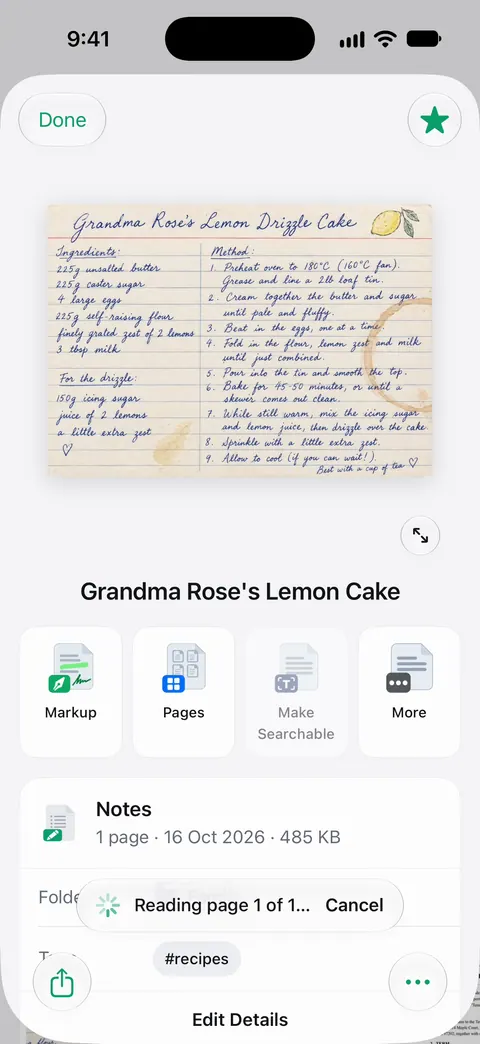
Scanner One works on the causes above at the scanning step. Scanner One finds the edges of the page automatically and corrects the perspective. Book spreads are split into two pages and curved lines are flattened. Scans come with Auto Clean, Color, Grayscale and Receipt filters. The Receipt filter turns a faint receipt into crisp black text on white. Text recognition runs on the device, in 29 languages. Text recognition runs on every page for everyone, free or Pro.
Search looks inside the text of every document and shows the matching line and page. That makes it quick to test a scan by searching a word you can see.
The limits, plainly:
- No OCR is perfect. Faded print, tiny type, tables and handwriting still produce mistakes, so check numbers that matter.
- Editing a scan’s words directly is a Pro feature: Pro adds redaction, the smart eraser, edit text, auto-export and five alternate app icons.
- Scanner One is free, with generous limits: scanning, clean PDFs and text search never stop.
The OCR glossary entry explains the term itself.
Questions and answers
How accurate is OCR?
On a sharp, straight scan of clean print, very accurate. Accuracy falls quickly with blur, shadows, small or faded text, unusual fonts, tables and handwriting. No OCR is right every time, so check names and numbers in anything important.
What resolution do I need for good OCR?
The Tesseract OCR documentation says it works best on images of at least 300 dpi. On a phone, that means filling the frame with the page and holding steady, rather than shooting from far away and zooming in.
Can I correct OCR mistakes in a scanned PDF?
The hidden text layer usually can’t be edited by hand in a normal PDF app. The practical fix is to rescan better and run recognition again, or to copy the text out and correct it in a document.
Why does OCR mix up columns and tables?
It has to guess the reading order. Two columns side by side can be read straight across, and table cells can run together. Scanning one column at a time, or cropping to one table, helps.
Sources
What this page says about Scanner One was checked against the app on .
- Tesseract documentation, Improving the quality of the output — how resolution (at least 300 dpi), uneven backgrounds, noise, skew, borders and thin or bold type reduce OCR accuracy in the open-source Tesseract engine; undated, read 2026-11-13
- Hamrick Software, What is the best dpi for scanning documents? — about 300 dpi is enough for a standard printed document; 75 dpi is too low for much beyond previewing; updated 2022-07-01
- iPhone User Guide, Interact with content in a photo or video on iPhone — turn on Live Text in Language & Region; Live Text isn’t available in all regions or languages; undated guide page, read 2026-11-13
- iPhone User Guide, Export or compress PDFs and images in Preview on iPhone — Embed Text runs OCR on a PDF’s images and makes it searchable; undated guide page, read 2026-11-13
- Scanner One on the App Store — the app’s own listing: on-device text recognition, filters, edge detection
Get Scanner One
Scanner One is free, with generous limits: scanning, clean PDFs and text search never stop.

Scanner OneScan, sign and ask anything
Scanner One is free, with generous limits: scanning, clean PDFs and text search never stop.