
Comparison
Scanner One vs DocuSign for signing on iPhone
If someone sent you a DocuSign request, sign it there: Docusign’s App Store page says signing is free with no monthly limit, and its site says signers need no account. You need DocuSign, or a service like it, when you send a document for other people to sign and want it tracked; its Personal plan sends 5 envelopes a month. To sign a PDF yourself and send it back, Notes or Files on the iPhone is enough, and Scanner One adds scanning, form filling and PDF tools.

Scanner One is our app. Facts about DocuSign come from its US App Store page and its eSignature page, read on November 13, 2026. This page is general information, not legal advice; if a signature’s validity matters, check with the party asking for it.
This page answers one question: do you need DocuSign on your iPhone, or does a simpler tool do the job? For a roundup of signing apps, see the best app to sign documents on iPhone.
Two different jobs
People search for a “DocuSign alternative” for two reasons, and the answer differs.
You sign something yourself. A lease, a permission slip, a form your bank emailed. You add your signature and send the PDF back. Any of the tools below does that, most for free.
You send something for others to sign. You’re a landlord, a contractor or a small business, and you need a client to sign, maybe in a set order, with a record of who signed when. That is DocuSign’s job. Scanner One doesn’t do it, and neither do Notes or Files.
If someone sent you a DocuSign
Sign it in DocuSign. You don’t need to pay or download anything. Docusign’s App Store page says signing is free for all parties with no monthly limit, and its eSignature page says signers can complete documents on any device with no account required. Open the link in the email and follow the steps on screen.
Don’t download the PDF, sign it in another app and email it back unless the sender asks for that. They are waiting for the completed envelope in DocuSign.
What DocuSign does, from its own pages
- Free signing. “E-sign your documents for free with no monthly limit,” per the App Store description.
- Sending is paid. The App Store description puts sending in the paid plans. Personal sends up to 5 documents a month; Docusign’s site says Standard and Business Pro send a total of 100 envelopes per user per year.
- Templates. Reusable templates are listed for the Personal, Standard and Real Estate plans.
- Legal standing. The description says agreements are legally binding and refers to the ESIGN Act.
- Uploading. Documents can come in from photo scans and other sources.
Signing a PDF yourself on iPhone, for free
Apple’s steps for signing a scanned document in Notes:
- Open Notes, then tap the document in the note.
- Tap the Markup button.
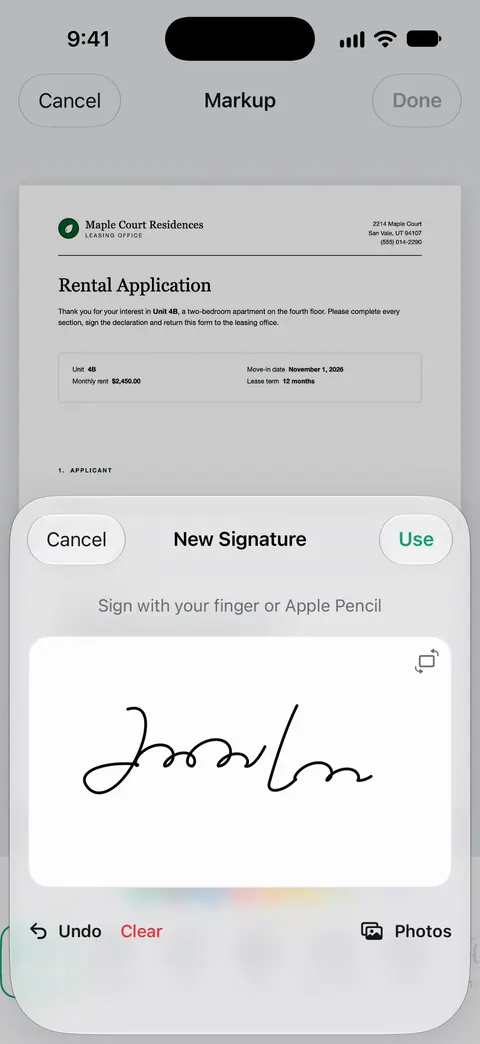
- Tap the Add button, then tap Signature, and add a saved signature or create a new one.
- Tap Done.
Then share the PDF from the note. For a PDF that arrived by email or sits in Files, sign a PDF on iPhone walks through each route. If you’d rather make a clean signature image first, our free signature maker runs in your browser.
Signing in Scanner One
You can sign and annotate documents. Fill Form lets you type into the fields of a PDF form. You can scan the paper, fill the form fields, sign, and send it in one app.
- Scan the paper, or bring the PDF in. From Home you can bring in pictures from Photos and files from the Files app, or scan an ID card. Other apps can send a file to Scanner One with Save to Scanner One in their share sheet.
- If it is a fillable form, use Fill Form to type into its fields.
- Open Markup, add your signature and place it on the line. Move and resize it until it sits right.
- Share the signed PDF from Share & Export.
Side by side, checked November 13, 2026
| DocuSign | Scanner One | |
|---|---|---|
| Price model | Free to sign; paid plans to send, listed from $14.99 (Personal) to $59.99 (Business Pro), Personal also at $119.99 | Free download. Pro at $4.99 a month, $29.99 a year or $59.99 once |
| Free limits | Unlimited signing; sending needs a plan | Free accounts can sign and mark up 3 documents a month. |
| Send for others to sign | Yes; Personal sends 5 a month | No |
| Signers need an account | No, per Docusign’s site | Not applicable |
| Scan paper | Upload from photo scans | Scanner One finds the edges of the page automatically and corrects the perspective. |
| Fill a PDF form | Signing fields placed by the sender | Fill Form lets you type into the fields of a PDF form. |
| Privacy label | Linked to you: Contact Info, Purchases, Location, Contacts, User Content, Identifiers, Usage Data, Diagnostics | No account, no tracking |
| Platforms | iPhone, iPad, Apple Vision; iOS 17.0 or later | iPhone and iPad; iOS 17 or later |
Which one to pick
- Someone sent you a DocuSign link: sign it in DocuSign, free.
- You need other people to sign, with a record: DocuSign or another e-signature service. This is not something Scanner One or Markup can replace.
- You sign a few PDFs a month and send them back: Notes, Files or Markup. Free and already on your phone.
- You sign often, start from paper, or fill forms first: Scanner One, which scans, fills, signs and shares in one place.
Whether a typed or drawn signature is accepted depends on who is asking and for what. Our page on whether electronic signatures are legal explains the US basics, and electronic vs digital signature explains the difference between a drawn signature and a certificate-based one.
Where Scanner One helps, and where it doesn’t
Where it helps: you start from paper and finish with a signed PDF without switching apps. You can sign and annotate documents. Fill Form lets you type into the fields of a PDF form. Documents stay on your iPhone unless you share them or turn on iCloud Sync. Scanner One needs no account and does no tracking.
Where it doesn’t:
- No sending for signatures. No signing requests, signing order, reminders or completion records. DocuSign does that, and Scanner One doesn’t try to.
- Free caps and the label. Free accounts can sign and mark up 3 documents a month. On a free account, pages you share, print or export carry a small “Scanned with Scanner One” label at the bottom right. Pro removes it. If you send signed documents to a landlord or employer, the label goes with them unless you have Pro.
- When Markup is enough. For a signature now and then, Notes and Files already do it at no cost.
For filling the form before you sign, see fill a PDF form on iPhone.
Questions and answers
Do I need a DocuSign account to sign a document someone sent me?
No. Docusign’s eSignature page says signers can complete documents on any device with no account required. Open the link in the email and follow the steps.
Is there a free alternative to DocuSign for signing a PDF?
For signing a PDF yourself, yes: Notes, Files and Markup on the iPhone add a signature for free. What they don’t do is send a document to several people, collect their signatures in order and track it. That part is what DocuSign sells.
How many documents can I send on the DocuSign Personal plan?
Its App Store page and its eSignature page both say the Personal plan sends 5 documents (envelopes) a month. Standard and Business Pro send a total of 100 envelopes per user per year, per Docusign’s site.
Can Scanner One send a document out for signatures like DocuSign?
No. You can sign and annotate documents. You sign it yourself and share the PDF. It has no signing requests, signing order or tracking of who has signed.
Sources
What this page says about Scanner One was checked against the app on .
- Docusign - Upload & Sign Docs on the App Store — free signing with no monthly limit, the Personal plan’s 5 documents a month, in-app purchases, privacy label, version 3.49.0, iOS 17.0 requirement; read 2026-11-13
- Docusign, eSignature product page — envelope limits per plan, signers need no account, free trial; read 2026-11-13
- Apple Support, Scan documents on your iPhone or iPad (article 108963) — the steps to sign a scanned document in Notes with Markup; published 2026-02-13
- Scanner One on the App Store — the app’s own listing
Get Scanner One
Scanner One is free, with generous limits: scanning, clean PDFs and text search never stop.

Scanner OneScan, sign and ask anything
Scanner One is free, with generous limits: scanning, clean PDFs and text search never stop.