
Guide
Fill out a PDF form on iPhone
Open the form in the Files app, tap the AutoFill button, then tap each blank field and type. AutoFill can fill your name, address and phone from your card in Contacts. On iOS 26 and later, Preview does the same with its Form Filling button. If the form has no fields, tap the Add button, then Add Text Form Box, and type where you need. Then add your signature and share the filled copy.

First, check what kind of form you have
PDF forms come in two kinds, and the steps differ.
- A fillable form has real fields. When you tap a blank line, a box lights up and the keyboard appears. Government, bank and school forms downloaded from a website are often like this.
- A flat form is just a picture of a page: a scan, a photo, or a PDF made without fields. Tapping a line does nothing. You type on it by placing your own text boxes.
To tell which one you have, open the form and try the steps in the next section. If tapping a blank line selects a field, it’s fillable. If not, skip to the section on flat and scanned forms below.
Fill out a form in the Files app
These are the steps from Apple’s iPhone User Guide for iOS 27. They work for a form you got in Mail, Messages or Safari.
- Open the form on your iPhone. If you are prompted, open the document in the Files app, then tap Save.
- Tap the AutoFill button, tap a blank field, then type with the keyboard. Keep tapping and typing in the next fields.
- If a prompt offers to fill several related fields at once, check the suggested details, tap any field to change it, then tap Fill.
- To type somewhere that has no field, tap the Add button, then tap Add Text Form Box. Drag the box into place and type. The formatting tools change the font and color.
- To sign, tap the Add button, then tap Add Signature. The guide to signing a PDF has the details.
- When you’re done, tap the Menu button, then tap Export, Print or the Share button. Tap the Back button to save the form.
On iOS 26 the flow is the same with two small changes: after AutoFill you tap an option from your saved contact info to fill a field, and you finish by tapping the Share button to send the form by Mail, Messages or AirDrop, then Done.
Let AutoFill do the typing
AutoFill reads the card marked as yours in Contacts. Apple’s tip: complete your My Card first, and AutoFill fills supported forms much faster. Add your full address, phone, email and date of birth to it once. When you fill a form for someone else, such as a parent, a spouse or someone you care for, tap Choose other and pick their contact. In iOS 27, AutoFill suggestions also appear above the keyboard as you type.
Fill out a form in Preview (iOS 26 and later)
Preview is Apple’s PDF app on iPhone from iOS 26. It is a good choice when a form is long, because it keeps the form open with its tools at hand.
- Open the Preview app and open the PDF form.
- Tap the Form Filling button.
- Tap a field and type, or tap the AutoFill suggestion that appears above the keyboard.
- To add a signature or a text box, tap the Add button.
When you go back, Preview saves the form. From the Actions Menu next to the file name you can print it, duplicate it or lock it with a password.
Fill in a flat or scanned form
A flat form has no fields, so you place the text yourself. It takes longer but works on any PDF, including a paper form you just scanned.
- Open the PDF in the Files app or Preview.
- In Files, tap the Add button, then tap Add Text Form Box. In Preview, tap the Markup button, tap the Add button, then choose text.
- Drag the box to the first line and type. Make the text small enough to fit the line.
- Repeat for each line. Pinch open on the page to zoom in, so the text lines up with the printed lines.
- For checkboxes, add a text box with an X, draw a check mark with Markup’s pen, or use Add Shape to put a circle around your answer.
- Add your signature, then share the filled copy.
If you’re adding a lot of text, the guide to adding text to a PDF covers fonts, sizes and moving text boxes.
Before you send it
Forms come back for small reasons. Check these first.
- Every required field is filled. Scroll through every page, including the back pages that are easy to miss.
- Dates are in the format the form asks for. US forms usually want month, day, year.
- The signature and date are on the right line. Some forms want a signature on more than one page.
- You’re sending the filled copy. After you export or share, open the file you’re about to send and look at it. If you have several versions, rename the final one so it’s obvious.
- The sender accepts a typed and drawn form. If the instructions ask for ink on paper or a particular signing service, do that instead.
When the form is due today and the only copy is on paper, this step-by-step page covers scanning, filling, signing and sending it from your phone.
Where Scanner One helps, and where it doesn’t
For most forms, the Files app or Preview is enough. They are free, AutoFill is good, and nothing is added to the page.
Scanner One helps when the form starts on paper or when you deal with a lot of them. Point your camera at any piece of paper. Scanner One finds the edges, straightens the page, cleans it up and saves a real PDF. Fill Form lets you type into the fields of a PDF form. You can then sign in the same app and keep the filled form with your other documents.
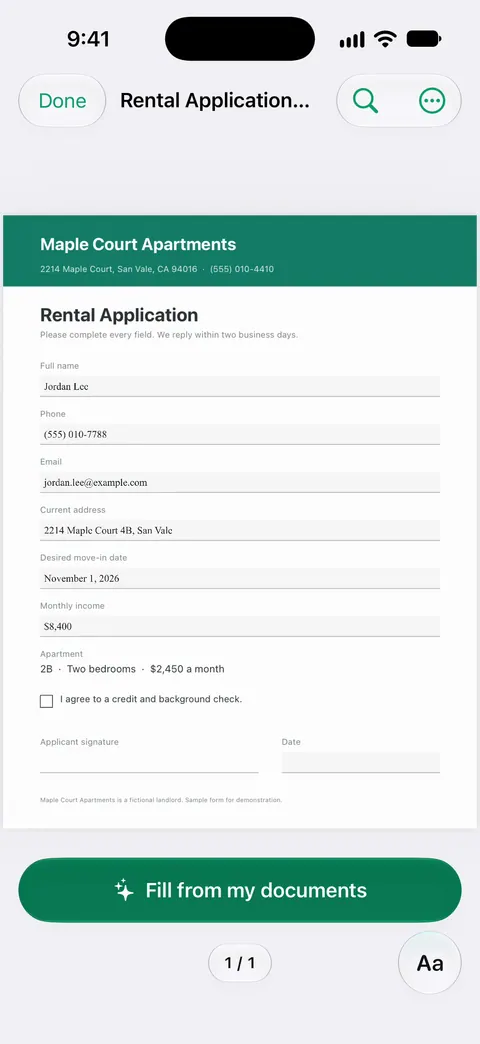
Fill Form fills a form from your own documents and shows where each answer came from.
The limits, plainly:
- Fill Form types into a form’s fields. A flat scan has no fields, so you type on it with the markup tools.
- Free accounts can sign and mark up 3 documents a month. Pro removes every limit.
- On a free account, pages you share, print or export carry a small “Scanned with Scanner One” label at the bottom right. Pro removes it. If the label matters on an official form, the built-in way adds none.
For the rest of the markup tools, see sign and mark up.
Questions and answers
Why can’t I type in my PDF form on iPhone?
The form probably has no fillable fields: it was scanned, or made as a flat PDF. Tap the Add button and choose Add Text Form Box, then drag the box onto the line and type. If you opened the form from Mail, open it in the Files app and tap Save first.
How do I make AutoFill use my details?
Fill in your own card (My Card) in the Contacts app. AutoFill then offers your name, address, phone and email in form fields. To fill in someone else’s details, such as a parent’s, tap Choose other and pick their contact.
Can I fill out a PDF form on iPhone for free?
Yes. The Files app and Preview (iOS 26 and later) both fill forms at no cost, and the filled copy carries no extra marks. You only need an app if you want more, such as scanning and filing the paper in one place.
How do I tick a checkbox on a scanned form?
A scanned form has no real checkboxes. Add a text box with an X and drag it onto the box, draw a check mark with the Markup pen, or use Add Shape to circle your answer.
Does Scanner One fill PDF forms?
Fill Form lets you type into the fields of a PDF form. It works on forms that have fields; for a flat scan, you type with the markup tools instead.
Sources
What this page says about Scanner One was checked against the app on .
- Apple iPhone User Guide, Fill out forms, sign documents, and create signatures on iPhone — the Files app steps: AutoFill, filling related fields at once, Choose other, Add Text Form Box, Export or Share; iOS 27 and iOS 26 versions of the guide, undated, read 2026-11-13
- Apple iPhone User Guide, Fill out and sign PDF forms in Preview on iPhone — the Preview steps: Form Filling button, AutoFill suggestions, Add button; undated guide page for iOS 26 and 27, read 2026-11-13
- Apple iPhone User Guide, Add text, shapes, stickers, and more with Markup on iPhone — Markup’s Add Text and Add Shape, for forms with no fields; undated guide page for iOS 26 and 27, read 2026-11-13
- Scanner One on the App Store — the app’s own listing: Fill Form, signing, scanning
Get Scanner One
Scanner One is free, with generous limits: scanning, clean PDFs and text search never stop.

Scanner OneScan, sign and ask anything
Scanner One is free, with generous limits: scanning, clean PDFs and text search never stop.