
Comparison
The best apps to sign documents on iPhone
You can sign a PDF on iPhone without any app: open it in Files or Preview, tap the AutoFill or Form Filling button to type in the fields, then tap the Add button and Add Signature. Acrobat Reader also fills and signs for free, Genius Sign has no limit on documents, PDF Expert lists fill and sign before its Premium features, and Docusign signs free but charges to send. Scanner One, our app, signs and fills forms, with a monthly limit on the free version.

Scanner One is our app and is one of the options below, with its free limit stated. Facts about other apps come from their own App Store pages and Apple’s iPhone User Guide, read on November 13, 2026.
The free way: Files, Preview and Markup
Apple’s iPhone User Guide describes it in a few steps:
- Open the form or document. If asked, open it in the Files app, then tap Save.
- Tap the AutoFill button, tap a blank field, and type. If a prompt offers to fill several related fields at once, review them and tap Fill.
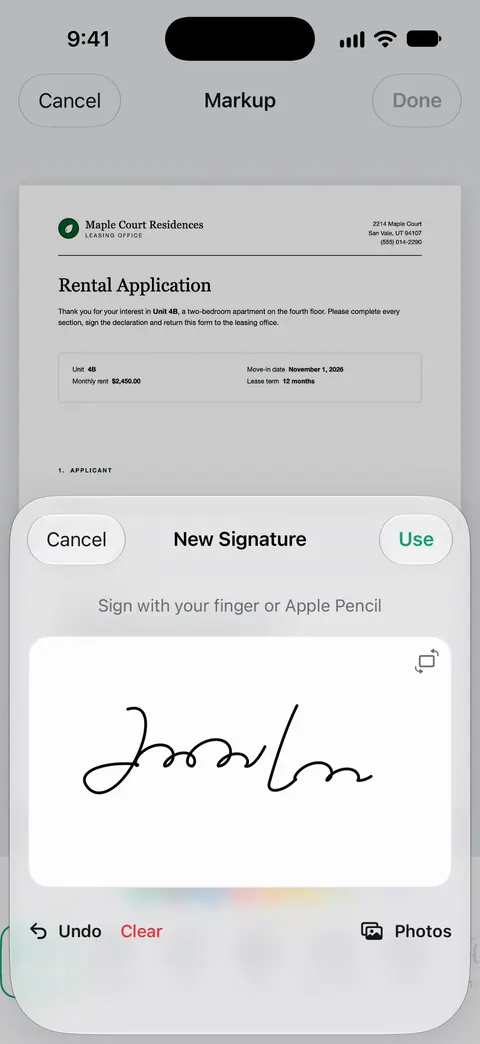
- To add a signature, tap the Add button, then Add Signature. Sign with your finger and tap Done, then drag the signature where it belongs.
- To type where there is no field, tap the Add button, then Add Text Form Box.
- When you are done, tap the Menu button, then Export, Print or the Share button.
On iOS 26 and 27, the Preview app does the same: open the PDF, tap the Form Filling button, tap a field to type or use AutoFill, and tap the Add button for a signature or a text box. In Notes and Photos, the Markup toolbar’s Add button has Add Signature too.
For a one-off form, that is all you need. Our guides to signing a PDF and filling a PDF form go step by step.
Signing apps compared
Checked on November 13, 2026, on the US App Store.
| App | Sign for free | Fill form fields | Ask others to sign | Price model | Data used to track you |
|---|---|---|---|---|---|
| Files, Preview, Markup (Apple) | Yes | Yes, with AutoFill | No | Built into iOS | Part of iOS |
| Acrobat Reader | Yes, “no subscription” needed | Yes, Fill & Sign | Not described | Free; Acrobat Premium with a free trial | Identifiers |
| Docusign | Yes, unlimited | Yes | Paid plans; Personal sends up to 5 a month | Free to sign; plans $14.99 to $119.99 listed | None |
| Genius Sign | Yes, no limit on documents | Fill and annotate | Not described | Free; Genius Sign+ | None |
| PDF Expert | Yes, listed before Premium | Yes, incl. checkboxes | Not described | Free; Premium from $9.99 listed | None |
| Scanner One (ours) | Free accounts can sign and mark up 3 documents a month. | Fill Form lets you type into the fields of a PDF form. | No | Pro comes monthly, yearly with a free week, or once for life. | No account, no tracking |
Each app, honestly
Acrobat Reader: the familiar free signer
Acrobat Reader’s description says you don’t need a subscription to read, fill in or sign PDFs: type into fillable fields and sign with your finger using Fill & Sign. You don’t need an Adobe account to read PDFs. Acrobat Premium, which starts with a free trial, adds editing text, converting, combining and compressing. Its label lists Identifiers as used to track you, and it needs iOS 18.3.
Pick it if forms arrive from offices that assume Acrobat.
Docusign: when you need others to sign
Docusign’s description says the app includes unlimited free signing for all parties, with no monthly limit. Sending documents out for signature is part of the paid plans; the Personal plan can send up to 5 documents a month. The in-app purchases are listed from $14.99 to $119.99. The label lists no data used to track you, and a long list of data linked to you, including Location and Contacts.
Pick it if you collect signatures, not just give them.
Genius Sign: free, no limits on count
From the makers of Genius Scan, Genius Sign’s description says it is free to use with no limit on the number of documents or signatures. You can draw a signature or scan your handwritten one, and import PDF, Word or image documents from Genius Scan, Photos or a cloud service. Premium features are in Genius Sign+. Its label lists only Usage Data and Diagnostics, not linked to you.
Pick it if you sign often and want a dedicated, free signer.
PDF Expert: signing inside a full PDF app
PDF Expert’s description lists filling forms with text fields, checkboxes and radio buttons, and signing by drawing or from an image, before the section headed Premium Features. Editing text, converting, merging and compressing are Premium. Pick it if you also need a capable PDF reader; see the best PDF editors.
Scanner One: sign what you scanned
You can sign and annotate documents. Fill Form lets you type into the fields of a PDF form. The advantage is that the paper you scanned and the form you sign are in one place, with the text already read.
Pick this if
- You sign a form now and then: Files or Preview. Nothing to install.
- The form came from an Adobe-heavy office: Acrobat Reader.
- You need other people to sign: Docusign, on a paid plan.
- You sign a lot and want it free: Genius Sign.
- You scan paper, then sign it: Scanner One, with the limits below.
Where Scanner One helps, and where it doesn’t
Where it helps: You can sign and annotate documents. Fill Form lets you type into the fields of a PDF form. A scan can have many pages, and you can reorder them. Share & Export can also print a document or email it to you. If you have no printer, see sending a signed form without one.
Where it doesn’t: Free accounts can sign and mark up 3 documents a month. On a free account, pages you share, print or export carry a small “Scanned with Scanner One” label at the bottom right. Pro removes it. So a form you sign and send from a free account carries that label, which matters for a lease or a contract. It doesn’t collect signatures from other people. For the occasional form, Apple’s free tools sign without a label or a limit, and Genius Sign has no limit either.
Questions and answers
How do I sign a PDF on iPhone for free?
Open the PDF in Files (tap Save if asked), tap the AutoFill button and type into the fields, then tap the Add button, Add Signature, sign with your finger and tap Done. Drag the signature into place, then share or save. In Preview on iOS 26 and later, the Form Filling button does the same.
Do I need Docusign to sign something someone sent me?
Not usually. If they sent a PDF, any of the free options here can sign it. If they sent a Docusign request, you sign in that request; Docusign’s description says signing is free for all parties, with no monthly limit.
Can I save my signature to reuse it?
Yes. Apple’s guide says that after you create a signature, iPhone saves it for the next time you add one with Markup, and you can keep several, such as initials. PDF Expert and Genius Sign also save signatures for reuse, per their descriptions.
Is a signature drawn on iPhone accepted?
That is up to whoever asked for the signature. Many accept a signed PDF by email; some ask for their own e-signature service or ink on paper. If it matters, ask them before you sign.
Sources
What this page says about Scanner One was checked against the app on .
- Apple iPhone User Guide, Fill out forms, sign documents, and create signatures — AutoFill, Add Signature, Add Text Form Box, and signing with Markup; guide for iOS 27
- Apple iPhone User Guide, Fill out and sign PDF forms in Preview — the Form Filling button and the Add button in Preview; guide for iOS 26 and 27
- Acrobat Reader on the App Store — no subscription needed to read, fill in or sign; Acrobat Premium features; privacy label; read 2026-11-13
- Docusign on the App Store — unlimited free signing; sending in paid plans, Personal up to 5 documents a month; read 2026-11-13
- Genius Sign on the App Store — free with no limit on documents or signatures; read 2026-11-13
- Scanner One on the App Store — the app’s own listing
Get Scanner One
Scanner One is free, with generous limits: scanning, clean PDFs and text search never stop.

Scanner OneScan, sign and ask anything
Scanner One is free, with generous limits: scanning, clean PDFs and text search never stop.