
Guide
What DPI is an iPhone scan? 300 vs 600, explained for phones
An iPhone scan doesn’t have a set DPI: the camera captures a number of pixels, and the DPI is those pixels divided by the size of the paper. A recent iPhone photographing a letter-size page that fills the frame captures well over 300 pixels per inch, which is the usual minimum for text. When a form insists on 300 dpi, export the page from Preview as a JPEG or PNG and type 300 pixels per inch in the Resolution field.

People ask this when a website, a visa form or a lender says “scan at 300 dpi” and all they have is an iPhone. This page answers it for phones. For what DPI means in general, see what DPI means for scanning. If your scan looks soft, the issue is focus or light, not DPI: see why your scan is blurry.
A flatbed scanner has a DPI setting. A phone doesn’t.
A flatbed scanner moves a sensor across the page and samples it a fixed number of times per inch: 300, 600, 1200. That’s the DPI.
A phone takes a picture. The camera has a fixed number of pixels, and how many of them land on each inch of paper depends on how much of the frame the page fills. Hold the phone close and the page gets more pixels per inch. Hold it far away and it gets fewer. So the honest answer to “what DPI is an iPhone scan” is: it depends on the page size and the distance, and you can work it out.
How to work out the resolution of your scan
The formula is simple: pixels across the page divided by inches across the page.
Apple’s camera settings describe the main camera’s default as 24 MP or 12 MP on supported models, with 48 MP available. Here is roughly what those mean for a US letter page (8.5 by 11 inches) that fills most of the frame:
| Camera image | Approximate pixels | Pixels per inch on a letter page |
|---|---|---|
| 12 MP | about 4,000 by 3,000 | roughly 350 |
| 24 MP | about 5,700 by 4,300 | roughly 500 |
| 48 MP | about 8,000 by 6,000 | roughly 700 |
Two things lower the real number. The scanner crops off the background around the page, and a page that fills only half the frame gets about half the pixels per inch. Apple doesn’t publish the output resolution of scans from Notes, Files or Preview, so treat the table as the ceiling, not a promise. A smaller original, like an ID card, gets far more pixels per inch if you fill the frame with it.
The practical takeaway: a steady, well-lit scan of a page that fills the screen has plenty of resolution for text. When scans look poor, it’s almost always blur, shadow or compression, not a lack of pixels.
300 or 600: which do you need?
300 is the standard for text. The US National Archives sets a minimum of 300 pixels per inch for modern textual paper records it accepts as permanent digital copies, with each image sized to match the original page. Most upload portals, lenders and agencies that name a number name this one.
600 is for small detail. Choose it, or get the phone closer, for:
- tiny print like the back of a policy or a pharmacy label
- stamps, seals and signatures you need to show clearly
- old photos you may want to enlarge or reprint
- family records you’re digitizing to keep for good
For a lease, a pay stub or a passport page headed to a website, 600 only makes the file bigger, and big files are the most common reason uploads fail.
When a form insists on 300 dpi
Some portals check the resolution stored in an image file. Preview can set it when you export a PDF page as an image:
- Save your scan to the Files app and open it in Preview.
- Tap the button next to the file name, then tap Export.
- Choose JPEG or PNG, whichever the form asks for.
- In Resolution, enter 300 and choose pixels per inch. Apple notes that higher values produce larger, more detailed images.
- For a JPEG, use the Size slider to balance quality and file size.
- Save, then upload the new file.
If the form also has a size limit, check both before you upload. Our free upload size checker shows a file’s size, pages and format in your browser, and getting a PDF under a size limit has ways to shrink it.
The 72 dpi label is not a problem
Open the details of an iPhone photo on a computer and it may say 72 dpi. That’s a printing hint stored in the file, not the detail in the picture. A 4,000-pixel-wide image is the same image whether the label says 72 or 300. If a picky upload form rejects it, exporting through Preview with a Resolution of 300 sets the label.
Things that matter more than DPI
- Focus and stillness. A blurry 48 MP image is still blurry.
- Light. Even light keeps text sharp and backgrounds clean.
- Compression. Settings like Optimize Images for Screen reduce image resolution to make files smaller. Fine for email, not for an archival copy.
- Filter. Black-and-white or grayscale text pages read more cleanly than color ones at the same resolution.
More on sending scans to a website is in uploading a scanned document from your iPhone.
Where Scanner One helps, and where it doesn’t
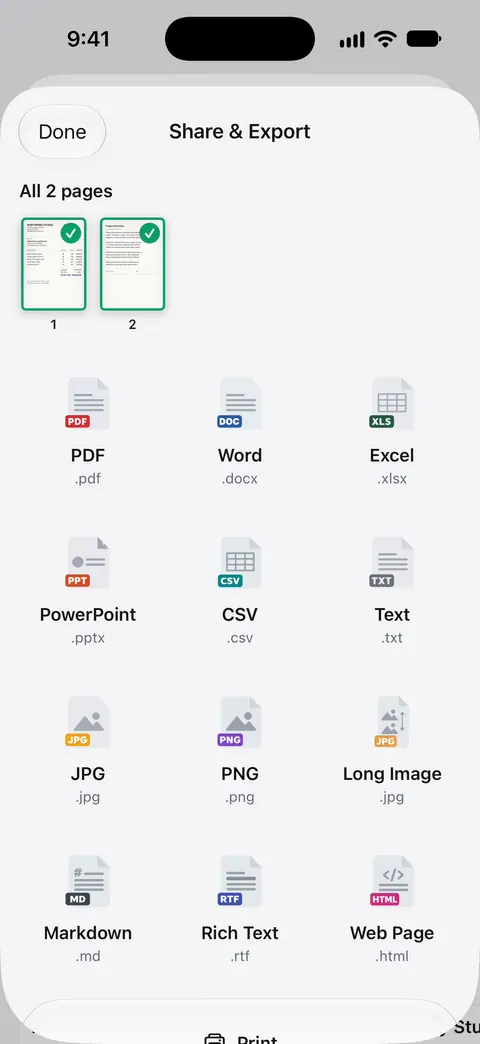
Scanner One finds the edges of the page automatically and corrects the perspective. Share & Export saves a document as a PDF, Word, Excel, PowerPoint, JPG, PNG, a long image, plain text, Markdown, Rich Text, a web page or CSV. That covers forms that want a JPG or PNG instead of a PDF; see saving a scan as a JPG.
Text recognition runs on the device, in 29 languages. Text recognition works best on sharp pages, which is one more reason to fill the frame and hold still.
What it doesn’t do: Scanner One doesn’t advertise a DPI setting, and like every phone scanner its detail depends on your camera and how much of the frame the page fills. If a form requires an exact resolution label, Preview’s export lets you type one in.
When the built-in way is enough: for most uploads, a clear scan from Notes or Files already has the resolution needed. Scanning is free in Scanner One too: Scanner One is free, with generous limits: scanning, clean PDFs and text search never stop. On a free account, pages you share, print or export carry a small “Scanned with Scanner One” label at the bottom right. Pro removes it.
Questions and answers
Is an iPhone scan 300 dpi?
There’s no fixed number, but a scan of a normal page that fills most of the frame usually has more than enough pixels for 300 per inch. If a form checks the setting itself, export the page as an image from Preview at 300 pixels per inch.
Why does my photo say 72 dpi?
That number is a label stored in the file for printing, not a measure of detail. What counts is the pixel count. A photo labelled 72 dpi with 3,000 pixels across a page 8.5 inches wide holds about 350 pixels per inch of that page.
Should I scan at 600 dpi?
Only when the detail is very small: tiny print, a coin-sized stamp, a photo you want to enlarge, or an archival copy of a family record. For ordinary letters, forms and IDs, 300 is the common standard, and 600 just makes files bigger.
Is DPI the same as PPI?
Strictly, DPI is dots of ink a printer lays down and PPI is pixels in an image. In scanning, people use DPI for both, and a form asking for 300 dpi means 300 pixels per inch of the original page.
Sources
What this page says about Scanner One was checked against the app on .
- National Archives Records Express, Digitizing Records: Requirements for Paper and Photographs — a minimum of 300 pixels per inch for modern textual paper records, with images sized to the original; posted 2023-06-07
- iPhone User Guide (iOS 27), Export or compress PDFs and images in Preview — Resolution in pixels per inch when exporting a PDF to an image format; Optimize Images for Screen reduces image resolution; read 2026-11-13
- iPhone User Guide (iOS 27), Change advanced camera settings — Main camera default of 24 MP or 12 MP on supported models, 48 MP with Resolution Control; read 2026-11-13
- iPhone User Guide (iOS 27), Scan text and documents in Notes — the scanner’s steps and settings; read 2026-11-13
- Scanner One on the App Store — the app’s own listing
Get Scanner One
Scanner One is free, with generous limits: scanning, clean PDFs and text search never stop.

Scanner OneScan, sign and ask anything
Scanner One is free, with generous limits: scanning, clean PDFs and text search never stop.