
Guide
Why your Notes scans are so large, and how to shrink them
Notes saves each scan as a PDF built from camera images, and a full-color page photographed at today’s camera resolutions holds a lot of data. To shrink one, share the scan to Files, open it in Preview, tap Export, choose PDF and turn on Optimize Images for Screen and Save Images as JPEG. For future scans, pick a grayscale or black-and-white filter before you capture: text pages come out much smaller.

This page is about why scans from the Notes app come out large and how to fix that at the source. If you simply need to get one PDF through an email limit today, making a PDF small enough to email covers Mail Drop and links. For a hard upload cap, see getting a PDF under 1, 2, 5 or 10 MB.
Why Notes scans are so big
A scan from Notes is a PDF, but inside that PDF each page is a camera image. Three things make those images heavy:
- Camera resolution. Recent iPhones capture far more pixels than a text page needs. More pixels means a larger page.
- Color. A color image stores three channels of information for every pixel. A page of black text on white paper photographed in color still carries all of that, including the faint tint of the paper and every shadow.
- Little compression. The scan is saved to look good, not to be small. Nothing in Notes asks you how large you want it.
The result: a multipage color scan of a contract or a stack of bills can reach tens of megabytes. That’s fine while it sits in a note, but it bounces off email limits, upload forms and some messaging apps.
Check how big your scan really is
Notes doesn’t show a file size, so move a copy somewhere that does.
- In the note, tap the scan’s menu and choose to share it, then tap Save to Files and pick a folder.
- Open the Files app and go to that folder.
- Tap the view button and sort by Size to see the largest files first, or touch and hold the file and tap Get Info.
Do this once for a typical scan of yours. If a single text page is several megabytes, the steps below will help.
Shrink a scan you already made
Preview, Apple’s PDF app on the iPhone, can export a lighter copy.
- In Files, touch and hold the scan, tap Open With, and choose Preview, or open the Preview app and find the file.
- Tap the button next to the file name, then tap Export.
- Choose PDF as the format.
- Turn on Optimize Images for Screen. Apple describes it as reducing image resolution for screen viewing, which creates a smaller file.
- Turn on Save Images as JPEG for a further cut.
- Tap the save button, choose a folder, rename it if you like (add “small” to the name), and tap Save.
Open the new file and zoom into the smallest print on the page. If you can still read it comfortably, use the small copy for sending and keep the original as your archive.
Change the filter of a page that’s already in Notes
A scan in Notes keeps its pages editable. Tap the page’s thumbnail, tap the menu and choose Filters, then pick a grayscale or black-and-white look. Apple notes that Filters and Crop Page are available only for scanned documents. Then save the scan to Files and compare sizes. Cropping off a wide margin of desk with Crop Page helps too.
Make the next scan smaller from the start
The cheapest megabyte is the one you never capture.
- In a note, tap the attachments button and choose Scan Documents.
- Before you capture, tap Filters and choose a grayscale or black-and-white filter for text pages. Keep color for things where color matters: a colored form, a photo, a stamp you need to show.
- Fill the frame with the page, so less desk is captured. Let the scanner find the edges, and drag the corners in if it took too much.
- Use soft, even light. Shadows and noise in a dim room add detail that compression struggles with. The best light for scanning has the setup.
A black-and-white page is often a fraction of the size of the same page in color, and it reads better when printed or faxed. More on that in making a scan black and white.
Watch out when you export a whole note
If you export a note as a PDF with the share menu’s Markup option, Apple’s guide says the exported PDF contains only the first page of a multipage scan. That catches people out: the file is small because pages are missing. Share the scan itself, not the note.
Split instead of shrinking
Sometimes the honest fix is two files. A 30-page scan of a lease and its addenda can go as two PDFs, each under the limit, with clear names. Or send only the pages that were asked for. See splitting a PDF, or use our free split PDF tool, which runs in your browser.
Where Scanner One helps, and where it doesn’t
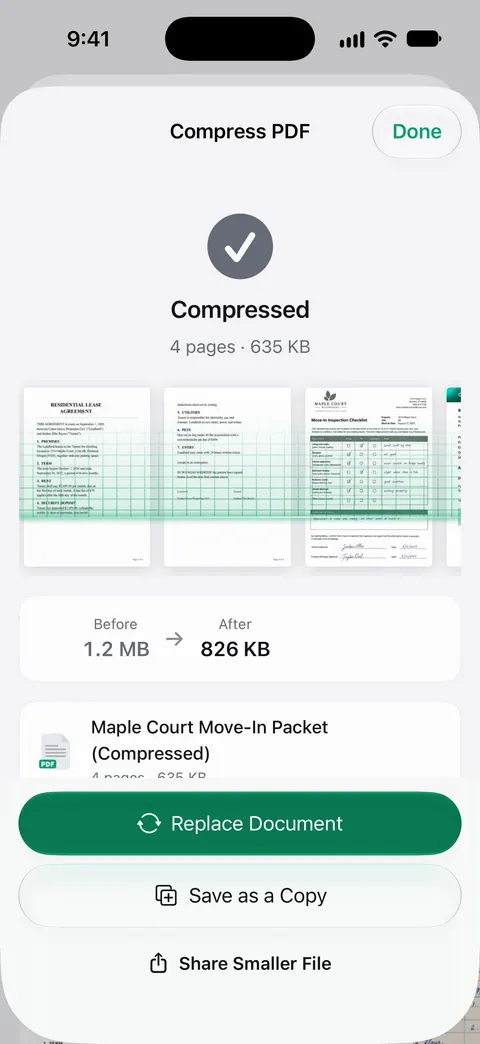
The PDF tools merge, split, compress, password-protect, add page numbers and watermarks, and extract text. Compress shows the new size beside the old one, so you know whether the file will fit before you send it.
Scans come with Auto Clean, Color, Grayscale and Receipt filters. Picking Grayscale or Receipt before you save is the same idea as in Notes: less color, smaller pages. Text recognition runs on every page for everyone, free or Pro. That means a compressed scan still has text you can search and copy.
The free limits: Free accounts can run the PDF tools and the Word, Excel and CSV exports 3 times a week, from one shared allowance. Scanning itself isn’t limited. On a free account, pages you share, print or export carry a small “Scanned with Scanner One” label at the bottom right. Pro removes it.
What it doesn’t do: no compressor can keep every detail of a full-color, full-resolution page at a tenth of the size. If you need a perfect archival copy, keep the large original and send the small one.
When the built-in way is enough: if you scan now and then, choosing a gray or black-and-white filter in Notes and using Preview’s Optimize Images for Screen for the occasional big file solves the problem for free. More tools are on the PDF tools page.
Questions and answers
How big should a one-page scan be?
A clean black-and-white or grayscale text page is usually well under 1 MB once it is optimized. A full-color page straight from the camera can be several megabytes. If a page is over 2 or 3 MB and it’s only text, it can almost always be made smaller without losing readability.
Do Notes scans take up iCloud storage?
If your notes are stored in iCloud, the scans inside them are part of what iCloud stores for you. Deleting old scans you’ve already saved elsewhere, or keeping only a compressed copy, frees that space.
Will compressing a scan make it blurry?
It can if you push it too far. Optimize Images for Screen keeps text readable on a screen and for most uploads, but check the result at full zoom before you delete the original, especially for small print you might need to print later.
Why did my exported note only have one page?
When you export a whole note as a PDF, Notes includes only the first page of a multipage scan. Share the scan itself instead: tap the scan’s menu in the note and choose share or copy, or save it to Files.
Sources
What this page says about Scanner One was checked against the app on .
- iPhone User Guide (iOS 27), Scan text and documents in Notes — Flash and Filters are set before capture; the scan is saved as a PDF in the note; read 2026-11-13
- iPhone User Guide (iOS 27), Work with PDFs in Notes — copy, share, rename a PDF in a note; Filters and Crop Page for scanned pages; read 2026-11-13
- iPhone User Guide (iOS 27), Export or print notes — exporting a note as a PDF keeps only the first page of a scanned document; read 2026-11-13
- iPhone User Guide (iOS 27), Export or compress PDFs and images in Preview — Optimize Images for Screen and Save Images as JPEG make a smaller PDF; read 2026-11-13
- iPhone User Guide (iOS 27), Find and view files and folders in Files — sort a folder by Size; Get Info on a file; read 2026-11-13
- Scanner One on the App Store — the app’s own listing
Get Scanner One
Scanner One is free, with generous limits: scanning, clean PDFs and text search never stop.

Scanner OneScan, sign and ask anything
Scanner One is free, with generous limits: scanning, clean PDFs and text search never stop.