
Guide
Save a scanned document as a JPG on iPhone
Notes, Files and Preview save scans as PDFs, not JPGs. To get an image, scan in the Preview app (iOS 26 and later) or open your scan’s PDF there, tap the Actions Menu button next to the filename, tap Export, choose JPEG or PNG, and save. For a scan that lives in Notes, share it to Files first. A screenshot of the page also works for a quick message, but it is too small for printing.

When a form, a portal or a person asks for “a picture of the document”, a PDF scan won’t do. This page covers getting an image out of a scan. If you already have a PDF someone sent you and want its pages as pictures, the guide to turning a PDF into JPG images covers that case in more detail.
Why iPhone scans are PDFs
Apple’s three scanners (Notes, Files and Preview) all save a PDF. That is usually what you want: one file for many pages, sharp text when someone zooms in, and a format every office accepts. The catch is that some upload forms, chat apps and photo tools take only images. You can’t switch the scanner to JPG, so you export afterwards.
Scan with Preview and export as JPG
Preview, Apple’s PDF and image app on iPhone from iOS 26, scans and exports in the same place, so it is the shortest route.
- Open the Preview app and tap Scan Documents.
- Hold the iPhone over the page. It captures the page automatically. To take the picture yourself, tap Auto (the label changes to Manual), then tap the Shutter button.
- Tap a thumbnail to crop, rotate or adjust the coloring if you need to, then tap the Done button. Preview saves the scan as a PDF.
- With the PDF open, tap the Actions Menu button next to the filename, then tap Export.
- Choose JPEG or PNG.
- Set the options:
- Size (JPEG): drag left for a smaller file, right for higher quality.
- Resolution (iOS 27): enter a value and choose pixels per inch or pixels per cm. About 150 pixels per inch suits a screen or an upload; about 300 suits printing.
- Tap the Done button, pick a folder, rename the file in Save As, then tap Save.
On iOS 26 the export screen only offers the format and the size slider; there is no resolution setting.
Apple’s page doesn’t say how a scan of several pages is split into images, so open the folder afterwards and check that every page you need is there. If a form wants only page 1, it’s simpler to scan that one page on its own.
If the scan is already in Notes
A scan in Notes sits inside the note as a PDF. To turn it into an image:
- In Notes, open the note with the scan and tap the Menu button on the scanned document.
- Choose the share action and save the PDF to the Files app.
- Open it in Preview and follow steps 4 to 7 above.
Scans made with Scan Documents in the Files app are already PDFs in Files, so you can open them in Preview straight away.
The quick way: a screenshot
For a page you want to show someone in a message right now, a screenshot is fine.
- Open the scan full screen and zoom so the page fills the screen.
- Press the side button and the volume up button at the same time (on iPhone SE, the Home button and the side button).
- Tap the thumbnail, drag the handles to crop away everything but the page, and save it to Photos.
A screenshot only has the resolution of your screen, and a full page of small type becomes hard to read. Use the Preview export for anything official, printed or long.
JPG or PNG
| Format | Choose it for | Watch out for |
|---|---|---|
| JPEG (.jpg) | Upload forms, email, messages | Very small type can blur if the size slider is far left |
| PNG | Pages of text, signatures, line drawings | Larger files, sometimes over a form’s limit |
If the form doesn’t say, JPG is the safer guess. For when an image is the right choice at all, see PDF or JPG for documents.
Check the image before you send it
- Open the image and zoom in on the smallest print, such as a policy number or a date. If you can’t read it, export again with the slider further right or a higher resolution.
- Check the file size in Files against the form’s limit. Our upload size checker helps.
- Make sure the page is the right way up and nothing is cut off at the edges.
For the whole upload process, see how to upload a scanned document to a website. If you have a PDF on a computer instead, our free PDF to JPG tool runs in your browser.
Where Scanner One helps, and where it doesn’t
Preview’s scan and export cover the occasional page well. If that’s all you need, use them.
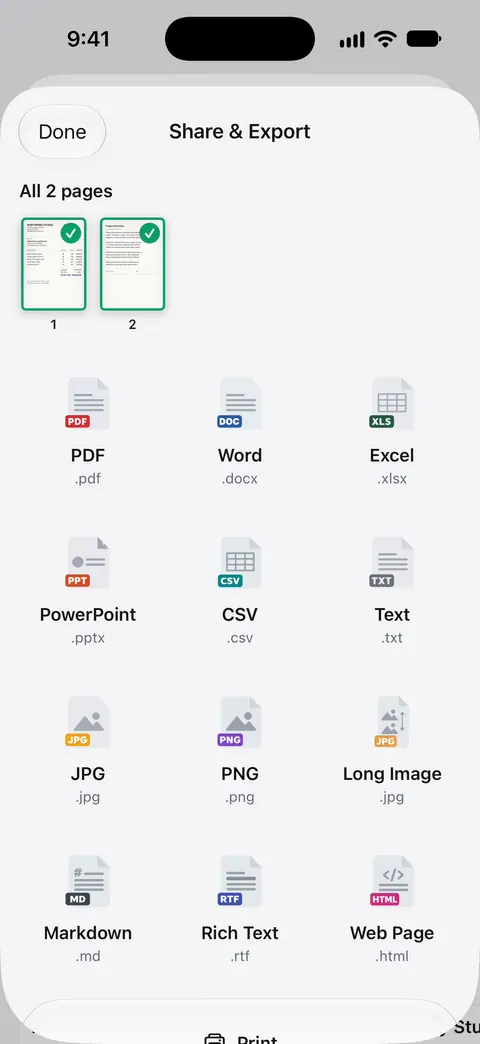
Scanner One helps when you want the image straight from your scan, without another app in between. Point your camera at any piece of paper. Scanner One finds the edges, straightens the page, cleans it up and saves a real PDF. Share & Export saves a document as a PDF, Word, Excel, PowerPoint, JPG, PNG, a long image, plain text, Markdown, Rich Text, a web page or CSV. So the same scan you keep as a PDF can be shared as a JPG or PNG when a form asks for a picture, and the long image option puts a receipt or a short document into a single tall picture for a message.
The limits:
- On a free account, pages you share, print or export carry a small “Scanned with Scanner One” label at the bottom right. Pro removes it.
- If a form names a pixel size or a maximum file size, check the image against it, whichever app made it.
- If the form accepts PDF, send the PDF: it keeps every page in one file.
Questions and answers
Can the Notes app save a scan as a JPG?
Not directly. Apple’s Notes guide says a scanned document is saved as a PDF in the note. Share that PDF to Files, open it in Preview and export it as JPEG.
Why does my scan become a PDF instead of a picture?
A PDF can hold many pages in one file and keeps text sharp at any zoom, so Apple’s scanners save PDFs. When a form asks for an image, export the page you need.
Is a screenshot of my scan good enough?
For showing someone a page in a message, yes. For printing or for small print, no: a screenshot only has the resolution of your screen. Export the page from Preview instead.
PNG or JPG for a scanned page?
JPG for most forms, because the file is smaller. PNG keeps black text on white crisper and suits a page that is mostly text, at the cost of a bigger file.
Sources
What this page says about Scanner One was checked against the app on .
- Apple iPhone User Guide, Scan text and documents in Preview on iPhone — Preview’s Scan Documents creates a PDF; crop, rotate and coloring from the thumbnails; undated guide page, read 2026-11-13
- Apple iPhone User Guide, Export or compress PDFs and images in Preview on iPhone — Export to JPEG, PNG, HEIC or TIFF, the Size slider and, on iOS 27, Resolution when exporting a PDF to an image; undated guide page, read 2026-11-13
- Apple iPhone User Guide, Scan text and documents in Notes using the iPhone camera — a Notes scan is saved as a PDF in the note; undated guide page, read 2026-11-13
- Apple iPhone User Guide, Work with PDFs in Notes on iPhone — the Menu button on a PDF in a note: copy, share, rename or delete it; undated guide page, read 2026-11-13
- Apple iPhone User Guide, Take a screenshot on iPhone — taking, cropping and saving a screenshot to Photos; undated guide page for iOS 27, read 2026-11-13
- Scanner One on the App Store — the app’s own listing
Get Scanner One
Scanner One is free, with generous limits: scanning, clean PDFs and text search never stop.

Scanner OneScan, sign and ask anything
Scanner One is free, with generous limits: scanning, clean PDFs and text search never stop.