
Guide
Why your scan is blurry, and how to fix it
The most common cause is a smudged camera lens: Apple’s first fix for blurry photos is to clean the lenses with a microfiber cloth. Next come movement and low light, so rest your elbows on the table, add light and let the scanner capture when you’re still. Remove any case, film or magnetic accessory near the camera. If the scan looked sharp on your phone but blurry once sent, it was shrunk on export: send the original.

Match the blur to its cause
| What you see | Likely cause | Fix |
|---|---|---|
| A soft haze over the whole page, sometimes with glowing highlights | Fingerprint on the lens | Wipe the rear lens with a microfiber cloth |
| Text smeared in one direction | The phone moved during capture | Elbows on the table, automatic capture, more light |
| Grainy, soft page in a dim room | Too little light | Move to a window or turn on the flash for matte paper |
| Sharp in the middle, soft at one edge | Phone held at an angle, or the page curls | Hold the phone parallel; flatten the page |
| Everything soft, even very close | Closer than the camera can focus | Move back and let the scanner crop |
| Sharp on your phone, blurry for the receiver | The file was shrunk on export or by an app | Send the original PDF |
Start with the lens
Your phone lives in pockets and hands, and the rear lens collects fingerprints. A thin smear doesn’t show in a sunset photo, but it turns small print into a soft haze.
- Wipe the rear lens with a microfiber cloth. That’s Apple’s first step when photos are blurry.
- Let the iPhone remind you. On supported models, the iPhone detects a smudged lens and suggests cleaning it. The setting is Lens Cleaning Hints in Settings, Camera; leave it on.
- Check the case. Apple’s next step is to remove any case, film or accessory (such as a polarizer, extender or magnifier) that might block the camera or puts a magnet near it. A slightly misaligned case can sit over the edge of the lens.
Hold still, and let the scanner wait for you
A scan is a close-up, so a small movement is a big blur.
- Rest your elbows on the table and hold the phone with both hands.
- Use automatic capture. In Notes, Files and Preview, the iPhone captures the page when it detects the edges and you’re steady. It waits for you; a manual tap often comes with a little shake.
- If you capture manually, press a volume button instead of tapping the screen. Pressing a button moves the phone less.
- Move the paper, not the phone, for multipage documents.
Add light
In dim light the camera needs longer to take each picture, and any movement during that time blurs it.
- Scan near a window in daytime, or under a bright room light, with the light in front of you or to the side.
- Use the flash on matte paper. Notes and Files let you set Flash before you capture. Skip it on glossy pages, where it leaves a glare spot.
- Watch for motion blur in low light with accessories. Apple notes that a lens converter, metallic case or magnetic lens mount can cause motion blur in low light; take it off.
More on light and backgrounds is in the best light for scanning documents.
Get the distance right
- Not too close. Every phone camera has a closest distance it can focus at. If you hold it right over a receipt, the camera may not focus. Move back until the page fills most of the screen, and let the scanner crop.
- Don’t zoom. Pinching to zoom on the camera screen trades detail for size. Move closer instead.
- Keep the phone parallel to the page. At a steep angle, the far edge of the page can come out softer than the near edge.
When it was sharp until you sent it
If the scan looks crisp on your iPhone but blurry for the person who receives it, the camera wasn’t the problem. Something made the file smaller on the way.
- Export settings. Preview’s Optimize Images for Screen lowers image resolution, and the Size slider for JPEG and HEIC trades quality for a smaller file. Export again with those off, or with the slider further toward quality.
- Compression by apps. Some messaging apps and services compress what you send. Send the PDF as a file attachment by email or through a file service instead.
- Fax and photocopy. Anything faxed or copied again loses detail. A clean black-and-white scan survives it best: see making a scan black and white.
If you had to shrink the file to email it, look at making a PDF small enough to email for options that keep text readable.
When every photo is blurry
If your normal photos are soft too, after cleaning and removing accessories, Apple’s steps are to restart the iPhone, update iOS, and test the camera. If it’s still blurry, the camera may need service; Apple’s article has the next steps.
Where Scanner One helps, and where it doesn’t
Scanner One finds the edges of the page automatically and corrects the perspective. It can also turn on the flashlight while you aim, which helps in a dim room, and capture manually when automatic capture won’t settle, as the screenshot of the camera shows.
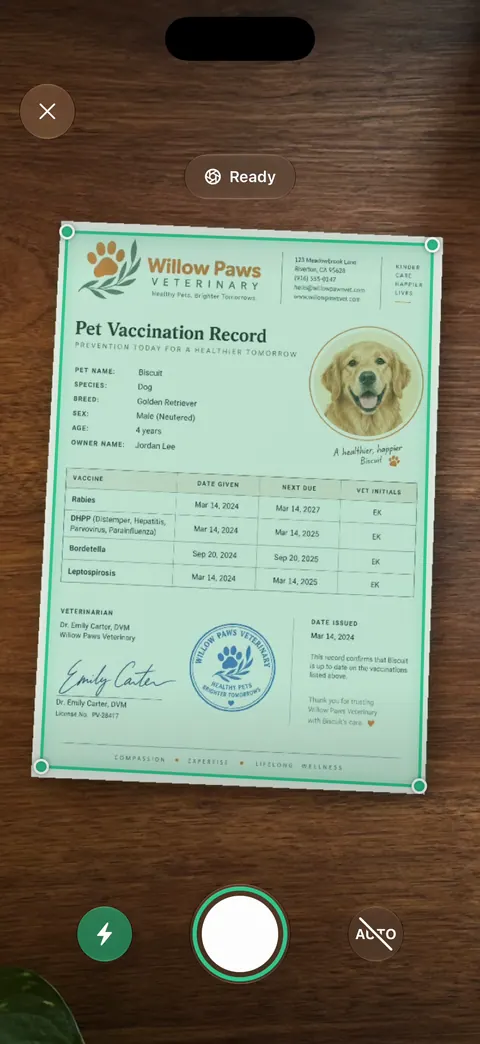
Scans come with Auto Clean, Color, Grayscale and Receipt filters. A filter makes faint print darker and the background whiter, which helps a slightly soft scan read better. Text recognition runs on every page for everyone, free or Pro. Text recognition reads sharp pages more reliably, so a clear capture also makes search work better.
What it doesn’t do: no app can sharpen detail the camera never captured, or clean your lens for you. If the scan is blurry, scan again. Scanning isn’t limited on the free plan: Scanner One is free, with generous limits: scanning, clean PDFs and text search never stop.
When the built-in way is enough: a clean lens, steady hands and good light fix most blurry scans in Notes or Files. See what the app’s scanner does on the scanning page, and other guides in Guides.
Questions and answers
Why are my iPhone scans blurry when photos look fine?
Scans are close-ups of fine print, so a little smudge or shake shows much more than in a landscape photo. Clean the lens, hold still, and add light.
Can I make a blurry scan sharp again?
Not really. Filters can make text darker and the page whiter, but they can’t restore detail the camera didn’t capture. Scanning again is quicker.
Does the iPhone tell me when the lens is dirty?
On supported models, yes: it detects a smudged lens and suggests cleaning it. The setting is Lens Cleaning Hints in Settings, Camera.
My scan was sharp, but the person I sent it to says it’s blurry. Why?
Something shrank it on the way, such as an export setting that optimizes images for the screen, or an app that compresses attachments. Send the original PDF, or a version exported at higher quality.
Sources
What this page says about Scanner One was checked against the app on .
- Apple Support, If the camera or flash on your iPhone or iPad isn’t working (article 102514) — clean the lenses with a microfiber cloth, remove cases, film and magnetic accessories, restart; published 2026-10-22
- iPhone User Guide (iOS 27), Change advanced camera settings — Lens Cleaning Hints: on supported models the iPhone detects a smudged lens; read 2026-11-13
- iPhone User Guide (iOS 27), Scan text and documents in Notes — automatic capture when the iPhone is steady, and manual capture; read 2026-11-13
- iPhone User Guide (iOS 27), Export or compress PDFs and images in Preview — Optimize Images for Screen reduces image resolution; the Size slider trades quality for size; read 2026-11-13
- Scanner One on the App Store — the app’s own listing
Get Scanner One
Scanner One is free, with generous limits: scanning, clean PDFs and text search never stop.

Scanner OneScan, sign and ask anything
Scanner One is free, with generous limits: scanning, clean PDFs and text search never stop.