
Guide
When your iPhone won’t detect the page you’re scanning
The scanner needs to see four clear edges. Put the page on a dark, plain surface, add even light, and hold the phone a little farther back so a margin of background shows on every side. Check that the scanner is set to Auto, not Manual. If it still won’t capture, tap the shutter yourself and drag the corners to the page. If the camera screen is black or frozen, restart the iPhone.

This page is for when the scanner won’t lock on at all: the camera is open, but no outline appears around the page, or it flickers and never captures. If it captures but crops the wrong part, see why your scan cuts off part of the page. For setting up good light in general, the best light and background for scanning goes deeper.
How the scanner decides it sees a page
In Notes, Files and Preview, the scanner looks for the boundaries of a page. Apple’s guide puts it simply: keep the iPhone steady and it captures the document when it detects the page boundaries. So two things must be true at once: four edges it can see, and a phone that’s still. Every fix below helps one of those.
Work through these in order
1. Check that it’s set to Auto
The scanner has an Auto and Manual control. In Manual, it never captures by itself: it waits for you. Apple’s Preview guide says tapping Auto changes the label to Manual, and people switch it by accident. If you see Manual, tap it to go back to Auto.
2. Give the page a dark background
White paper on a white desk, a light bedspread or a pale kitchen counter is the number one reason for no outline. The scanner has nothing to separate the page from.
- Use a dark table, a dark folder, a book cover or a dark towel.
- Plain is better than patterned. Wood grain and tiles add lines that compete with the page edge.
- Matte is better than glossy. A shiny surface reflects light into a bright patch that hides an edge.
3. Step back
If the page fills the whole screen, there are no edges to find. Hold the phone higher until you see a margin of background on all four sides. The scanner crops to the page afterwards, so you don’t lose detail by leaving space.
4. Add even light
In dim light the camera’s image is grainy and the edges are soft. Turn on a room light or move near a window, with the light in front of you or to the side so your own shadow doesn’t fall across one edge. You can also turn on the flash in the scanner’s settings for matte paper, but skip it on glossy pages.
5. Hold still, parallel to the page
Rest your elbows on the table and hold the phone level over the page. At a steep angle the far edge shrinks and may not register. Small movements reset the detection, so the outline flickers.
6. Flatten the page
Folds, a curled corner or a page lifting off the table give the scanner a bent edge instead of a straight one. Press it flat, or hold a corner down with a finger placed outside the paper.
7. Clean the lens and take off accessories
A smudged lens softens every edge. Apple’s camera steps start with removing any case, film or accessory that might block the camera, then cleaning the lenses with a microfiber cloth.
When it still won’t capture: do it by hand
You don’t need automatic detection to scan.
- Tap the shutter button, or press a volume button, as Apple’s article describes for manual capture.
- Drag each corner of the outline to the corners of the page.
- Tap Keep (Apple’s article calls it Keep Scan), then scan the next page or tap the done button.
This is also the way to scan things the scanner isn’t built to recognize: a crumpled receipt, a torn page, a small card on a busy background.
When the problem is the camera, not the page
If the scanner screen is black, frozen or very slow:
- Close the app and open it again.
- Restart the iPhone.
- Update iOS in Settings, General, Software Update.
- Open the regular Camera app. If it’s black or blurry too, follow Apple’s camera troubleshooting article, which explains how to run a diagnostic and get service.
A 20-second setup that works almost every time
- Dark, plain, matte surface
- Light from a window or a lamp in front of you
- Page flat, with a margin of background on every side
- Phone level, elbows on the table
- Scanner on Auto
If you scan often, keep a dark placemat or a sheet of black card by your desk. It solves detection, shadows and crop problems in one go.
Where Scanner One helps, and where it doesn’t
Scanner One finds the edges of the page automatically and corrects the perspective. Its camera can turn on the flashlight while you aim, which helps in a dim room, and lets you switch automatic capture off and take the picture yourself, as the screenshot shows.
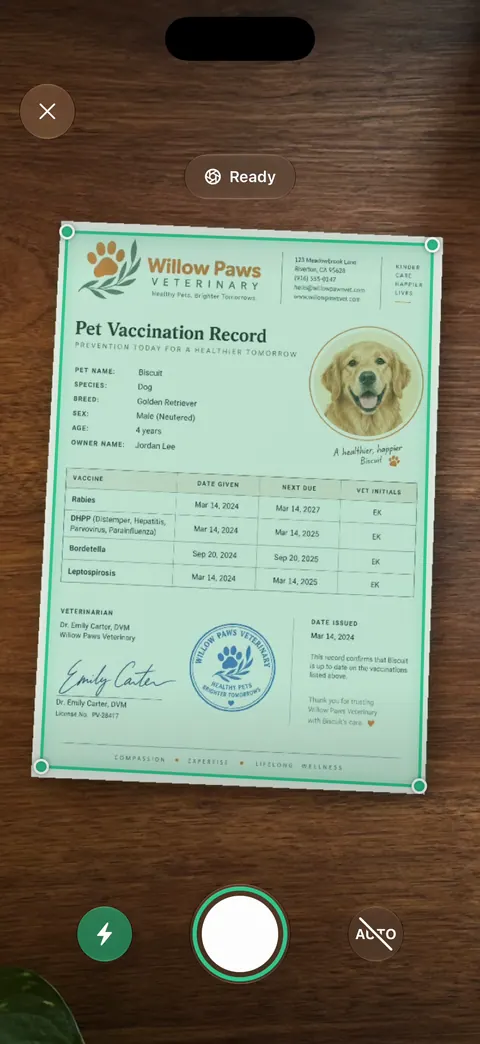
Whiteboards are cleaned automatically. ID cards and passports are scanned with both sides on one printable page.
What it doesn’t do: no scanner can find an edge it can’t see. White paper on a white table needs a darker background in any app, and a black camera screen is a camera problem that only a restart or Apple can fix.
When the built-in way is enough: a dark background, a step back and the Auto setting fix nearly every “won’t detect” problem in Notes or Files. Scanning is free in Scanner One as well: Scanner One is free, with generous limits: scanning, clean PDFs and text search never stop. See the scanning page, or browse more fixes in Guides.
Questions and answers
Why is there no outline around my document?
The scanner can’t find four edges it trusts. Usually the paper blends into the background or the page fills the whole screen. A dark surface and a little more distance fix most cases.
Why won’t Notes scan automatically anymore?
Check the scanner’s Auto and Manual control. If it says Manual, the scanner waits for you to tap the shutter. Tap it to switch back to Auto.
Can I scan something that isn’t a rectangle?
Yes. Capture manually and drag the corners to cover what you need. For a torn page or an odd shape, include the whole thing with a little background around it.
The scanner screen is black. What now?
Close and reopen the app, then restart the iPhone. If the regular Camera app is black too, Apple’s camera troubleshooting article explains how to run a diagnostic and get service.
Sources
What this page says about Scanner One was checked against the app on .
- iPhone User Guide (iOS 27), Scan text and documents in Notes — automatic capture when the iPhone detects the page boundaries; manual capture with corner adjustment; read 2026-11-13
- Apple Support, How to scan documents on your iPhone or iPad (article 108963) — Auto mode scans on its own; capture manually with the Shutter button or a Volume button; published 2026-02-13
- iPhone User Guide (iOS 27), Scan text and documents in Preview — tap Auto and the label changes to Manual; read 2026-11-13
- Apple Support, If the camera or flash on your iPhone or iPad isn’t working (article 102514) — remove cases and accessories, clean the lenses, restart, update, diagnostics for a black camera screen; published 2026-10-22
- Scanner One on the App Store — the app’s own listing
Get Scanner One
Scanner One is free, with generous limits: scanning, clean PDFs and text search never stop.

Scanner OneScan, sign and ask anything
Scanner One is free, with generous limits: scanning, clean PDFs and text search never stop.