
Guide
Upload a scanned document from your iPhone to a website
Scan the paper into the Files app first: in Files, tap the More button, tap Scan Documents, capture the pages, tap Done, choose a folder and tap Save. Then, on the website’s upload button, choose Choose Files (not Photo Library), go to that folder and tap the PDF. If the form only takes images, export the PDF as JPEG in Preview. If it’s too big, export a smaller copy and try again.

Banks, schools, HR systems and government portals all ask for the same thing: “upload a copy of your document”. On an iPhone the trick is to have a real file ready before you tap the upload button, because the upload form can only pick from files and photos that already exist. This guide covers the whole trip from paper to an accepted upload. For sending a document to a person instead, see sending a PDF from iPhone.
Scan the paper into Files first
The Files app can scan straight into a folder, which makes the scan easy to find from any upload form. Apple’s steps:
- Open Files and go to the folder where you want the scan, such as On My iPhone or a folder in iCloud Drive.
- Tap the More button (three dots), then tap Scan Documents.
- Hold the iPhone over the page. In Auto mode it captures the page by itself. To capture by hand, tap the shutter button or press a volume button, drag the corners to fit the page, then tap Keep Scan.
- Scan the other pages, then tap Done.
- Choose a location, then tap Save.
Give the file a clear name the office will understand, such as “Lopez proof of address 2026-11”. Many upload forms show the file name to whoever reviews it, and some reject names with unusual symbols. More on scanning in Files in the Files app scanning guide.
Already scanned it in Notes?
A scan in Notes lives inside the note as a PDF, and an upload form can’t reach it there. Open the note, tap the More button on the scan and choose the share action, then tap Save to Files and choose a folder.
Don’t use the note’s own export instead. Apple notes that when you export a whole note as a PDF, a multipage scan comes out with only its first page. Sharing the scan itself keeps every page.
Upload it on the website
When you tap an upload button in Safari, iPhone shows a short menu. Apple lists the same three choices on its own upload page: Photo Library, Choose Files and Take Photo or Video.
- Tap the website’s upload button (it may say Browse, Choose File, Attach or Upload).
- Tap Choose Files. Photo Library only shows photos, so your PDF won’t be there.
- Tap Browse at the bottom if you don’t see your folder, then open it and tap the PDF.
- Wait until the website shows the file name or a preview, then finish the form.
Avoid Take Photo or Video for documents unless the form insists. It takes a plain photo: no edge detection, no straightening, and the desk is in the picture.
If a site has its own app (a bank, a benefits portal), the app usually shows the same choice. Look for Files, Browse or Documents rather than Camera or Photos.
When the upload doesn’t work
| What you see | The likely reason | What to do |
|---|---|---|
| The PDF is gray and can’t be tapped | The form accepts only images | Export the PDF as JPEG in Preview, one file per page |
| “File too large” | Over the form’s size limit | Export a smaller copy (see below) |
| “Unsupported file type” for a photo | The photo is HEIC, Apple’s photo format | Export it as JPEG in Preview |
| Only page 1 arrived | You uploaded a Notes export or one image of a long document | Share the scan itself, or merge the pages into one PDF |
| Nothing happens after picking | The site is open inside another app’s browser | Open the page in Safari and try again |
| “Document unreadable” | Shadow, blur or a cut-off edge | Rescan in even light, filling the frame |
Turn a PDF into a JPEG, or make it smaller
Preview, Apple’s PDF app on iPhone, saves a converted copy and leaves the original alone:
- Open the file in Preview.
- Tap the Actions Menu button next to the file name, then tap Export.
- Choose JPEG for an images-only form, and use the Size slider. For a smaller PDF, choose PDF and turn on Optimize Images for Screen and Save Images as JPEG.
- Tap the Done button, choose a folder, rename the copy if you like, and tap Save.
Open the copy and zoom in on the smallest print before you upload. If a form gives you a limit in MB, getting a PDF under a size limit has a table of what fits. Our free upload size checker tells you in your browser whether a file is under a limit before you try.
Several papers, one upload box
Many forms have one box per document, but some have a single box for “supporting documents”. Two ways to handle it:
- One PDF per document when the form has separate boxes: ID in one, pay stubs in another. Reviewers look for each in its place.
- One combined PDF when there’s a single box that takes one file. Scan the pages in one session, or merge PDFs afterwards, in the order the form lists them.
For a multipage paper scanned in one go, scanning several pages into one PDF shows how to keep them in order.
Before you press submit
- Open the uploaded file if the site lets you. Many portals show a preview. Check every page is there and the right way up.
- Check both sides. IDs, checks and some forms need the back too.
- Remove what wasn’t asked for. An account number on a page you didn’t need to send is information you didn’t need to share.
- Keep your own copy of exactly what you uploaded, with the date, until the application is finished.
If the request came by text or email out of the blue, go to the organization’s website yourself rather than following the link: upload forms are a common trick for collecting personal papers. Sending documents securely covers this.
Where Scanner One helps, and where it doesn’t
For one or two uploads, the Files app and Preview do the job, and you don’t need an app.
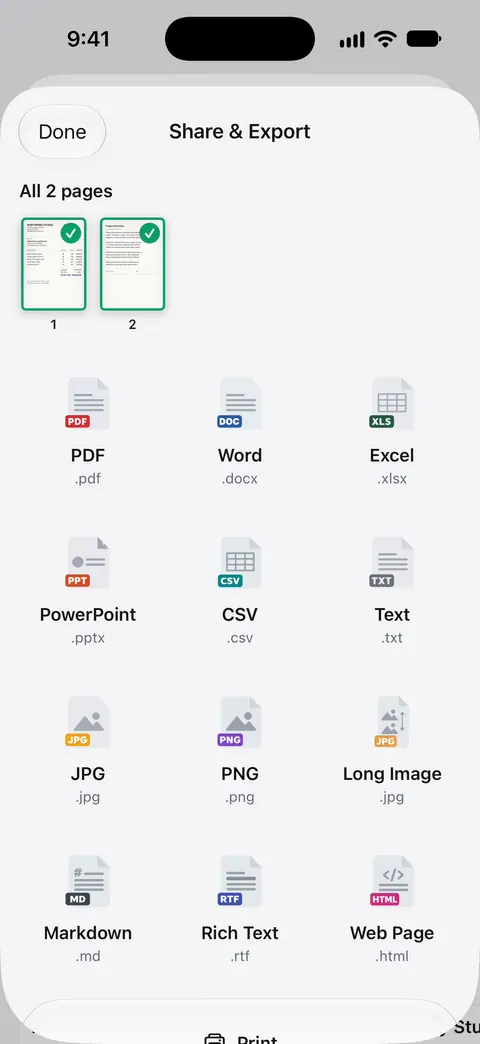
Scanner One helps when the paper and the form don’t match. Point your camera at any piece of paper. Scanner One finds the edges, straightens the page, cleans it up and saves a real PDF. The To PDF tool turns files and photos into PDFs. So a photo you already took, or a Word file someone sent, becomes a PDF you can upload. Share & Export saves a document as a PDF, Word, Excel, PowerPoint, JPG, PNG, a long image, plain text, Markdown, Rich Text, a web page or CSV. That covers forms that want a JPEG or a PNG instead of a PDF.
It works with other apps too. Other apps can send a file to Scanner One with Save to Scanner One in their share sheet. The PDF tools merge, split, compress, password-protect, add page numbers and watermarks, and extract text.
The limits, plainly:
- Free accounts can run the PDF tools and the Word, Excel and CSV exports 3 times a week, from one shared allowance. Pro removes every limit.
- On a free account, pages you share, print or export carry a small “Scanned with Scanner One” label at the bottom right. Pro removes it. Some offices don’t mind; if a portal wants clean copies, keep that in mind.
- It doesn’t fill in the website’s form for you or upload on your behalf. You still pick the file in the site’s upload box.
More guides like this one are in Guides.
Questions and answers
Why can’t I select my PDF when I upload from my iPhone?
Usually the form only accepts images, so the picker grays out PDFs, or you opened Photo Library, which only shows photos. Tap Choose Files to see PDFs. If they’re still gray, export the PDF as JPEG in Preview and upload that.
Where do my scans go on iPhone?
A scan made in Files goes to the folder you pick before tapping Save. A scan made in Notes stays inside the note as a PDF until you share it or save it to Files.
Should I upload a PDF or a photo of the document?
A PDF, when the form allows it. A scan is cropped and straightened and keeps all the pages in one file. A photo shows the table under the paper and is often rejected as unreadable.
My upload keeps failing. What can I try?
Check the file type and size the form asks for, rename the file to plain letters and numbers, and try in Safari instead of a browser inside another app. If it’s over the limit, export a smaller copy and try again.
Sources
What this page says about Scanner One was checked against the app on .
- Apple Support, Scan documents on your iPhone or iPad (article 108963) — the Notes and Files scanning steps, and choosing a location and tapping Save in Files; published 2026-02-13
- iCloud User Guide, Upload and download files from iCloud Drive on iCloud.com — on a phone, a web upload offers Photo Library, Choose Files or Take Photo or Video; undated guide page, read 2026-11-13
- iPhone User Guide, Export or print notes on iPhone — a note exported as a PDF contains only the first page of a multipage scan; undated guide page for iOS 26 and 27, read 2026-11-13
- iPhone User Guide, Export or compress PDFs and images in Preview on iPhone — export as HEIC, JPEG, PDF, PNG or TIFF; Optimize Images for Screen and Save Images as JPEG make smaller PDFs; undated guide page, read 2026-11-13
- iPhone User Guide, Send files from the Files app on iPhone — touch and hold a file, then Share; scanning straight into a Files folder; undated guide page, read 2026-11-13
- Scanner One on the App Store — the app’s own listing: To PDF, Share & Export formats, Save to Scanner One
Get Scanner One
Scanner One is free, with generous limits: scanning, clean PDFs and text search never stop.

Scanner OneScan, sign and ask anything
Scanner One is free, with generous limits: scanning, clean PDFs and text search never stop.