
Guide
Why your scan cuts off the edges, and how to fix it
The scanner guessed the page edges wrong, usually because the page blends into a light background, a corner is curled, or a box on the page looks like an edge. Put the page on a dark surface, switch to manual capture, drag each corner to the true edge, then tap Keep. For a scan already in Notes, tap its thumbnail and choose Adjust; if the part was never captured, scan it again.

This page is about scans that come out with part of the page missing: a cut-off signature line, a lost page number, half an address. If your scan is complete but soft, see why your scan is blurry. If the scanner won’t find the page at all, see when the iPhone won’t detect the document.
Why the scanner crops the wrong part
The document scanner in Notes, Files and Preview looks for the four edges of a page, then flattens and crops to them. Apple describes automatic capture as happening when the iPhone detects the page boundaries. When it picks the wrong boundaries, you get a crop that’s too tight.
| What you see | Likely cause |
|---|---|
| One margin cut off, the rest fine | That edge blended into the table, or a curled corner hid it |
| Only a box from the middle of the page | A printed border, table or photo looked more like an edge than the paper did |
| The bottom lines missing | The page was longer than the frame, or your hand covered it |
| A corner clipped at an angle | A folded or dog-eared corner, or the page was partly off the table |
| A wedge of table along one side | The page edge was in shadow, so the corner landed beyond it |
Fix it while you scan
- Use a dark, plain background. White paper on a white desk is the most common cause. A dark table, a dark folder or a book cover makes the edge stand out. The best light and background for scanning has more.
- Flatten the page. Press out folds and curled corners. For a stubborn corner, hold it down with a finger outside the page edge, not over the page.
- Leave a margin. Hold the phone so a little background shows on every side. If the page touches the edge of the screen, the scanner can’t see where it ends.
- Switch to manual capture when it keeps guessing wrong. In Notes, Apple’s steps for manual capture are to tap the shutter, then adjust the corners as needed, then tap Retake or Keep. In Preview, tap Auto so the label changes to Manual, then tap the shutter.
- Drag each corner to the true corner of the paper, not to a printed border. Then tap Keep (Apple’s article calls it Keep Scan).
If automatic capture snaps on before you’re ready, that’s the time to switch to manual: you get to check the outline every time.
Fix a scan you already saved
In Notes
A scan in Notes stays adjustable.
- Open the note and tap the scan to open it.
- Tap the thumbnail of the page that’s cut off.
- Choose Adjust (Apple lists it among the options after capture), then drag the corners outward to include the missing part.
- Tap the done button to save.
You can only widen the crop as far as the camera captured. If the missing strip was outside the frame when you scanned, it’s gone: scan that page again, and use the scan’s thumbnails to put the new page in its place.
The opposite problem, too much desk around the page, is fixed the same way, or with Crop Page from the page’s menu, which Apple says works on scanned documents.
In Preview and Files
In Preview, tap the thumbnails right after scanning to crop, rotate or adjust the coloring. For a PDF you already saved, Preview’s crop tool only makes a page smaller. It can’t recover anything that was cut off.
When the page is too big for one shot
Legal-size paper, a long pharmacy receipt or a poster may not fit the frame at a distance where the text stays sharp. Step back until it fits with a margin and check the small print, or scan it in sections. Scanning large or long documents covers both.
Check before you send
Make a habit of a two-second look at each page before you tap save:
- Can you see all four edges of the paper, or at least all the printed content?
- Are signatures, dates and page numbers inside the crop?
- On a form, is the barcode or reference number at the very top or bottom still there? Offices often need it.
A cut-off line on an application can mean a request to send it again. That’s slower than a rescan now.
Where Scanner One helps, and where it doesn’t
Scanner One finds the edges of the page automatically and corrects the perspective. Its Crop view shows the corners it found, as in the screenshot, so you can check them against the paper before you save.
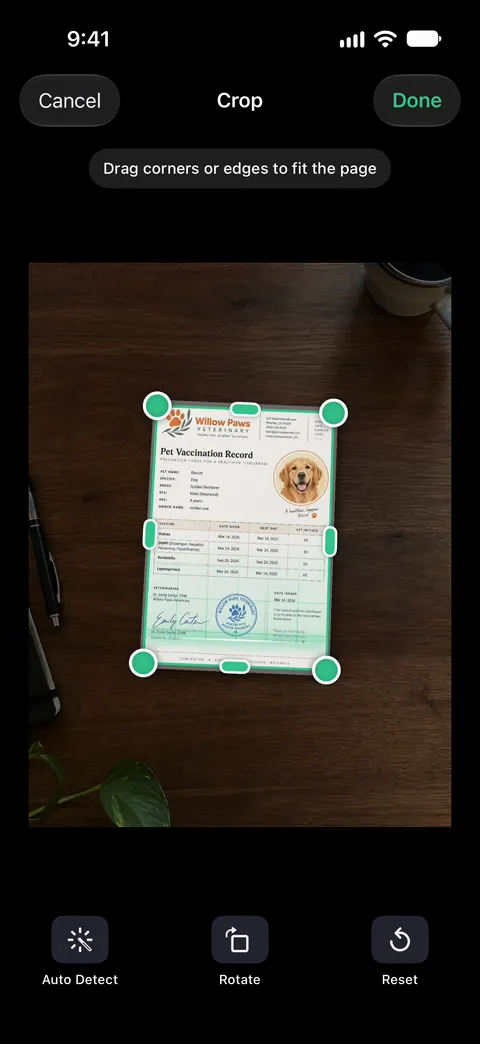
Book spreads are split into two pages and curved lines are flattened. That helps with the inner edge of a bound page, where a flat scanner would lose the words in the curve. A scan can have many pages, and you can reorder them. So a page you rescan can go back where it belongs.
What it doesn’t do: like any phone scanner, it can’t recover part of a page that wasn’t in the camera’s view. A dark background and a margin around the page still matter.
When the built-in way is enough: Notes, Files and Preview all let you set the corners by hand, and that fixes most cut-off scans. Scanning is free in Scanner One too: Scanner One is free, with generous limits: scanning, clean PDFs and text search never stop. See what its scanner does on the scanning page, and more fixes in Guides.
Questions and answers
Can I get back the part of the page that was cropped off?
Only if the camera captured it. Notes keeps the scan adjustable, so tap the page thumbnail and choose Adjust to drag the corners outward. If the missing part was outside the camera’s view, no edit can bring it back: scan the page again.
Why does the scanner keep picking a box on the page instead of the page?
A strong printed border, a table or a photo inside the page can look like an edge, especially when the paper itself blends into the background. A dark background makes the real edge the strongest line in view, and manual capture lets you set the corners yourself.
How do I scan something bigger than the frame?
Step back until the whole page fits with a little margin, or scan it in parts. Very long receipts and posters are covered in the guide to scanning large documents.
My scan looks complete on my phone but the printout is cut off. Why?
That’s usually the printer, not the scan: a scan of a full page printed on paper of a different size, or with no margin, can lose its edges. Choose an option that scales the page to fit, if your printer offers one, or leave a small margin when you scan.
Sources
What this page says about Scanner One was checked against the app on .
- iPhone User Guide (iOS 27), Scan text and documents in Notes — automatic capture when the page boundaries are detected, Adjust after capture, manual capture with corners, Retake or Keep; read 2026-11-13
- Apple Support, How to scan documents on your iPhone or iPad (article 108963) — drag the corners to fit the page, then tap Keep Scan; published 2026-02-13
- iPhone User Guide (iOS 27), Scan text and documents in Preview — tap Auto to switch to Manual; tap thumbnails to crop, rotate or adjust coloring; read 2026-11-13
- iPhone User Guide (iOS 27), Work with PDFs in Notes — Crop Page for scanned documents; read 2026-11-13
- Scanner One on the App Store — the app’s own listing
Get Scanner One
Scanner One is free, with generous limits: scanning, clean PDFs and text search never stop.

Scanner OneScan, sign and ask anything
Scanner One is free, with generous limits: scanning, clean PDFs and text search never stop.