
Situation
Hurricane or wildfire coming: get your documents on your phone tonight
Put the originals that are hard to replace in one waterproof bag: IDs, passports, birth certificates, Social Security cards, insurance policies, deeds and titles, and medication lists. Then scan each one on your iPhone (Notes: tap the paperclip, then Scan Documents), keep the scans locked, and make sure a copy is saved somewhere other than the phone, such as iCloud, so you still have them if the phone is lost. Ready.gov recommends keeping these papers electronically or in a waterproof, portable container.

This page is for tonight, when a hurricane or wildfire warning is out and you may have to leave on short notice. For building a full binder when there is no rush, see the emergency document binder checklist.
First: follow the order to leave, not this list
If officials tell you to go, go. Ready.gov is clear that you should follow local instructions and leave early enough not to be trapped. Your documents can be replaced. Everything below is for the hour or two you may have before that.
Step 1: put the originals in one bag (15 minutes)
Walk through the house with one waterproof bag or folder. Zip bags work. Put in:
- Photo IDs: driver’s licenses, state IDs, passports and passport cards for everyone in the house
- Birth certificates, Social Security cards and immigration papers (green cards, naturalization certificates, visas)
- Insurance policies: home or renters, flood, car, health and life. At least the first page with the policy number and the insurer’s claim line.
- Property papers: deed or lease, car titles and registrations
- Money papers: a recent bank statement, your mortgage or rent details, the last tax return if it’s handy
- Medical papers: insurance cards, a list of medications and doses, prescriptions, vaccination records, and any papers for a medical device
- Pet papers: vaccination records and ID tags. Ready.gov lists pet ID with household identification.
- A paper list of phone numbers: family, doctor, insurer, bank, landlord. Your phone may die.
Keep the bag with your go-bag, by the door.
Step 2: scan everything (30 to 45 minutes)
The iPhone’s Notes app scans well enough for this. Apple’s steps:
- Open Notes and create a new note. Call it something you’ll find, such as “Documents”.
- Tap the Attachment button (the paperclip), then tap Scan Documents.
- Hold the page in view. In Auto mode it scans by itself; otherwise tap the Shutter button or press a volume button. Drag the corners if needed, then tap Keep Scan.
- Keep going: every page goes into the same scan. Tap Done when finished.
You can also scan in the Files app: tap the More button, then Scan Documents, then choose where to save.
A few tips for speed:
- Scan both sides of IDs, insurance cards and Social Security cards. The back often has a phone number or a signature.
- One scan per person or per topic (IDs, insurance, house, medical) keeps things findable later.
- Lay pages on a dark table under a ceiling light. If the power is already out, a window or a second phone’s flashlight held to the side works.
- Don’t stop to make it perfect. Readable is enough tonight.
Step 3: lock the scans
These scans are everything someone needs to steal your identity, so lock them. In Notes, open the note, tap the button at the top of the note, then tap Lock. To set up how locked notes open, go to Settings, tap Apps, tap Notes, tap Password, then choose Use Device Passcode (you can turn on Face ID too).
Apple notes that some notes can’t be locked, including notes with PDF or file attachments and notes shared in iCloud. Scanning straight into the note avoids the attachment problem. Our guide to locking documents with Face ID covers other options.
Step 4: get a copy off the phone
A phone can be lost, broken or soaked. If your only copy is on it, you can lose the originals and the backup in the same moment.
- iCloud: if your notes or files sync with iCloud, check on another device, or at least confirm that iCloud is turned on for Notes or iCloud Drive before you leave.
- A family member far away: sharing the scans with someone outside the danger area is a real backup. Use a locked or password-protected file rather than a plain email attachment. Our guide to sending documents securely explains the options.
- An external drive in the go-bag works too. Ready.gov suggests a safe deposit box, an external drive or the cloud.
See backing up scanned documents for the details.
Step 5: photograph the house
If there’s time, walk through each room with the camera recording: open closets and drawers, show the TV, the appliances, the car in the driveway. Say out loud what things are. This is the start of a home inventory, and it makes an insurance claim much easier. Our home inventory checklist covers what insurers like to see.
If you have very little time
In order: phones and chargers, medications, the bag of originals, then the scans of IDs and insurance. The insurance policy number and the insurer’s claim phone number are the two things people most often wish they had written down.
After the storm or fire
If papers were lost or damaged, our page on replacing documents after a fire or flood walks through who to contact. Your scans will make most of those calls and forms faster.
Next time
Make the scans on a calm weekend, keep them current, and check once a year, before hurricane or fire season, that IDs haven’t expired. Our printable emergency binder gives you a list to work from.
Where Scanner One helps, and where it doesn’t
The Notes app is enough for tonight. A scanner app helps when you want the copies sorted and easy to find later.
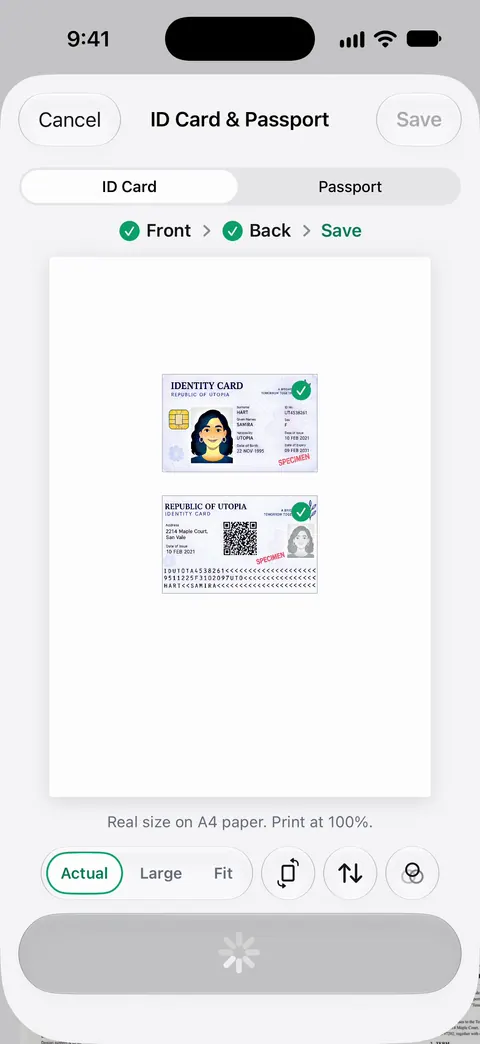
Point your camera at any piece of paper. Scanner One finds the edges, straightens the page, cleans it up and saves a real PDF. A scan can have many pages, and you can reorder them. ID cards and passports are scanned with both sides on one printable page.
Documents stay on your iPhone unless you share them or turn on iCloud Sync. You can lock the app with Face ID. Search looks inside the text of every document and shows the matching line and page. So months later, searching for a policy number finds the page it’s on.
Expiry reminders. Needs You gathers bills due, return windows and IDs about to expire on Home, from your own papers. That makes the yearly check before storm season quicker.
What it can’t do: it doesn’t replace an original, it can’t protect a copy that exists only on a phone that’s lost, and it doesn’t back up anything unless you turn on iCloud Sync or share the files yourself. On a free account, pages you share, print or export carry a small “Scanned with Scanner One” label at the bottom right. Pro removes it.
Questions and answers
What documents should I take if I have to evacuate?
The ones that are hard to replace or that you need to start over: photo IDs, passports, birth certificates, Social Security cards, insurance policies, deeds and car titles, recent bank and mortgage details, medical and medication information, and a list of phone numbers. Ready.gov lists the same groups.
Are phone scans of my documents enough?
They are a backup, not a replacement. A scan helps you file an insurance claim, call the right office and fill in replacement forms, but an office that asks for an original or a certified copy will still want the paper. Take the originals if you can, and keep the scans in case you can’t.
Where should I keep the scans so I don’t lose them with my phone?
Somewhere off the phone as well as on it: iCloud, another cloud service, or an external drive left with family in another area. Ready.gov suggests a safe deposit box, an external drive or the cloud.
Is it safe to keep copies of my ID on my phone?
It is safer when they are locked. Lock the note or the app with Face ID or a passcode, and use a strong passcode on the phone itself. Don’t send ID scans by text or email unless you have to.
Sources
What this page says about Scanner One was checked against the app on .
- Ready.gov, Financial preparedness — the documents to gather (household ID, financial and legal, medical, insurance, contacts) and storing them in a safe deposit box, an external drive or the cloud; last updated 2026-03-13
- Ready.gov, Build a kit — copies of insurance policies, identification and bank records saved electronically or in a waterproof, portable container; last updated 2026-07-01
- Ready.gov, Evacuation — a go-bag, following local officials, leaving early, knowing your evacuation zone; last updated 2026-03-20
- Apple Support, Scan documents on your iPhone or iPad (article 108963) — the Notes and Files scanning steps; published 2026-02-13
- Apple iPhone User Guide, Lock your notes on iPhone — device passcode or custom password, Face ID, and which notes can’t be locked; iOS 27 guide, undated, read 2026-11-13
- Scanner One on the App Store — the app’s own listing, for the closing section
Get Scanner One
Scanner One is free, with generous limits: scanning, clean PDFs and text search never stop.

Scanner OneScan, sign and ask anything
Scanner One is free, with generous limits: scanning, clean PDFs and text search never stop.