
Guide
Back up your scanned documents
Keep at least two copies in two places. Turn on iCloud Drive (Settings > your name > iCloud > Drive > Sync this iPhone) so files in the Files app are stored in iCloud, and turn on iCloud Backup for app data. For a copy Apple doesn’t hold, export your scans as PDFs to a USB drive or a computer every few months. Then open a few files from each copy to make sure they work.

Syncing isn’t a backup
Apple describes two ways iCloud protects your data. Syncing (iCloud Drive, iCloud Photos, Notes) keeps the latest version of your files in iCloud and on all your devices. Backing up (iCloud Backup) takes periodic snapshots of the data on your iPhone that doesn’t already sync.
The difference matters for documents. If you delete a scan from iCloud Drive, it’s deleted everywhere. If a file gets corrupted, the corrupted version syncs. Notes keeps deleted notes in Recently Deleted for 30 days, which helps, but only for 30 days.
So a sound setup has two layers: something that syncs (so a lost phone loses nothing) and a copy that doesn’t (so a mistake can be undone).
Turn on iCloud Drive for your files
Scans saved in the Files app, and PDFs you keep there, live in iCloud Drive once it’s on.
- Open Settings and tap your name, then iCloud.
- Tap Drive and turn on Sync this iPhone.
- To choose which apps can store files there, go back to iCloud, tap See All next to Saved to iCloud, and turn each app on or off.
In the Files app, tap Browse, then iCloud Drive under Locations, and keep your document folders there rather than in On My iPhone.
Turn on iCloud Backup for everything else
iCloud Backup covers what doesn’t sync on its own, including the data inside apps you’ve downloaded. Apple says app data is included for those apps; if an app keeps its data in iCloud Drive, that data is stored in iCloud instead of the backup.
- Open Settings, tap your name, iCloud, then iCloud Backup.
- Turn on Back Up This iPhone.
- Tap Back Up Now to make one right away.
After that, iCloud backs up your iPhone daily when it’s connected to power, locked and on Wi-Fi. To see what’s included, tap iCloud Backup, then your iPhone: you can turn off apps you don’t need to back up. Apple adds that if you turn off iCloud Backup, the backups in iCloud are kept for 180 days, then deleted.
iCloud starts with 5 GB of free storage. Backups and iCloud Drive share it, so check the meter in Settings > your name > iCloud.
Keep a copy on a computer
A computer backup is a full copy you hold yourself.
On a Mac with macOS 10.15 or later:
- Connect the iPhone with a cable.
- Select your iPhone in the Finder sidebar, then click General.
- Select “Back up all of the data on your iPhone to this Mac.”
- Select Encrypt local backup and set a password you’ll remember. Apple says encrypting protects the backup with a password.
- Click Back Up Now.
On Windows, use the iTunes app: click the iPhone button, Summary, then Back Up Now, and select Encrypt local backup.
Keep a copy on a USB drive or an SD card
A drive in a drawer is the simplest copy that doesn’t sync and doesn’t need a subscription.
- Connect a USB drive or an SD card reader to the iPhone’s port. You may need an adapter for a Lightning iPhone.
- In Files, tap Browse and find the drive under Locations.
- Touch and hold a document folder and tap Copy. Open the drive, touch and hold an empty spot, and tap Paste.
Apple says the drive must have a single partition formatted as APFS, macOS Extended (HFS+), exFAT, FAT32 or FAT; on iPhones with USB-C, Files can erase and reformat a drive. Large hard drives often need their own power. Update the copy every few months, and keep the drive somewhere other than where the iPhone usually is.
Protect the copies
- Advanced Data Protection extends end-to-end encryption to iCloud Backup, iCloud Drive and Notes, so only your trusted devices can read them. Turn it on in Settings > your name > iCloud > Advanced Data Protection. Apple warns that you’re then responsible for recovery, so set up a recovery contact or recovery key first.
- Encrypt computer backups, as above.
- Lock up the drive. A USB stick with your tax returns on it deserves the same care as the paper.
Check that your backup works
A backup you’ve never opened is a hope. Twice a year:
- Open three or four scans from each copy: iCloud Drive on another device or iCloud.com, and the USB drive on a computer.
- Check they open, all the pages are there, and the text is readable.
- Note the date of the latest copy somewhere you’ll see it.
Where Scanner One helps, and where it doesn’t
If your scans live in the Files app on iCloud Drive and you keep a USB copy, you’re covered without any app.
With Scanner One, copies outside the app are your choice. Documents stay on your iPhone unless you share them or turn on iCloud Sync. So by default your documents stay on the iPhone, and iCloud Sync is a switch you turn on.
For a copy outside the app, export is the tool. Share & Export saves a document as a PDF, Word, Excel, PowerPoint, JPG, PNG, a long image, plain text, Markdown, Rich Text, a web page or CSV. You can select several documents in the Library and share them together, for example to a folder in iCloud Drive or to a USB drive. With Pro, auto-export sends new documents to a folder as PDFs.
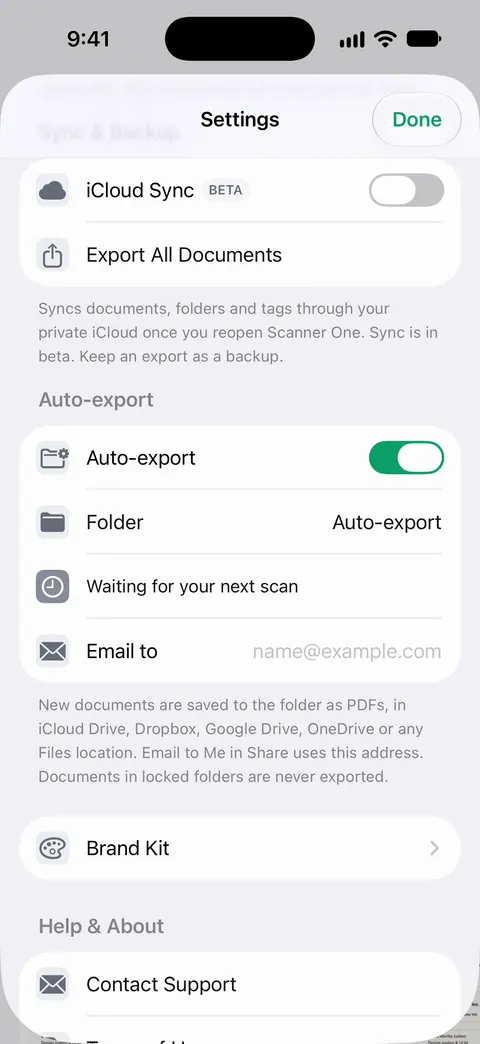
The limits, plainly:
- Pro adds redaction, the smart eraser, edit text, auto-export and five alternate app icons.
- On a free account, pages you share, print or export carry a small “Scanned with Scanner One” label at the bottom right. Pro removes it.
- Deleted documents wait in Recently Deleted for 30 days before they are deleted for good. That protects you from a slip of the finger, not from a lost phone.
The guide to moving your scans to a new iPhone covers the other moment backups matter, and the privacy feature page explains where documents are kept.
Questions and answers
Is iCloud Drive a backup?
It keeps a copy of your files in iCloud and on your other devices, which protects against a lost phone. But it syncs: delete or overwrite a file and the change reaches every copy. Keep one more copy that doesn’t sync.
Are my scanner app’s documents in my iCloud backup?
Apple says iCloud Backup includes app data for the apps you’ve downloaded, unless the app stores its data in iCloud Drive, which is kept in iCloud instead. Check the app’s own settings for sync or export options too.
How much iCloud storage do scans need?
iCloud starts with 5 GB free. Scanned PDFs are small next to photos, but years of color scans add up. See what you use in Settings > your name > iCloud.
Does Scanner One back up my documents?
Documents stay on your iPhone unless you share them or turn on iCloud Sync. Share & Export saves a document as a PDF, Word, Excel, PowerPoint, JPG, PNG, a long image, plain text, Markdown, Rich Text, a web page or CSV.
Sources
What this page says about Scanner One was checked against the app on .
- Apple iPhone User Guide, Set up iCloud Drive on iPhone — turning on iCloud Drive and choosing which apps use it; iOS 27 guide, undated, read 2026-11-13
- Apple iPhone User Guide, Back up iPhone — iCloud Backup, Back Up Now, backups on a Mac or Windows device and encrypted local backups; iOS 27 guide, undated, read 2026-11-13
- Apple Support, What does iCloud back up? (article 108770) — syncing versus backing up, app data in iCloud Backup, and the 180-day rule for backups of devices with backup off; published 2025-05-01
- Apple iPhone User Guide, Connect external storage devices to iPhone — USB drives and SD cards in the Files app, and the formats they must use; iOS 27 guide, undated, read 2026-11-13
- Apple iPhone User Guide, Transfer files from iPhone to a storage device, a server, or the cloud — copying files to a storage device with Files, and reformatting a drive on USB-C models; iOS 27 guide, undated, read 2026-11-13
- Apple iPhone User Guide, Use Advanced Data Protection for your iCloud data — end-to-end encryption for device backups, iCloud Drive and Notes, and the recovery warning; iOS 27 guide, undated, read 2026-11-13
- Scanner One on the App Store — the app’s own listing: where documents are stored, iCloud Sync and exports
Get Scanner One
Scanner One is free, with generous limits: scanning, clean PDFs and text search never stop.

Scanner OneScan, sign and ask anything
Scanner One is free, with generous limits: scanning, clean PDFs and text search never stop.