
Comparison
Scanner One vs the OneDrive scanner
The OneDrive app’s scanner is what Microsoft recommends now that Lens is retired. Microsoft’s support page says you save each scan to a location in OneDrive and that OneDrive does not support saving scans locally on your device. It starts with 5 GB of free cloud storage. Scanner One keeps documents on your iPhone unless you share them or turn on iCloud Sync, needs no account, and reads text on the device. Pick OneDrive if you work in Microsoft 365; pick Scanner One if you want scans on the phone.

Scanner One is our app, and it is not affiliated with Microsoft. Facts about OneDrive come from Microsoft’s support page and the OneDrive App Store page, read on November 13, 2026.
This page compares the scanner inside the OneDrive app with Scanner One as everyday scanners. If you are moving off Microsoft Lens and want to bring your old scans along, Scanner One vs Microsoft Lens covers that move step by step.
The short version
The OneDrive scanner is a cloud scanner. It lives inside a storage app, and its job is to put paper into your OneDrive. Scanner One is a scanner that keeps documents on the phone and reads them there. Both are reasonable; they answer different questions.
- Choose OneDrive if your files already live in OneDrive or Microsoft 365, and you are fine with the scan going to the cloud first.
- Choose Scanner One if you want scans on your iPhone, no account, text recognition on the device, and PDF tools in the same app.
- Choose neither if you scan a few pages a month: Notes and Files scan for free, as shown below.
How scanning works in OneDrive
Microsoft’s Lens retirement page gives these steps for scanning in OneDrive:
- Open the OneDrive app.
- Tap the plus (+) button in the bottom corner.
- Select Scan photo and scan your documents.
- Save the scan to your preferred location in OneDrive.
The same page says plainly: “OneDrive does not support saving scans locally on your device.” That is the line Lens users noticed, because Lens could keep a PDF on the phone.
There is a wrinkle worth knowing. OneDrive’s version history on the App Store, for version 18.8.3 dated August 22, says that after scanning you can now save photos to your device’s photo library, and photos and documents to your device’s files storage. Microsoft’s support page and its release notes don’t say the same thing, so look at the save screen in your copy of OneDrive before you count on a local copy.
The App Store description lists scanning documents, business cards, receipts, whiteboards and more, plus marking up, signing and sending documents from the app.
How scanning works in Scanner One
Point your camera at any piece of paper. Scanner One finds the edges, straightens the page, cleans it up and saves a real PDF. Then it reads the text, names the document, tags it and puts it in the right folder.
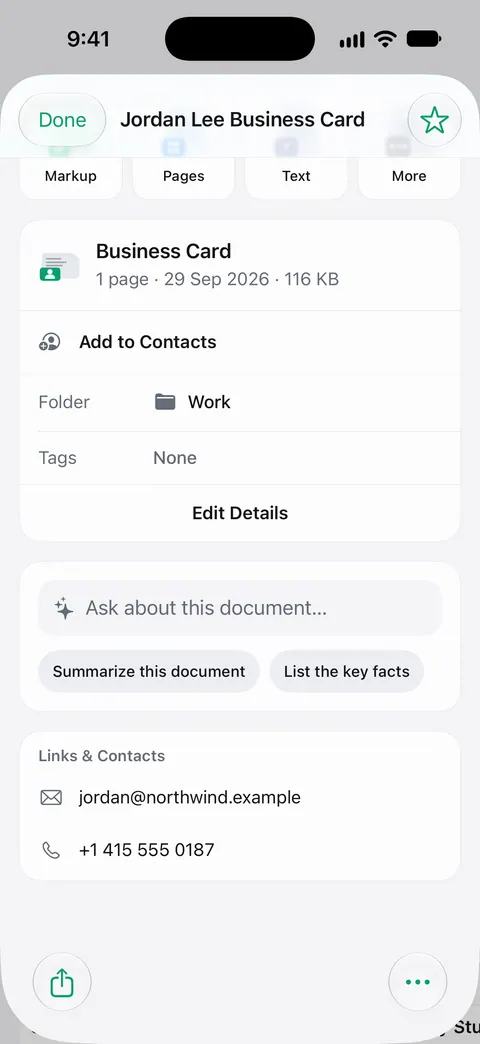
Documents stay on your iPhone unless you share them or turn on iCloud Sync. Scanner One needs no account and does no tracking. Text recognition runs on the device, in 29 languages. Business cards go straight to Contacts.
If you do want scans in the cloud, you choose it: iCloud Sync is a switch, and auto-export to a folder is part of Pro (Pro adds redaction, the smart eraser, edit text, auto-export and five alternate app icons.). To send scans to OneDrive or another service, see scanning to Google Drive, Dropbox or iCloud.
Side by side, checked November 13, 2026
| OneDrive scanner | Scanner One | |
|---|---|---|
| Price model | Free app; Microsoft 365 plans listed from $1.99 (Basic) to $129.99 (Family), storage add-ons from $0.99 | Free download. Pro at $4.99 a month, $29.99 a year or $59.99 once |
| Free limits | 5 GB of free cloud storage | Scanner One is free, with generous limits: scanning, clean PDFs and text search never stop. PDF tools and Office exports: 3 a week |
| Where scans are saved | A location in OneDrive; “does not support saving scans locally,” per Microsoft | Documents stay on your iPhone unless you share them or turn on iCloud Sync. |
| Account | Saves into your OneDrive, which is tied to your Microsoft account | No account, no tracking |
| Offline folders | Whole folders offline need Microsoft 365 Personal or Family, per the description | Documents are on the phone |
| Privacy label | Linked to you: Contact Info, User Content, Identifiers, Usage Data, Diagnostics; no tracking section | Scanner One’s privacy manifest declares no tracking. |
| Platforms | iPhone, iPad and Apple Vision; needs iOS 26.0 or later | iPhone and iPad; iOS 17 or later |
| Standout | Scans land straight in Microsoft 365 | Ask your documents anything. When does the lease end? What did I spend at the shop? The answer comes back with the page it came from. |
Storage is the real difference
A scanner inside a cloud drive spends your cloud storage. OneDrive’s App Store description says you start with 5 GB of free storage and that Microsoft 365 Personal gives 1 TB, with Family sharing 2 TB among up to 6 people. A few hundred scanned pages fit easily in 5 GB, but photos and other files share the same space.
Scanner One stores documents on the iPhone, so the limit is your phone’s storage. If you turn on iCloud Sync, they use your iCloud storage instead. Either way, keep a second copy of anything you can’t replace: backing up scanned documents shows simple ways to do it.
Privacy, read from the labels
OneDrive’s App Store privacy label lists Contact Info, User Content, Identifiers, Usage Data and Diagnostics as data linked to you, and it shows no “Data Used to Track You” section. Storing scans in a cloud drive means the content sits on Microsoft’s servers, which is what you want if you use OneDrive anyway.
For Scanner One: Cloud AI is off until you switch it on, and page images are a separate permission. You can lock the app with Face ID. More on what stays on the phone is on the privacy page.
The free way, before any app
If you only need to scan a page now and then, the iPhone already does it. Apple’s steps for Files:
- In the Files app, tap the More button.
- Tap Scan Documents.
- Place your document in view of the camera. In iOS 26 you can also pick flash or an image filter.
- In Auto mode the page scans itself; otherwise use the Shutter button, adjust the corners and tap Keep Scan.
- Tap Done, choose a location, then tap Save.
Choose a folder under On My iPhone to keep the PDF on the phone, or iCloud Drive to sync it. Notes has the same Scan Documents button behind the Attachment button. For more, see how to scan documents on iPhone.
Which one to pick
- You live in Microsoft 365. OneDrive. Your scans land in the same OneDrive as the rest of your Microsoft 365 files, with no export step.
- You want the scan on the phone, and nowhere else unless you say so. Scanner One, or Files for occasional pages.
- You scan business cards. Both list business cards; in Scanner One, Business cards go straight to Contacts.
- You need to search inside old scans. Search looks inside the text of every document and shows the matching line and page.
The wider field, including Genius Scan and Adobe Scan, is on Microsoft Lens alternatives.
Where Scanner One helps, and where it doesn’t
Where it helps: it keeps scans on the phone, without an account, and reads them there. Text recognition runs on every page for everyone, free or Pro. Scanner One makes searchable PDFs. Whiteboards are cleaned automatically.
Where it doesn’t:
- No Microsoft link. There is no Microsoft sign-in and no OneNote connection. If your team shares files in OneDrive, its scanner saves you the export step.
- Platforms. Scanner One runs on iPhone and iPad. There is no Windows, Android or web version, so your scans reach a PC only when you share or sync them.
- Free caps and the label. Free accounts can run the PDF tools and the Word, Excel and CSV exports 3 times a week, from one shared allowance. On a free account, pages you share, print or export carry a small “Scanned with Scanner One” label at the bottom right. Pro removes it.
- When Files is enough. For a page a month, the scanner in Files saves a clean PDF to any folder you choose and costs nothing.
Questions and answers
Can the OneDrive app save scans to my iPhone?
Microsoft’s Lens retirement page says OneDrive does not support saving scans locally on your device. OneDrive’s own version history (18.8.3, August 22) mentions saving photos to your photo library and documents to your device’s files storage after scanning, so check what your version offers before you rely on either.
Is the OneDrive scanner free?
The app is free and its App Store description says you start with 5 GB of free cloud storage. More storage comes with Microsoft 365 plans, listed on the App Store from $1.99 (Basic) upward.
Do I need a Microsoft account to scan with OneDrive?
Scans are saved to a location in OneDrive, which is cloud storage tied to your Microsoft account. Scanner One works without an account: Scanner One needs no account and does no tracking.
What happened to Microsoft Lens?
Microsoft retired it. It left the App Store on February 9, 2026, and you could scan in it until March 9, 2026. Our page on [Scanner One vs Microsoft Lens](/compare/scanner-one-vs-microsoft-lens/) covers moving your old Lens scans.
Sources
What this page says about Scanner One was checked against the app on .
- Microsoft Support, Retirement of Microsoft Lens — Lens dates, OneDrive as the recommended scanner, its four scan steps, and that OneDrive does not save scans locally; the page shows no date of its own, read 2026-11-13
- Microsoft OneDrive on the App Store — price, in-app purchases, 5 GB free storage, scanning, privacy label, version 26.1.4 dated Nov 2, iOS 26.0 requirement, version 18.8.3 notes; read 2026-11-13
- Apple Support, Scan documents on your iPhone or iPad (article 108963) — the Notes and Files scanning steps; published 2026-02-13
- Scanner One on the App Store — the app’s own listing
Get Scanner One
Scanner One is free, with generous limits: scanning, clean PDFs and text search never stop.

Scanner OneScan, sign and ask anything
Scanner One is free, with generous limits: scanning, clean PDFs and text search never stop.