
Guide
Scan straight to iCloud Drive, Google Drive or Dropbox
Use the Files app. Tap Browse, open the cloud folder you want (iCloud Drive, or Google Drive or Dropbox if their app is installed and listed under Locations), tap the More button, then Scan Documents. Scan the pages, tap Done, check the location and tap Save. The PDF goes straight into that folder. For a scan made in Notes or Preview, share it, tap Save to Files and pick the cloud folder.

Scan straight into iCloud Drive
iCloud Drive is built into the Files app, so a scan saved there shows up on every device signed in to the same Apple Account, including the Finder on a Mac and iCloud.com.
Turn it on (once)
- Open Settings, tap your name, then iCloud.
- Tap Drive and turn on Sync this iPhone.
Scan into a folder
- Open Files and tap Browse, then iCloud Drive below Locations. (If you don’t see Locations, tap Browse again.)
- Open the folder the scan belongs in, or make one: tap the More button, then New Folder.
- Tap the More button, then Scan Documents.
- Capture the pages. The iPhone takes each page automatically; tap the Shutter button to capture one yourself, then Keep Scan.
- Tap Done, check that the location shown is your folder, and tap Save.
The PDF uploads in the background. Rename it right away (touch and hold, Rename) so it’s easy to find on your other devices.
Scan straight into Google Drive or Dropbox
The Files app can show other cloud services as locations next to iCloud Drive. Apple’s guide uses Box and Dropbox as examples: once set up, you tap the service’s name below Locations to reach its files.
Make the service appear in Files
- Install the service’s app from the App Store (Google Drive or Dropbox) and sign in. Apple’s guide says to follow the service’s own instructions for this part.
- Open Files and tap Browse.
- If the service isn’t listed below Locations, tap the More button, tap Edit, and turn it on.
Scan into it
- In Files, tap Browse, then the service’s name below Locations.
- Open the folder you want.
- Tap the More button, then Scan Documents, capture the pages and tap Done.
- Check the location and tap Save.
If Scan Documents isn’t offered in that folder, or saving there fails, the service may not allow it from Files. Scan into iCloud Drive or On My iPhone instead, then move the file: touch and hold it, tap Move, and pick the service’s folder.
Some services also have a scanner in their own app; how the Google Drive one compares is in Scanner One vs the Google Drive scanner.
Move a scan from Notes or Preview to the cloud
Notes keeps scans inside notes, not as files. To put a copy in a cloud folder:
- Open the note, tap the Menu button on the scan, then Share.
- Tap Save to Files, choose iCloud Drive, Google Drive or Dropbox, and pick a folder.
- Tap Save.
For a PDF in Preview, tap the Actions menu next to the file name, tap Move, and choose the new location.
Get to the scans from a computer
The reason to scan into the cloud is usually to open the file somewhere else.
- iCloud Drive: on a Mac signed in to the same Apple Account, it’s in the Finder sidebar. On a Windows PC, use iCloud for Windows, or sign in at iCloud.com in any browser.
- Google Drive or Dropbox: open the service’s website or desktop app and go to the same folder. The scan is there as soon as the upload from your iPhone finishes.
- A work computer you can’t sign in on: don’t sign in to your personal cloud there. Email the scan to your work address instead, as in scanning and emailing a document.
If the file isn’t there yet, it may still be uploading. Keep the iPhone on Wi-Fi with Files open for a minute, then refresh the folder on the computer.
Set it up so it stays tidy
- One top folder for scans, such as “Documents” in iCloud Drive, with a folder per area: Home, Car, Taxes 2026, Medical. Our guide to organising documents on iPhone suggests a layout.
- Keep important files on the phone. Cloud files may only download when you open them. For something you need without a signal, touch and hold it in Files and tap Keep Downloaded.
- Mind the storage. Every service has its own storage limit, and scans add up. Apple notes that iCloud Drive storage depends on your iCloud plan, and that subscription fees may apply for other services.
- A cloud folder isn’t a backup on its own if you delete from it on one device and the deletion syncs everywhere. See backing up scanned documents.
Where Scanner One helps, and where it doesn’t
Scanning in Files puts a PDF in a cloud folder, but every scan needs you to pick the folder and type a name. In Scanner One, you scan the page and save it. Then it reads the text, names the document, tags it and puts it in the right folder. With auto-export on, new documents are also saved as PDFs to a folder you choose in Settings, as the screenshot shows.
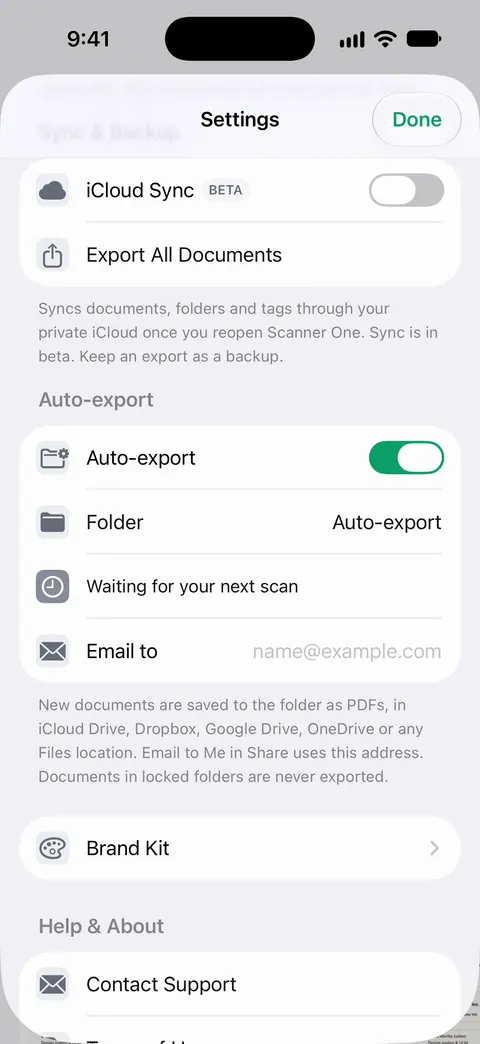
Auto-export is part of Pro: Pro adds redaction, the smart eraser, edit text, auto-export and five alternate app icons. On the free plan, share each document to your cloud folder by hand: Share & Export saves a document as a PDF, Word, Excel, PowerPoint, JPG, PNG, a long image, plain text, Markdown, Rich Text, a web page or CSV. On a free account, pages you share, print or export carry a small “Scanned with Scanner One” label at the bottom right. Pro removes it.
On privacy: Documents stay on your iPhone unless you share them or turn on iCloud Sync. A copy you export to a cloud folder follows that service’s rules, not the app’s.
What it doesn’t do: it doesn’t replace the cloud service or manage your storage there, and the free plan has no auto-export. When the built-in way is enough: if you scan into one cloud folder now and then, the Files app does it well and costs nothing. What Free and Pro each include is on the Free and Pro page.
Questions and answers
Can I scan directly to Google Drive on iPhone?
Yes, through the Files app, if Google Drive is installed and shows under Locations in Files. Open a Google Drive folder in Files, tap the More button, then Scan Documents, and save.
Why doesn’t Google Drive or Dropbox show in the Files app?
The service’s own app has to be installed and signed in. Then, in Files, tap Browse, tap the More button, tap Edit, and turn the location on.
Do scans in iCloud Drive appear on my Mac?
Yes. iCloud Drive is in the Finder on a Mac signed in to the same Apple Account, and also at iCloud.com and in iCloud for Windows.
Do Notes scans go to iCloud Drive?
No. Notes keeps a scan inside the note, synced with the Notes account, not as a file in iCloud Drive. Share it and tap Save to Files to put a copy in iCloud Drive.
Sources
What this page says about Scanner One was checked against the app on .
- Apple Support, How to scan documents on your iPhone or iPad (article 108963) — Files: More button, Scan Documents, choose a location, Save; published 2026-02-13
- iPhone User Guide (iOS 27), Send files from the Files app — open the location or folder, then More, then Scan Documents; read 2026-11-13
- iPhone User Guide (iOS 27), Set up iCloud Drive — turning on iCloud Drive and finding it in Files under Locations; read 2026-11-13
- iPhone User Guide (iOS 27), Transfer files from iPhone to a storage device, a server, or the cloud — cloud services such as Box or Dropbox appear in Files below Locations; Keep Downloaded; read 2026-11-13
- iPhone User Guide (iOS 27), Modify files and folders in Files — showing or hiding locations with More, then Edit; read 2026-11-13
- iPhone User Guide (iOS 27), Organize files and folders in Files — New Folder, Move, Rename and tags; read 2026-11-13
- Scanner One on the App Store — the app’s own listing
Get Scanner One
Scanner One is free, with generous limits: scanning, clean PDFs and text search never stop.

Scanner OneScan, sign and ask anything
Scanner One is free, with generous limits: scanning, clean PDFs and text search never stop.