
Who it’s for
Scanning for family historians
Handle originals with clean, dry hands, scan them flat on a clean table in soft daylight, and keep the originals: the National Archives says digitizing reduces handling but digital files can be lost too. Name files with plain letters, numbers and hyphens, record who, what, where and when, and keep three copies on two kinds of storage with one off site. Text recognition helps with typed records; old handwriting usually still needs a human reader.

This page is about the family historian’s whole collection: how to scan it gently, organize it and make it last. For step-by-step scanning of specific record types (census pages, vital records, microfilm prints), see the genealogy records scanning guide.
What a family historian scans
- Letters and postcards, often folded for decades.
- Certificates: birth, marriage, death, naturalization, military discharge.
- Family Bibles and prayer books with births and deaths written inside the cover.
- Photographs with names on the back. Scan old photos with iPhone covers prints.
- Newspaper clippings, obituaries and wedding announcements.
- Ledgers, diaries and address books.
- Copies from archives and courthouses, and your own research notes.
Handle the originals first
The National Archives puts it simply: preventing damage is the key to preservation. Its handling advice:
- Wash and dry your hands, and skip hand lotion, which can stain paper. Gloves aren’t needed for paper and can make thin sheets harder to handle.
- Wear gloves for photographs and negatives, where fingerprints can stain for good.
- Clear a clean workspace before taking anything out.
- No food, drink or smoking near the originals.
Its digitizing advice adds: make sure each item is fully supported so nothing is creased, avoid automatic feed scanners for fragile papers, and for bound books use supports or a cradle so the spine opens without force. A phone held above the page helps here, because nothing presses on the paper.
A scanning session
- Set up by a window with soft daylight, not direct sun, on a dark, clean surface.
- Use manual capture. In Notes or Files, use Scan Documents, and for odd shapes or fragile items tap the Shutter button or press a Volume button yourself, then drag the corners to fit and tap Keep Scan.
- Scan both sides of anything with writing on the back, photographs especially.
- Keep one item in one file: a four-page letter is one PDF, in page order.
- For faded ink, try a grayscale or color scan rather than black and white, which can drop light pencil and faded ink. Scan faded or old documents has more.
- For bound books, open gently, scan each spread, and don’t press the book flat. Scan a book without the curve shows how to deal with curved lines.
Name, describe and back up
Names. The National Archives suggests using only letters and digits, with hyphens or underscores instead of spaces, and no punctuation or symbols. A steady pattern sorts well:
| Pattern | Example |
|---|---|
| Surname_record_place_year | Kowalski_marriage_Chicago_1921 |
| Surname_letter_from-to_date | Nowak_letter_Anna-to-Jozef_1938-04-12 |
| Surname_photo_subject_year | Kowalski_photo_wedding-party_1921 |
Descriptions. Record who, what, where and when for each item, and where the original is kept. A simple spreadsheet or a note beside each file is enough, and it is what makes a collection useful to the next person.
Backups. The National Archives recommends the 3-2-1 rule: three copies, on two different kinds of storage, with one kept off site. A phone, a computer or external drive, and a cloud copy covers it. Back up scanned documents shows the iPhone side.
Keep the originals. Scanning lets you share and study items without handling them, but the National Archives says to keep the originals: digital files have their own preservation risks.
Making records searchable
Notes search finds text in scanned documents and handwritten text in supported languages. That works well on typed certificates, printed obituaries and transcripts. On old cursive, faded ink and older spellings, text recognition often gets words wrong; why OCR gets words wrong explains why. For important letters, type a transcription and save it next to the scan, so a search for a name or village finds it either way.
The mistakes that cost time
- Flattening a fragile letter under glass or a heavy book to get a flat scan.
- Only the front of a photograph, losing the names written on the back.
- Files named IMG_4471 with no record of who is in them.
- One copy on one phone. Phones get lost; follow 3-2-1.
- Trusting text recognition on handwriting without checking names and dates.
Where Scanner One helps, and where it doesn’t
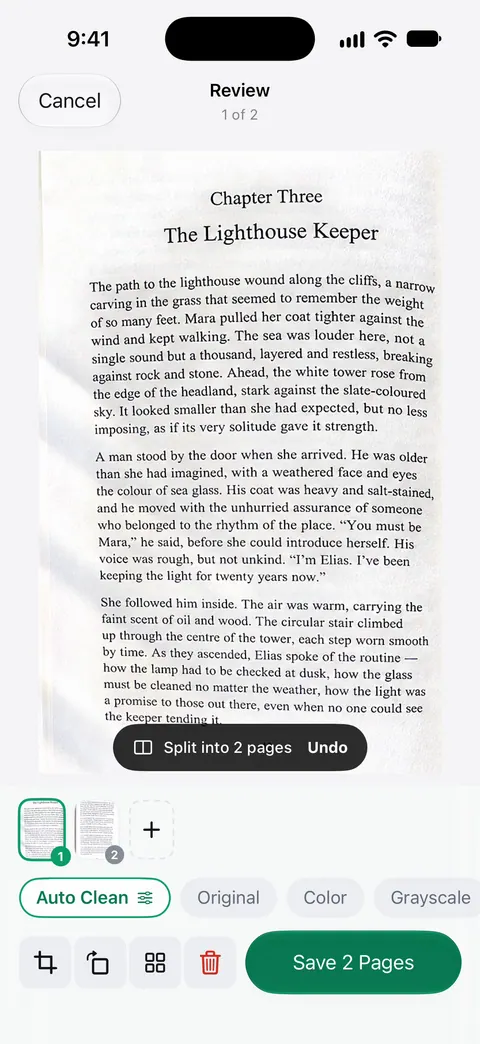
Point your camera at any piece of paper. Scanner One finds the edges, straightens the page, cleans it up and saves a real PDF. Book spreads are split into two pages and curved lines are flattened. That fits family Bibles and bound ledgers.
Text recognition runs on the device, in 29 languages. Scanner One makes searchable PDFs. Search looks inside the text of every document and shows the matching line and page. That helps once a collection grows past a few hundred items. Text recognition runs on every page for everyone, free or Pro.
What to know first:
- Text recognition is strongest on print. Expect to correct old handwriting by hand, as with any tool.
- Free accounts get smart filing for 10 documents a month. A big scanning weekend goes past that.
- On a free account, pages you share, print or export carry a small “Scanned with Scanner One” label at the bottom right. Pro removes it. Relatives will see it on copies shared from a free account.
- Pro removes every limit. Scanner One Pro Lifetime is a one-time purchase of $59.99 in the US.
It is not a family tree program or a photo restoration tool, and it doesn’t replace a flatbed for prints you want to enlarge. For a handful of letters, Notes is enough.
Questions and answers
Should I throw away originals after scanning family records?
No. The National Archives advises keeping the originals: scanning lets you view and share items without handling them, but digital files have their own risks and can be lost. Store originals carefully and treat the scans as working copies.
Is an iPhone good enough to scan old family documents?
For letters, certificates and typed records, a recent iPhone in good light gives readable scans that are easy to share. For fragile or valuable items, it can be gentler than a flatbed because nothing presses on the paper. For prints you want to enlarge, a flatbed scanner may still be worth it.
Can my phone read old handwriting?
Text recognition works best on clear print. Notes can search handwriting in supported languages, but faded cursive, old spellings and unusual scripts are often misread. Transcribe important records yourself and keep the transcription next to the scan.
How should I name scanned family records?
The National Archives suggests only letters, numbers and hyphens or underscores, with no spaces or symbols. A pattern like surname_record_place_year, for example Kowalski_marriage_Chicago_1921, sorts well and stays readable.
Sources
What this page says about Scanner One was checked against the app on .
- National Archives, Caring for Your Family Archives — preventing damage is the key to preserving family papers and photographs; last reviewed 2024-08-01
- National Archives, Digitizing Family Papers and Photographs — keep originals, avoid auto-feed scanners for fragile papers, copy stands for books, file naming with letters, digits, hyphens or underscores, basic metadata, the 3-2-1 backup rule; last reviewed 2021-05-26
- National Archives, Handling Family Papers and Photographs — wash hands and skip lotion, gloves for photographs and negatives, a clean workspace, no food or drink; last reviewed 2019-09-20
- Apple Support, Scan documents on your iPhone or iPad (article 108963) — Scan Documents in Notes and Files, manual capture with the Shutter or Volume button; page dated 2026-02-13
- Apple iPhone User Guide, Search through your notes on iPhone — Notes search finds text in scanned documents and handwritten text in supported languages; read 2026-11-13
- Scanner One on the App Store — the app’s own listing: text recognition, book spreads, search
Get Scanner One
Scanner One is free, with generous limits: scanning, clean PDFs and text search never stop.

Scanner OneScan, sign and ask anything
Scanner One is free, with generous limits: scanning, clean PDFs and text search never stop.