
Guide
Scan old photos with your iPhone, without glare
Take the photos out of plastic album sleeves if they come out safely, lay them flat in soft daylight from a window to one side, turn the flash off and hold the iPhone parallel to the print. For glossy prints, Google’s free PhotoScan app combines several shots to remove glare; for matte prints, the Camera or a document scanner in color works. Scan the backs too when they carry names or dates, then keep at least two copies in different places.

This page is about family prints: loose photos, albums and the boxes in the closet. For children’s drawings and paintings, see digitizing kids’ artwork, and for glossy papers in general, scanning glossy paper without glare.
Pick the right tool first
A document scanner is built for paper: it hunts for page edges, straightens the page and makes text crisp, which can flatten the tones of a photograph. A photo needs its tones and colors left alone. Choose by the print:
| The print | Best tool | Why |
|---|---|---|
| Glossy color or black-and-white prints | A photo scanning app, such as PhotoScan by Google | Its listing promises glare-free scans with a step-by-step capture flow |
| Matte prints, old sepia photos with a dull surface | The iPhone Camera, or a document scanner in color | Little glare to fight; a straight shot is enough |
| Album pages with several photos | The Camera for the page, then each photo separately | Keeps the layout and captions, plus a sharp copy of each photo |
| Small prints you want to enlarge or restore | A flatbed scanner if you can borrow one | More detail and even light |
PhotoScan is free, comes from Google, and its App Store page lists glare-free scans, cropping based on edge detection and smart rotation. It was last updated in 2022, so check it still runs on your iOS version. If you’d rather compare the options in depth, see the best apps to scan old photos and phone scanner vs flatbed scanner.
Set up the light
Glare is a reflection of your light source in the shiny surface of the print. You beat it by putting the light where the reflection can’t reach the lens.
- Use a window to one side. Soft daylight from the side, not a lamp overhead, is the easiest setup. Cloudy days are best.
- Turn the flash off. It sits right next to the lens, which is exactly where the reflection comes back.
- Turn off the ceiling light if it shows up as a bright patch.
- Two lamps at 45 degrees on either side of the print give even light at night, if you have them.
- Watch for your own shadow. Stand so you’re not between the light and the photo.
Prepare the photos
- Take prints out of plastic album sleeves when they come out without sticking or tearing. Plastic adds its own glare and haze. If a photo is stuck to an old “magnetic” album page, leave it and photograph it in place.
- Dust them gently with a soft brush or a microfiber cloth. Don’t use water or cleaning sprays.
- Flatten curled prints for a while under a heavy book between clean sheets of paper.
- Work on a dark, plain surface such as a black card. It frames the print and helps edge detection.
Capture each photo
With the Camera
- Hold the iPhone directly above the print, parallel to it, so the corners stay square.
- Zoom to 2x and step back a little, instead of moving the phone close at 1x. Less wide-angle bending at the edges.
- Tap the print to focus, check for glare on the screen, tilt slightly if a bright patch appears, and take the photo.
- Take two, in case one is a little soft.
With a document scanner
- Start a scan: in Files, tap the More button, then Scan Documents; in Notes, tap the Attachments button, then Scan Documents.
- Turn the flash off and, on iOS 26 and later, pick the color or photo option on the scanning screen rather than black and white.
- Let Auto mode find the edges, or tap the Shutter button and drag the corners. Tap Keep Scan, then Done.
A scan is saved as a PDF. To get a photo file, open it in Preview, tap the Actions menu next to the file name, tap Export and choose JPEG, with the Size slider to the right for quality. Apple’s export also offers TIFF and PNG.
Don’t skip the backs
The back of an old photo often has the only record of who is in it, where and when: a pencil note, a date stamp, a photo studio’s name. Capture the back right after the front, and name the two files so they sort together, such as “1962 Aunt Rosa wedding front” and “1962 Aunt Rosa wedding back”.
Name, describe and keep copies
The Library of Congress’s advice on personal digital photos is practical:
- give photos descriptive file names, and tag them with people’s names and subjects;
- write a short note describing your folder structure;
- make at least two copies, stored in places as physically far apart as practical;
- check at least once a year that the copies still open.
A simple folder structure works: one folder per decade or per album, with the album name kept. For backup options on iPhone, see backing up scanned documents. Keep the originals too. A scan is a copy, not a replacement, and a better tool may come along. If you’re tracing a family tree, scanning for genealogists covers records as well as photos.
Where Scanner One helps, and where it doesn’t
Scanner One is a document scanner, so for glossy photo prints a dedicated photo app like PhotoScan, or careful Camera work, will often do better. It does not remove glare from prints, restore faded colors or repair tears.
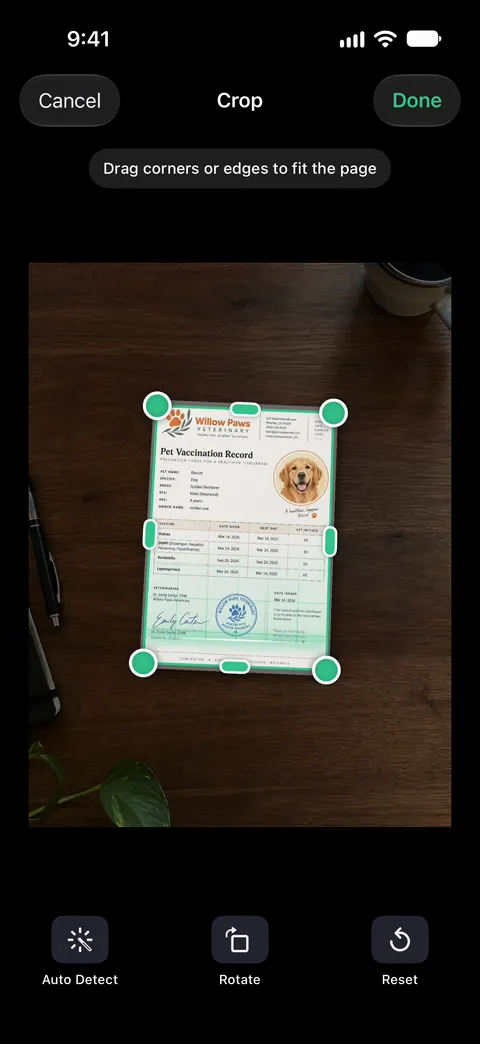
Where it fits is the paper around the photos: the album captions, the letters, the certificates and the notes on the backs. Scanner One finds the edges of the page automatically and corrects the perspective. Scans come with Auto Clean, Color, Grayscale and Receipt filters. Use Color for anything photographic. A scan can have many pages, and you can reorder them. So an album’s pages can live in one document in order.
Share & Export saves a document as a PDF, Word, Excel, PowerPoint, JPG, PNG, a long image, plain text, Markdown, Rich Text, a web page or CSV. That includes JPG for photos you want to share. Text recognition runs on the device, in 29 languages. That reads typed or printed captions so you can search them later.
The limits: On a free account, pages you share, print or export carry a small “Scanned with Scanner One” label at the bottom right. Pro removes it. For family photos you share, that label matters more than on a form, so the Camera or PhotoScan may suit better on a free account. Documents stay on your iPhone unless you share them or turn on iCloud Sync.
Questions and answers
What is the best way to scan old photos with an iPhone?
Soft, indirect daylight, no flash, the phone held flat above the print, and an app suited to the print. Glossy photos do best in an app that combines several shots to remove glare, such as Google’s free PhotoScan. Matte prints scan well with the Camera or a document scanner in color.
How do I get rid of glare when scanning photos?
Move the light, not the photo: use a window to one side instead of a ceiling light, turn the flash off, and tilt the phone slightly until the bright patch slides off. Taking prints out of plastic sleeves removes a second layer of glare.
Is a phone scan as good as a flatbed scanner for photos?
For sharing and a family archive, a careful phone scan is usually good enough. A flatbed gives more detail and even light, which matters for small prints you want to enlarge or restore.
Should I scan the back of old photos?
Yes, when there is writing, a date stamp or a studio name. Those notes are often the only record of who is in the picture, so save the back next to the front.
What file format should I save scanned photos in?
JPEG is fine for most family photos and opens everywhere. Keep the highest quality setting. Avoid saving photos inside a PDF unless you want an album-style document.
Sources
What this page says about Scanner One was checked against the app on .
- Library of Congress, Personal digital archiving: digital photographs — describe and tag photos, make at least two copies in different places, check them yearly; read 2026-11-13
- PhotoScan by Google Photos on the App Store — free; glare-free scans with a step-by-step capture flow, edge-based cropping, smart rotation; version 1.7 of 2022-11-21; read 2026-11-13
- Apple Support, Scan documents on your iPhone or iPad (article 108963) — Scan Documents in Notes and Files, flash and image filters on iOS 26; page dated 2026-02-13
- iPhone User Guide (iOS 27), Export or compress PDFs and images in Preview — export as JPEG, PNG, HEIC or TIFF, size and resolution settings; read 2026-11-13
- Scanner One on the App Store — the app’s own listing
Get Scanner One
Scanner One is free, with generous limits: scanning, clean PDFs and text search never stop.

Scanner OneScan, sign and ask anything
Scanner One is free, with generous limits: scanning, clean PDFs and text search never stop.