
Guide
Scan family records and old letters for genealogy
Handle old papers gently, never force a fragile fold, and scan each item flat in soft daylight with the flash off, using Scan Documents in Notes or Preview. Keep color so faded ink and stamps survive. Name each file with the family name, the kind of record and the year, using hyphens or underscores, and note who, what, where and when for each. Keep the originals, as the National Archives advises, and back up with three copies on two kinds of storage, one kept elsewhere.

This page is about family history papers: letters, certificates, Bibles, ledgers, military discharges, immigration papers and the notes in the margins. Old photographs need a different technique, covered in scanning old photos with your iPhone.
Handle first, scan second
The National Archives puts it simply: digitizing lets you view and share family papers without handling them, and handling is what damages them. So the scanning session should be the last time they’re handled much.
- Wash and dry your hands. Skip lotion. Clean, dry hands are fine for most paper.
- Work on a clean, clear table with nothing to drink nearby.
- Unfold slowly. If a fold resists or cracks, stop. Scan it partly open, and ask a conservator about the rest.
- Leave old repairs alone. Don’t peel off tape or glue to get a cleaner scan.
- No feeders. The Archives advises against automatic feed scanners for fragile or valuable papers, and the same caution applies to anything that drags paper.
- Support books. For a family Bible or a bound ledger, the Archives suggests a book cradle or copy stand, not pressing it flat. Folded towels under each cover do the job at home.
Set up for old paper
- A dark, plain, matte surface, larger than the biggest item. Old paper is often cream or brown, and a dark background still lets the scanner find the edges.
- Soft daylight from a window, no direct sun. Sun fades old ink, and it puts harsh shadows in every crease.
- Flash off. It flattens faint pencil and bounces off old photographs glued into albums.
- A soft brush to sweep loose dust off the surface, not off the documents themselves if they’re flaking.
Scan each item
- Open Preview (iOS 26 and later) and tap Scan Documents, or open a note in Notes and tap the Attachment button, then Scan Documents.
- Use manual capture for anything irregular: in Preview, tap Auto so it reads Manual. Torn edges, rounded corners and cards confuse automatic edge finding.
- Hold the phone straight above the page and tap the Shutter button.
- Drag the corners out to the very edge of the paper, including torn bits. For family history, the edges, stamps and margin notes are part of the record.
- Scan the back of anything with writing on it, as the next page, even a single word or a stamp.
- Tap the thumbnails to check the crop and coloring, then tap the Done button.
Keep it in color
Black-and-white filters make a page look crisp, but they can wipe out faded ink, pencil notes, colored stamps and the age of the paper. Scan in color. If a page is too faded to read, see scanning faded or old documents for ways to bring the writing out.
Letters with envelopes
Scan the envelope too. Postmarks, stamps and addresses date a letter and place a family member. Save the envelope as the first pages of the letter’s PDF, front then back.
Bibles, ledgers and albums
Scan bound records one page at a time, with the book supported open. A deep curve near the spine bends the lines; scanning a book without the curve has the setup. For the family register pages in a Bible, also photograph the title page with its publication date, which helps date the entries.
Name and describe every file
A folder of files called “Scan 47” is almost as lost as a box in an attic.
File names. The National Archives suggests Latin letters and numbers, with hyphens and underscores instead of spaces, and no punctuation or symbols. A pattern that works:
Surname_record-type_place_year
For example: Novak_birth-certificate_Krakow_1921, or Hughes_letter-to-Mary_Ohio_1944. In Preview, open the PDF, tap the menu next to the file name and tap Rename.
Descriptions. The Archives also recommends noting who, what, where and when for each file. Keep a simple note or spreadsheet with one line per file: the file name, who’s in it or who wrote it, what it is, where it came from (and who owns the original), and the date or best guess.
Transcriptions. For handwritten letters, type a transcription into the same note as the scan. If you scanned into Notes, Apple says its search covers handwritten text in supported languages and text in scanned documents, but old cursive is read unreliably. Your transcription is what will always be found.
Back up three ways
The Archives’ rule for family archives is 3-2-1: three copies, on two different kinds of storage, with one copy off-site. For example:
- The files on your iPhone.
- A copy in iCloud Drive or another cloud service.
- A copy on an external drive kept at a relative’s house.
Share copies with cousins who are researching too: every extra copy in another household makes the family archive safer. Backing up scanned documents covers each option on iPhone.
If you’re working through a parent’s papers after a move or a loss, sorting a parent’s papers is a gentler place to start than a scanning plan. For researchers who do this often, scanning documents for genealogists covers the wider workflow.
Where Scanner One helps, and where it doesn’t
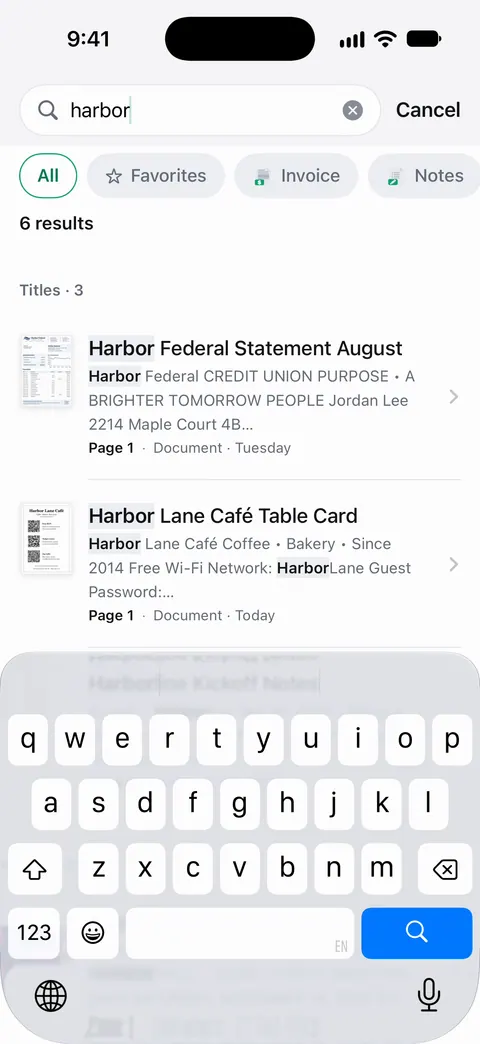
Text recognition runs on the device, in 29 languages. Search looks inside the text of every document and shows the matching line and page. That means a typed certificate or a clearly written letter can be found by a surname or a town name inside it. Old handwriting and faded ink are read less reliably, so your own transcription still matters.
Book spreads are split into two pages and curved lines are flattened. That helps with family Bibles and ledgers you scan open. Deleted documents wait in Recently Deleted for 30 days before they are deleted for good. So a scan deleted by mistake during a long session can be brought back.
What it doesn’t do: it doesn’t restore damaged paper or old photographs, and a phone scan isn’t an archival master the way a careful flatbed or copy-stand capture can be. Keep the originals. If you share scans with relatives from a free account, On a free account, pages you share, print or export carry a small “Scanned with Scanner One” label at the bottom right. Pro removes it.
When the built-in way is enough: for a shoebox of letters and certificates, Preview or Notes with good light and careful names is a sound archive. More in Guides.
Questions and answers
Should I throw away the originals after scanning family papers?
No. The National Archives advises keeping originals after you digitize them, because digital files have their own risks and are easily lost. Scanning means you can view and share them without handling them.
Can my iPhone read old handwriting in family letters?
Sometimes. Notes searches handwritten text in supported languages, and clear writing is often found. Old scripts, faded ink and cursive styles are read far less reliably, so add your own transcription or keywords.
What resolution should I scan family documents at?
A phone scan of a letter-size page is fine for reading and sharing. For archival masters, or anything you might print large, a flatbed scanner gives more control over resolution. The National Archives points to federal digitization guidelines for detailed settings.
How should I name scanned genealogy files?
Use the surname, record type, place and year, with hyphens or underscores instead of spaces, such as Novak_birth-certificate_Krakow_1921. The National Archives suggests Latin letters, hyphens and underscores, and no spaces or symbols.
What’s the safest way to scan a fragile family Bible?
Don’t press it flat. Support the open book with folded towels or a cradle so the spine isn’t strained, and scan one page at a time from above. The National Archives suggests a cradle or copy stand for books rather than a flatbed.
Sources
What this page says about Scanner One was checked against the app on .
- National Archives, Digitizing Family Papers and Photographs — handle originals carefully, avoid feeders, use cradles for books, keep originals, file names with hyphens or underscores, who/what/where/when metadata, 3-2-1 backups; last reviewed 2021-05-26
- iPhone User Guide (iOS 27), Scan text and documents in Preview — Scan Documents in Preview, manual capture, cropping and coloring; read 2026-11-13
- iPhone User Guide (iOS 27), Search through your notes — Notes search finds handwritten text in supported languages and text in scanned documents; read 2026-11-13
- iPhone User Guide (iOS 27), Save, rename, or move PDFs and images in Preview — renaming and moving a PDF in Preview; read 2026-11-13
- Scanner One on the App Store — the app’s own listing
Get Scanner One
Scanner One is free, with generous limits: scanning, clean PDFs and text search never stop.

Scanner OneScan, sign and ask anything
Scanner One is free, with generous limits: scanning, clean PDFs and text search never stop.