
Guide
Scan a book without the curve
Scan one page at a time, not the whole spread. Lay the book flat, press the page down near its outer edge, hold the iPhone straight above the page you are scanning and use manual capture in Notes or Preview so you can drag the corners to that page. The lines near the spine will still bend a little: the iPhone’s scanners straighten the page outline, not the curve inside it. An app that flattens curved lines fixes the rest.

Why book pages come out curved
A loose sheet lies flat, so the scanner only has to find its 4 corners and straighten the rectangle. A bound book doesn’t lie flat: each page curves down into the spine. The iPhone’s scanners in Notes, Files and Preview correct the outline and the tilt of the page, but they don’t model the bend inside it. The result is a page whose edges are straight and whose lines droop near the spine.
You can’t remove all of the curve with the built-in tools. You can make it small enough that the text reads well.
Set up the book
- Use a table, not your lap. Lay the book open on a flat surface in good, even light. A window to one side works better than a ceiling light behind you, which puts your shadow on the page.
- Open the book wide. A book opened to 90 degrees curves far more than one opened flat. Gently press along the spine of a paperback to help it stay open; go easy with old or valuable books.
- Hold the page down at the outer edge. One fingertip on the outer margin, away from the text, pulls the page flatter. You will crop your finger out.
- Turn the flash off for glossy pages. Coated paper in textbooks and photo books reflects the flash as a white blur. Use daylight instead.
Scan one page at a time
- Open Notes (Attachments button, then Scan Documents) or Preview (tap Scan Documents, iOS 26 and later).
- Switch to manual capture. In Preview, tap Auto so it reads Manual. In Notes, switch off automatic capture. Automatic capture often grabs the whole spread or the wrong rectangle.
- Hold the iPhone straight above the page you are scanning, not above the spine. The closer the camera is to directly overhead, the less the lines bend.
- Tap the Shutter button, then drag the 4 corners to the corners of that page. Pull the inner corners right up to the spine.
- Tap Keep (or Keep Scan), turn the page, and repeat. Tap Done after the last page.
Do left pages and right pages in one pass so the PDF is in reading order. If you’d rather scan all the right-hand pages first, you can fix the order later: see scanning several pages into one PDF.
Keep your place in a long scan
- Check the page numbers printed on the book against the scan every 20 pages or so. A skipped page is easy to fix now and hard to notice later.
- Turn pages with the hand that isn’t holding the phone, and put the phone down between pages only if you can put it back in the same spot.
- Take breaks. Holding a phone still over a book for 100 pages is tiring, and tired hands shake. Two sessions of 50 pages give sharper scans than one of 100.
Split a two-page spread with Preview
If you already captured spreads, Preview can turn each one into two pages. It takes a few steps, so it’s for a handful of spreads rather than a whole book.
- Scan each spread twice, so it appears as 2 identical pages in the PDF.
- Open the PDF in Preview and scroll to the first copy.
- Tap the Crop button, drag the blue handles around the left-hand page, then tap Crop.
- Scroll to the second copy and crop it to the right-hand page.
Preview’s crop removes the other half but doesn’t flatten the curve or straighten a tilted half.
Make the text searchable
Once the pages are in a PDF, Preview can add a text layer: tap the Actions menu next to the file name, tap Export, choose PDF and turn on Embed Text. Curved lines near the spine are harder to read for any text recognition, which is one more reason to keep the curve small. More in making a scanned PDF searchable.
A few cautions
- Don’t break the spine of a book you care about to get it flat. A slightly curved scan is better than a damaged book.
- Handwritten margin notes scan fine as images, but don’t expect text recognition to read them. See scanning handwritten notes.
- Big art books may not fit in one frame. Scan them as you would a poster, in sections: see scanning large documents.
Where Scanner One helps, and where it doesn’t
This is a case the built-in scanners don’t cover. Book spreads are split into two pages and curved lines are flattened. When you capture a spread, review offers to split it into two pages, and a curled page gets its lines flattened, as the screenshots show.
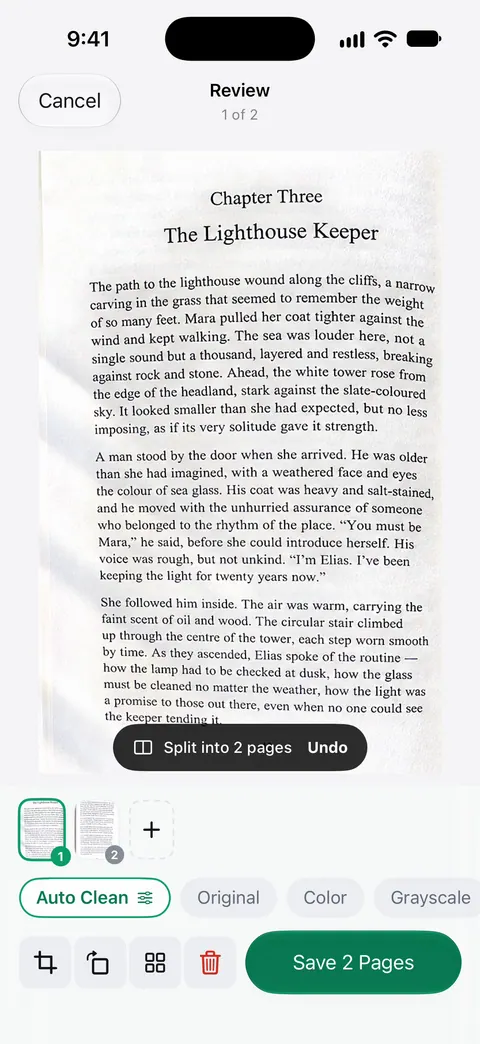
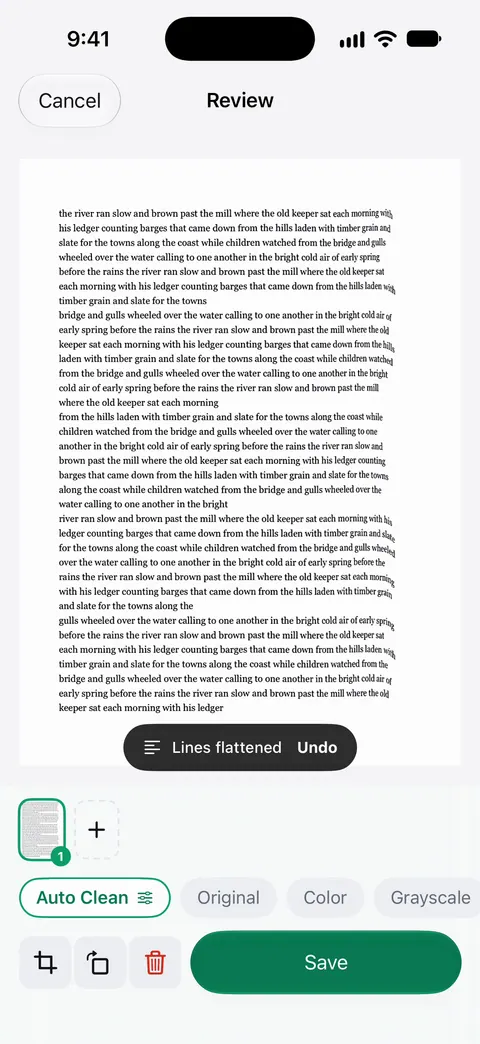
The text is read as well. Text recognition runs on every page for everyone, free or Pro. Search looks inside the text of every document and shows the matching line and page. Listen reads any document aloud. That’s handy for a chapter you want to hear rather than read.
What it doesn’t do: it can’t make a thick book lie flat for you, and pages that curve steeply into the spine still read better when you press them down. It also won’t fix a blurry capture, so hold steady. Scanner One is free, with generous limits: scanning, clean PDFs and text search never stop.
When the built-in way is enough: for a few pages from a book, careful one-page scans in Notes or Preview are fine. If you scan chapters or whole notebooks, splitting and flattening save real time. See how the app does it on the book pages feature page, compare options in apps to scan books, and find more in Guides.
Questions and answers
Why are the lines curved when I scan a book?
The page bends down into the spine, so the lines near it curve away from the camera. A document scanner straightens the outline of the page, but the iPhone’s built-in scanners don’t flatten the bend inside it.
Should I scan both pages of a book at once?
With the built-in scanners, scan one page at a time: the edge finder looks for one rectangle, and each page needs its own corners. If you do capture a spread, you can crop it into two pages in Preview.
How do I keep the book open without my hand in the photo?
Press the page down at its outer margin with one finger, well away from the text, and crop your finger out by dragging the corners. A heavy, smooth object on the facing page also helps.
Can I search the text of a scanned book?
Yes, if the PDF has a text layer. Preview’s Export with Embed Text turned on adds one. Curved lines near the spine are read less reliably, so flatter scans search better.
Sources
What this page says about Scanner One was checked against the app on .
- iPhone User Guide (iOS 27), Scan text and documents in Notes — manual capture and adjusting the corners before Keep; read 2026-11-13
- iPhone User Guide (iOS 27), Scan text and documents in Preview — Auto/Manual capture and cropping each page from its thumbnail; read 2026-11-13
- iPhone User Guide (iOS 27), Add, delete, rotate, move, or crop PDF pages in Preview — the Crop button and the blue handles for cropping a page; read 2026-11-13
- Scanner One on the App Store — the app’s own listing
Get Scanner One
Scanner One is free, with generous limits: scanning, clean PDFs and text search never stop.

Scanner OneScan, sign and ask anything
Scanner One is free, with generous limits: scanning, clean PDFs and text search never stop.