
Guide
Digitize a whole filing cabinet with your phone
Measure the paper first (about 200 to 250 sheets per inch), then work one drawer at a time. Pull out what you can shred without scanning and what you must keep as originals. Scan the rest in short daily sessions, one document per file, into folders by category and year with names like 2024-03 Bank statement. Back up the scans in two places before you shred anything, and shred only papers you don’t need in their original form.

This page is for the big job: a filing cabinet, a stack of banker’s boxes or years of paper in drawers. If you’re starting with a small pile at home, the paperless weekend or going paperless at home are shorter plans. Here the challenge is volume, so the plan is about pace and not losing anything along the way.
Size the job before you start
Pull out each drawer and measure the paper with a ruler. A standard sheet of office paper is thin enough that an inch of stack holds roughly 200 to 250 sheets.
| Paper | Approximate sheets |
|---|---|
| 1 inch | 200 to 250 |
| One full letter drawer, about 24 inches of files | around 5,000 |
| Four-drawer cabinet | around 20,000 |
Don’t panic at the bottom row. In most cabinets, a big share of that is paper you’ll shred without scanning: old statements past their keep date, expired warranties, duplicate copies, junk mail that got filed. The real scanning job is usually far smaller than the cabinet.
Set up a station once
Leave it set up for the whole project, so each session starts in seconds:
- A dark, matte surface so the scanner finds the edges every time
- Soft side light from a window or a lamp, no overhead glare
- Four boxes or trays: Scan then shred, Scan and keep original, Shred now, Act on (bills and letters that need something done)
- A staple remover and a pile of paper clips
- The phone on a stand if you have one, so your hands are free to move pages
Sort a drawer before you scan it
Go through one drawer quickly and drop every paper in a box. Use the FTC’s guide as the rule for what stays:
- Keep the original, scan a copy: birth certificates, Social Security cards, passports and citizenship papers, marriage and divorce papers, military records, wills and powers of attorney, titles and deeds. The FTC files these under keep forever and lock up.
- Scan, then shred: most statements, bills, pay stubs, tax papers and receipts you need for their information but not in their original form.
- Shred without scanning: ATM receipts, offers of credit, expired warranties, expired IDs and cards, old credit reports, statements past their keep date with nothing still to prove.
Not sure how long something is needed? The IRS keeps most returns open for 3 years after filing, longer in some cases, and wants property records until the period runs out for the year you sell. Which papers to keep after scanning goes through it.
Pick a pace you’ll actually keep
The projects that finish are the ones with short, regular sessions. A good default:
- 30 minutes a day, five days a week. Set a timer and stop when it rings.
- One drawer at a time. Sort it in session one, scan it over the next few sessions.
- Newest years first. Recent papers are the ones you’re most likely to need, so scanning them first pays off right away.
- Mark progress on the drawer with a sticky note: sorted, scanned, checked, shredded.
At that pace a single drawer of real documents often takes a week or two, and you’ll have the most useful papers on your phone in the first few days.
Scan in batches that file themselves
- One document per file. A three-page statement is one PDF, not three. In Notes or Files, keep capturing pages, then tap the done button, as Apple’s steps describe.
- Batch by kind. Scan all the bank statements in one go, then all the medical papers. It’s faster, and naming gets easy.
- Grayscale or black and white for text pages. Color only where it matters.
- Glance at each page before saving: all edges in, nothing blurred.
Name and file as you go
Folders by category, then year:
- Finance, Bank, 2024
- Home, Mortgage
- Medical, 2025
- Taxes, 2024 return
Name each file so it sorts by date: 2024-03 Chase statement, 2025-01 W-2 Acme. In the Files app you can create folders with New Folder, rename with Rename, and add Tags for things like “tax” across categories. Naming scanned documents and our folder structure template have ready-made systems.
Check and back up before you shred
- Spot-check every batch. Open a few files at random and zoom in on the smallest print.
- Two copies, two places. Your scans on your iPhone plus iCloud Drive or another cloud service, and ideally a copy on a computer or external drive. See backing up scanned documents.
- Then shred. Shred anything with account numbers, Social Security numbers or signatures, not just recycle it.
The IRS says the requirements for paper records also apply to electronic ones, so a scan you keep for taxes must be complete and readable.
Keep the cabinet from filling up again
When the last drawer is done, set up one tray for new paper and a 10-minute weekly pass to scan and shred it. The cabinet then holds only the originals you must keep, which usually fit in a single folder.
Where Scanner One helps, and where it doesn’t
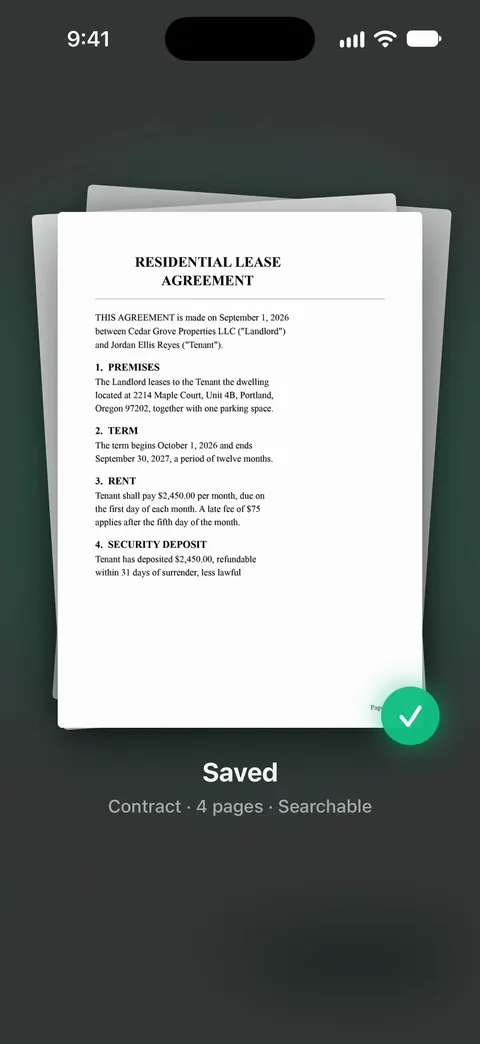
Point your camera at any piece of paper. Scanner One finds the edges, straightens the page, cleans it up and saves a real PDF. Then it reads the text, names the document, tags it and puts it in the right folder. On a big backlog, that saves the slowest step: typing a name and choosing a folder for every file. A scan can have many pages, and you can reorder them.
Search looks inside the text of every document and shows the matching line and page. So in a year you can find “the letter about the roof” without remembering where it went. Documents stay on your iPhone unless you share them or turn on iCloud Sync.
The free limits matter on a project this size: Free accounts get smart filing for 10 documents a month. Scanning itself has no cap: Scanner One is free, with generous limits: scanning, clean PDFs and text search never stop. For a cabinet, Pro removes the limits: Scanner One Pro costs $29.99 a year in the US, with a one-week free trial.
What it doesn’t do: it can’t tell you which originals to keep. That’s the sort step above.
When the built-in way is enough: if you’re happy naming files yourself, Files’ scanner and a folder plan get the whole cabinet done for free.
Questions and answers
How long does it take to scan a filing cabinet with a phone?
It depends on how much you shred without scanning. Many drawers turn out to be half junk. Once you’re in a rhythm, a phone scanner with automatic capture handles a few hundred pages an hour; a full four-drawer cabinet is usually several weeks of short sessions, not one weekend.
Is a phone good enough, or should I buy a document scanner?
For a few thousand pages, a phone with good light and a dark background does fine. If you have tens of thousands of loose, single-sided pages, a sheet-fed scanner is faster, and a scanning service is worth pricing.
Can I shred everything once it’s scanned?
No. Keep originals of vital records like birth certificates, Social Security cards, passports, titles, deeds and wills. The FTC lists these under keep forever and lock up. Shred the rest only after your scans are backed up and checked.
Should I scan in color?
Use grayscale or black and white for ordinary text pages: smaller files and cleaner reading. Use color for anything where color matters, like a colored form, a photo, a stamp or a signature in blue ink you may need to show.
Sources
What this page says about Scanner One was checked against the app on .
- FTC Consumer Alert, Protecting your personal information: Which documents to keep and which to shred — what to keep for a year, three years, while you own, forever and locked up, and what to shred; dated 10 June 2025
- IRS, How long should I keep records? — 3, 6 and 7 year periods, employment tax records and property records; last reviewed 30 June 2026
- IRS, What kind of records should I keep — all requirements for paper records also apply to electronic records; last reviewed 3 August 2026
- Apple Support, How to scan documents on your iPhone or iPad (article 108963) — scanning in Notes and Files, Auto mode and adding more pages; published 2026-02-13
- iPhone User Guide (iOS 27), Organize files and folders in Files — new folders, rename, tags and favorites; read 2026-11-13
- Scanner One on the App Store — the app’s own listing
Get Scanner One
Scanner One is free, with generous limits: scanning, clean PDFs and text search never stop.

Scanner OneScan, sign and ask anything
Scanner One is free, with generous limits: scanning, clean PDFs and text search never stop.