
Template
A folder structure for personal documents, ready to copy
Use about 10 numbered top folders by topic, never by date: 00 Inbox, 01 IDs and vital records, 02 Money, 03 Taxes, 04 Home, 05 Health, 06 Car, 07 Work and education, 08 Purchases and warranties, 09 Legal and family, plus 99 Archive. Give Taxes one subfolder per year, give each family member a subfolder only where papers are personal, and name every file 'YYYY-MM-DD who what'. Everything new goes to the Inbox and is filed once a week. Build it in the Files app with New Folder.

The guide to organizing documents on iPhone explains where to keep documents and how to set up the Files app or Notes. This page is the folder tree itself, deeper and ready to copy, with a naming pattern and an archive rule so it still works in five years.
The rules that keep it working
- Folders by topic, dates in file names. You remember “it was the car insurance” long before you remember the month.
- One home for each paper. If a paper fits two folders, pick the one you would look in first, and stick with it.
- An Inbox for everything new. Scans and downloads land there; you file them once a week.
- Two levels at most. Folder, then subfolder. Deeper trees are where files get lost.
- Old years go to the Archive, so the everyday folders stay short.
The folder tree
Copy this as it is, then delete what you don’t need.
- 00 Inbox
- 01 IDs and vital records
- [Name of each person]: passport, driver’s license, birth certificate, Social Security card, marriage certificate
- 02 Money
- Bank accounts
- Credit cards
- Loans and mortgage
- Pay stubs
- Investments and retirement
- 03 Taxes
- [Year], one subfolder per tax year: the return and everything that supports it
- 04 Home
- Lease or deed
- Home or renters insurance
- Utilities
- Repairs and improvements
- Home inventory
- 05 Health
- [Name of each person]: test results, visit summaries, vaccination records
- Insurance cards and explanations of benefits
- Medical bills
- 06 Car
- [Car name]: title copy, registration, insurance, repairs
- 07 Work and education
- Contracts and offer letters
- Benefits
- Diplomas and transcripts
- 08 Purchases and warranties
- [Year]: receipts, warranties and manuals
- 09 Legal and family
- Wills, powers of attorney, custody papers, letters from government agencies
- 99 Archive
- [Year]: anything closed, sold or replaced
Taxes, purchases and the archive are the only places where a year beats a topic, because that is how you will need them: “everything for the 2025 return”, “the receipt from the year I bought the fridge”.
Name files so they sort themselves
Use the same pattern everywhere:
YYYY-MM-DD [Who] [What] [Detail]
For example:
2026-03-14 Maria passport renewal receipt
2026-10-01 Home renters insurance policy
2026-11-02 Car oil change invoice
Year first means files sort in date order in any app, and the who and what make search work. The guide on naming scanned documents covers edge cases, such as multi-page bundles and documents without a date.
Build it in the Files app
Apple’s steps, from the Files guide for iOS 27:
- Open the Files app and open a location, such as iCloud Drive or On My iPhone.
- Tap the More button, then tap New Folder, and name it “00 Inbox”. Repeat for each top folder.
- Open a folder and repeat to add its subfolders.
- To file a document, touch and hold it, tap Move, and choose the folder. To move several, tap the More button, tap Select, pick them, then tap Move.
- Touch and hold the Inbox, then tap Favorite, so it appears under Browse.
- Optional: touch and hold a folder, choose Customize Folder & Tags, and give it a color or an icon so you spot it at a glance.
Choose iCloud Drive if you want the tree on every device; where to keep important documents weighs the options. Moving a whole filing cabinet into this tree is its own project: see digitize a filing cabinet.
Keep it tidy
- Weekly, 10 minutes: empty the Inbox. Rename, then move.
- Each January: create the new year’s subfolders in Taxes and Purchases, and move closed items (a car you sold, an old lease) to 99 Archive.
- When something expires: delete what you no longer need to keep, rather than archiving everything forever.
Where Scanner One helps, and where it doesn’t
The Files app does everything on this page for free, and for a few papers a month it is enough.
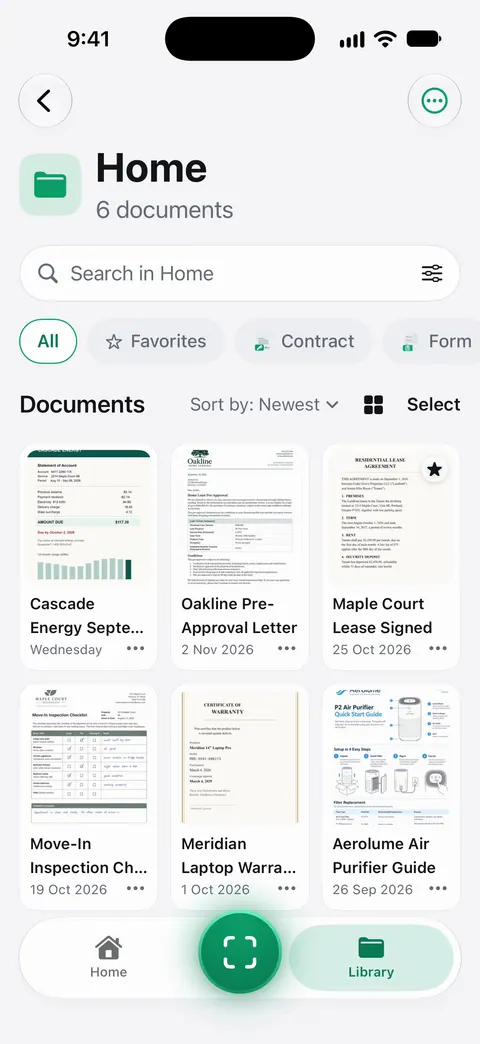
Scanner One handles the step people skip: naming and filing each new scan. Point your camera at any piece of paper. Scanner One finds the edges, straightens the page, cleans it up and saves a real PDF. Then it reads the text, names the document, tags it and puts it in the right folder. And when something lands in the wrong folder, Search looks inside the text of every document and shows the matching line and page.
The limits, plainly:
- Free accounts get smart filing for 10 documents a month. Pro removes every limit.
- Its folders live inside Scanner One. It doesn’t rearrange your Files app, so pick one home and use it.
- It doesn’t decide what you keep or throw away.
The smart filing feature page shows how names and folders are chosen. More templates are in templates.
Questions and answers
How should I organize my personal documents?
By topic, not by date: IDs, money, taxes, home, health, car, work and purchases, with an Inbox for new papers and an Archive for old ones. Put the date in the file name instead, so files sort themselves inside each folder.
How many folders should I have?
Few. Around 10 top folders and one level of subfolders is enough for most households. If you have to think about where something goes, there are too many.
Should each family member have their own folder?
Only for personal papers such as IDs, health and school records. Shared things like the lease, insurance and taxes stay in one place for the household.
Why number the folders?
The Files app sorts by name, so a number keeps the order you chose: Inbox first, Archive last. Without numbers, Archive would sit near the top.
Sources
What this page says about Scanner One was checked against the app on .
- Apple iPhone User Guide, Organize files and folders in Files on iPhone — New Folder, Move, Rename, tags and Favorites in the Files app; iOS 27 guide, undated, read 2026-11-13
- Apple iPhone User Guide, Modify files and folders in Files on iPhone — Customize Folder & Tags for folder colors and icons, list view to expand folders; iOS 27 guide, undated, read 2026-11-13
- Scanner One on the App Store — the app’s own listing: smart filing and search
Get Scanner One
Scanner One is free, with generous limits: scanning, clean PDFs and text search never stop.

Scanner OneScan, sign and ask anything
Scanner One is free, with generous limits: scanning, clean PDFs and text search never stop.