
Guide
Digitize your kids' artwork and school papers
Scan flat drawings with Scan Documents in Notes, Files or Preview using the color filter, in soft daylight with the flash off. Photograph anything with glitter, collage or texture with the Camera instead. Big sheets go on the floor and get scanned from above, or in sections. Save everything in one folder per child and school year, with the date and the child’s age in each name, and keep at least 2 copies in different places.

Decide what to keep first
A busy school year can bring home hundreds of sheets. Before scanning, sort them into 3 piles:
- Keep the original: a few favorites a year. Store them flat in a box or folder, away from damp and sunlight.
- Scan, then let go: most drawings and good work.
- Recycle: worksheets and practice pages nobody will miss.
Doing the sort with your child helps; they often pick different favorites than you would.
Scan flat drawings in true color
- Find a spot with soft daylight, such as a table by a window, and put down a dark, plain surface. A dark background helps the scanner find a white sheet’s edges.
- Start a scan: Notes (Attachments button, then Scan Documents), Files (More button, then Scan Documents) or Preview (Scan Documents).
- Tap Filters and choose color. Black and white and grayscale throw away exactly what makes kids’ art worth keeping.
- Set Flash to off. Crayon, oil pastel and paint are shiny, and the flash leaves white glare.
- Capture each drawing. Use manual capture if the drawing goes right to the edge of the paper and the scanner hesitates: drag the corners to the paper’s edges and tap Keep.
- Tap Done after the batch (in Files, choose the folder and Save).
Scanning in batches, one session per month or per term, is easier to keep up than scanning each sheet the day it comes home.
Glitter, collage and 3D: take a photo
A document scanner assumes a flat sheet. Glitter sparkles differently every time, pasta and cotton balls throw shadows, and thick paint catches the light. For these:
- Use the Camera in Photo mode instead.
- Put the piece on a plain background, with soft light from the side so the texture shows without harsh shadows.
- Shoot from straight above for a flat record, then take a second photo at an angle to show the texture.
- Include your child holding it, now and then. Those photos often end up more treasured than the art.
Big sheets and easel paintings
Paintings from nursery or art class are often larger than a letter-size sheet.
- Floor and stand: lay it on the floor on a dark rug or a sheet of dark card, and scan or photograph from straight above. Keep your shadow off the sheet.
- Flatten it first if it’s curled from the backpack: a day under a few heavy books helps.
- In sections if you want to keep fine detail: overlapping parts as pages of one PDF. See scanning large documents.
School papers worth keeping
Some school papers are records rather than keepsakes: report cards, certificates, awards, test results, letters about services. Scan these in color, as PDFs, and keep them in the same yearly folder or a separate “School records” folder. Schools often ask for some of the same papers again at enrollment: see documents to enroll a child in school.
Name and file by school year
A name and a folder are what make 500 drawings a collection instead of a pile.
- One folder per child, and inside it one folder per school year: “Maya / 2026-27 Grade 1”. Create folders in Files with the More button, then New Folder.
- Name each scan with the date, the child and age, and what it is: “2026-11 Maya age 6 dinosaur”. Touch and hold the file, tap Rename.
- Tag the stars. A “Favorites” tag (touch and hold, Tags) lets you pull the best of every year together.
The Library of Congress’s advice for personal photo collections applies here too: give items descriptive file names, use a folder structure and write down how it works. More naming patterns are in naming scanned documents, and a whole-home layout is in organizing documents on iPhone.
Make a yearly book
At the end of the school year, combine the year’s scans into one PDF: open the first scan in Preview, show the thumbnails, touch and hold the last one, tap Insert from File and add the others. Drag pages to put them in order. A single “Maya, Grade 1” PDF is easy to share with grandparents, and to keep.
Keep more than one copy
Kids’ art can’t be scanned again once the paper is gone. The Library of Congress recommends keeping at least 2 copies, more if you can, stored as far apart as practical, and checking them at least once a year. For example: one copy in iCloud Drive and one on an external drive kept somewhere else. See backing up scanned documents.
Where Scanner One helps, and where it doesn’t
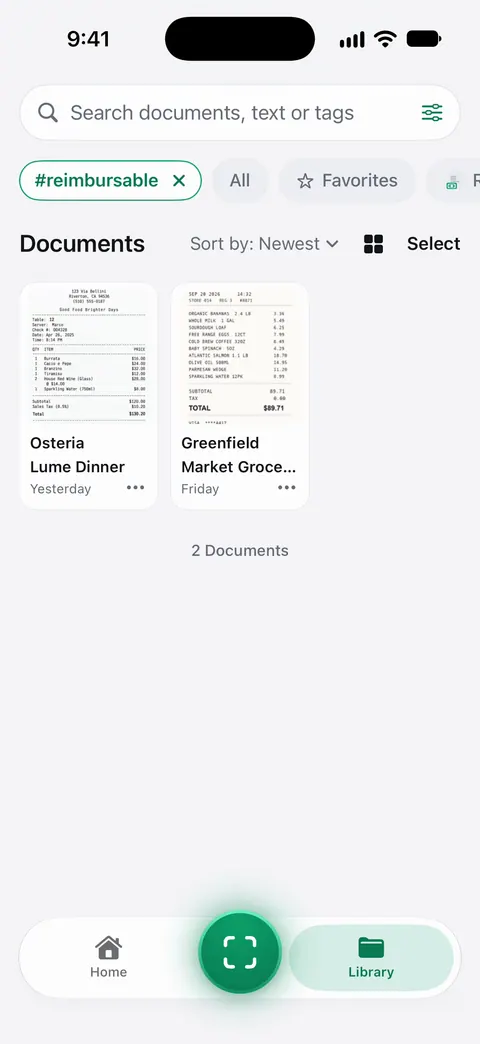
Scans come with Auto Clean, Color, Grayscale and Receipt filters. Color is the one for art. Scanner One finds the edges of the page automatically and corrects the perspective. A scan can have many pages, and you can reorder them. Then it reads the text, names the document, tags it and puts it in the right folder.
Merge builds the yearly book. The PDF tools merge, split, compress, password-protect, add page numbers and watermarks, and extract text. To share a single drawing, export it as a picture. Share & Export saves a document as a PDF, Word, Excel, PowerPoint, JPG, PNG, a long image, plain text, Markdown, Rich Text, a web page or CSV. An image file is often easier for family to save than a PDF.
Folders can be shared through iCloud. Joining is free; sharing is part of Pro. A shared “Kids’ art” folder lets grandparents see each new drawing.
The limits: Free accounts get smart filing for 10 documents a month. Free accounts can run the PDF tools and the Word, Excel and CSV exports 3 times a week, from one shared allowance. On a free account, pages you share, print or export carry a small “Scanned with Scanner One” label at the bottom right. Pro removes it.
What it doesn’t do: it doesn’t photograph glitter or 3D work any better than the Camera, and it isn’t a backup plan on its own. Documents stay on your iPhone unless you share them or turn on iCloud Sync. Keep a second copy somewhere else too. When the built-in way is enough: a Files folder per child and year, with good names, works well and costs nothing.
Questions and answers
What’s the best way to scan kids' artwork?
For flat drawings, a document scan with the color filter, in daylight, flash off. It straightens and crops the sheet. For glitter, collage or thick paint, take a photo instead, from straight above.
How do I scan artwork bigger than a letter-size page?
Lay it on the floor on a dark background and scan from straight above, standing if you need to. If detail matters, scan it in overlapping sections as pages of one PDF.
How should I name scanned kids' art?
Date first, then the child’s name and age, then a few words: '2026-11 Maya age 6 dinosaur'. Put it in a folder per child and school year, such as 'Maya, Grade 1, 2026-27'.
Should I keep the originals after scanning?
Keep a few favorites each year, perhaps chosen with your child. The scans keep the rest, as long as you keep more than one copy of them.
Sources
What this page says about Scanner One was checked against the app on .
- iPhone User Guide (iOS 27), Scan text and documents in Notes — Flash and Filters before capture; read 2026-11-13
- iPhone User Guide (iOS 15), Scan text and documents in Notes — names the filter choices: color, grayscale, black-and-white or photo
- iPhone User Guide (iOS 27), Add, delete, rotate, move, or crop PDF pages in Preview — Insert from File and reordering pages, to build a yearly PDF; read 2026-11-13
- iPhone User Guide (iOS 27), Organize files and folders in Files — folders, renaming and tags; read 2026-11-13
- Library of Congress, Personal Digital Archiving: Keeping personal digital photographs — descriptive file names, a folder structure, at least 2 copies in different places, checking once a year; no date shown
- Scanner One on the App Store — the app’s own listing
Get Scanner One
Scanner One is free, with generous limits: scanning, clean PDFs and text search never stop.

Scanner OneScan, sign and ask anything
Scanner One is free, with generous limits: scanning, clean PDFs and text search never stop.