
Guide
Get rid of shadows on scanned documents
Most shadows come from you: a light above or behind you, and your head and phone block it. Move so the light comes from the side or the front, or use a bright window, and flatten folds so they don’t throw their own lines. On paper that isn’t glossy, the flash can even things out. For scans you already have, a black-and-white filter often turns a light shadow white. A dark shadow over text can’t be fully removed: scan again.

Where scan shadows come from
A document scanner on a phone can straighten a page and crop it, but it works with the light it’s given. Most shadows have one of these causes:
- Your own shadow. A ceiling light above or behind you, and your head, arm and phone block it. This gives the classic dark corner or gray half-page.
- One strong light from the side. A desk lamp lights one edge of the page and leaves the other in shade, so the scan fades from white to gray.
- Folds and curls. A crease throws a thin dark line; a curled edge throws a soft band.
- Something on the page. A paperweight, a finger, the edge of a book.
Light the page so there’s no shadow to fix
Five minutes of setup beats any filter.
- Put the light in front of you or to the side, not behind. If the room light is over your shoulder, turn around, or move the page.
- Use daylight. A table near a window on a bright day gives soft, even light. Avoid direct sun, which makes hard shadows and glare.
- Two lights are better than one. If a desk lamp lights one side, add a second light on the other side, or switch on the room light too.
- Hold the phone a little higher so your hand isn’t between the light and the page, then let the scanner crop. Don’t zoom in to compensate: zoom costs sharpness.
- Flatten the paper. Press out folds, or leave the page under a heavy book for a few minutes. Hold curled edges down at the margins.
- Use a dark, plain background. It doesn’t affect shadows, but it helps the scanner find the edges so it crops cleanly.
More on setting up the light, including the background, is in the best light for scanning documents.
When to use the flash
The scanners in Notes and Files let you set Flash before you capture. Apple’s iPad guide gives the tip outright: on supported models, turn on the flash to remove shadows. It works well on ordinary matte paper, because the flash comes from the camera itself and lights the page head on.
Turn it off for anything glossy: photo paper, magazines, laminated cards, receipts with a shiny coating. There the flash comes back as a white spot that wipes out the text under it.
Fix the shadows you already have
If the paper is gone or the scan was sent to you, filters are the main tool.
- Open the scan. In Preview, tap the page thumbnail to adjust its coloring. In Notes, tap the page’s thumbnail on the scan, tap the More button and choose Filters.
- Try a black-and-white filter first. It turns light gray to white and keeps dark text dark, so a light shadow often disappears.
- If the text in the shadowed area turns patchy or vanishes, go back to grayscale. Black and white treats dark shadow and text alike.
- Crop away a dark band at the edge if there’s no text in it.
What filters can’t do: when a shadow is as dark as the text, no filter can separate them. Scan the page again if you can.
A quick setup for a desk at night
Most people scan at a desk in the evening, under one lamp. A setup that works there:
- Put the page on a dark surface, such as a placemat, a dark folder or a laptop sleeve.
- Angle the lamp so it shines on the page from the side, at about the height of your shoulder, not from behind you.
- Switch on the room light as well, to fill in the other side.
- Stand or sit so your body is on the side away from the lamp.
- Hold the phone straight above the page and capture. If one side is still gray, move the lamp a little further away: light from further off spreads more evenly across the page.
Shadows that aren’t shadows
- Stains and coffee rings aren’t lighting, so filters only make them lighter or darker. See removing handwriting or marks from a scan.
- Show-through from the back of thin paper looks like a gray ghost of the other side. Put a sheet of black paper behind the page and scan again.
- Blurry edges that look shadowed may be focus, not light: see why a scan is blurry.
Where Scanner One helps, and where it doesn’t
Scans come with Auto Clean, Color, Grayscale and Receipt filters. Auto Clean is the one to try first on a shadowed page. On the whiteboard in the screenshot below, it took out the glare and darkened the marker, with no filter picked by hand.

When Auto Clean isn’t quite right, the B&W filter has a strength slider, so you decide how hard it pushes gray toward white.
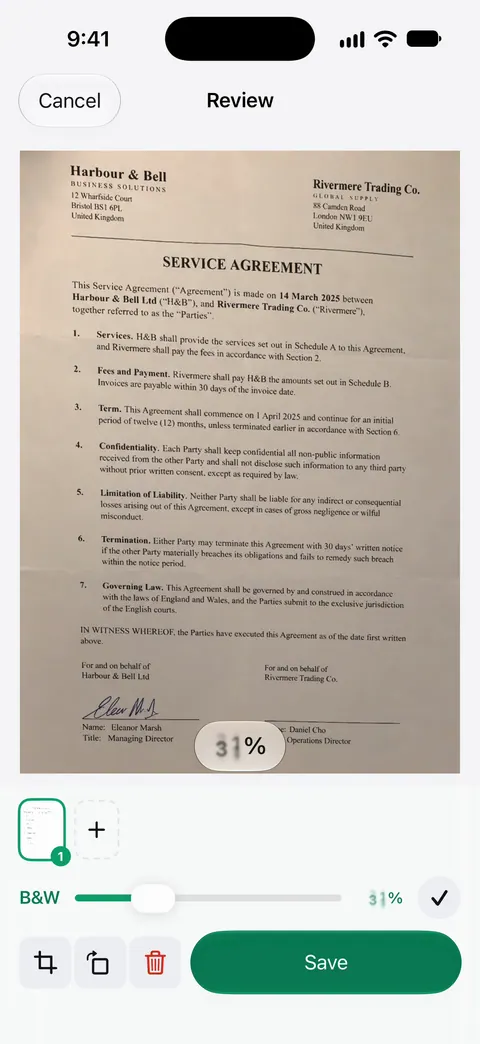
For marks that aren’t shadows, such as a coffee ring, there’s Clean Up, the smart eraser: Free accounts can use Clean Up, the smart eraser, on 3 documents a month.
What it doesn’t do: no filter can recover text that’s hidden under a shadow as dark as the print, and it can’t fix a fold that cuts through a line of text. Good light still matters most. Scanning and the filters themselves aren’t limited: Scanner One is free, with generous limits: scanning, clean PDFs and text search never stop.
When the built-in way is enough: if your shadows are light, Notes with a black-and-white filter handles them. If most of your scans happen at a desk at night under one lamp, automatic cleanup saves a lot of retakes. See Auto Clean and the filters and making a scan black and white.
Questions and answers
Why do my phone scans have a shadow in one corner?
Usually your own shadow: the light is above or behind you, and your head, hand or phone blocks part of it. Move so the light comes from the side or in front of you.
Should I use the flash to scan documents?
On matte paper, the flash can fill in shadows; Apple’s iPad guide even suggests it. On glossy paper or a laminated card it leaves a white glare spot, so turn it off there.
Can I remove a shadow after scanning?
A light shadow often disappears with a black-and-white filter, which turns light gray to white. A dark shadow across text can’t be fully removed without losing the text, so scanning again is quicker.
Why is there a dark line across my scan?
A fold or crease throws its own small shadow. Flatten the page under a heavy book for a few minutes, or press it flat at the edges while you scan.
Sources
What this page says about Scanner One was checked against the app on .
- iPhone User Guide (iOS 27), Scan text and documents in Notes — Flash and Filters before capture, and adjusting a captured page; read 2026-11-13
- iPhone User Guide (iOS 15), Scan text and documents in Notes — names the filter choices: color, grayscale, black-and-white or photo
- iPad User Guide (iPadOS 27), Scan documents with your iPad camera — Apple’s tip: on supported models, turn on the flash to remove shadows; read 2026-11-13
- iPhone User Guide (iOS 27), Scan text and documents in Preview — tap a thumbnail to crop, rotate or adjust the coloring; read 2026-11-13
- Scanner One on the App Store — the app’s own listing
Get Scanner One
Scanner One is free, with generous limits: scanning, clean PDFs and text search never stop.

Scanner OneScan, sign and ask anything
Scanner One is free, with generous limits: scanning, clean PDFs and text search never stop.