
Guide
Scan a large or long document with your phone
For a large page you only need to read, such as A3 or tabloid, scan it in one capture: put it on the floor or a big table, stand straight above it in even light, and let Notes, Files or Preview find the edges. For posters, blueprints and long receipts with small print, scan in overlapping sections, top to bottom or left to right, as pages of one PDF. If you need a full-size, print-ready copy, a print shop’s large-format scanner does it better.

First, decide what the copy is for
Large documents need a choice your phone can’t make for you:
- A copy to read on a screen, send or keep for reference. One capture of the whole sheet is usually fine, even if the fine print is small, because the reader can zoom.
- A copy where every detail must be readable, such as small print on a long receipt or the labels on a plan. Scan in sections so each part fills the frame.
- A copy to print at full size. A phone isn’t the tool. A large-format scanner at a print shop or library gives a flat, evenly lit, print-ready image.
A3, tabloid and other big pages: one capture
Pages up to about twice letter size scan well in one go.
- Clear a big table or a patch of floor with a plain, dark surface. A dark rug or a sheet of dark card works.
- Put the page down flat. Weigh the corners with something small if it curls, and keep the weights outside the edge of the paper.
- Light it evenly. A large sheet shows uneven light more than a small one: daylight from a window is best, with your own shadow off the page.
- Open Notes, Files or Preview and start Scan Documents.
- Stand or kneel straight above the page, high enough that the whole sheet fits with a little margin. The iPhone captures it when it finds the edges; the scanner corrects a small tilt for you.
- Zoom into the scan and check the smallest print. If you can’t read it, scan in sections too.
Posters, plans and maps: scan in sections
When the sheet is too big for one readable capture, cover it in a grid.
- Plan the grid. For a poster, 2 rows by 2 columns is often enough; for a large plan, maybe 3 by 3.
- Start a scan in Notes, Files or Preview and use manual capture. Automatic capture looks for the edges of a whole page and won’t find them on a section.
- Scan row by row, left to right, like reading. Overlap each section with the last by a few centimeters, so nothing falls between them.
- For each capture, drag the corners to the area you want, then tap Keep.
- Tap Done after the last section.
You get one PDF with each section as a page. The built-in scanners don’t stitch them into one image, so make the order obvious: name the file “Site plan, 3x3, row by row” or write it in the message. To fix the order or turn a page that came out sideways, open the PDF in Preview, show the thumbnails, and drag or rotate pages.
Posters on a wall can stay there. Stand straight in front, at the height of the section you’re scanning, and capture each part the same way.
Long receipts: top to bottom
Long receipts from pharmacies and supermarkets are narrow and curl. Folding them for one capture hides lines in the folds.
- Flatten the receipt by running it, print side up, over the edge of a table.
- Lay the top part flat on a dark surface and hold it at both ends of the part you’re scanning.
- Start a scan and capture the top section, with the corners dragged to that section.
- Slide the receipt up so the next section is in place, overlapping by a line or two, and capture again.
- Repeat to the end, then tap Done.
If you keep the paper too, a staff guide from California State University, San Bernardino, advises against accordion-folding long receipts: cut them into pieces and number them instead. More on receipts that stay readable is in scanning receipts.
Things that go wrong with big sheets
- Uneven light. One side bright, one side gray. Turn the sheet or move the light. See the best light for scanning.
- Folds. Old maps and plans keep their creases. Flatten them under heavy books overnight before you scan, if the paper allows.
- Glossy posters. Turn the flash off and move until the reflection of the ceiling light leaves the area you’re scanning.
- Too much in one PDF. A large color scan can be a big file. See scanning several pages into one PDF for checking size before you send.
Children’s paintings and drawings on big sheets have their own guide: digitizing kids’ artwork.
Where Scanner One helps, and where it doesn’t
Scanner One finds the edges of the page automatically and corrects the perspective. On a big sheet laid on a table or floor, that’s what gets you a square copy from a slight angle. The screenshot shows the corners snapped onto the edges of a record on a desk.
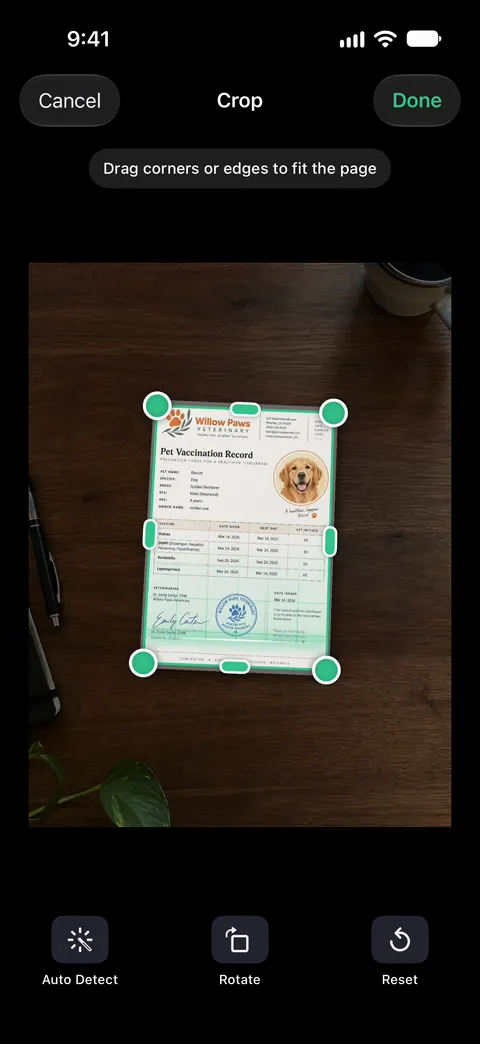
A scan can have many pages, and you can reorder them. So sections captured out of order can be put right. Share & Export saves a document as a PDF, Word, Excel, PowerPoint, JPG, PNG, a long image, plain text, Markdown, Rich Text, a web page or CSV. Text recognition runs on every page for everyone, free or Pro.
What it doesn’t do: it doesn’t stitch sections into one seamless image, and a phone camera is no substitute for a large-format scanner when you need a print-ready copy. Scanner One is free, with generous limits: scanning, clean PDFs and text search never stop.
When the built-in way is enough: for A3 pages and the occasional poster, Notes or Preview with a careful setup is fine. More guides are in Guides.
Questions and answers
Can I scan an A3 page with my iPhone?
Yes. A3 and tabloid pages usually fit in one capture with readable text. Lay the page flat, stand straight above it and let the scanner find the edges. Check that the smallest print is readable before you keep it.
How do I scan a receipt that’s too long for the screen?
Scan it in sections from top to bottom, overlapping each by a line or two, as pages of one PDF. Hold it flat at both ends of each section.
Can the iPhone stitch sections into one big image?
The document scanners in Notes, Files and Preview save each capture as its own page, not a stitched image. Name the file and note the order so the reader can follow.
When should I use a print shop instead?
When you need an exact, full-size copy to print, such as architectural plans, artwork for framing or an old map. A large-format scanner captures the whole sheet flat and evenly lit.
Sources
What this page says about Scanner One was checked against the app on .
- iPhone User Guide (iOS 27), Scan text and documents in Notes — automatic capture when the page boundaries are detected, manual capture and corners, additional pages; read 2026-11-13
- iPhone User Guide (iOS 27), Add, delete, rotate, move, or crop PDF pages in Preview — reordering, rotating and cropping pages; read 2026-11-13
- Apple Support, Continuity Camera on Mac (article 102332) — the scanner detects the edges and corrects skew; published 2026-10-26
- California State University, San Bernardino, Preparing Documents for Scanning: Tips and Techniques — long receipts: don’t fold them, cut them into pieces and number them; no date shown
- Scanner One on the App Store — the app’s own listing
Get Scanner One
Scanner One is free, with generous limits: scanning, clean PDFs and text search never stop.

Scanner OneScan, sign and ask anything
Scanner One is free, with generous limits: scanning, clean PDFs and text search never stop.